
 Contact Us
In this blog I show how to automatically create a motor model in Ansys Maxwell using automatically created script of a motor design from Ansys Motor-CAD. I use a Brushless Permanent Magnet motor as an example for the workflow.
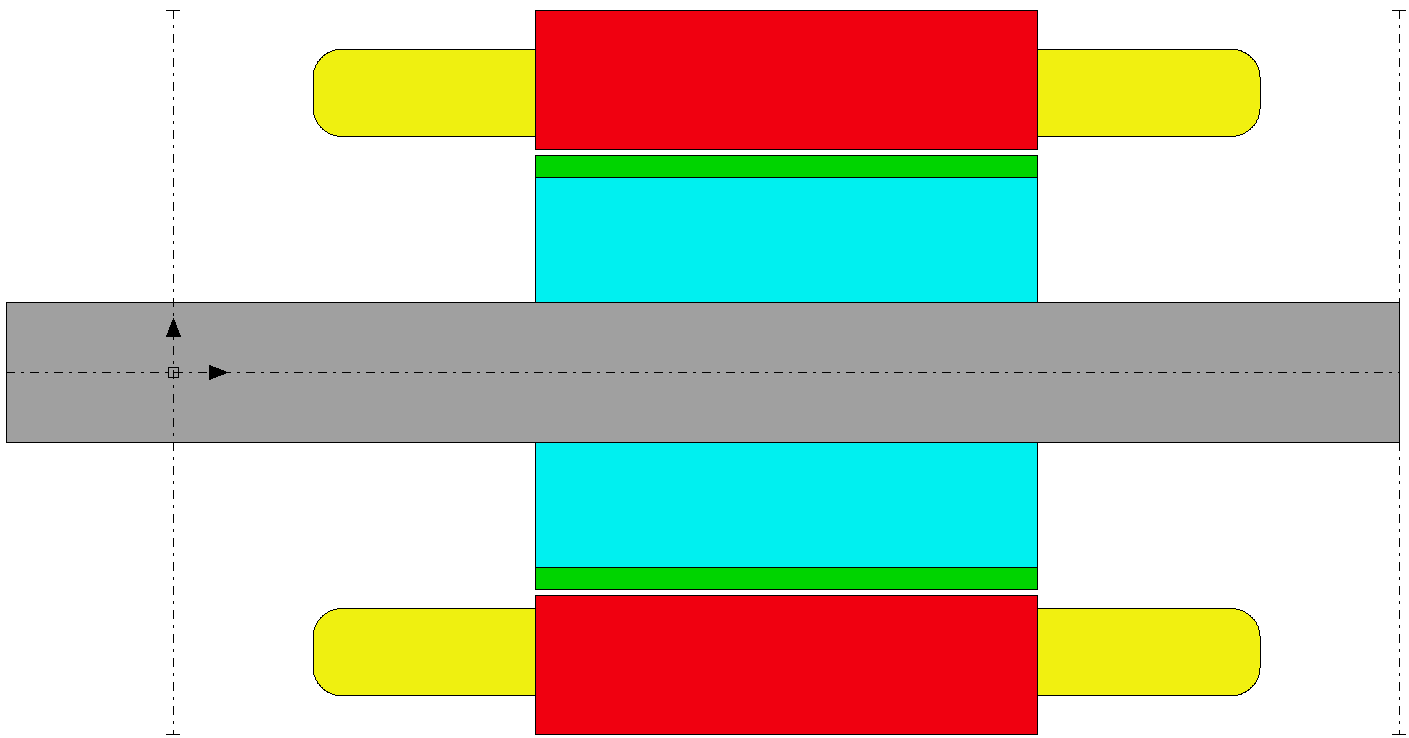
MOTOR-CAD
Export the Motor-CAD design as a script file to run in Maxwell.
Exporting the Motor-CAD Design
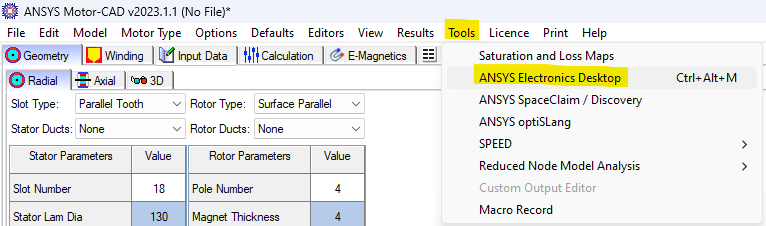
Select the “Tools” tab in the menu ribbon and choose “ANSYS Electronics Desktop”.
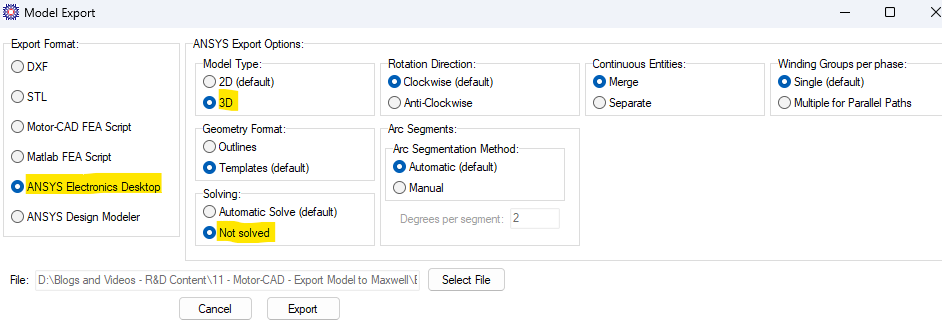
The default Model Export format is “ANSYS Electronics Desktop” and this format uses Visual Basic Scripting and saves the export as a .vbs file. You may choose other formats such as “Motor-CAD FEA Script” which exports the design as a Python Script File with file extension .py.
MAXWELL
Run the Motor-CAD design script file to automatically create the Maxwell model.
Running the Script
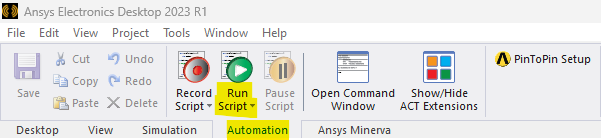
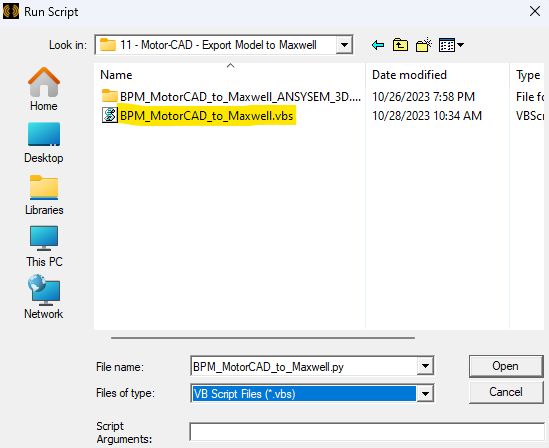
Open a new Ansys Maxwell Project and select the “Automation” tab in the menu ribbon and choose “Run Script”.
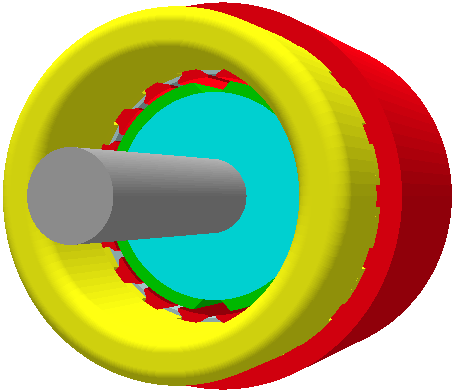
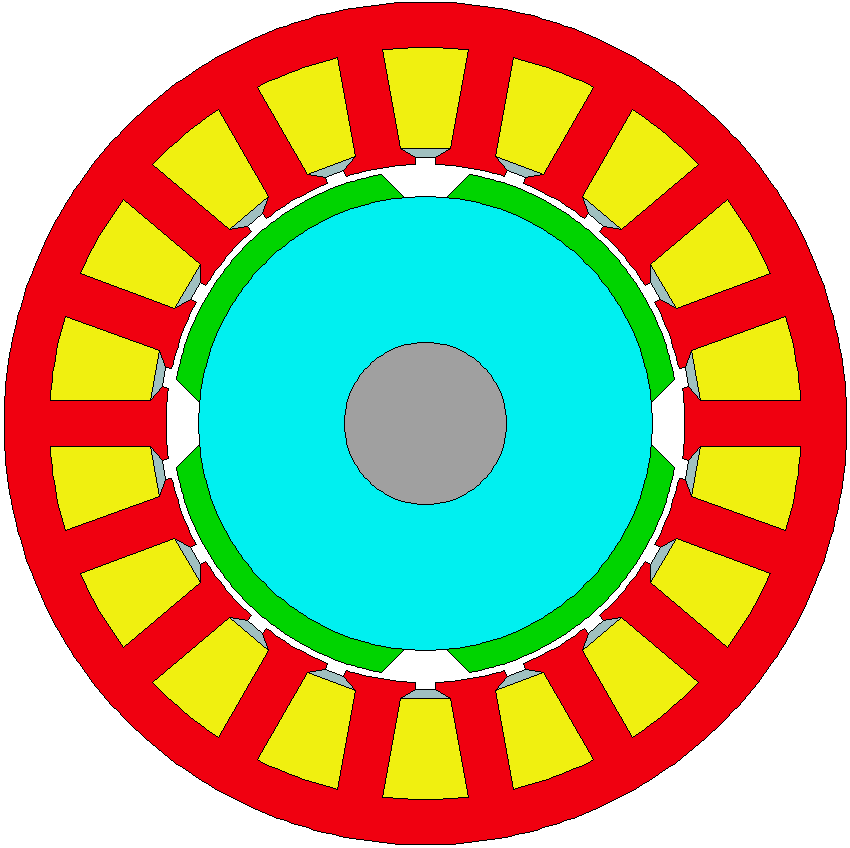
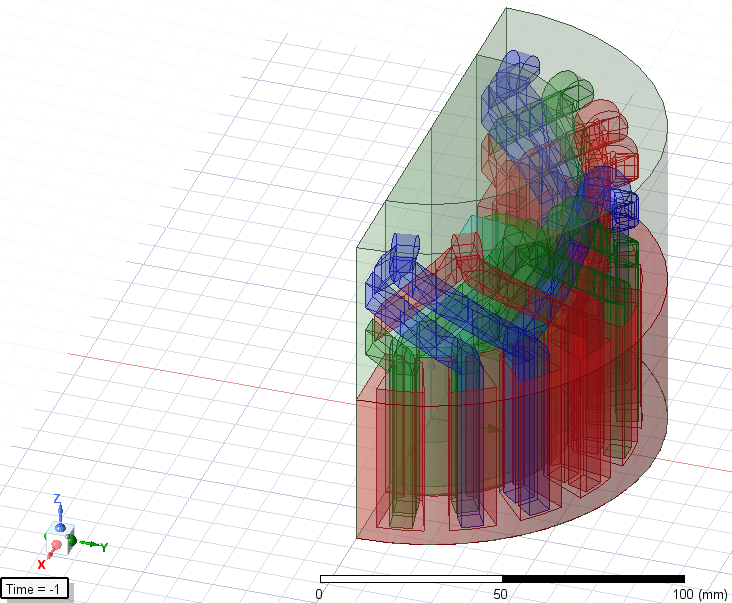
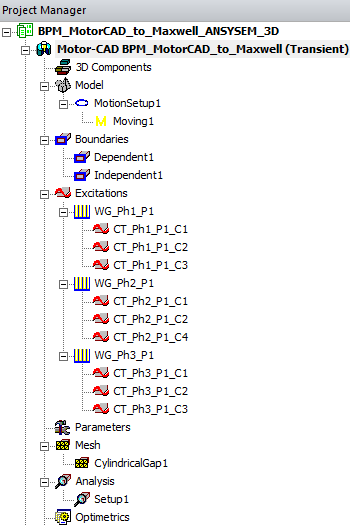
Running the script automatically creates the Maxwell model with the complete setup established including boundary conditions, winding excitation, material assignment, mesh operations, and analysis setup as shown below. The model was created with the symmetry settings applied in the Motor-CAD design.
Simulating the Model
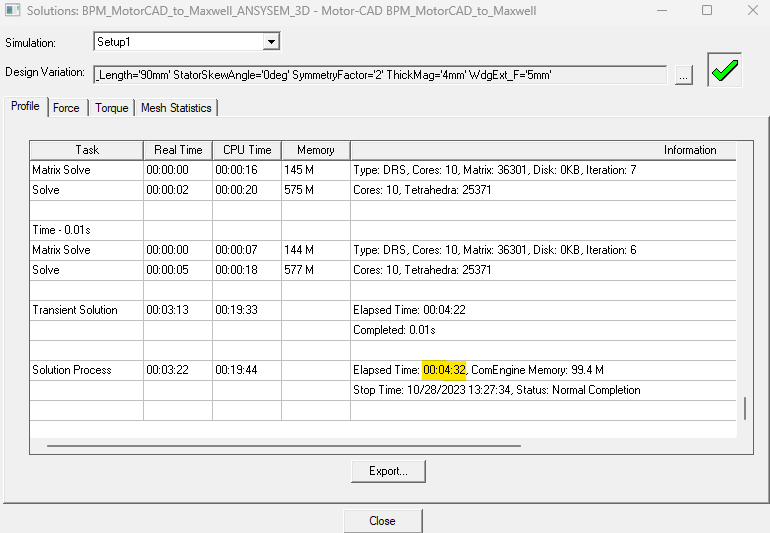
Right click on “Setup1” and choose “Analyze” to run the analysis. The simulation is completed in a few minutes.
Post Processing Results
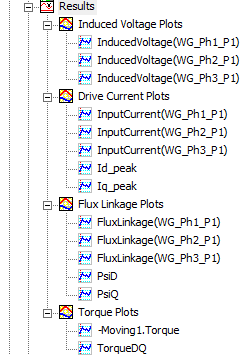
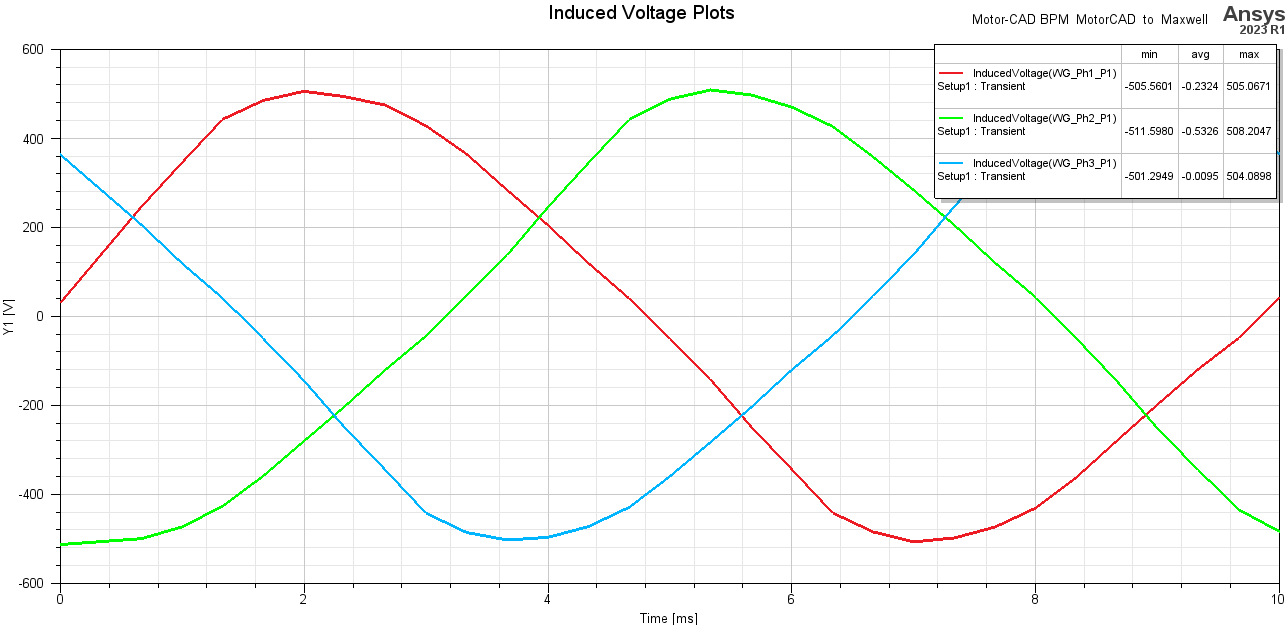
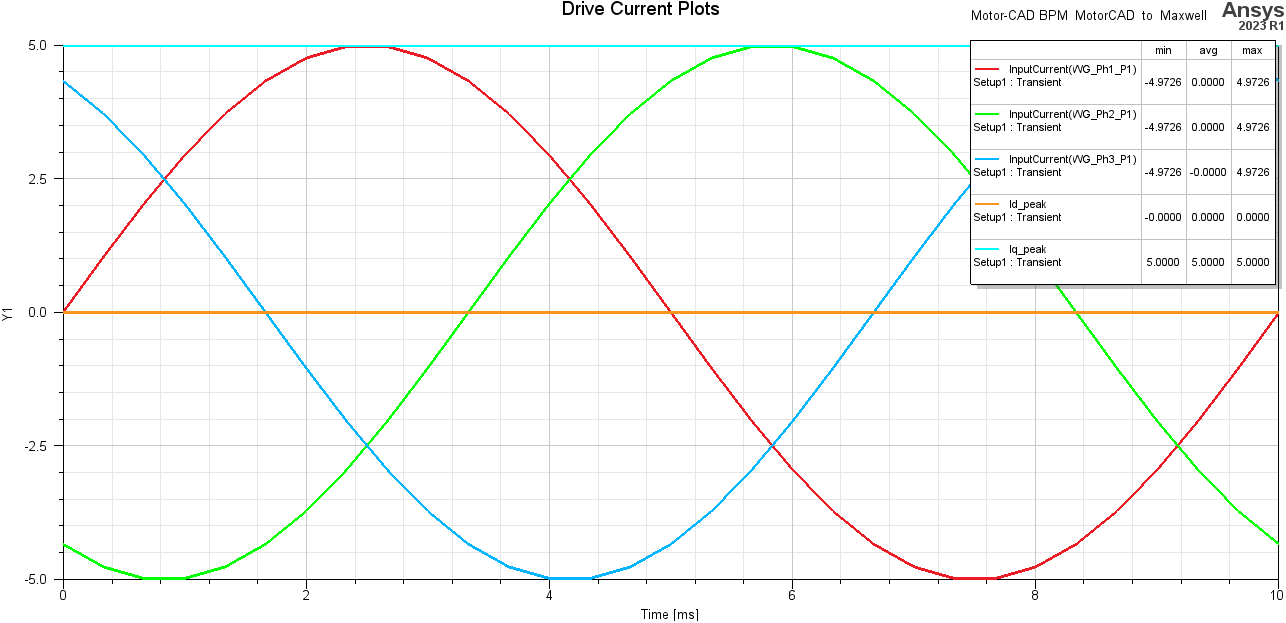
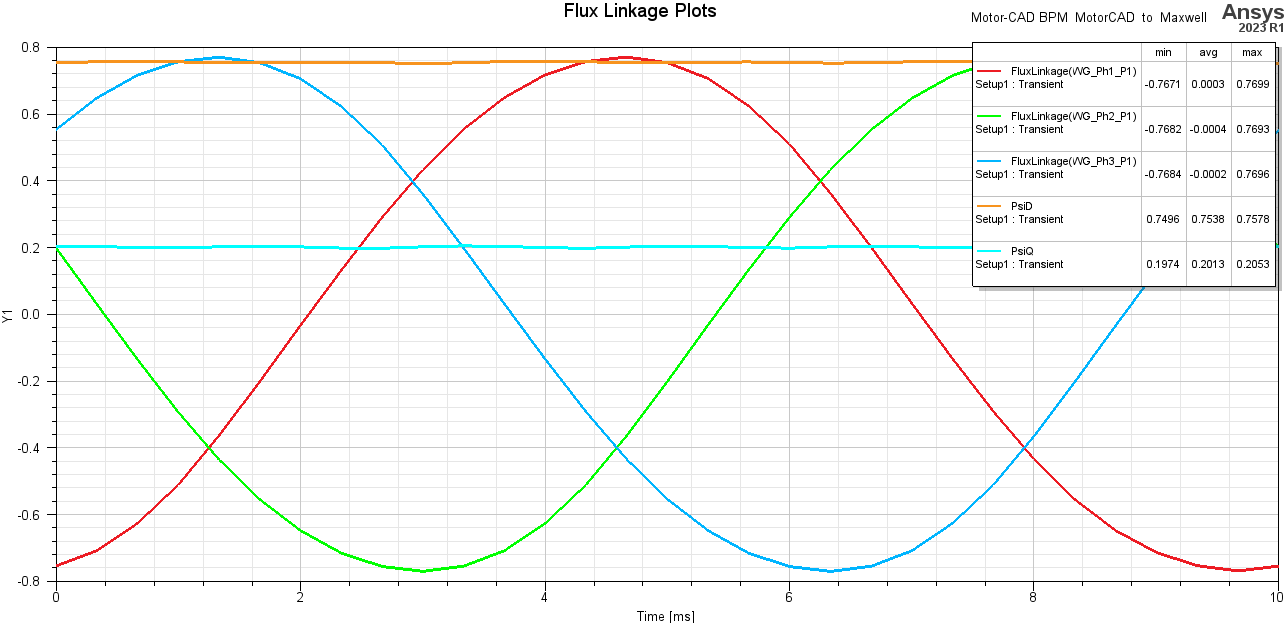
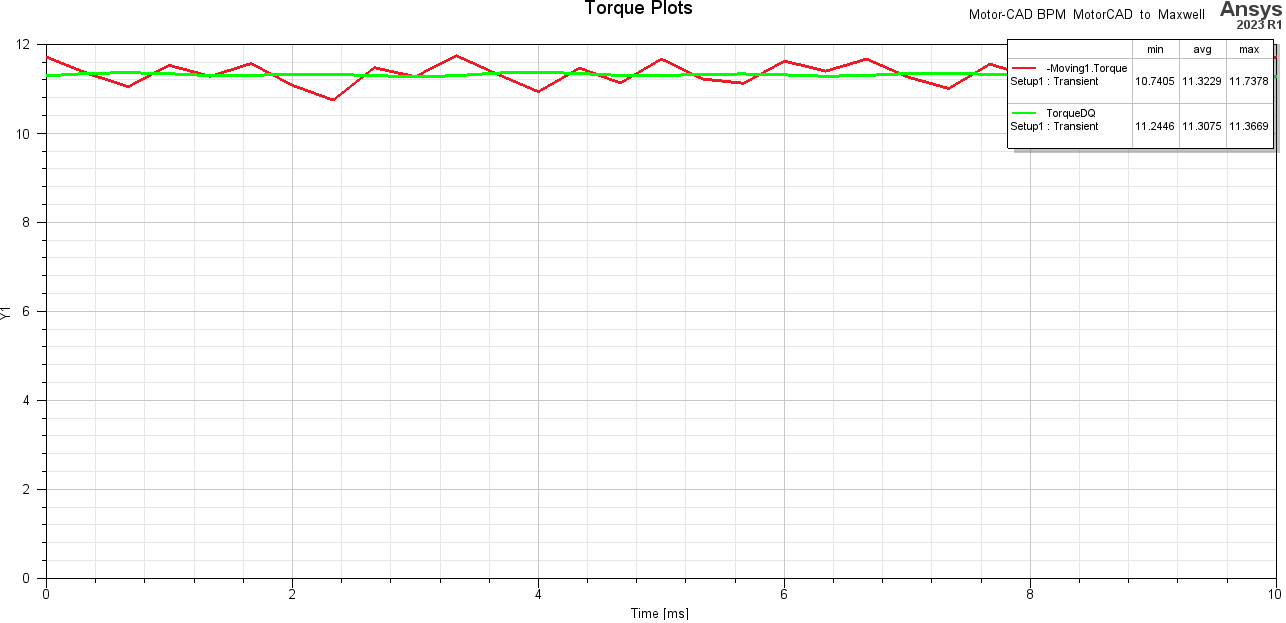
The scripts automatically created the post processing plots shown below. Additional plots can be created by right clicking “Results” and choosing a plot type, selecting a category, and choosing a parameter. The simulation ran for one cycle and the plots show the system is in steady state.