
 Contact Us
Introduction to Ansys ACT External Data Automation
Importing external data into Ansys Mechanical is a common requirement when simulation inputs originate outside of Mechanical itself. Whether the data comes from another Ansys product, a third-party CAE solver, experimental measurements, or an in-house analysis tool, the process of configuring External Data objects manually can quickly become repetitive and error-prone. File formatting, unit definitions, column mappings, and load configuration all introduce opportunities for mistakes, especially when the workflow must be repeated across multiple analyses.
This article demonstrates how to automate that process using Ansys ACT (Ansys Customization Toolkit). By the end, you’ll have a reusable scripting workflow that creates an External Data import, configures the required column mappings, and generates an Imported Convection load automatically. The major caveat to this approach is that external data import within mechanical is only supported in versions 2024R2 and later.
Why Automate External Data?
Ansys Mechanical supports importing a variety of external datasets, including delimited text files, fixed-width files, MAPDL, CGNS, and H5DPF data. These datasets can represent temperatures, heat transfer coefficients, pressures, displacements, or many other supported field quantities.
A typical spatial dataset (such as this one from Fluent) might resemble the following:
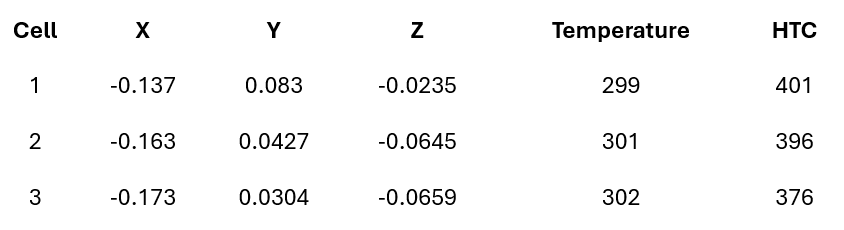
While importing this data manually through the Mechanical interface works well for occasional use, it becomes tedious when processing many datasets or embedding the workflow into a larger automation pipeline. Scripting eliminates repetitive setup while ensuring that units, file mappings, and import settings remain consistent.
Ansys ACT External Data Automation Workflow
The overall process is surprisingly straightforward:
- Prepare the external data file containing the spatial coordinates and field values.
- Create a DelimitedImportSettings object and configure how each column should be interpreted.
- Create an ExternalDataFile object and associate it with the import settings.
- Add the file to an ExternalDataFileCollection.
- Create an Imported External Data object within the desired analysis.
- Import the file collection.
- Create an Imported Convection load from the imported dataset.
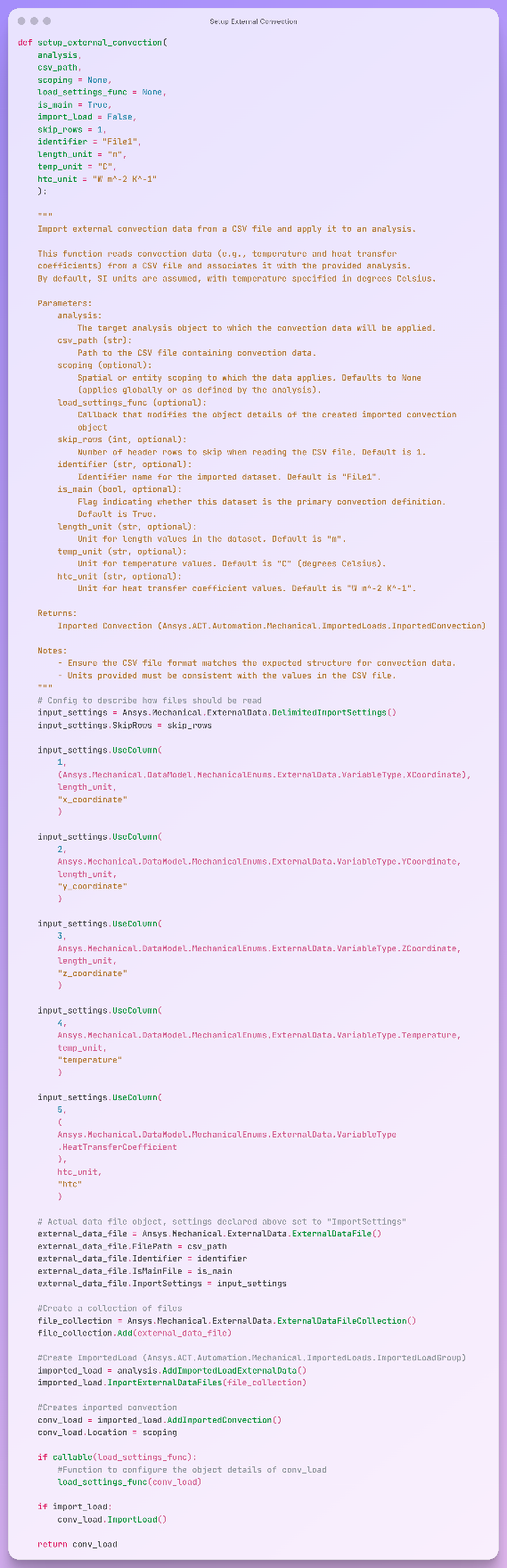
The most important step is configuring the column mappings. The UseColumn() method tells Mechanical exactly what each column represents. In this example, the script maps the file’s X, Y, and Z coordinates together with the temperature and heat transfer coefficient columns.
Once those mappings have been defined, Mechanical handles the remainder of the import automatically.
A Reusable Implementation
Rather than writing the setup logic every time, the example wraps the entire workflow inside a reusable helper function:
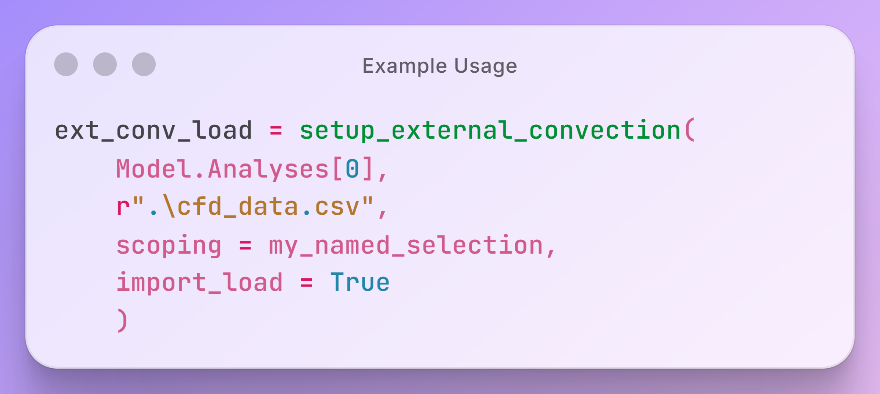
Internally, the function:
1) Create external data import settings which is how mechanical will process the data to be mapped.
- Creates and configures a DelimitedImportSettings object.
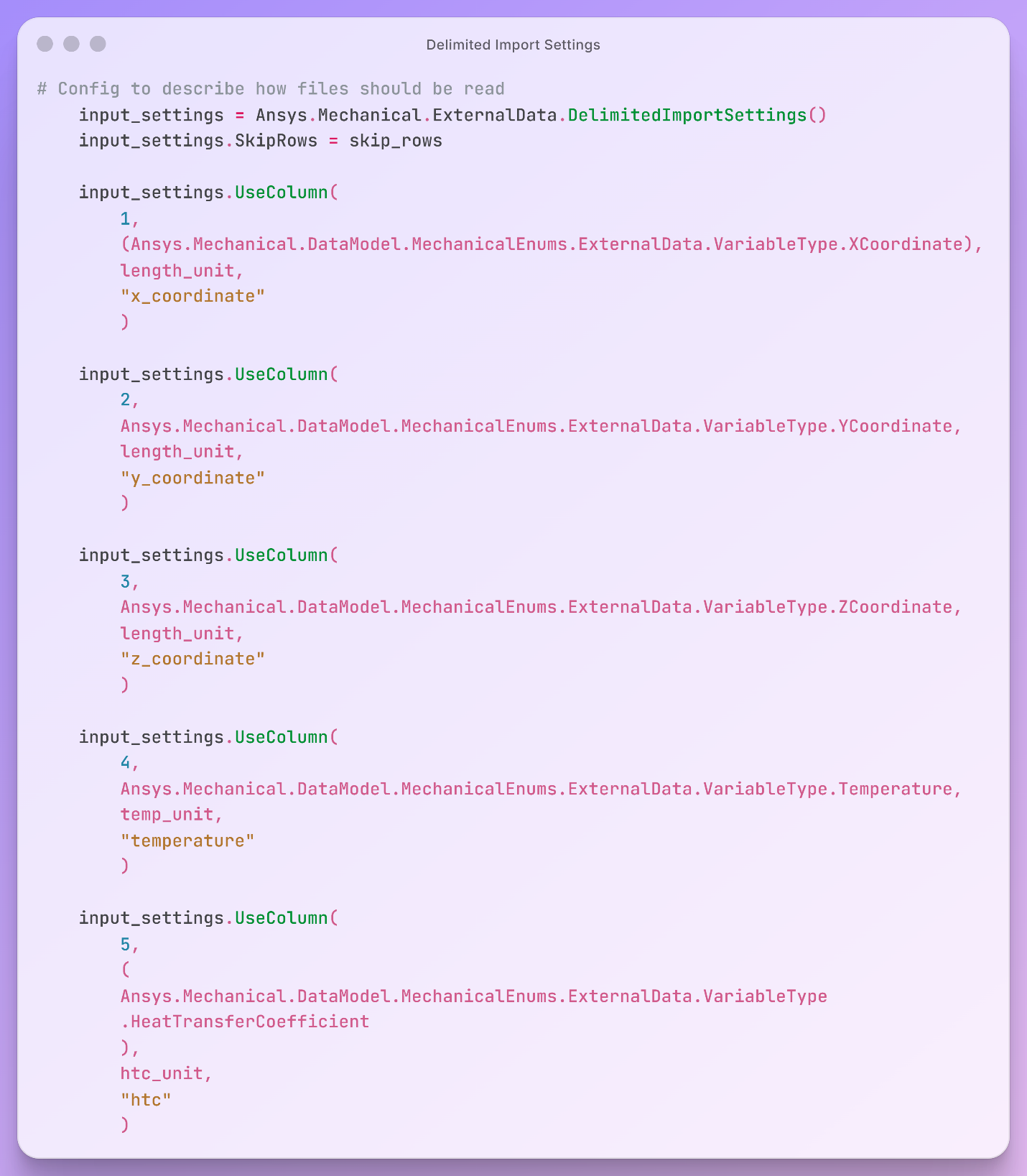
- Defines the column mappings using VariableType enumerations.
The resulting external data import settings should display as the following inside Mechanical:
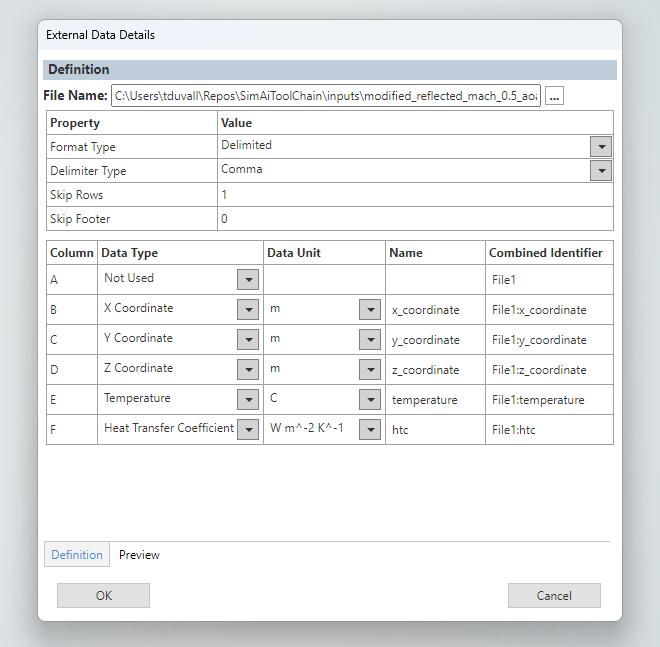
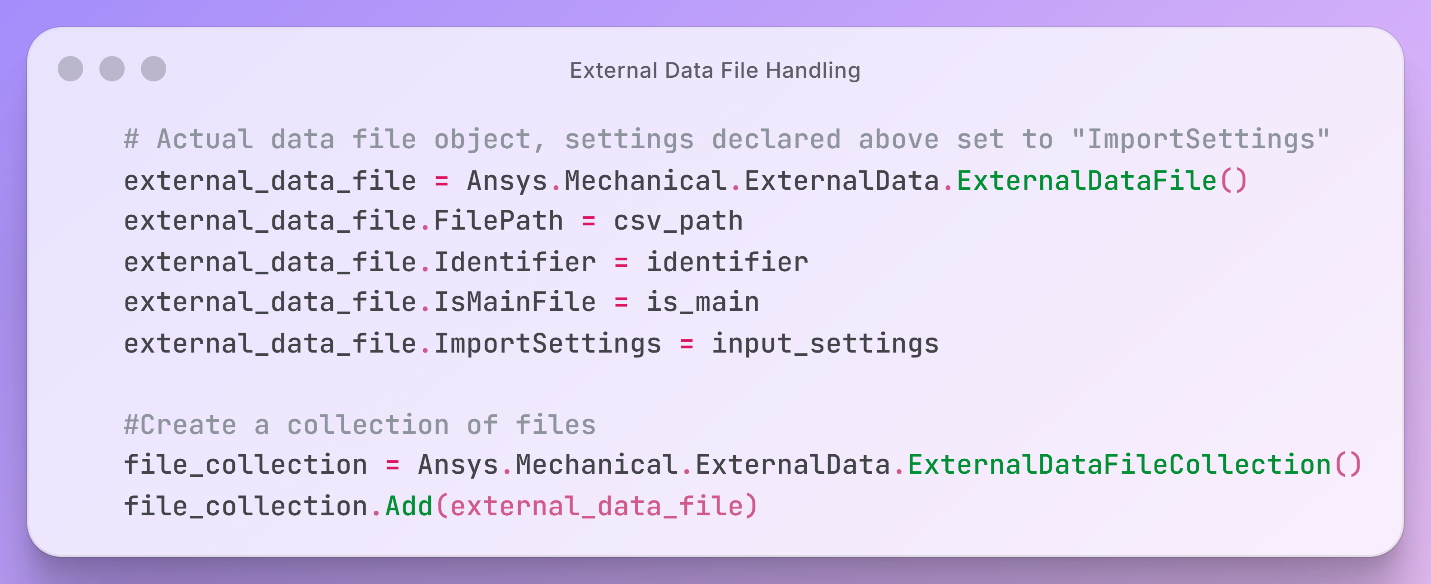
2) Create the data file object and specify the path and the import settings.
- Creates an ExternalDataFile.
- Adds the file to an ExternalDataFileCollection.
- Adds the file collection and optionally imports the dataset.
3) Add necessary tree objects to an analysis.
- Creates an Imported External Data Load Import object.
- Creates and optionally scopes an Imported Convection load.
- Optionally executes additional user-defined configuration through a callback.
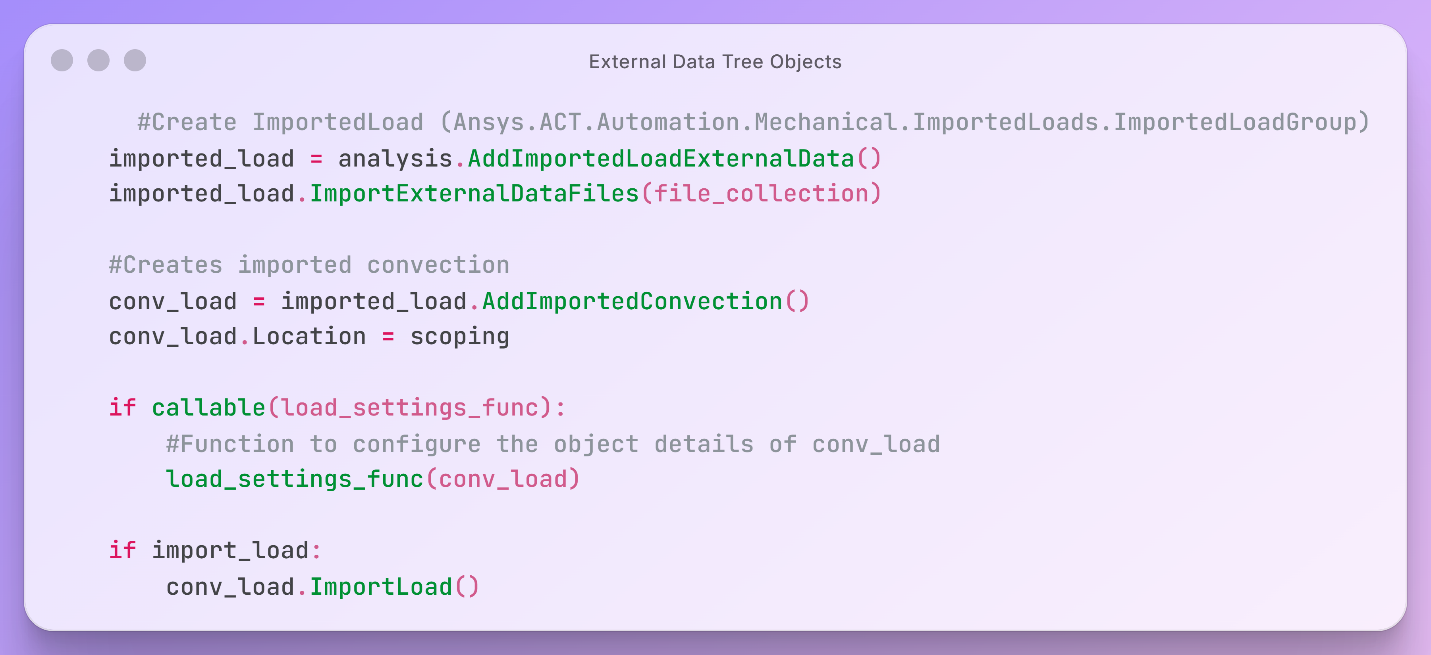
Step 3 is equivalent to the following actions through GUI:
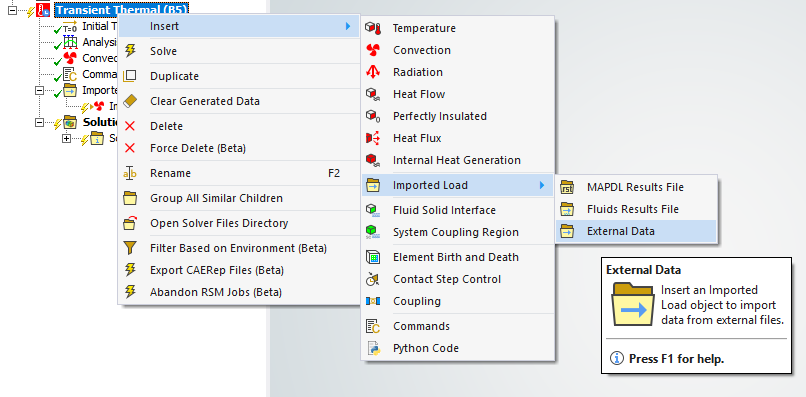
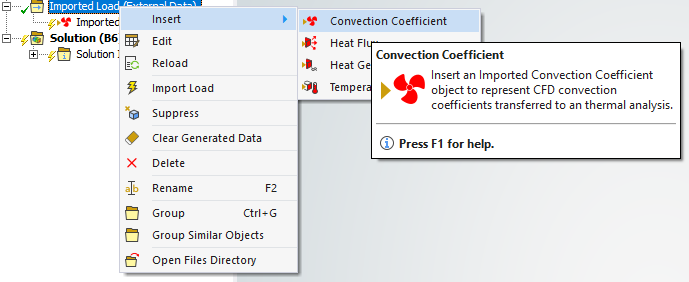
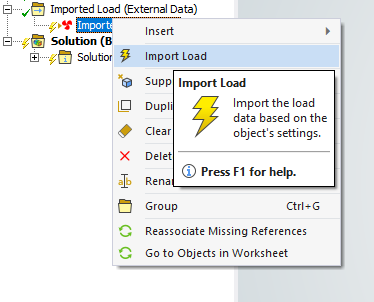
Encapsulating the process into a single function makes it much easier to reuse across ACT extensions, PyMechanical workflows, or larger automation libraries.
Extending the ACT External Data Automation Approach
Although this Ansys ACT automation focuses on importing convection data for a single time point, the same pattern applies to many other External Data workflows.
The primary difference is the choice of Ansys.Mechanical.DataModel.MechanicalEnums.ExternalData.VariableType values passed to UseColumn(). By selecting different enumeration values, the same infrastructure can be adapted for other supported imported loads and field quantities without fundamentally changing the workflow.
Future articles will explore more advanced scenarios, including importing transient datasets containing multiple time points and automatically populating more complex imported load definitions.
A Practical Starting Point for External Data Automation
One of the motivations for publishing this Ansys ACT External Data automation example is that, while searching for this functionality, I found several questions on the Ansys forums asking how to automate External Data imports no complete working examples. Hopefully this fills that gap and provides a practical starting point for anyone building automation workflows around Mechanical.
Below are links to the relevant Ansys documentation covering the External Data API, scripting interfaces, and imported load objects. Together with the example shown here, they provide a solid foundation for building more sophisticated data-driven simulation workflows.
Automate Repetitive Workflows in Ansys Mechanical
See how SimuTech can help you use ACT and scripting to streamline External Data imports, reduce manual setup, and build more consistent simulation workflows.

Tyler Duvall
Staff FEA Engineer, SimuTech Group
Tyler Duvall is a Staff Engineer at SimuTech Group specializing in structural analysis, thermo-mechanical fatigue, and engineering workflow automation. His experience includes nonlinear structural and transient thermal analysis, multiphysics simulation, and fatigue evaluation for components exposed to high temperatures and cyclic thermal loading. Tyler also develops custom Ansys extensions and automation tools for internal and external clients, including post-processing routines, user interface customizations, automated image and data exports, and scripting workflows using APDL and PyMAPDL. He holds a B.S. in Mechanical Engineering from the University of Rochester.