 Contact Us
Particle residence time is important in CFD applications involving mixing, separation, erosion, chemical reactions, and particle deposition. This tip shows how to export particle residence time data from the Ansys Fluent Discrete Phase Model and calculate an average across tracked particles.
Introduction to Ansys Fluent Particle Residence Time
Particle residence time is a key quantity in many CFD applications, including mixing, separation, erosion, chemical reactions, and particle deposition. While Ansys Fluent allows users to visualize particle residence time as a contour plot, providing valuable insight into its spatial distribution, it does not directly report the average residence time of all tracked particles across the entire computational domain. This global metric is often needed to compare design alternatives or quantify overall system performance, making its calculation a common challenge for DPM users.
Procedure
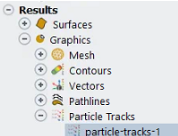
This is the usual procedure for capturing Ansys Fluent Particle Residence Time:
Under Results > Graphics > Particle Tracks
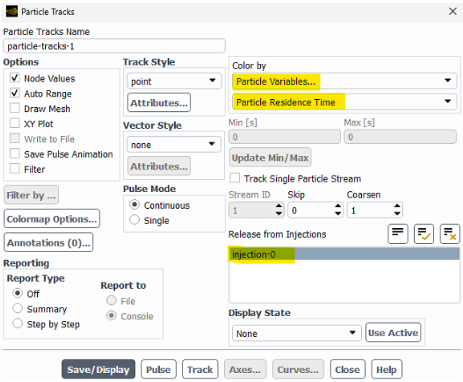
But this ‘Particle Tracks’ panel in Fluent does not provide the average residence time directly; you must extract and process the individual residence times to obtain the average value.
To obtain the average residence time, you need to extract the residence times for all tracked particles (or parcels) and then compute their mean. This can be done by exporting the particle track data (including residence time) and processing it externally (for example, Excel or Python) to calculate the average.
How to Export Ansys Fluent Particle Residence Time Data
You can export detailed particle track data, including individual residence times, from a steady-state Discrete Phase Model (DPM) simulation in Ansys Fluent for subsequent analysis and calculation of average residence time.
These are some instructions:
- Open the Particle History Data Export Dialog.
In Fluent, go to the File menu, select Export, then choose Particle History Data… to open the export dialog.
- Select File Type.
Choose the desired file type for export (CFD-Post, FieldView, EnSight, or Geometry). For most post-processing, CFD-Post or FieldView formats are suitable (For steady-state runs ‘Geometry export’ is unavailable.
- Choose Particle Injections.
Select the predefined injections from the selection list.
- Configure Exported Variables.
Click the ‘Exported Particle Variables…’ button. In the Reporting Variables dialog, select the variables you wish to export. Particle Residence Time is always exported, even if it does not appear in the selection list.
- Set Skip and Coarsen Values (Optional).
If you have a large number of tracks, use the Skip value to reduce the number of exported tracks, or the Coarsen value to reduce trajectory points (valid for steady-state trajectories only).
- Specify Output File Name.
Enter the desired file name and path in the Particle File Name text box, or use the Browse… button to select a location.
- Export the Data.
Click Write to export the particle history data. The file will contain detailed information for each particle, including residence time. Close the Dialog.
Need help with Ansys Fluent particle tracking or DPM analysis?
SimuTech Group’s Fluids engineers can help your team set up, troubleshoot, and interpret Ansys Fluent DPM simulations, including particle tracking, residence time, deposition, and other multiphase-flow applications. Connect with SimuTech Group to discuss your CFD project.

Germán Ibarra, MSc Energy Engineering
Senior Staff Engineer – Fluids, SimuTech Group
Germán Ibarra is a mechanical engineer with a master’s degree in Energy Engineering and more than 14 years of experience in research, development, and engineering analysis. At SimuTech Group, he supports simulation-driven workflows for complex engineering applications, including polymer processing, thermal-fluid behavior, and manufacturing process optimization. His background spans R&D, project development, and technical education, helping engineering teams apply numerical simulation to better understand product performance, reduce physical testing, and improve design decisions.