
 Contact Us
Why Automating Workbench Project Archiving Saves Time
Very often, when working on a simulation project, many Workbench project variants are created, forming a group of Workbench projects in a directory, which is often desired to be archived for posterity and safekeeping. However, if projects are not archived after completion while open in session, it becomes a repetitive task to open each (of possibly many) projects and archive them. Fortunately, archiving all or a subset of the projects in a directory is easily automated with PyWorkbench, part of the PyAnsys ecosystem.
At the time of this writing, we will use Python 3.12 with the latest version of PyAnsys for the 2025 R2 Ansys release. Note that Python 3.12 and PyAnsys need to be installed (see PyAnsys installation instructions), preferably in a virtual environment, and that this script should work with older versions of Ansys, i.e., 2024 R1, 2024 R2, and 2025 R1, but some validation may be required.
Example Scenario: Archiving Three Workbench Projects with Selective Results
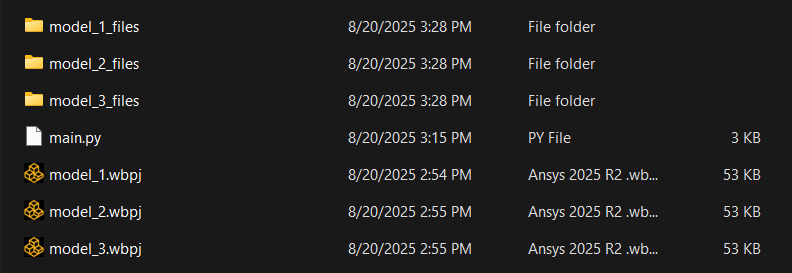
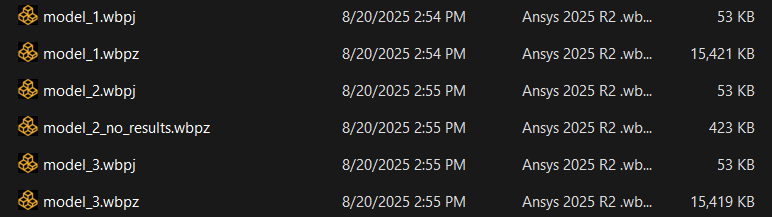
In this example, we have three Workbench 2025 R2 projects in a working directory: model_1.wbpj, model_2.wbpj, and model_3.wbpj. Our goal is to archive all three projects with results, except for model_2, which will be archived without results.
Python Script Walkthrough
To automate the process, we will place the Python script in the directory containing the Workbench projects and run it from there.
Module Imports
The following modules are required for this script:

Get List of all Workbench Projects in the Directory
The first task is to generate a list of Workbench projects to be archived. Here, we use the Python glob module to retrieve all of them and place them in a list. Alternatively, one could manually generate the list.

Create an Archives Dictionary to Specify Parameters for Each Archive
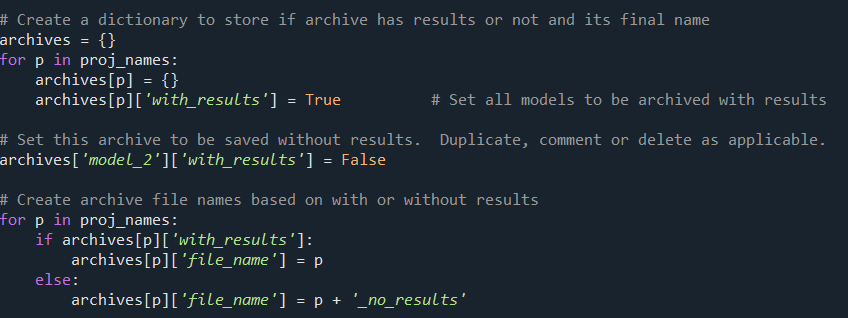
Next, we create a dictionary that, for each project, will describe whether to include results files and the corresponding archive project name. For archives with results, we use the same name as the project. For archives without results, we append the project names with “_no_results” to readily distinguish them.
PyWorkbench Control String
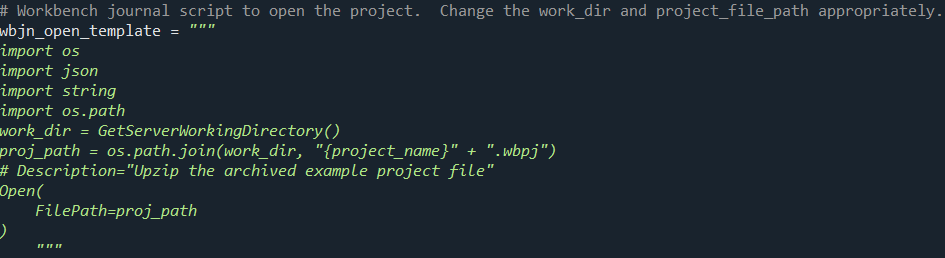
To interact with Workbench using PyWorkbench, an IronPython string is needed to control Workbench. The control string allows for string interpolation in much the same way as standard Python formatted strings. Thus, we programmatically substitute the Workbench project name into the `project_name` variable to direct Workbench to open the desired project.
Launch Workbench, Archive Each Project, and Close Workbench
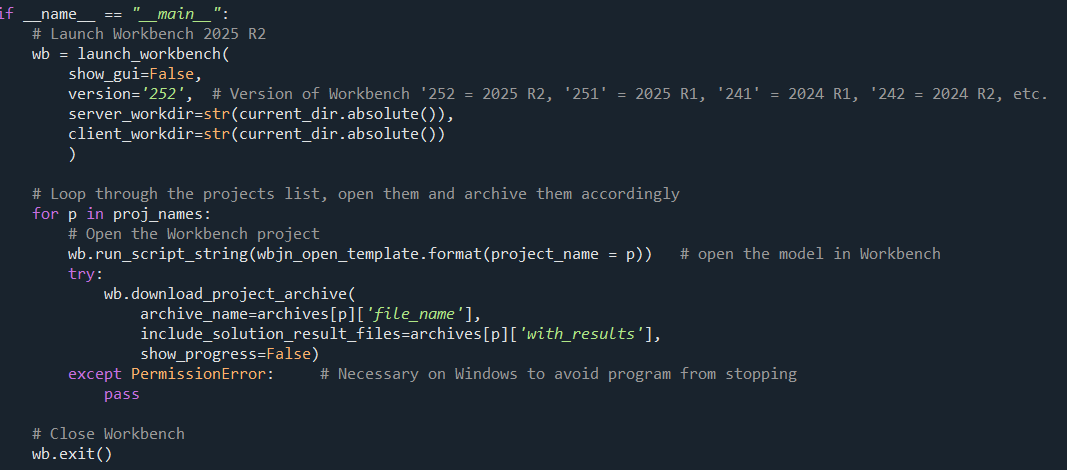
Now that all of the prework is complete, we run the main portion of the script. Firstly, we launch Workbench 2025 R2 without the GUI for speed purposes. Secondly, we loop through the Workbench project list and archive them according to the settings in the `archives` dictionary. Finally, we close Workbench gracefully.
End Result: Verifying the Archived Workbench Projects
After running the script, we see that the project archives have been successfully created.
Getting Started with PyAnsys Automation for Workbench
Automating repetitive tasks using PyAnsys is very straightforward. Very often, we can save much time and effort on future projects by investing time in generating PyAnsys scripts.
Want to automate more of your Ansys workflows with Python? SimuTech Group’s Ansys training and mentoring can help your team build scripting and automation skills. For more Python scripting techniques in Ansys Mechanical, see our post on using Python to search the model tree and generate scripts. Contact us to discuss your automation needs.