
 Contact Us
Valve CFD simulation in Ansys Discovery helps engineers evaluate pressure drop, flow rates, and resistance coefficients across different valve positions. This second part of the series focuses on Refine Mode, which uses the Fluent solver on a computational mesh for higher-fidelity results compared to Explore Mode
Why Accurate Valve CFD Simulation Matters
Valves are critical components in countless industries, from oil and gas to water management, pharmaceuticals, and beyond. Whether controlling fluid flow, regulating pressure, or ensuring safety, valve performance directly impacts system efficiency, safety, and costs. But designing high-performance valves isn’t as straightforward as it may seem. Engineers must consider numerous variables, such as pressure drop, flow rates, material properties, and operating conditions.
Common Challenges in Valve Design
Traditional approaches to valve design often rely on trial and error, involving physical prototypes and multiple iterations. While this process can yield accurate results, it’s time-consuming and expensive. Engineers are often left asking: Is there a faster, more cost-effective way to evaluate and optimize valve performance without sacrificing precision?
Using Ansys Discovery CFD Simulation for Valve Design
Simulation has revolutionized the way engineers approach complex design challenges. With tools like Ansys Discovery, it’s now possible to virtually analyze valve behavior under different operating conditions, test design iterations, and gain deep insights into performance—all before a single prototype is built. From quick, exploratory simulations in Explore Mode to high-fidelity analysis in Refine Mode, simulation empowers engineers to save time, reduce costs, and improve outcomes.
Refine Mode vs Explore Mode for Valve CFD Simulation
Valve simulation can be performed in both Explore and Refine modes. Explore mode allows a quick simulation to produce results in up to 2 minutes with a certain level of accuracy, enabling evaluation of design changes. This provides a relative comparison to determine which design requires a deeper level of computational analysis in Refine mode. Refine mode uses the Fluent solver to obtain results based on a meshed geometry. Then, each model will take much more time to provide results (10-20 min). This second blog explains this approach in detail.
Setup: Preparing the Valve Geometry for Refine Mode
The geometry is the same as the valve representation in Part I. Thus, the steps begin directly with the meshing process, as no modifications are needed for this demo. However, changes can be applied at any time if required.
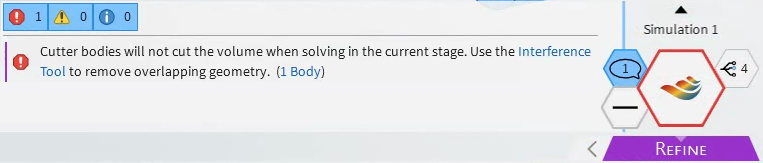
It is important to mention that the ‘Cutting Bodies’ tool is not available in Refine Mode. When you switch to Refine Mode, you will see an error message if any of the stem/disc positions are enabled. To continue with the simulation, the user will need to subtract the volumes as usual using the 1) Combine tool. Following the steps, select 2) the main volume, then 3) the body to be subtracted, and 4) the remaining common body.
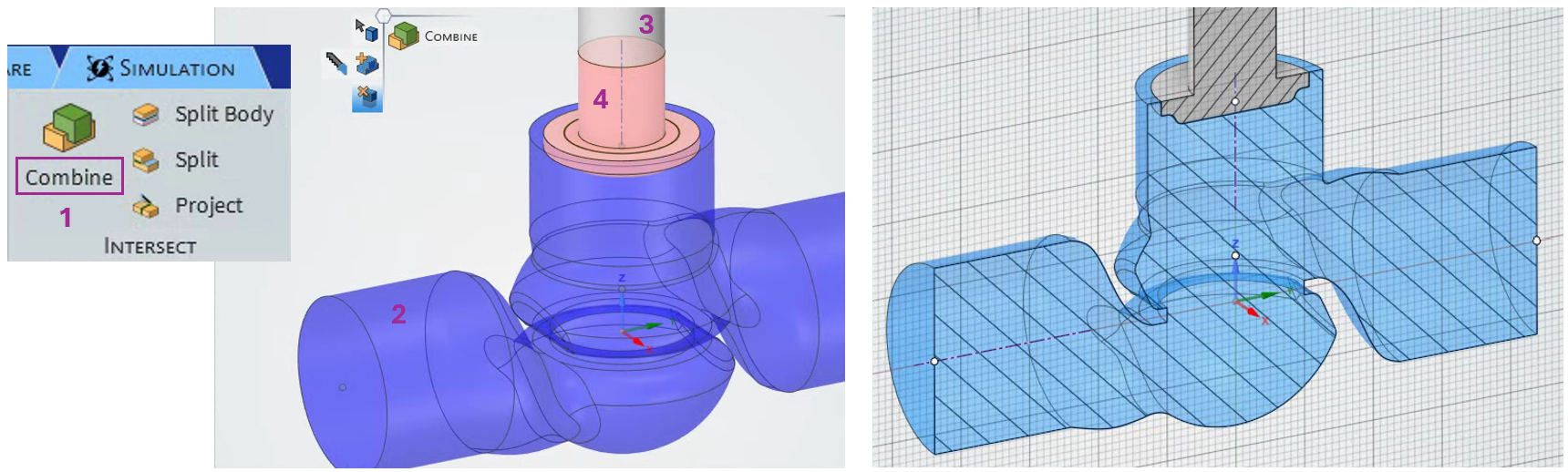
This means that three additional fluid domains must be created, or the file must be copied and the fluid domain modified accordingly. Nonetheless, it is possible to continue using the Parametric table. This means that by selecting the ‘Update All’ option, the user can run a complete set of simulations for a given Fidelity level. Recall that, in Refine mode, which uses a computational mesh, the simulation time will increase compared with Explore Mode.
Meshing Controls in Ansys Discovery Refine Mode
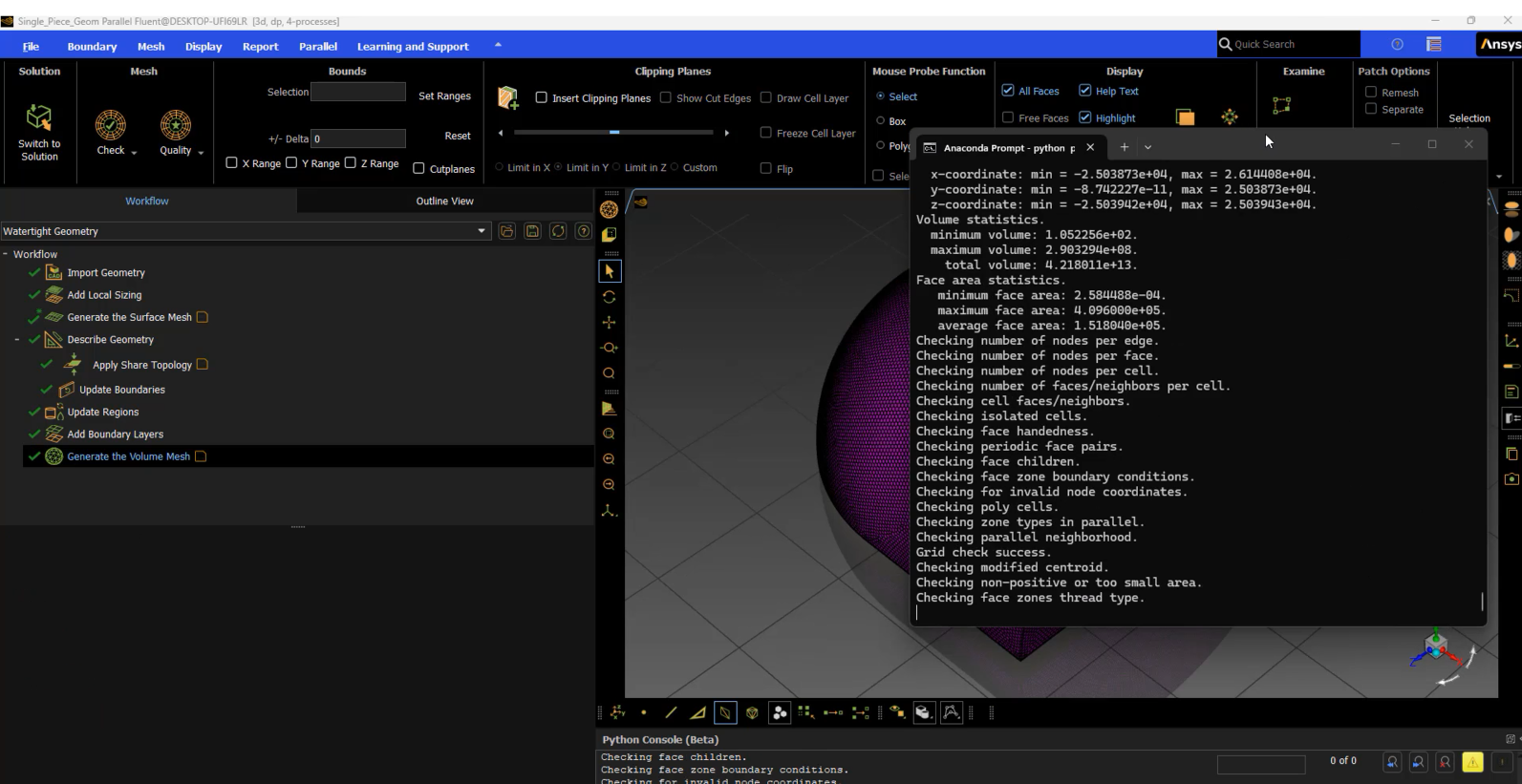
Refine mode allows solving the CFD model based on computational meshes. Global and local controls are available to create the mesh:
1) The Fidelity bar can be used in the Explore Mode to provide a general refinement.
2) Under the ‘Simulation Tab’ > Fidelity, the user can select Global or Local buttons. In this Demo, a global control was applied.
3) The default option is ‘Determine sizing automatically’, but the selected approach was ‘Curvature and proximity’ as it allows a good level of refinement, including the number of inflation layers.
4) Finally, the mesh is created by clicking on the icon shown.
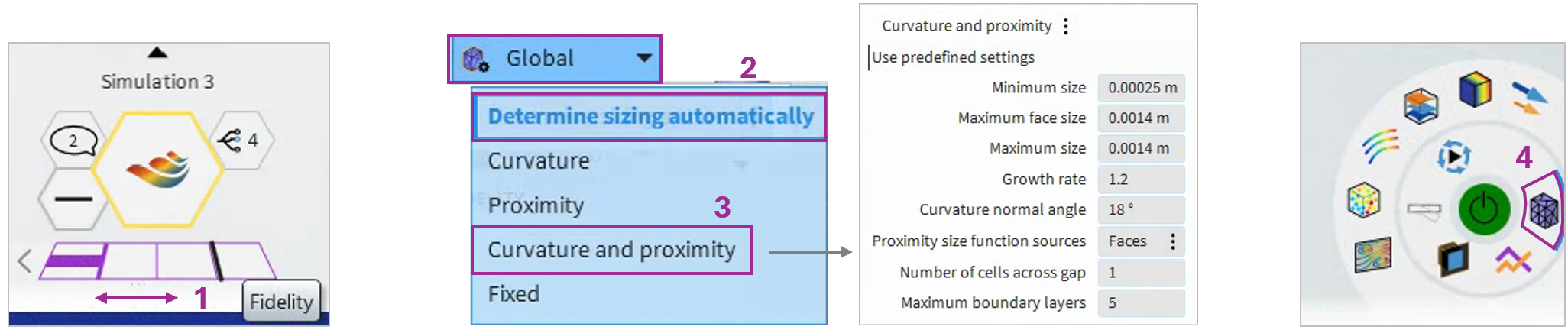
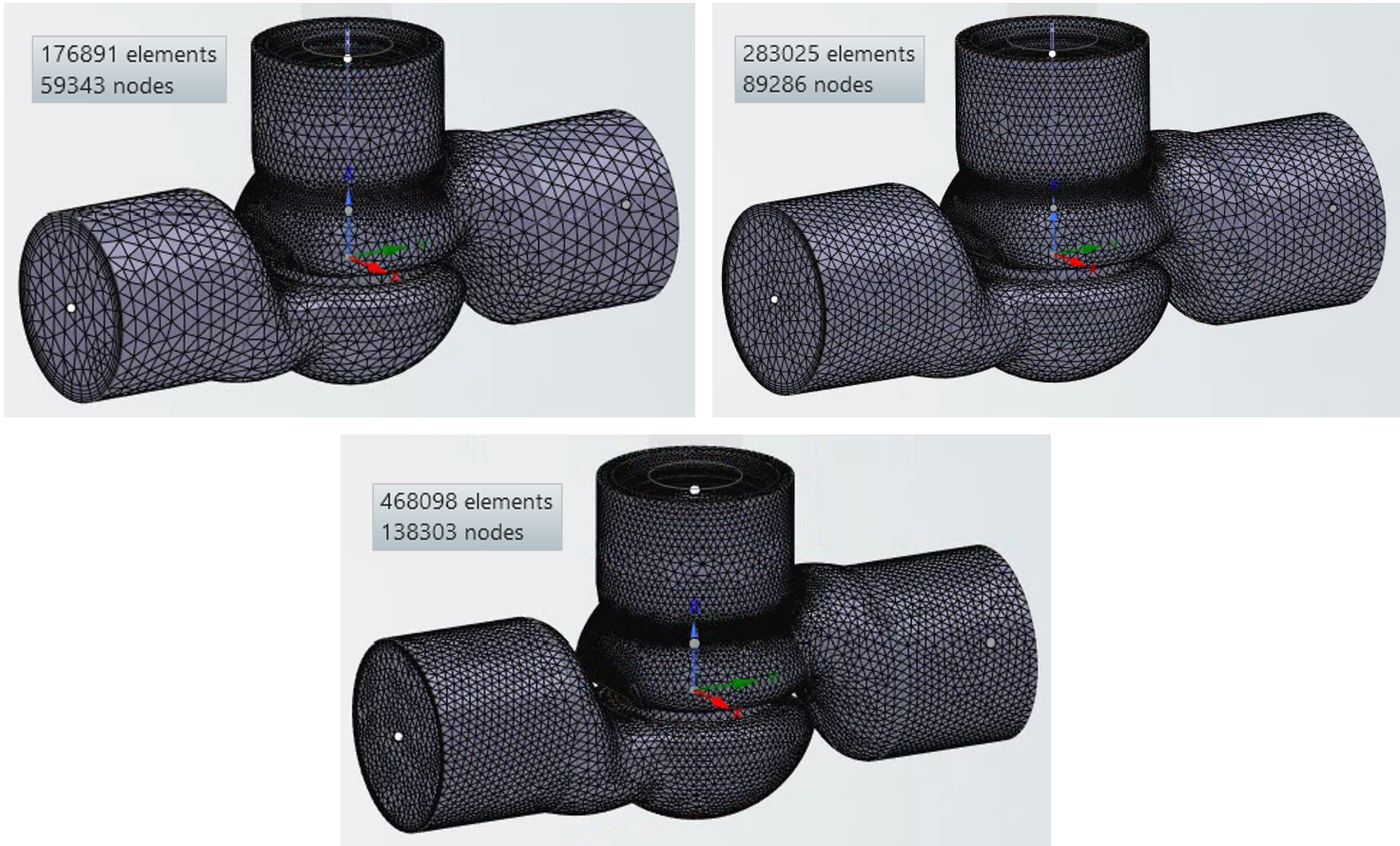
Three meshes were created for this demo to perform the convergence analysis. The first goal is to determine the Pressure drop vs flow rate curve and compare it with that obtained in the Explore mode. Once the user selects the meshing method, the mesh can be generated using the icon shown in the bottom right corner of the screen, 4), which is shown in the picture above. More simulation tools can be configured in the ‘Simulation Tab’ > Physics > ‘Simulation Options’.
Results: Comparing Refine Mode and Explore Mode Valve CFD Simulation
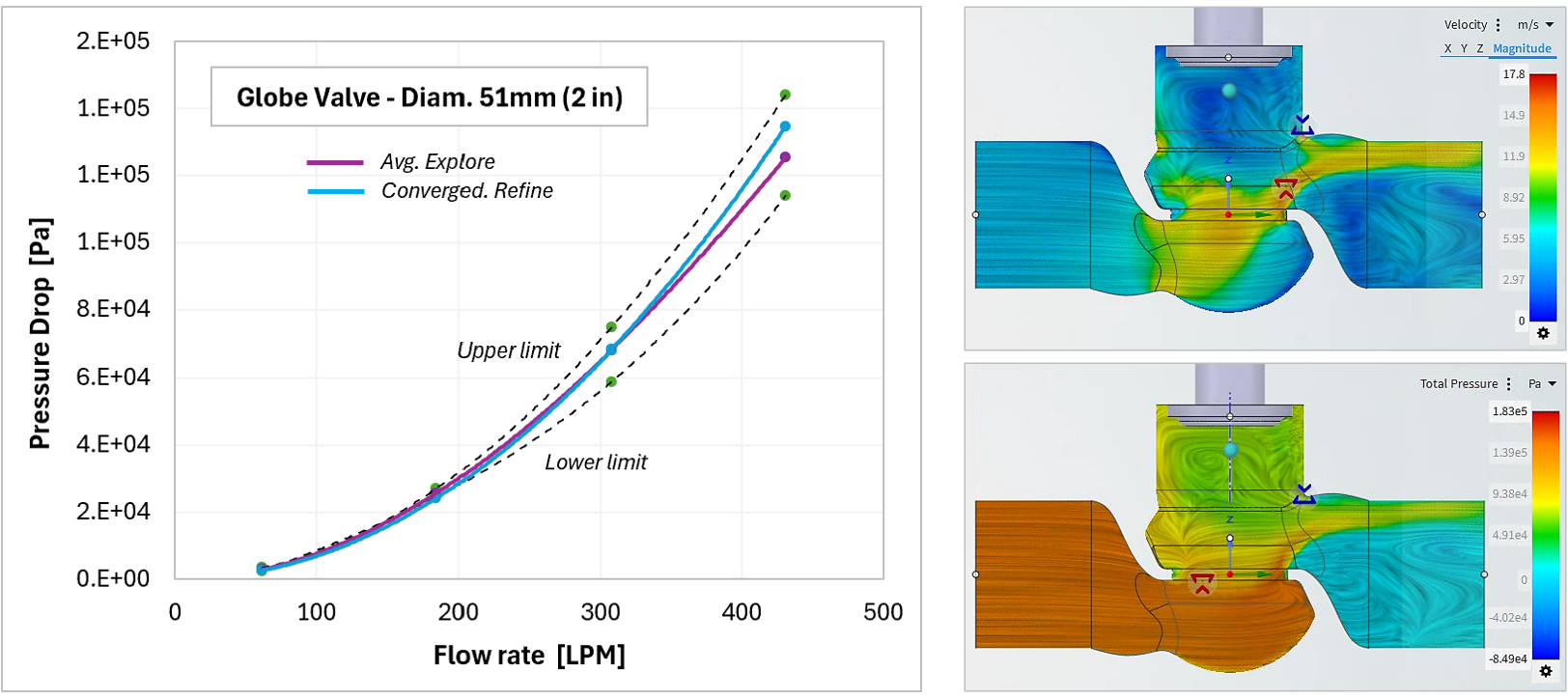
For comparison, the curve of the converged solution (Line 1) is plotted on the same graph as the curves obtained in Explore mode.
In Part I, several models were solved for different fidelity levels and for each inlet velocity (later used to calculate the corresponding flow rate). The graph shows that the converged solution in Refine Mode is similar to the line built from the average of the simulations for each inlet velocity (Line 2). For flow rates smaller than 307 LPM, the pressure drop from Line 1 is slightly smaller than that predicted by Line 2. However, for higher flow rates, the opposite occurs.
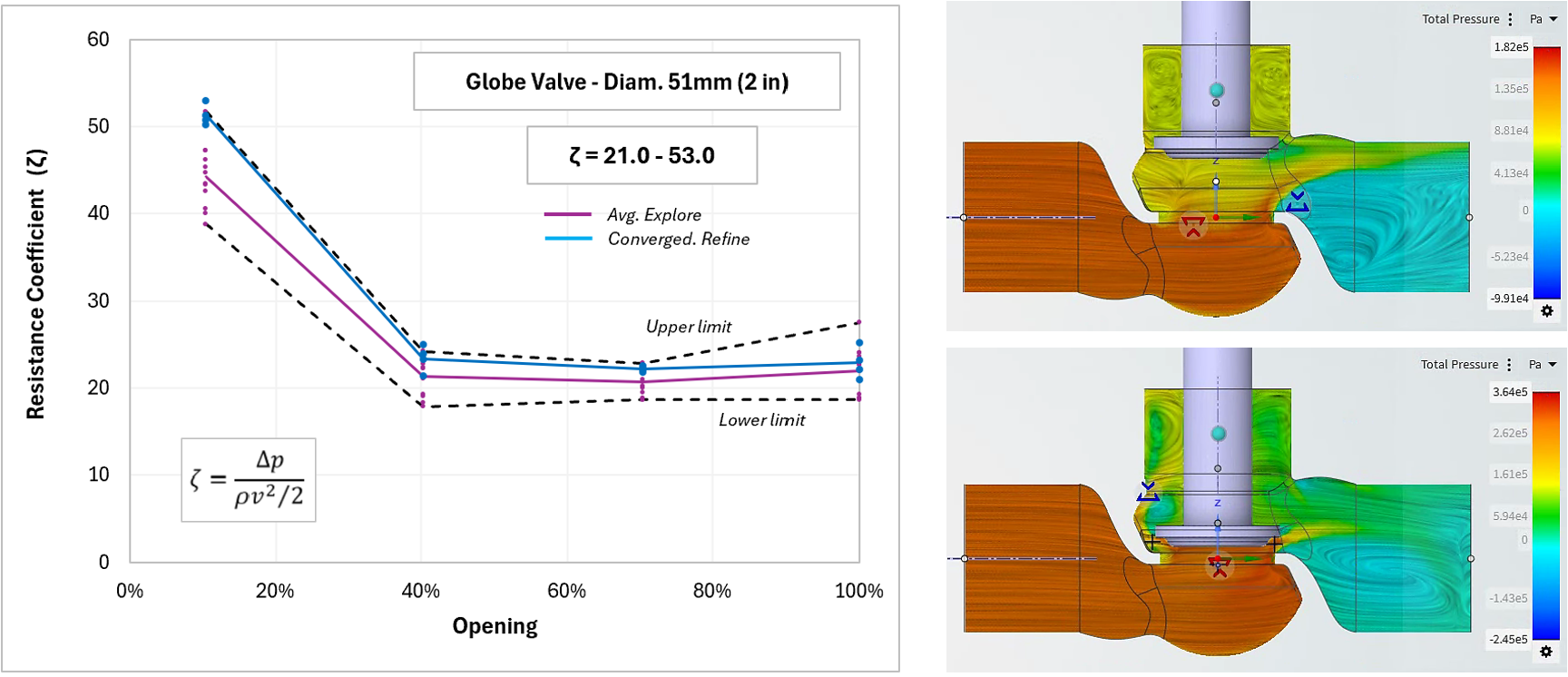
Finally, the procedure is repeated for the remaining stem/disc positions, involving mesh creation, updating the parameterization table, and obtaining results to obtain the final curve: resistance coefficient vs. valve opening. Here, the converged solution is close to the upper limit predicted by the Explore mode, as the fidelity is the highest; however, recall that in the Explore mode, the user does not have control of the mesh. To summarize, it is always better to run a detailed simulation, but the exploration provides a suitable range.
Running a valve CFD simulation or comparing Explore and Refine Mode results in Discovery? SimuTech Group’s CFD consulting engineers work with Ansys Discovery, Fluent, and the full fluid simulation suite. For more on Discovery CFD workflows, see our article on battery cold plate design exploration using Ansys Discovery CFD. Learn more about Ansys Discovery or contact us to discuss your project.