 Contact Us
Introduction to 2D Airfoil CFD
Transonic airfoil analysis can be especially challenging because localized supersonic flow, shock waves, adverse pressure gradients and boundary-layer separation can all develop over a relatively small range of operating conditions. CFD provides a practical way to evaluate those effects and understand how geometry and angle of attack influence aerodynamic performance.
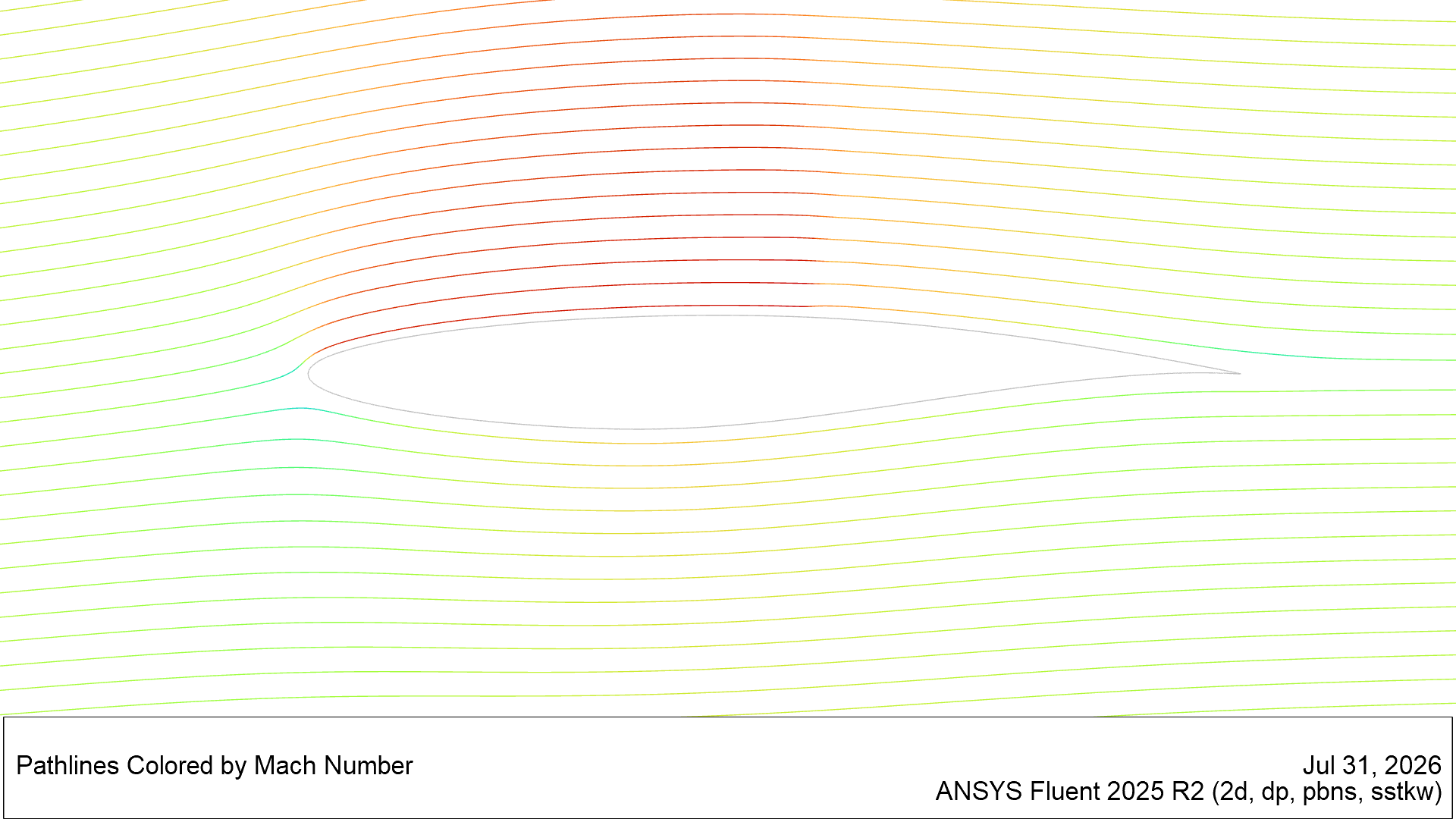
In this example, Ansys Discovery and Ansys Fluent are used to prepare, mesh and solve a 2D RAE 2822 airfoil case at Mach 0.73, a Reynolds number of 6.5 million and an angle of attack of 2.79 degrees.
Challenges of Airfoil Design
Designing a 2D transonic airfoil presents several aerodynamic challenges that can be investigated effectively using computational fluid dynamics (CFD). As airflow approaches transonic conditions, localized regions of supersonic flow can form over the airfoil surface, followed by shock waves that produce rapid pressure changes. These shock waves often increase drag, reduce lift efficiency, and may trigger boundary layer separation. Additional CFD-evaluable concerns include shock-induced flow oscillations, adverse pressure gradients, wake formation, and sensitivity to angle of attack. Engineers must also consider how small geometric changes influence pressure distribution and aerodynamic stability, especially when operating near the critical Mach number where transonic effects become dominant.
Engineering Solutions for Airfoil Design
Typical engineering solutions for transonic airfoil challenges focus on controlling shock strength and maintaining attached flow over the airfoil surface. Designers often refine the airfoil camber, thickness distribution, leading-edge radius, and trailing-edge geometry to reduce wave drag and improve lift-to-drag ratio. Supercritical airfoil concepts are commonly used because they flatten the upper surface pressure distribution and weaken shock formation. Engineers may also optimize the pressure recovery region to delay flow separation and improve stability at varying operating conditions. Additional strategies include adjusting operating angle of attack, evaluating Reynolds number effects, and tailoring the geometry for specific cruise Mach numbers to improve aerodynamic efficiency and performance margins.
2D Airfoil CFD Design with Ansys Fluent
Ansys Fluent can be used with a 2-dimensional mesh to evaluate these engineering solutions efficiently during the airfoil design process. A structured or hybrid 2D mesh allows engineers to resolve boundary layer behavior, shock-wave location, and pressure gradients while minimizing computational cost compared to full 3D simulations. Fluent enables analysis of Mach contours, pressure coefficients, skin-friction distributions, turbulence behavior, and lift and drag forces across multiple operating conditions. Parametric studies can be performed to compare alternative airfoil geometries, mesh densities, turbulence models, and flow conditions. Because transonic flows are highly sensitive to geometry changes, CFD simulations in Fluent provide valuable insight for optimizing aerodynamic performance before wind tunnel testing or prototype manufacturing.
Simulation Approach Using Ansys CFD Tools
The simulation approach in this 2D airfoil article includes geometry generation, meshing, and case setup. The simulation is applied to the RAE 2822 airfoil at a free-stream Mach number of 0.73 and Reynolds number of 6.5E6. The angle of attack is 2.79 degrees. The angle of attack is corrected from a value of 3.19 degrees used in physical testing.1
Geometry Preparation Using Ansys Discovery
Geometry for our 2D airfoil CFD example is based on coordinate points from text files. These geometry points are available from NASA. Ten steps are given for preparing the geometry.
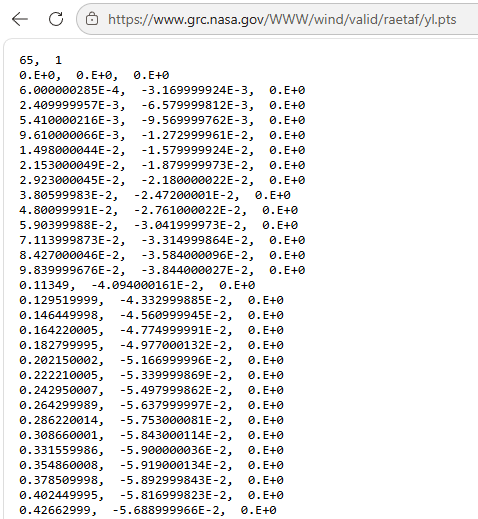
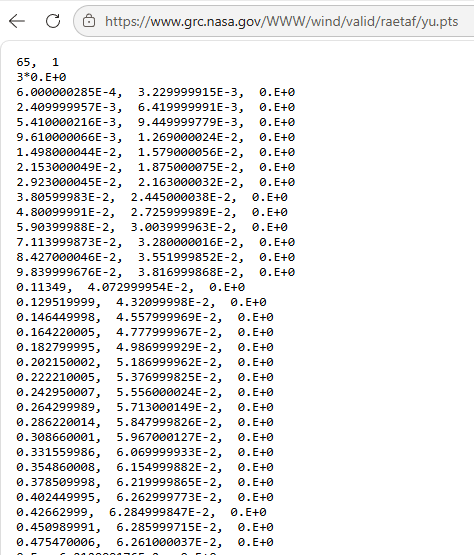
Step 2: Import y1.pts and yu.pts into spreadsheet.
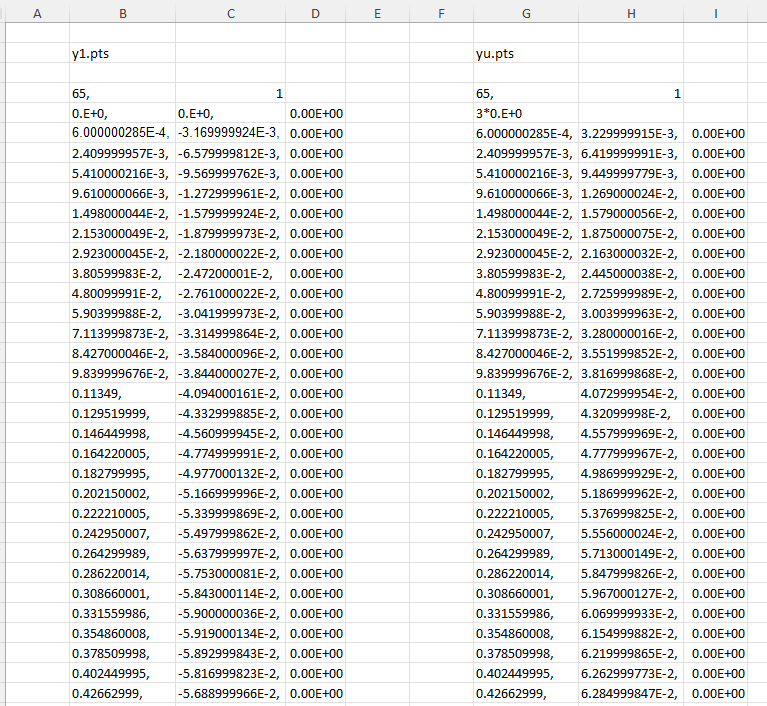
The first column in each group is the X coordinate, and the second column in each group is the Y coordinate. The first group gives the coordinates of the lower (pressure) surface of the airfoil. The second group gives the coordinates of the of the upper (suction) surface of the airfoil. Discovery (and SpaceClaim) input points with 3 columns. In this case the Z coordinate is first and has a value of zero.
Step 3: Next in our 2D airfoil CFD example, generate new columns of data to include Z coordinate first and to convert the units of meters to millimeters. Save each group to a text file and add a line of text at the beginning which states “3d=true”.
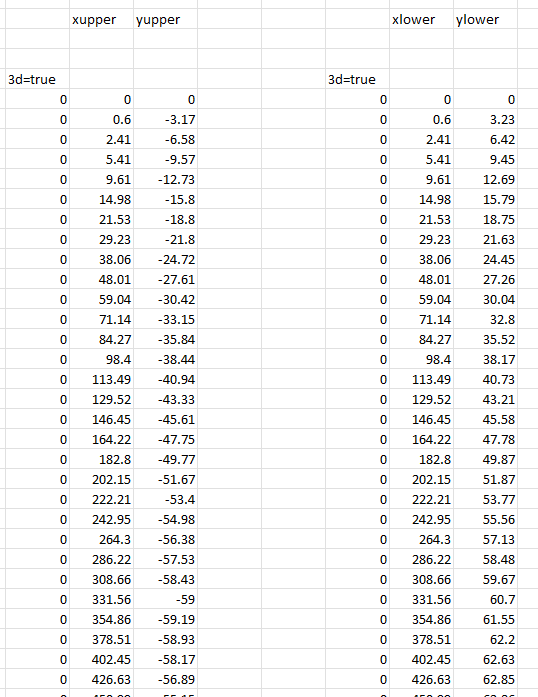
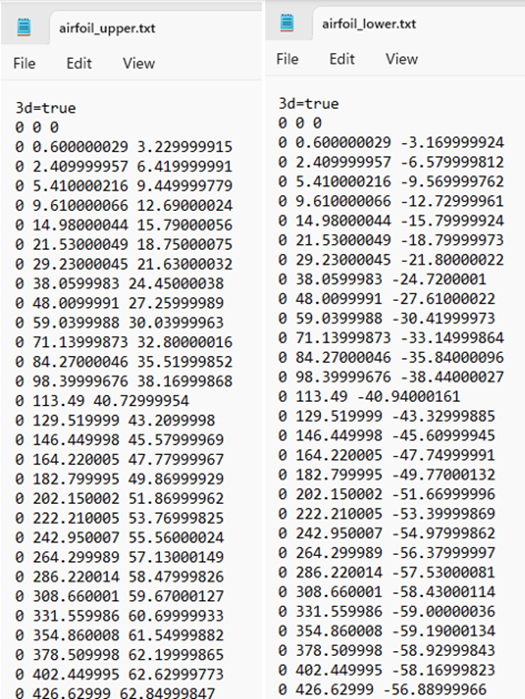
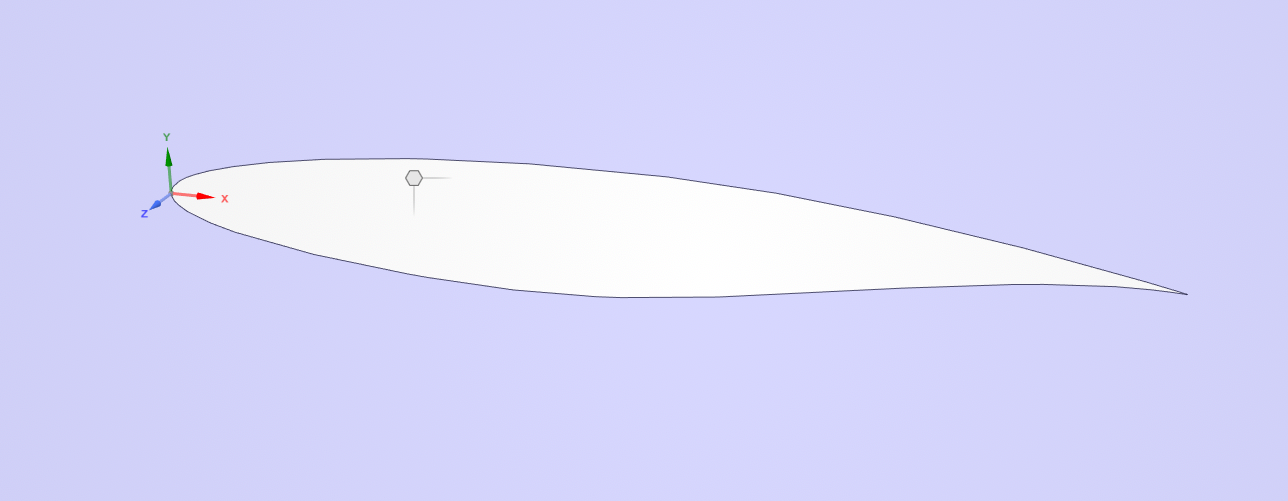
Step 4: In Discovery, use File > Import Geometry… to open the text files. (In SpeceClaim, open the two text files using Assembly > File > Open.) This generates two curves. Box-select both curves and activate Fill to generate a surface body.
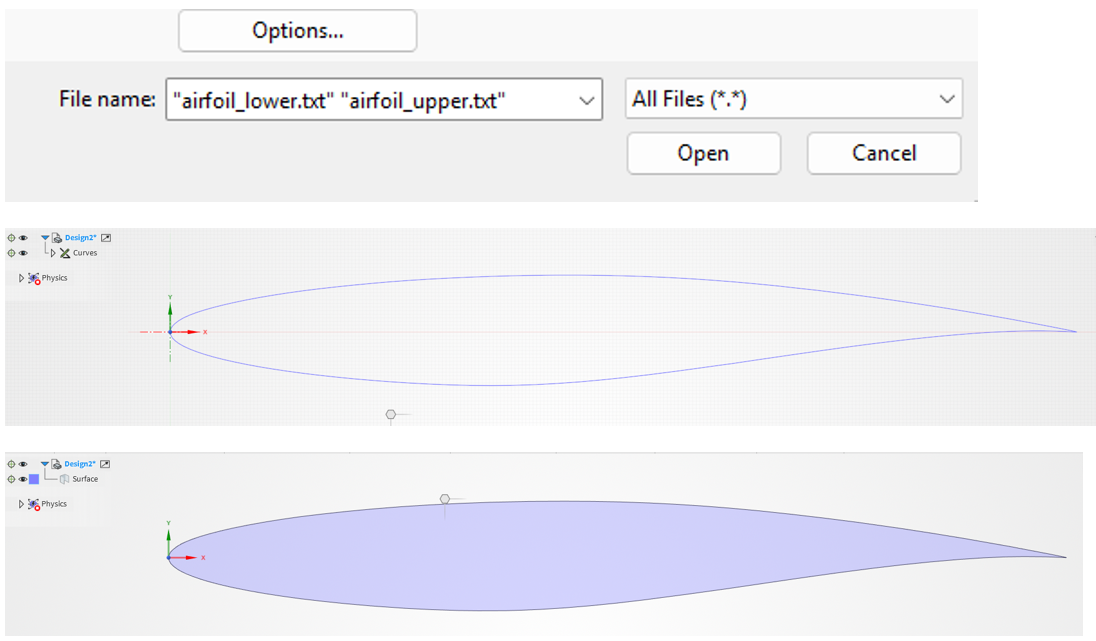
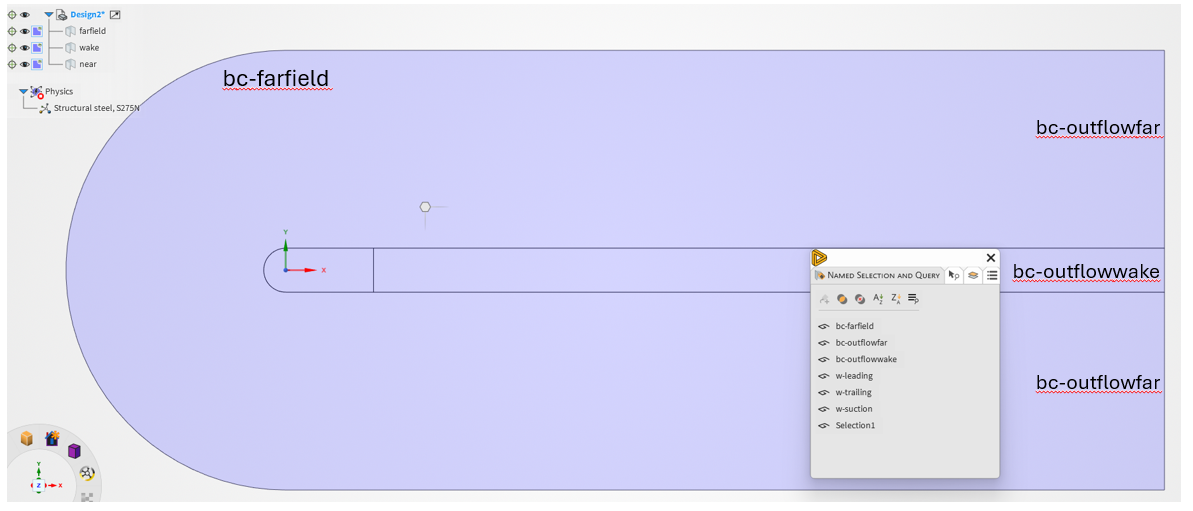
Step 5: Generate a fluid domain around the airfoil. Below, a half circle is generated centered on the global coordinate system at the tip of the leading edge and uses a radius of 10 chords (10,000 mm). A rectangular zone is extended rearward 20 chord lengths (20,000 mm) from the half circle.
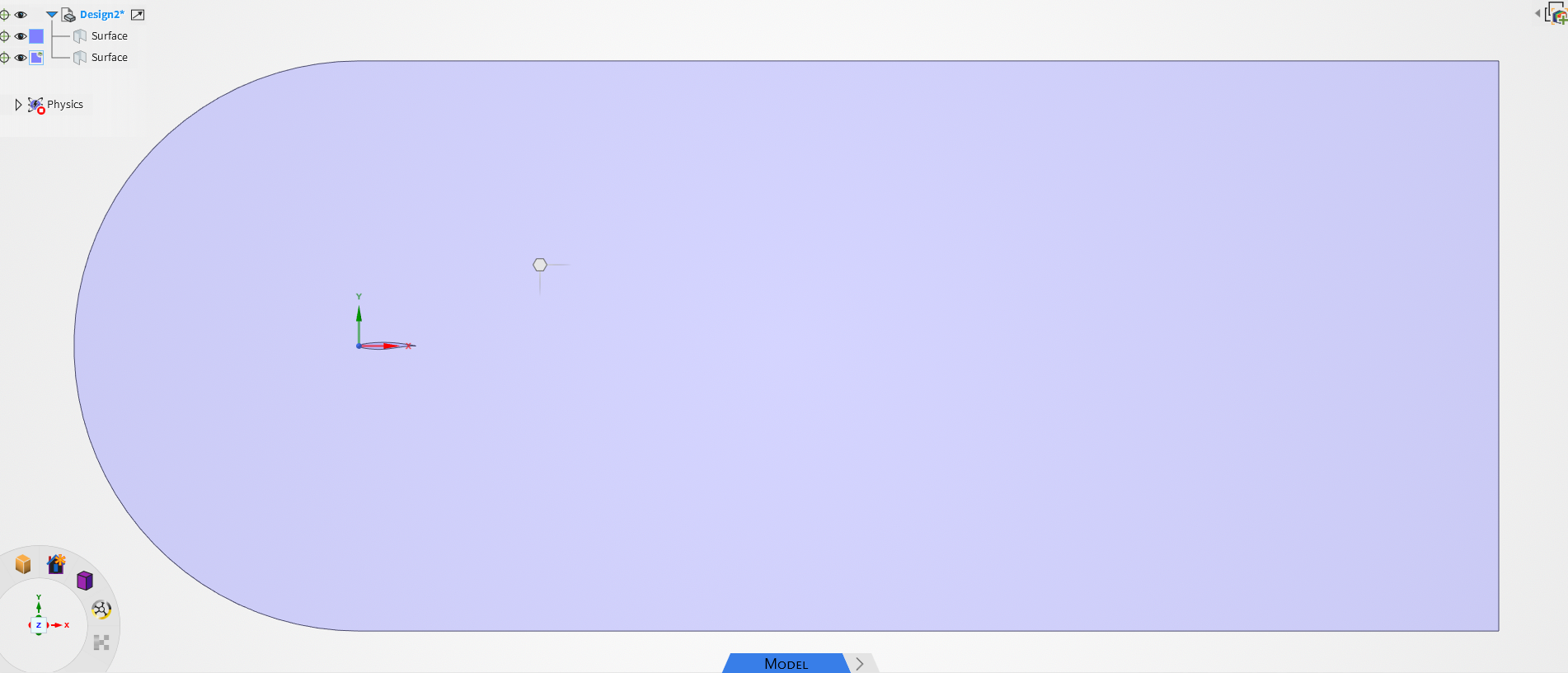
Step 6: Generate another fluid domain. Below, a half circle is generated centered on the global coordinate system at the tip of the leading edge and uses a radius of 100 chords (100,000 mm). A rectangular zone is extended rearward 200 chord lengths (200,000 mm) from the half circle. A wake zone is created downstream of the inner fluid domain.
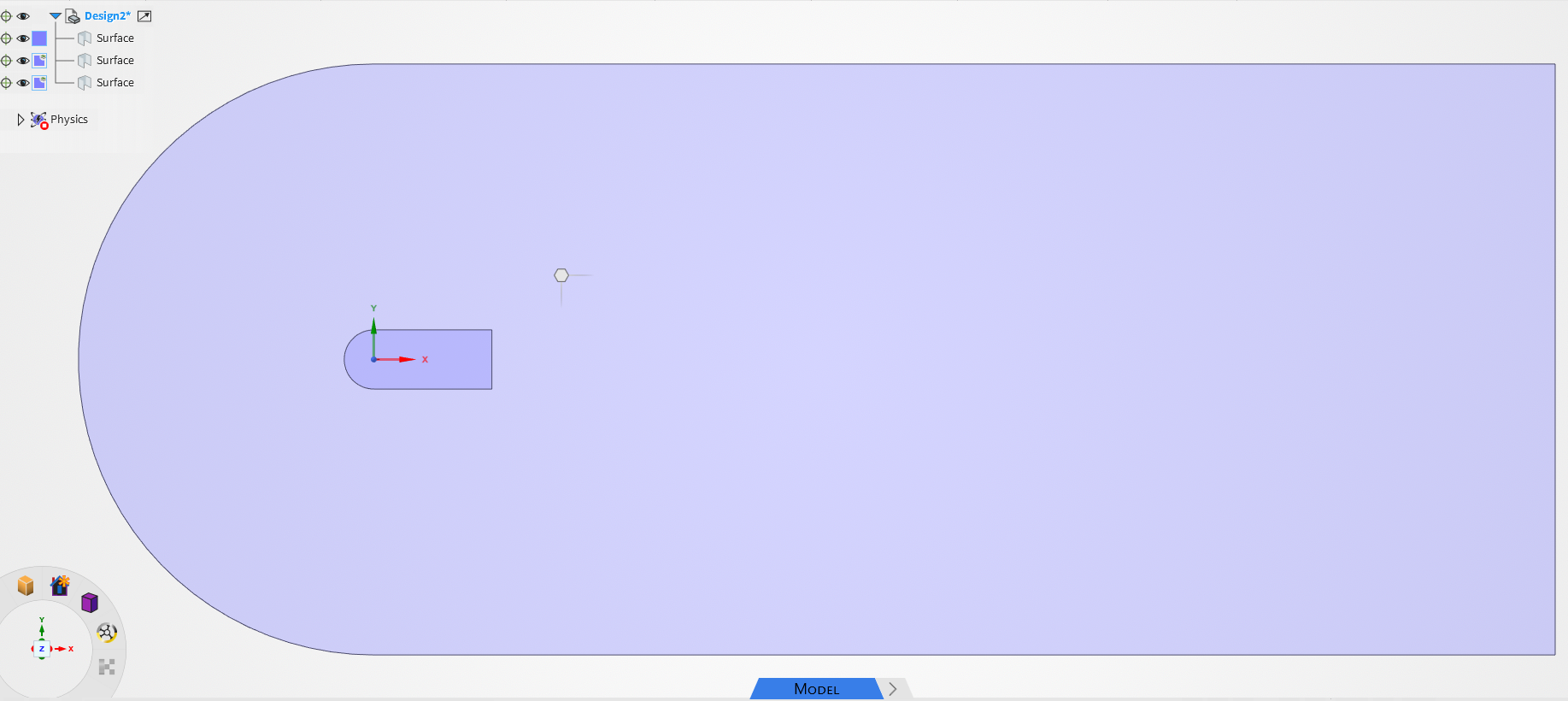
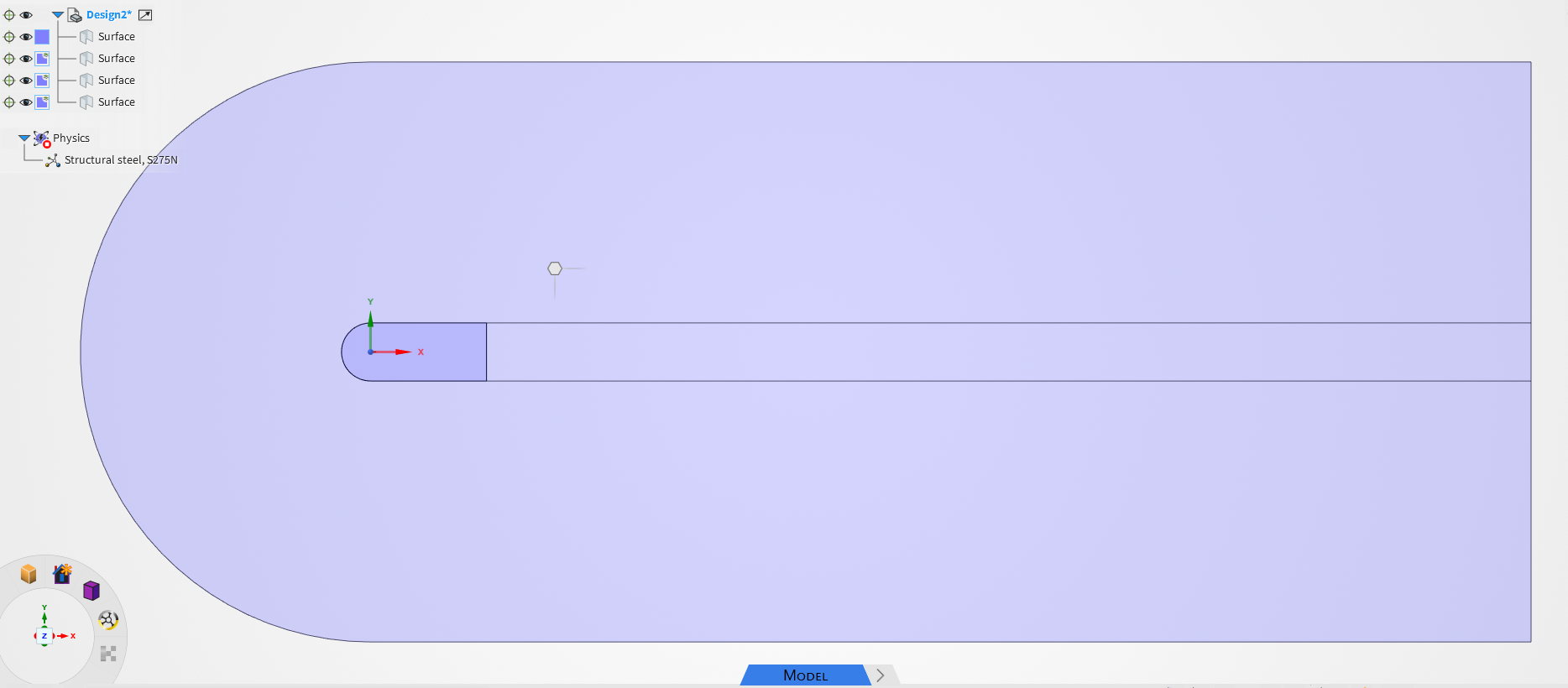
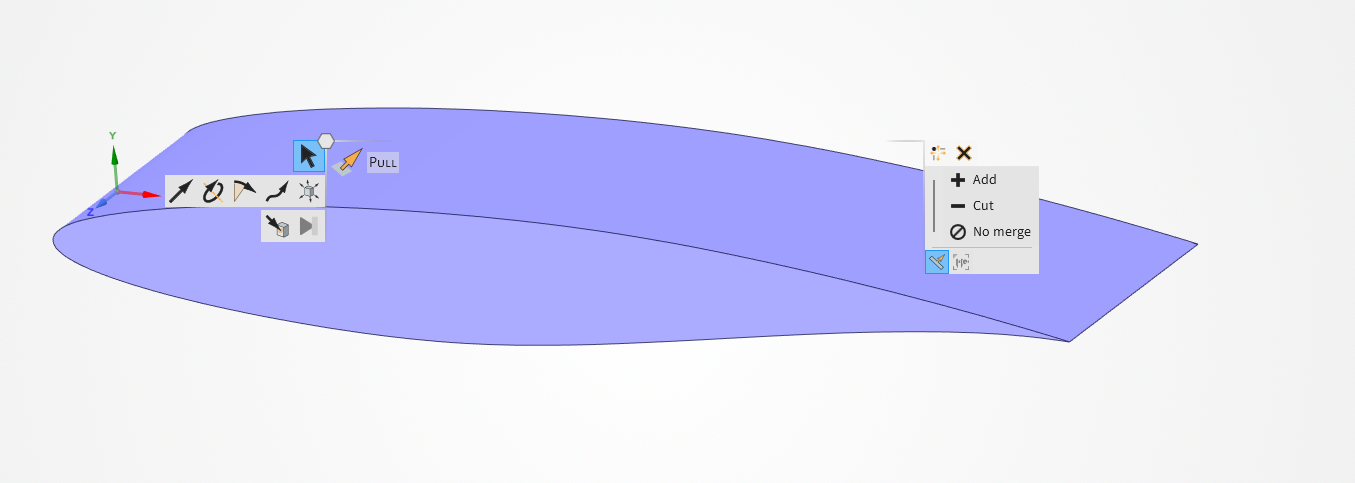
Step 7: Pull the airfoil surface into a 3D volume. This volume can be used with Combine to remove material from the innermost fluid zone.
Step 8: Create Named Selections to label the outer boundaries.
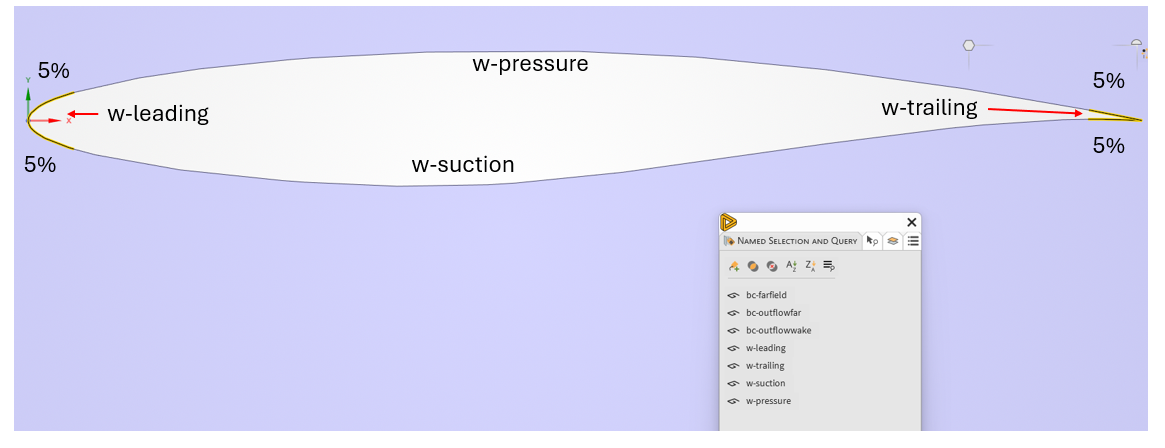
Step 9: Split the airfoil edges to support the 2D airfoil CFD setup. The leading and trailing edges can be split at 5% of the total curve length on the upper and lower surfaces. Four Named Selections should then be created to label the airfoil.
Step 10: Share Topology and save the file.
Using Fluent 2D Meshing Workflow
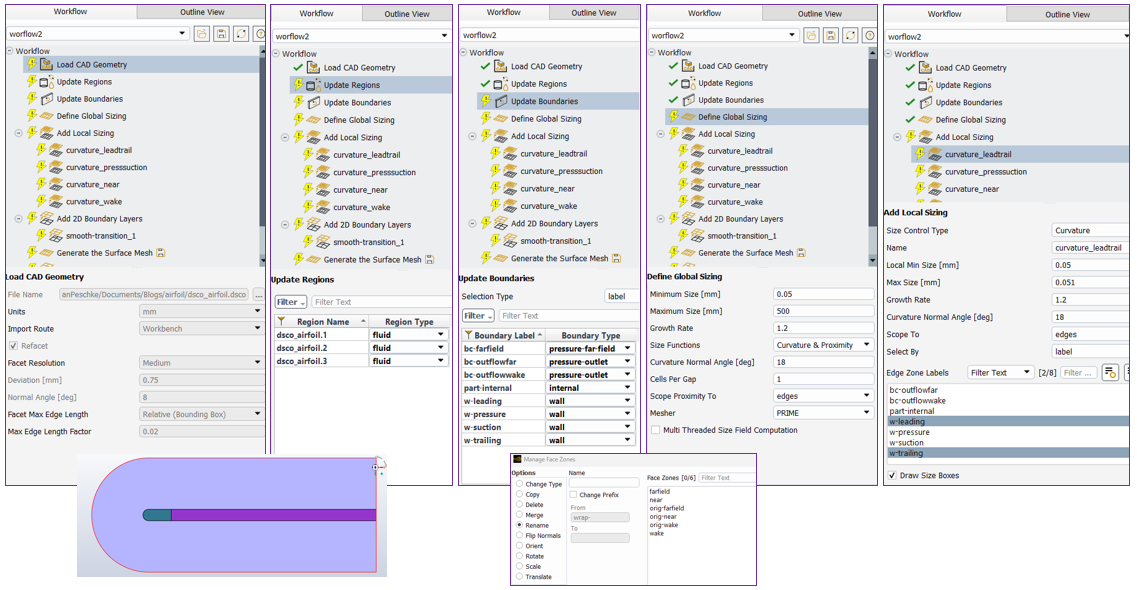
The mesh is generated in Fluent Mesh Mode. The 2D Meshing workflow is activated. The following airfoil simulation images show the progression of meshing tasks of geometry import as well as definition of local sizing, global sizing, regions, boundaries, boundary layers, and surface mesh. After importing the geometry, the generic names of the face zones can be updated to match the intended body names.
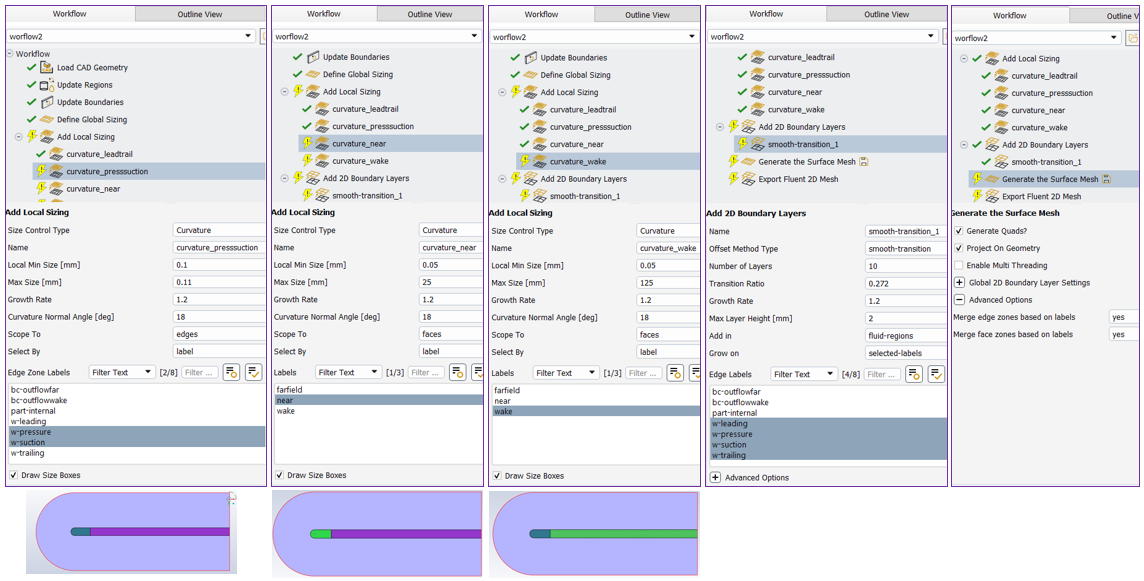
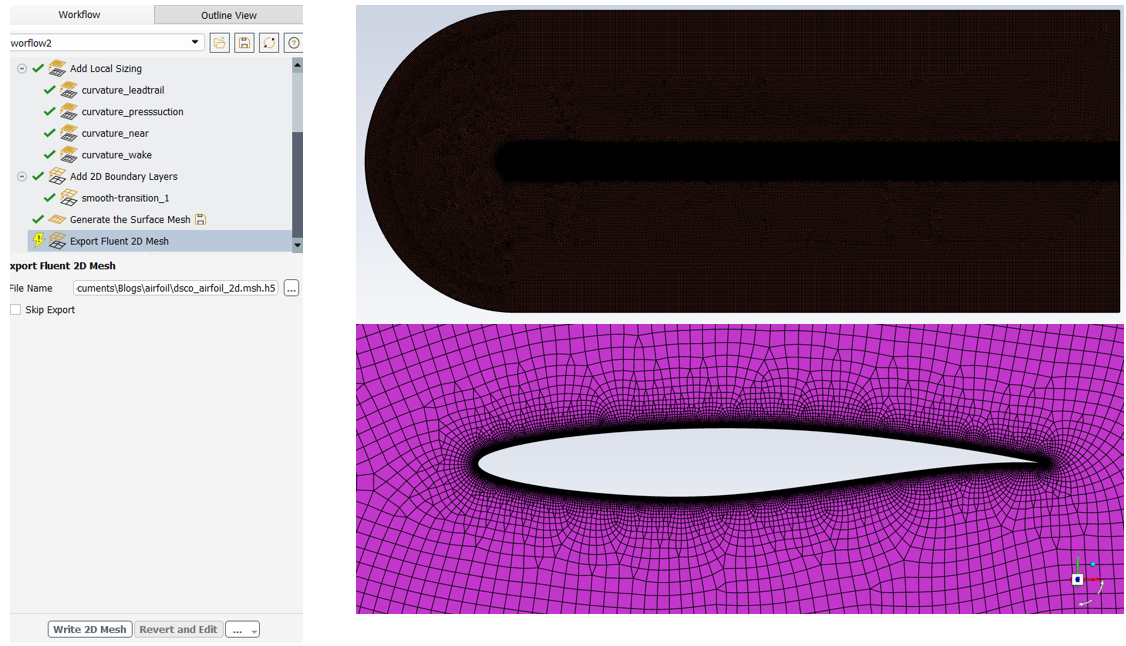
The resulting mesh is exported and is ready to be read into Fluent 2D solver mode.
2D Airfoil CFD Solver Setup Using Fluent Solver Mode
The generated mesh is read into a new 2D session of Fluent. The physics models include Energy and Viscous (SST k-omega) turbulence only. The pressure-based solver is used with planar 2D space for a steady-state simulation. Air is the working fluid with ideal-gas density and constant properties of specific heat, thermal conductivity, and viscosity. The viscosity is set to obtain the Reynolds number of 6.5E6. Air material is specified to all three fluid cell zones. The operating pressure is set to zero, and the reference pressure location is specified far from the airfoil.
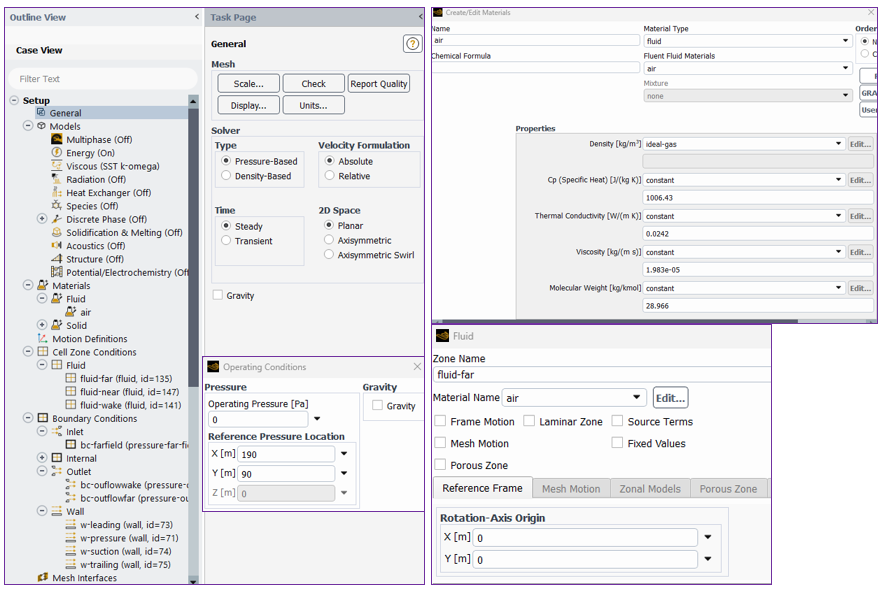
A pressure far field boundary is used for the inlet with a pressure approximating at-altitude conditions at a Mach number of 0.73 and a temperature of ~80.33 [F]. The X- and Y- Components of the flow direction correspond with the 2.79 degree angle of attack. The absolute pressure is specified for the gauge pressure at the far field inlet and at the outlets because the operating pressure is zero. An ambient temperature of 80 [F] is used. The Reference Values are automatically calculated from the reference zone and the far field boundary. A Depth value of 1 is used.
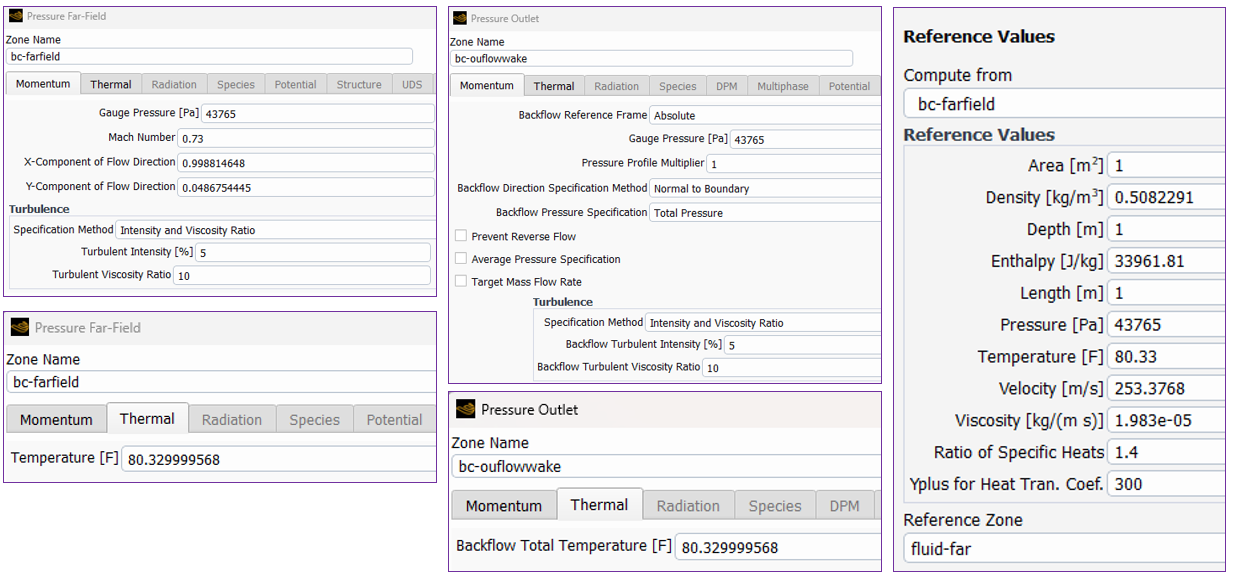
For our 2D CFD example, stationary walls with zero heat flux thermal condition type are used for all airfoil walls.
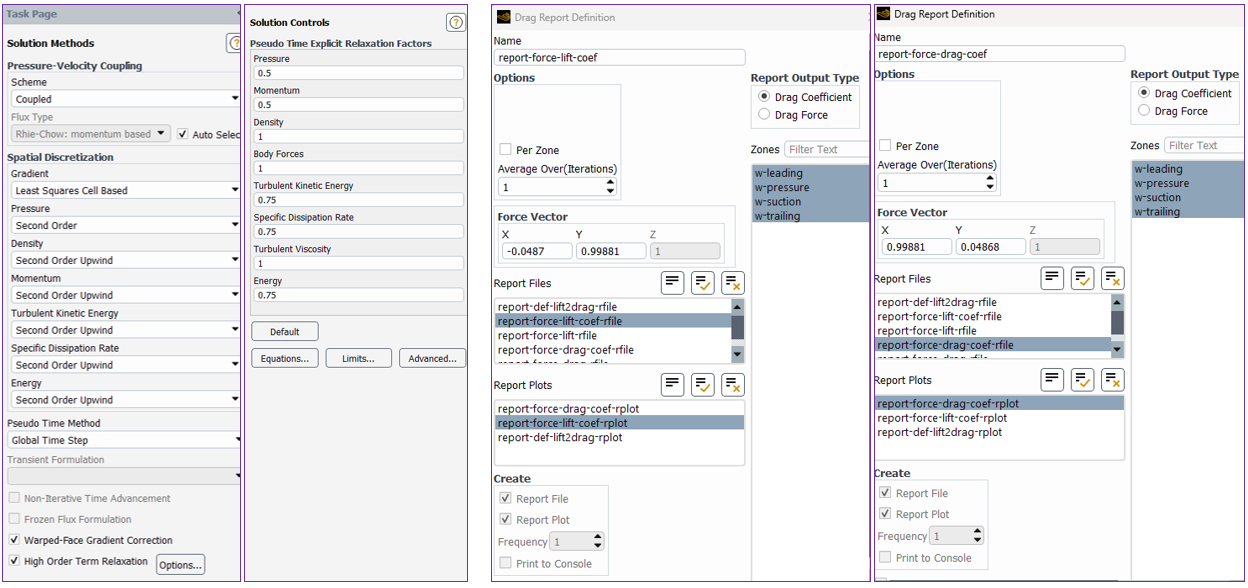
The coupled scheme pressure-velocity scheme is used with second order pressure, density, momentum, turbulence, and energy spatial discretization. Default solution controls are used. Reports are defined for the lift and for the drag coefficient with force vectors corresponding to the 2.79 degree angle of attack. A time scale factor of 0.1 is used for the pseudo time iterations.
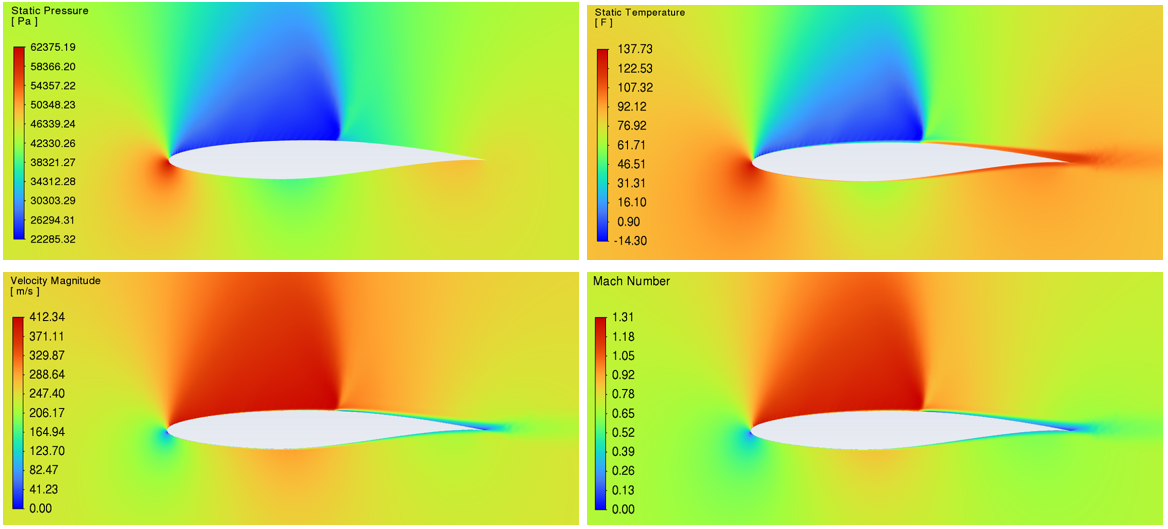
Contour plots of pressure, temperature, velocity, and Mach number can be generated to understand the results. The Mach number exceeds 1 above the airfoil. The stagnation temperature at the leading edge matches the expected temperature via the equation:
XY plot of the pressure coefficient is available along the surface of the airfoil, and monitored force reports provide the integrated lift and drag force coefficients for comparison with test data.
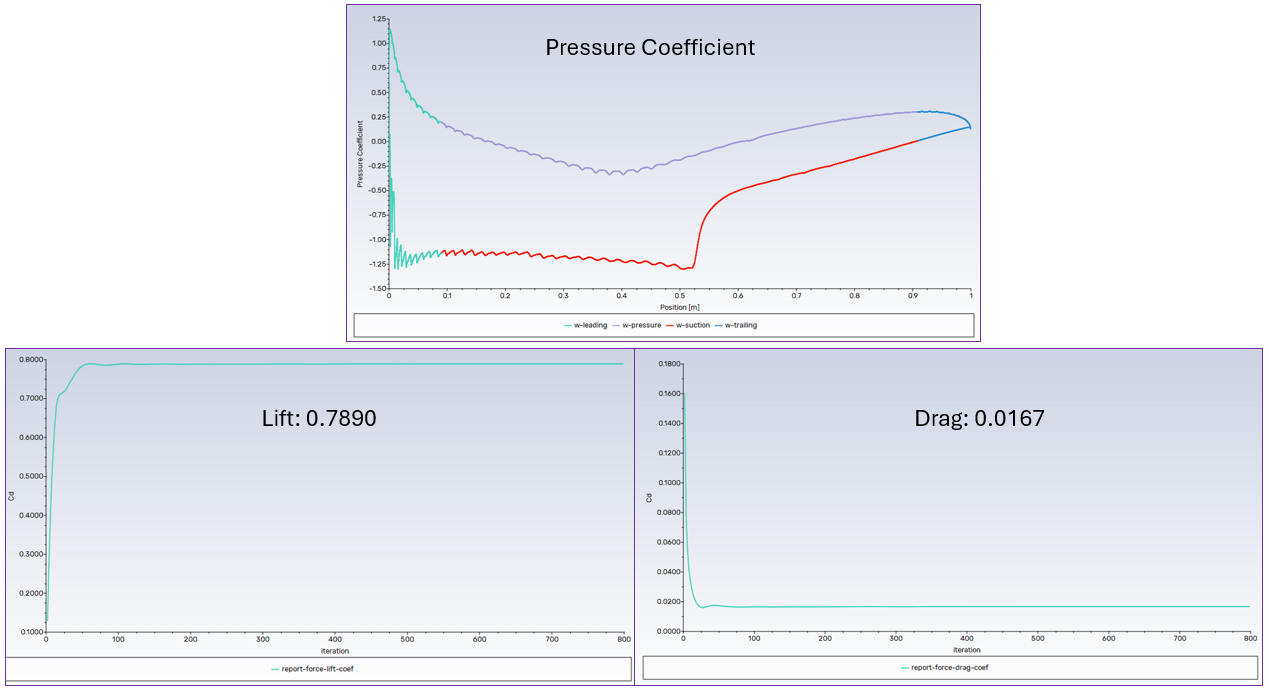
| Coefficients | Target | This Study |
|---|---|---|
| Drag | 0.0168 | 0.0167 |
| Lift | 0.803 | 0.789 |
Video of 2D Airfoil CFD Analysis in Ansys Fluent
The following video walks through the simulation setup, from geometry preparation and meshing to the Fluent flow solver.
Improve Airfoil Performance with Ansys CFD
Airfoil design seeks to reach product requirements which include high lift and low drag. SimuTech Group’s fluids team helps engineering organizations use Ansys simulation tools like Fluent to evaluate airfoil designs to make more confident design decisions earlier in the development process.
Whether you are working on subsonic or transonic airfoils or even whole wings, SimuTech Group can help you build stronger simulation workflows with Ansys Computational Fluid Dynamics tools such as Fluent.

Brian Peschke, Lead Engineer – Fluids
Brian Peschke is a mechanical engineer with more than 20 years of industrial experience specializing in computational fluid dynamics and the analysis of fluid and thermal performance. At SimuTech Group, he helps engineering teams apply CFD simulation to close knowledge gaps, troubleshoot complex performance challenges, and make more informed product-development decisions.
Reference:
- P.H. Cook, M.A. McDonald, M.C.P. Firmin, “AEROFOIL RAE 2822 Pressure Distribution and Boundary Layer and Wake Measurements”. AGARD Advisory Report. No. 138. 1979.