
 Contact Us
Introduction to Ansys Fluent Real Gas Mixture
Setting up an Ansys Fluent real gas mixture requires more than simply adding multiple fluid species to a model. Each species must be configured with the appropriate material properties, the Species Transport model must be enabled, and the resulting mixture must use the correct real-gas mixing rules.
This Tips & Tricks workflow walks through the setup of a binary mixture of helium and ParaHydrogen using NIST-defined properties in Ansys Fluent. The procedure includes copying the required materials from the Fluent database, applying NIST properties, enabling Species Transport, and configuring the final mixture material.
Step 1: Activate the Energy Equation
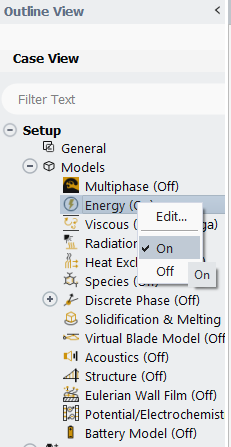
In the Fluent Outline View, expand Models and enable the Energy equation.
Step 2: Add Helium and Hydrogen from the Fluent Database
The next step in creating the Ansys Fluent real gas mixture is to add the two required species to the case.
Add Helium
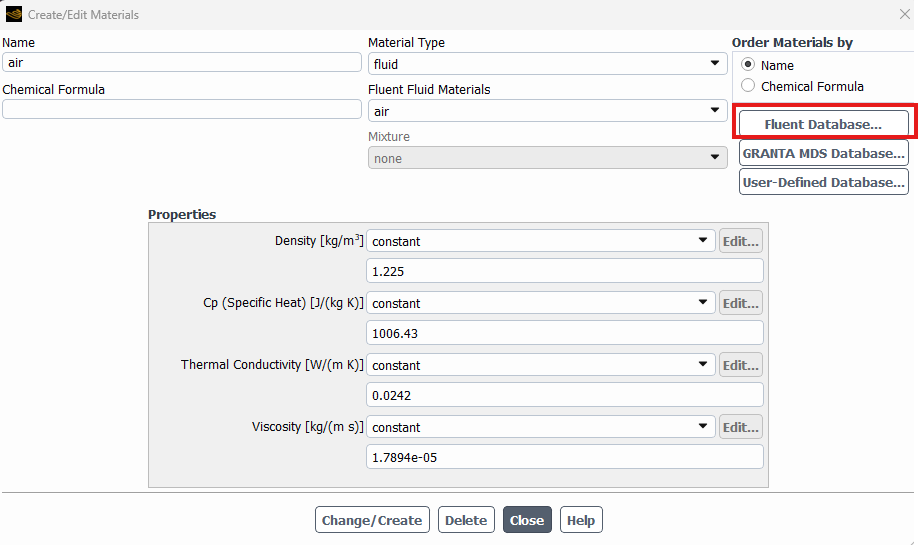
Open the material editor and select Fluent Database.
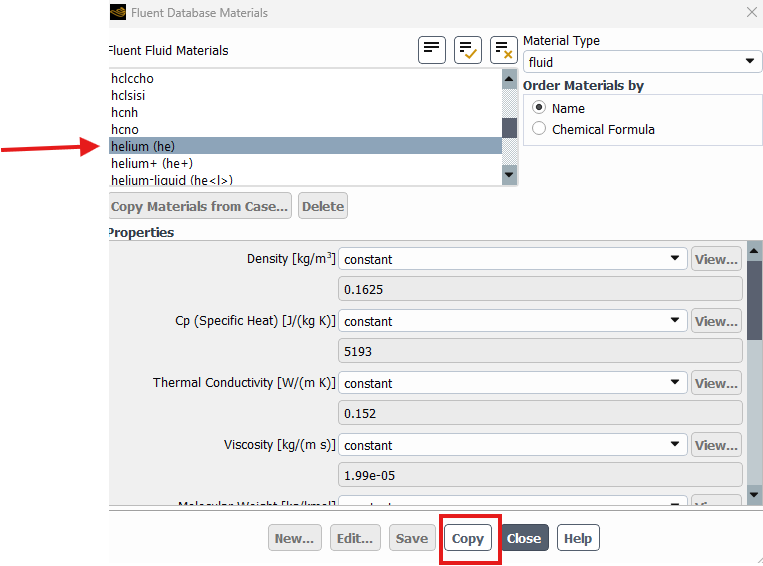
In the Fluent Database Materials window, locate helium (he) and select Copy to add it to the case.
Add Hydrogen
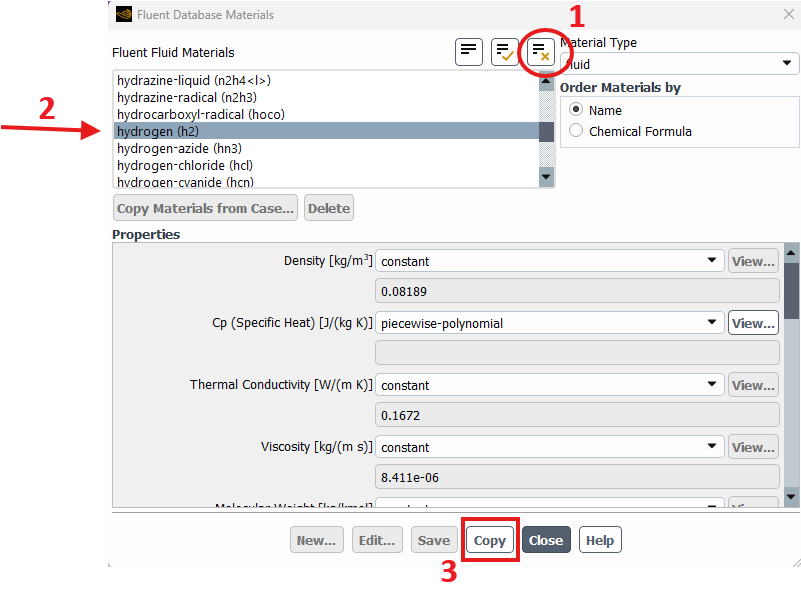
Return to the Fluent Database and locate hydrogen (h2). Select the material and click Copy to add it to the case.
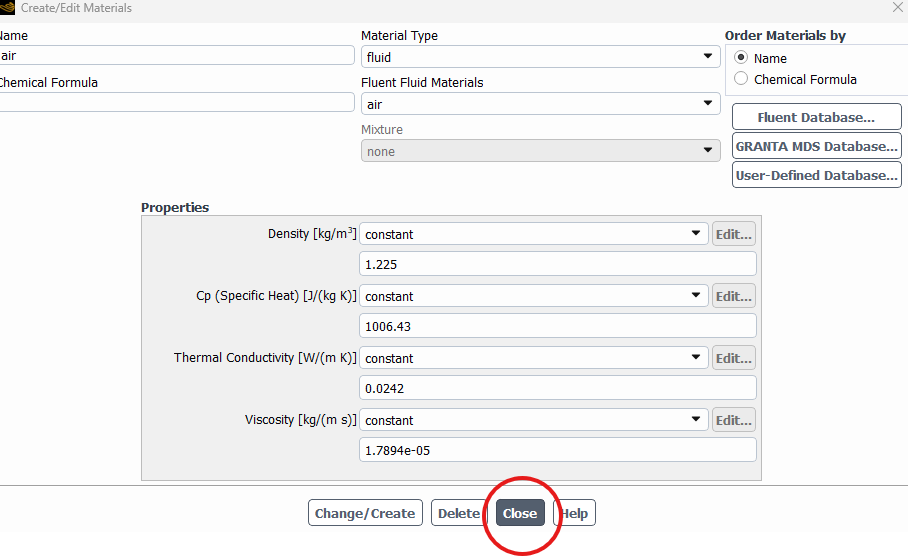
After both materials have been added, close the Air material panel.
Step 3: Apply NIST Properties to Helium
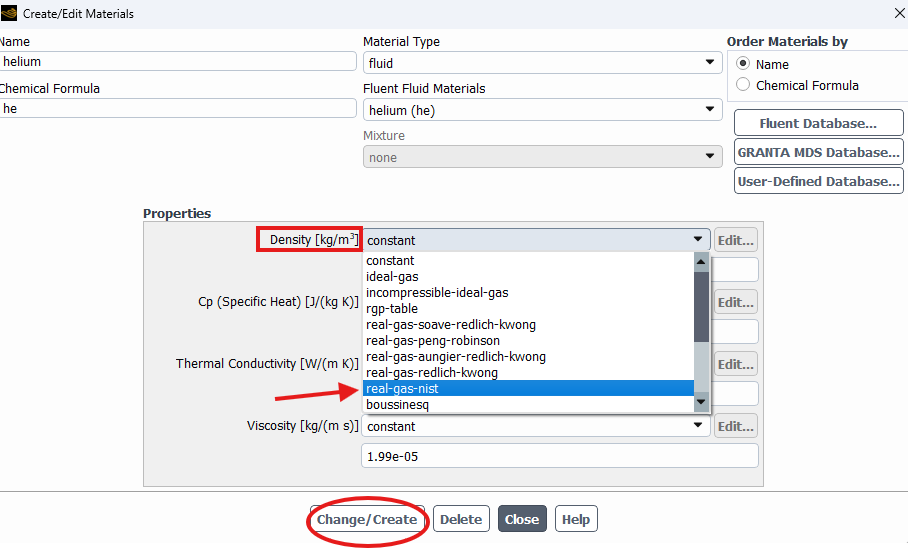
Next in our Ansys Fluent real gas mixture example, edit the helium material so its thermophysical properties use NIST data.
For Density, select:
real-gas-nist
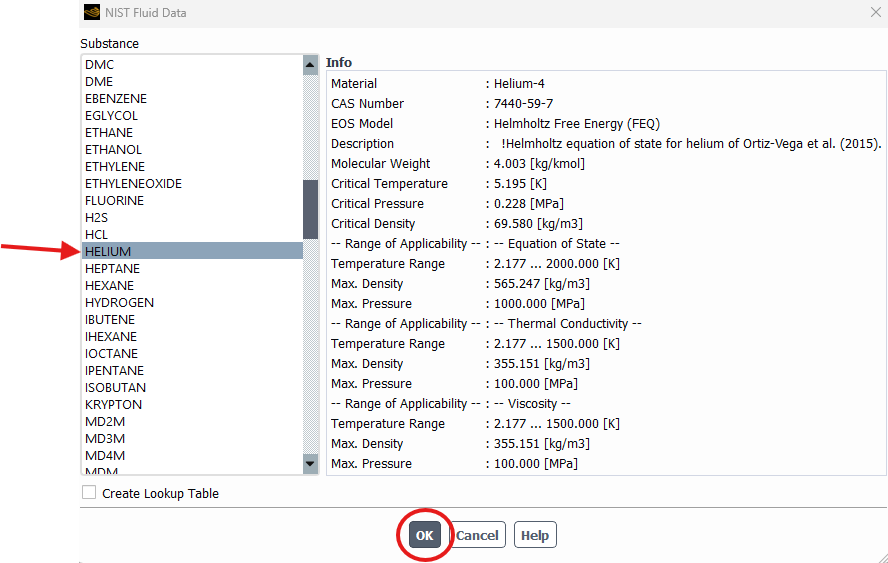
Then select HELIUM from the NIST Fluid Data list and confirm the selection.
The source workflow shows the resulting helium material using NIST-based values for density, specific heat, thermal conductivity, and viscosity.
Step 4: Apply NIST Properties to Hydrogen
Repeat the same process for hydrogen.
Open the hydrogen material and select:
real-gas-nist
for the density model.
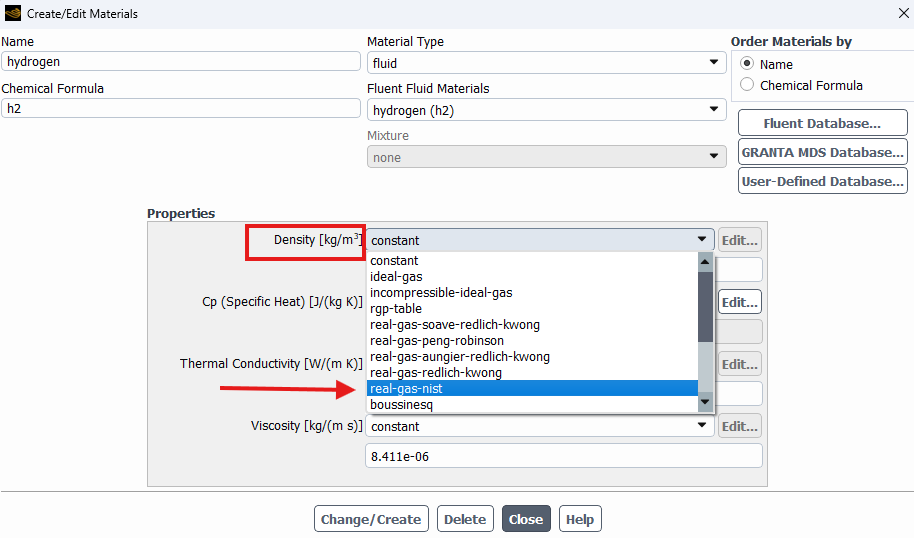
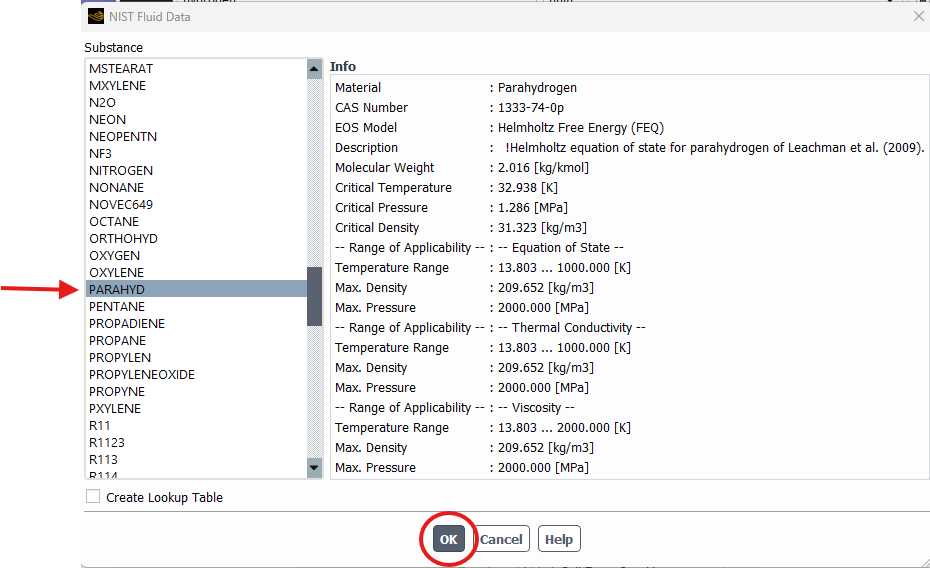
In the NIST Fluid Data window, select PARAHYD for ParaHydrogen and confirm the selection.
Afterward, the hydrogen material should show NIST-based settings for density, specific heat, thermal conductivity, and viscosity.
Step 5: Activate the Species Transport Model
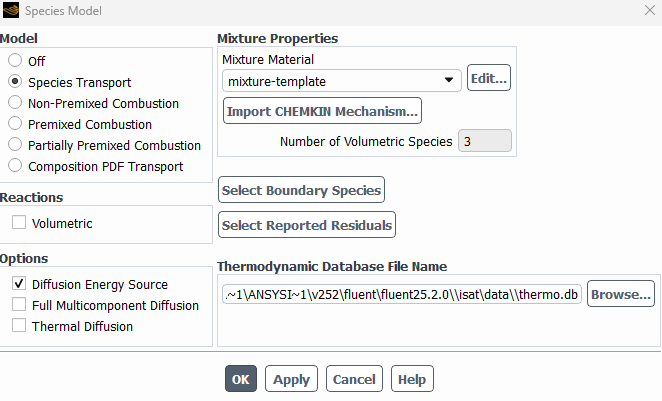
With both real-gas materials configured, enable the Species Transport model.
Under Models > Species, select:
Species Transport
This allows Fluent to model the helium and ParaHydrogen species as part of the same mixture.
Step 6: Configure the Mixture Species
Once Species Transport is active, edit the mixture material.
In the Outline View, expand:
Materials > Mixture > mixture-template
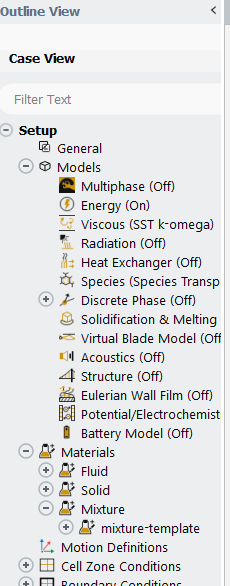
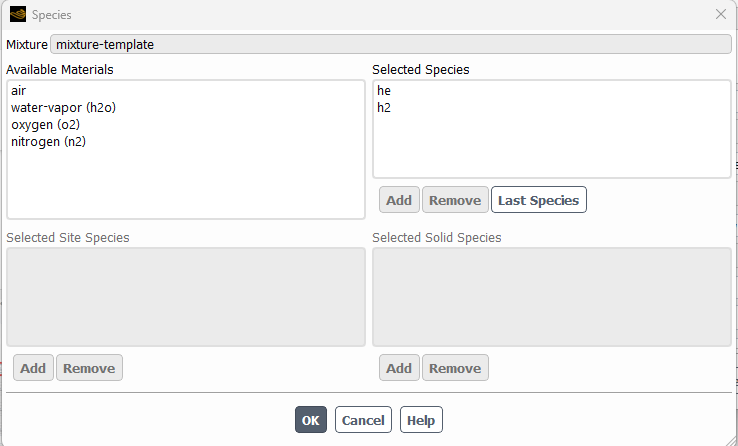
Open Mixture Species and edit the list of species.
Add:
- Helium
- Hydrogen
Remove the other species so only the two gases required for the binary mixture remain.
After modifying the mixture species, Fluent displays a warning that the species mixture has changed and that the species boundary conditions should be checked.
Acknowledge the warning to continue.
Step 7: Apply the NIST Real-Gas Mixture Model
The individual species are now configured, but the mixture itself still needs the appropriate real-gas treatment.
Edit the mixture density and select:
real-gas-nist-mixture

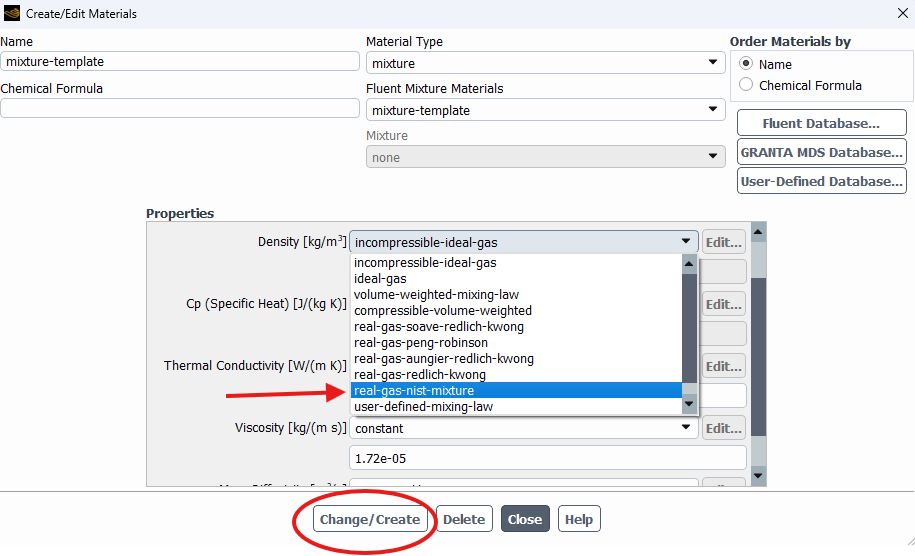
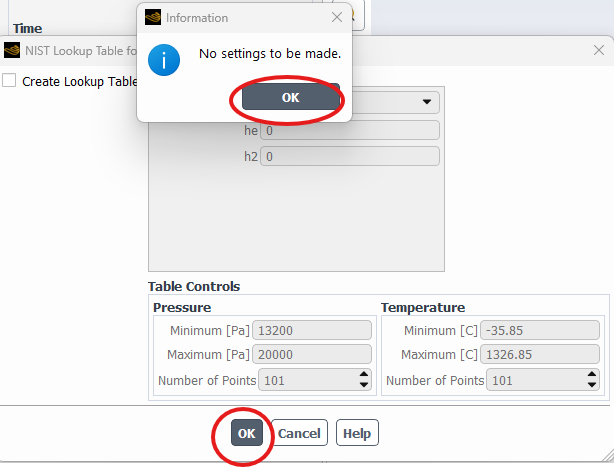
Fluent will display a No settings to be made dialog. Select OK.
Then confirm the NIST Lookup Table dialog.
Step 8: Save the Mixture Settings
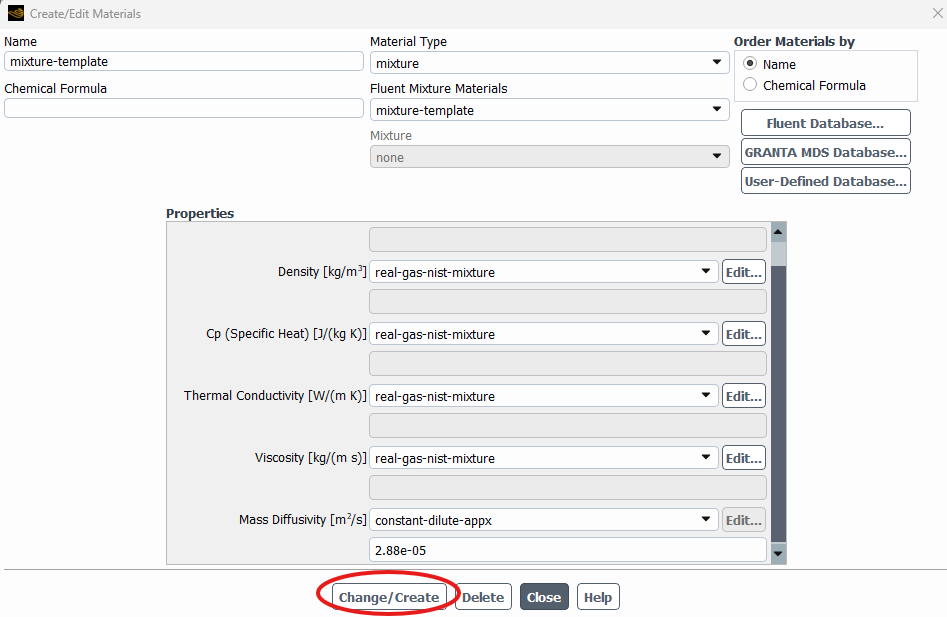
Return to the mixture material window and select Change/Create to capture the updated mixture settings.
At this stage, the mixture properties shown in the source workflow use real-gas-nist-mixture for density, specific heat, thermal conductivity, and viscosity.
Video: Setting Up the Ansys Fluent Real Gas Mixture
The video below demonstrates the complete procedure for configuring the helium and ParaHydrogen mixture in Fluent.
Building a Binary Real Gas Mixture in Ansys Fluent
Once the two species have been imported, assigned NIST properties, and added to the Species Transport mixture, the final step is ensuring the mixture itself uses the real-gas-nist-mixture model.
Following this sequence provides a repeatable way to configure an Ansys Fluent real gas mixture when the individual species and mixture behavior need to be represented using NIST-defined real-gas properties.
Need Help with Ansys Fluent?
SimuTech Group can help with Ansys Fluent setup, material models, and CFD workflows for complex fluid and thermal simulations.

Brian Peschke, Lead Engineer – Fluids
Brian Peschke is a mechanical engineer with more than 20 years of industrial experience specializing in computational fluid dynamics and the analysis of fluid and thermal performance. At SimuTech Group, he helps engineering teams apply CFD simulation to close knowledge gaps, troubleshoot complex performance challenges, and make more informed product-development decisions.