
 Contact Us
Ansys Workbench licensing settings can have a direct impact on how smoothly engineers move from model setup through solving and results. Choosing the right license — and setting the appropriate priority — can help prevent launch errors, reduce unnecessary license consumption, and keep shared license pools available for other users.
In this Ansys Tips & Tricks guide, we’ll walk through how Workbench identifies available licenses, how to select and prioritize licenses in Mechanical, and how to configure licensing options in Discovery and SpaceClaim.
How Ansys Workbench Detects Available Licenses
When you install an Ansys Structures or Fluids product suite, Workbench automatically populates the Toolbox based on the licenses available through your license server or shared web license pool.
The basic workflow is straightforward:
- Install the appropriate Ansys product suite.
- Workbench detects available licenses and populates the Toolbox with supported systems.
- Drag the desired analysis system, such as Static Structural, into the Project Schematic to begin working.
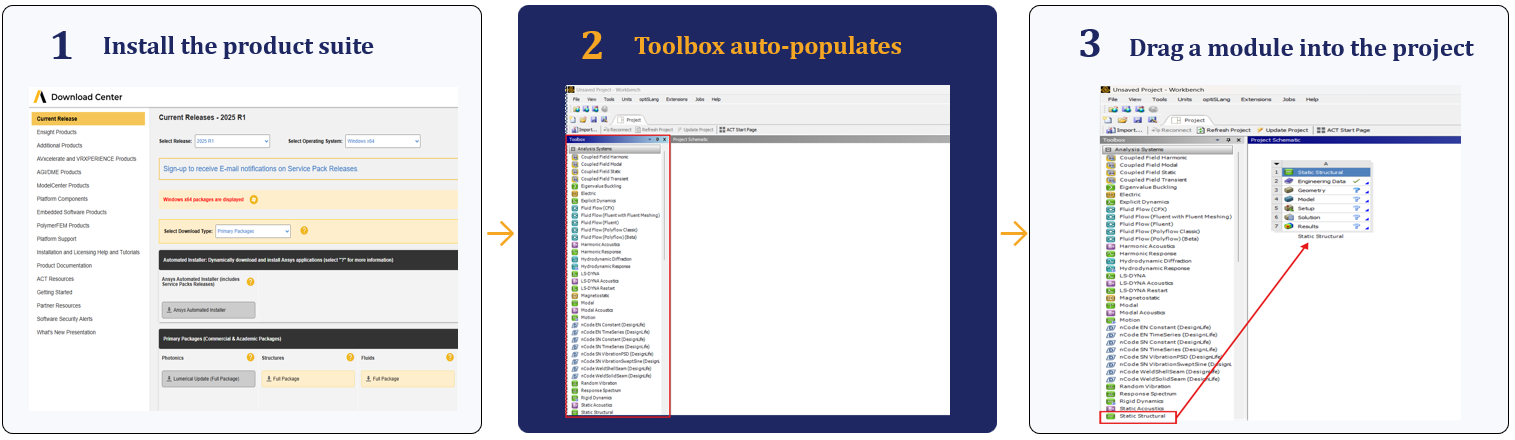
This automatic detection helps ensure that the systems displayed in Workbench correspond to licenses your installation can access.
How to Configure Ansys Mechanical Licensing
Within Ansys Workbench, licensing for Mechanical can be controlled in two primary ways:
- Select a license manually for a specific project instance.
- Configure a global license priority list that Mechanical follows across sessions.
The first method is useful when you want to control licensing for a particular analysis. The second establishes a broader default for your Mechanical environment.
Method 1: Select a License for an Individual Project
One of the simplest ways to manage Workbench license settings is to select a license for a specific analysis directly from the Properties pane.
Step 1: Open the Properties Pane
In Workbench, go to:
View > Properties
Step 2: Select the Model Cell
Click the Model cell within the analysis system you want to configure, such as Static Structural.
Step 3: Locate the License Setting
In the Properties pane, locate the License option.
By default, this is set to Use License Preference.
Step 4: Select and Verify the License
Choose the desired license from the dropdown menu. Then launch Mechanical and check the title bar to verify which license is currently active.
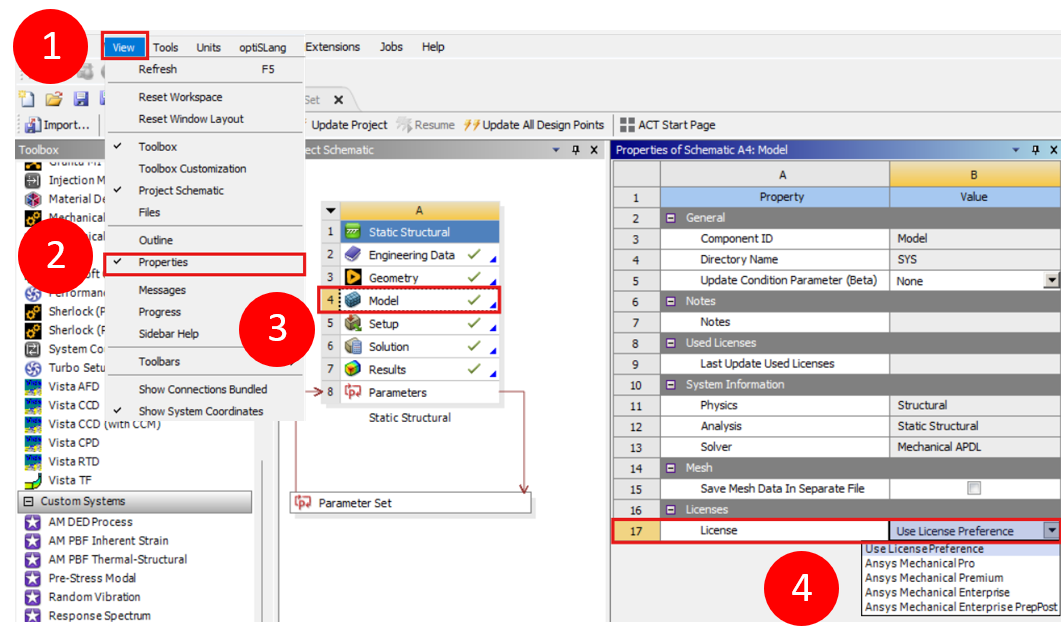
Only licenses that are valid for preprocessing will appear in this list. For example, a Mechanical Enterprise Solver license will not appear at this stage because it cannot be used for preprocessing.
Method 2: Set a Global License Priority in Mechanical
If you regularly work with multiple license types, you can also configure your Ansys license preferences globally in Mechanical.
Step 1: Open Mechanical
Launch Mechanical through Workbench as usual.
Step 2: Open the Licensing Page
In Mechanical, go to:
File > Licensing
This opens the application’s license priority settings.
Step 3: Reorder the Licenses
Use the available controls to establish the order in which Mechanical should attempt to check out licenses.
Mechanical starts with the license at the top of the list. If that license is unavailable or all available seats are in use, Mechanical moves to the next license in the priority list.
Step 4: Save and Restart
Save the license priority settings, then restart Workbench and Mechanical for the changes to take effect.
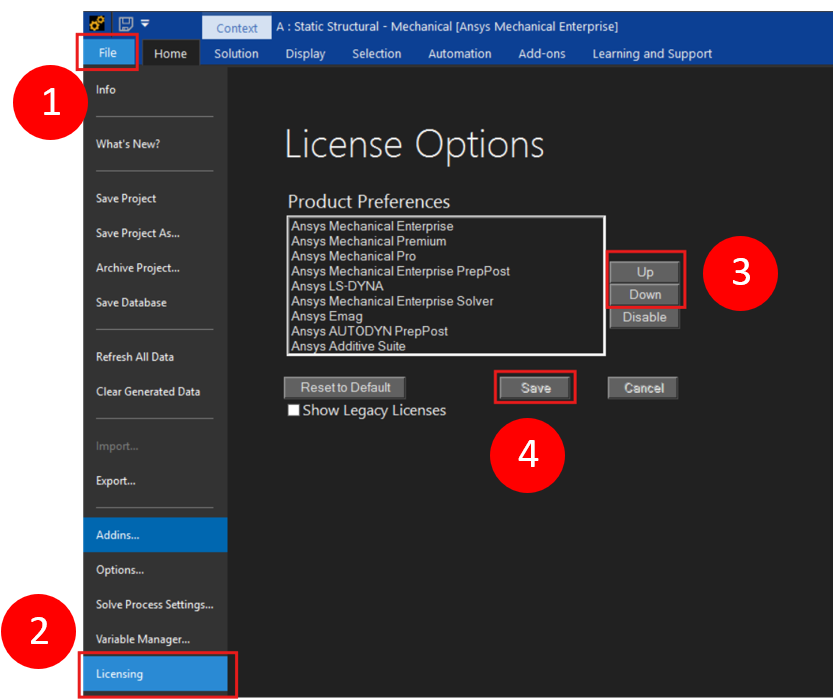
You can confirm your Ansys Workbench licensing selection by checking the Mechanical title bar. The active license for that session is displayed in brackets.
Override the Default Mechanical License Order
Beginning with Ansys 2025 R1, users can override Mechanical’s default license ordering using a system environment variable:
MECHANICAL_LICENSE_OVERRIDE
The value of this variable is entered as a comma-separated list representing the desired license order.
Mechanical reads the variable when it is opened for the first time after a new installation. When the override is detected, Mechanical displays a warning indicating that MECHANICAL_LICENSE_OVERRIDE has been read and used to change the license order.
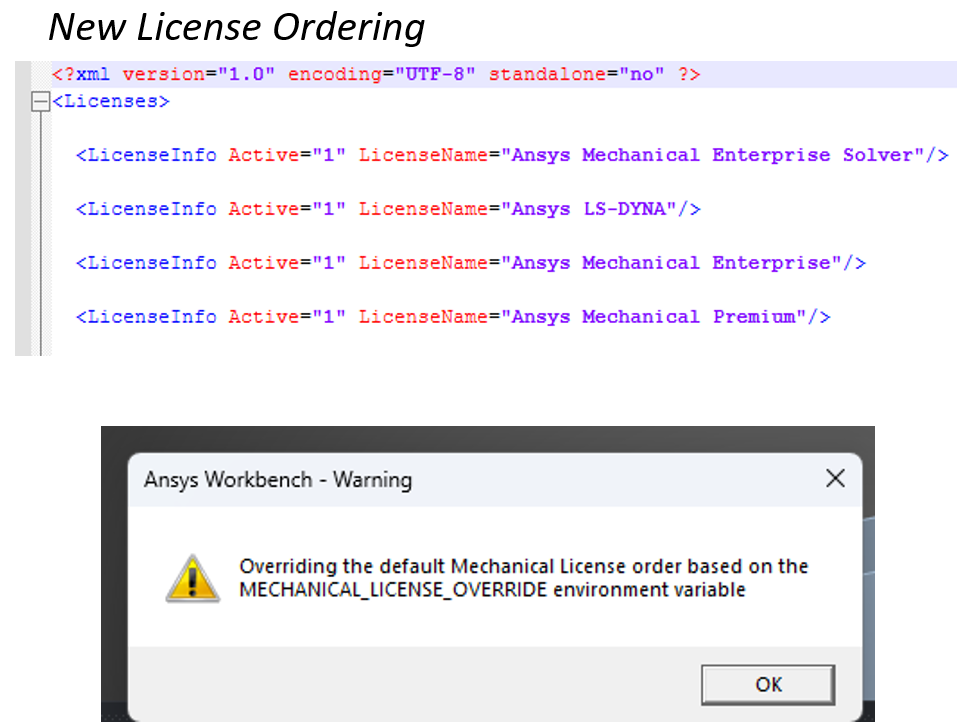
The Mechanical Licensing page will then reflect the new license order.
When the environment variable is present, selecting Reset to Default gives priority to the licenses defined in MECHANICAL_LICENSE_OVERRIDE.
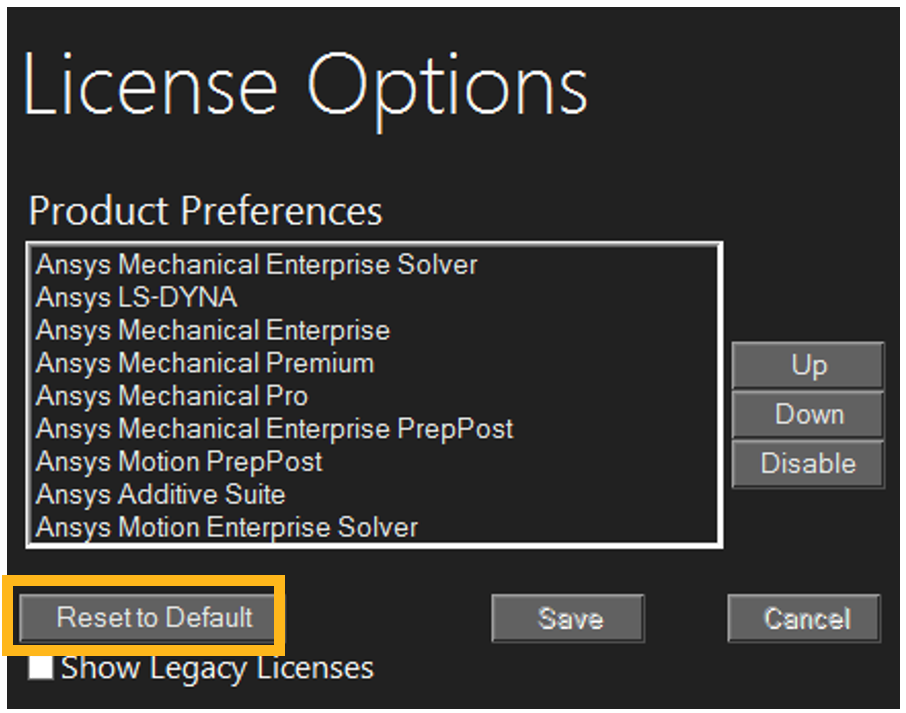
Shared vs. Separate License Modes in Workbench
Another important Ansys Workbench licensing setting determines whether applications share a license or check out licenses independently.
Shared License Mode
Shared mode is the default configuration.
In this mode, one license of a particular type, such as Mechanical Enterprise, can cover multiple applications as you progress through the engineering workflow — from engineering data to setup, solve, and results.
The application must release or pause its use of the license before another application can use it. This is not possible during an active operation such as solving.
Separate License Mode
In separate mode, each individual application checks out its own license.
This allows multiple applications to run simultaneously, including situations where one application is actively solving while another is being used for preprocessing.
Separate licensing can therefore be useful for teams that need to perform solving and preprocessing concurrently.
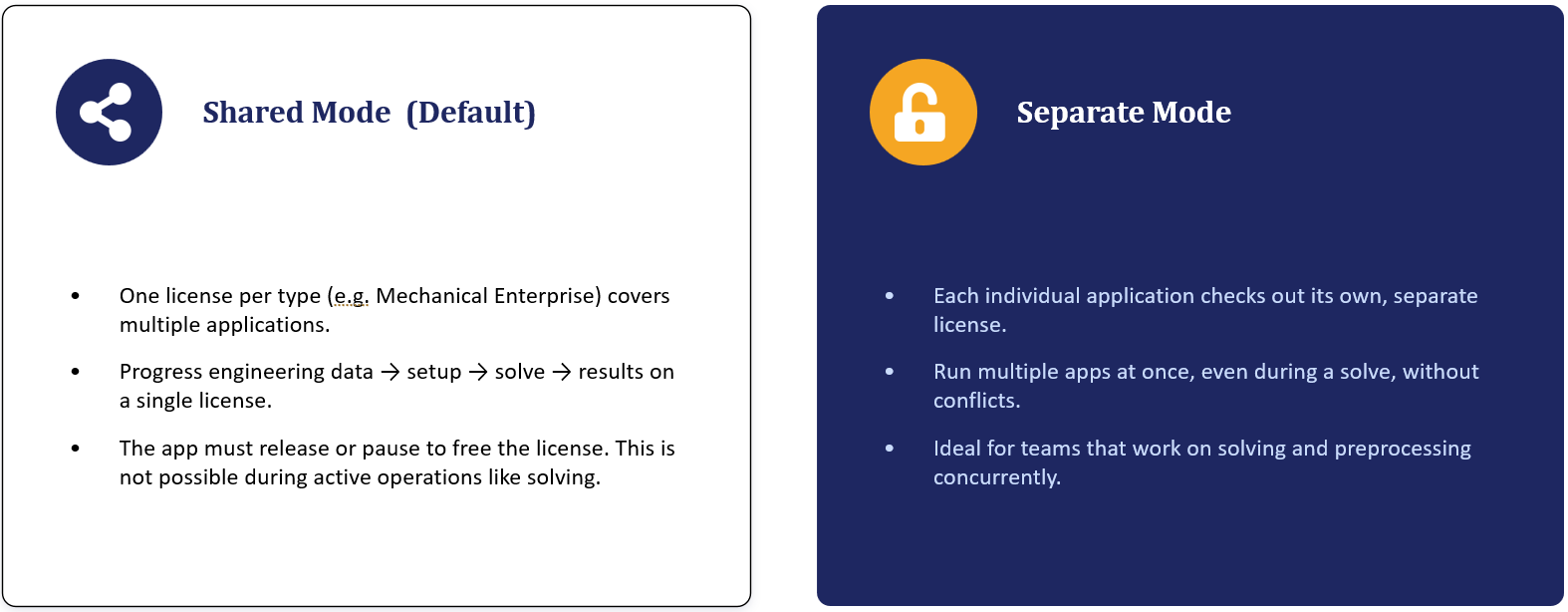
How to Enable Separate License Mode
To change the Ansys Workbench licensing configuration from shared to separate licensing:
- In Workbench, go to Tools > Options.
- Locate the Project Management section.
- Uncheck Share a single license between applications.
- Restart Workbench.
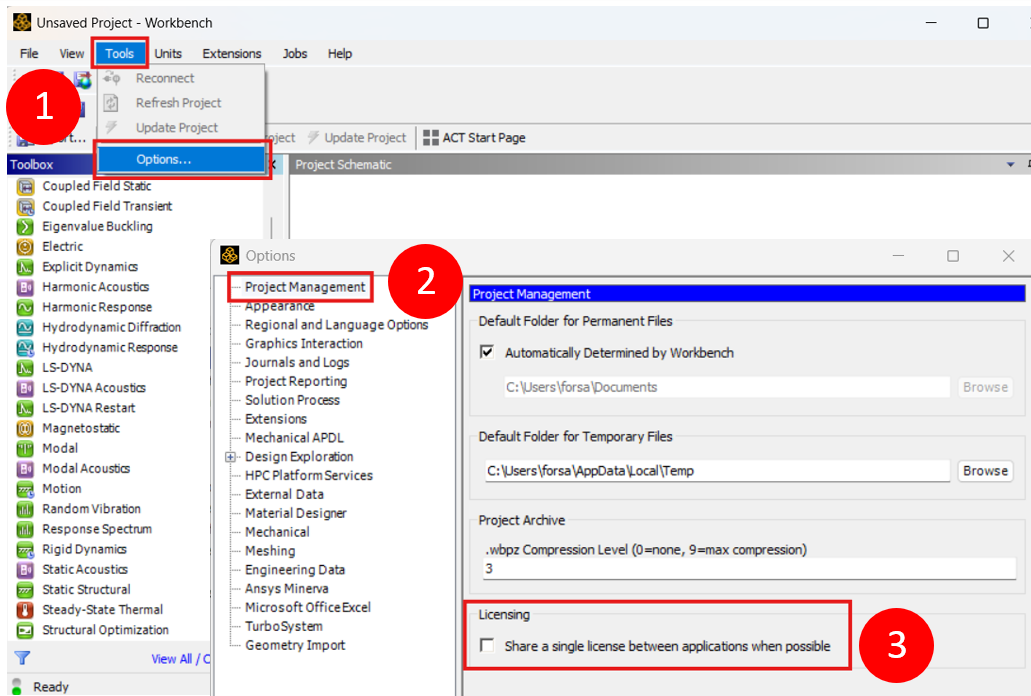
Configure License Preferences in Ansys Discovery
Licensing preferences can also be managed within Discovery, although the location of these settings differs by software release.
Discovery 2024 R2 and Older
Go to:
File > Settings > Advanced
Under Discovery License, select your preferred license.
You can also select an alternate license or leave the alternate set to None.
Discovery 2025 R1 and Newer
Go to:
File > Settings > Licensing
From here, select your preferred Discovery license and configure an alternate license if needed.
Simulation in Discovery requires the appropriate license tier. For 2025 releases, this means a Discovery Pro, Premium, or Enterprise license. For 2024 releases, a Discovery Simulation license is required.
Other licenses, such as Mechanical Enterprise, may provide access to CAD tools without enabling simulation in Discovery.
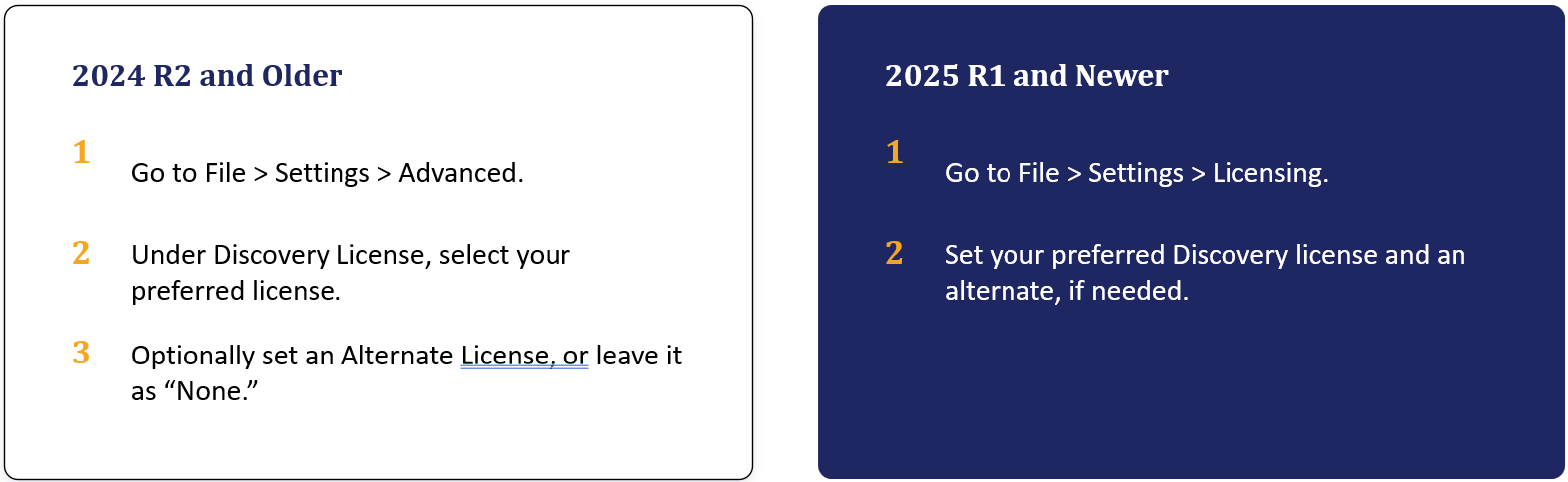
Configure License Preferences in Ansys SpaceClaim
Ansys license preferences can also be configured directly in SpaceClaim, with saved settings applying to both standalone SpaceClaim and the Workbench-hosted version.
These settings apply to both standalone SpaceClaim and the Workbench-hosted version once they are saved.
To configure them:
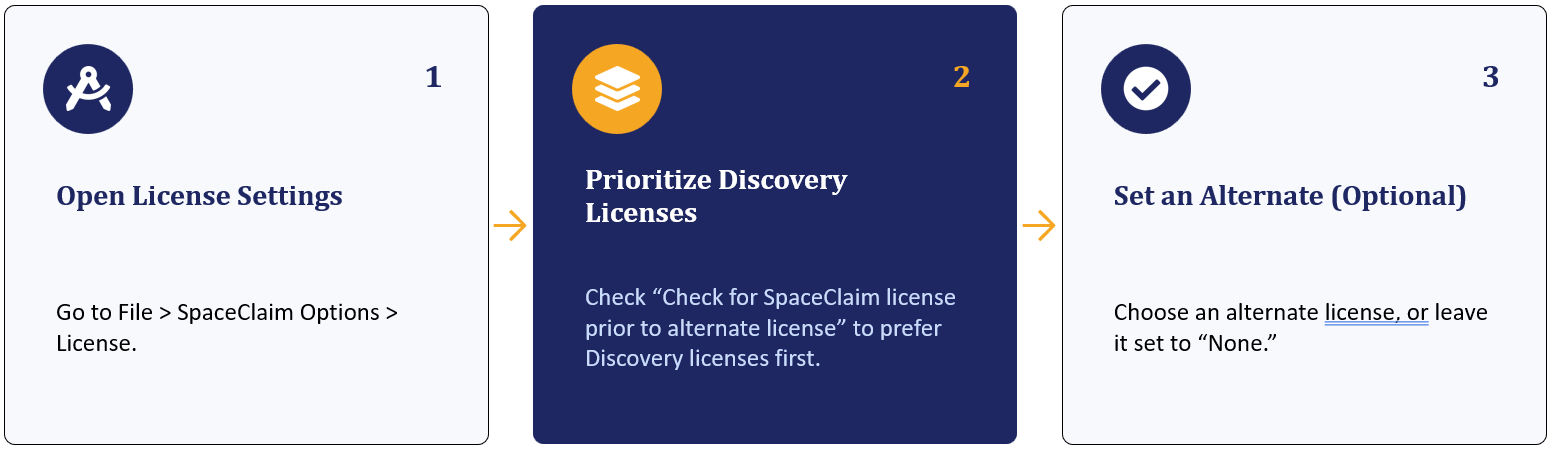
- Go to File > SpaceClaim Options > License.
- Check Check for SpaceClaim license prior to alternate license to prioritize Discovery licenses.
- Select an alternate license if needed, or leave the setting at None.
Make Ansys Licensing Work Better for Your Workflow
License management is easy to overlook until an unavailable or improperly prioritized license interrupts a simulation.
Taking a few minutes to review license selection, priority, and sharing settings can help you use available licenses more efficiently and reduce conflicts when multiple engineers or applications are working from the same license pool.
Whether you need to select a license for one Mechanical project, establish a consistent priority order, or adjust licensing behavior across Workbench, Discovery, and SpaceClaim, these settings give you greater control over how your available Ansys licenses are used.
Need Help with Ansys Licensing?
If you have questions about your Ansys license configuration or want help getting more from your available licenses, the SimuTech Group team is here to help.

Samuel Lopez, MS Mechanical Engineering
Strategic Account Engineer, SimuTech Group
Samuel Lopez is a Strategic Account Engineer at SimuTech Group with experience supporting industrial customers through CFD and FEA simulation workflows. He specializes in Ansys Fluent, CFX, Mechanical/APDL, and Sherlock, with a background in technical support, account management, turbulence modeling, and aerodynamic research. Samuel holds an M.S. and B.S. in Mechanical Engineering from California State University, Long Beach.