
 Contact Us
Introduction to Electric Motor Thermal Simulation
Electric motor thermal simulation helps engineers evaluate how electromagnetic losses, heat transfer, and operating conditions influence motor temperatures and performance. Accurate temperature predictions are essential for assessing winding temperatures, magnet behavior, and cooling system effectiveness.
Ansys provides multiple approaches to electric motor temperature analysis, depending on the required level of detail and motor configuration. This tutorial explores two methods: electro-thermal simulation using Ansys Motor-CAD and electromagnetic-thermal coupling using Ansys Maxwell and Icepak. Each approach offers distinct advantages for evaluating motor thermal performance.
Ansys Motor-CAD is a dedicated tool used for multi-physics simulations of electric motors. With its wide range of templates and fast Finite Element Analysis (FEA), Motor-CAD provides a straightforward and accurate solution when properly calibrated. It uses a Lumped Parameter Thermal Network (LPTN) to evaluate the thermal performance of electric motors.
Icepak is a software application used for computational fluid dynamics (CFD) simulations, specifically for thermal management and electronics cooling. It integrates with Ansys Electronics tools such as Maxwell and HFSS to enable coupled simulations. Icepak uses a structured, voxel-based mesh and is optimized for solving conjugate heat transfer problems in electronic systems. It supports conduction, convection (both natural and forced), and radiation. Its GUI is based in the Electronics Desktop, making it convenient for users already working with electromagnetic tools. Icepak is ideal for scenarios where thermal gradients, component temperatures, and airflow paths need to be evaluated quickly and efficiently, especially in power electronics and motor applications.
Motor-CAD Electro-Thermal Coupling
In the Motor-CAD interface, various parameters are provided to modify the selected electric motor type. In this example, we will use the default radial PMSM (Permanent Magnet Synchronous Motor). To open the template:
First, choose the motor type as PMSM. Click on Motor Type and select BPM (Radial) from the top bar.
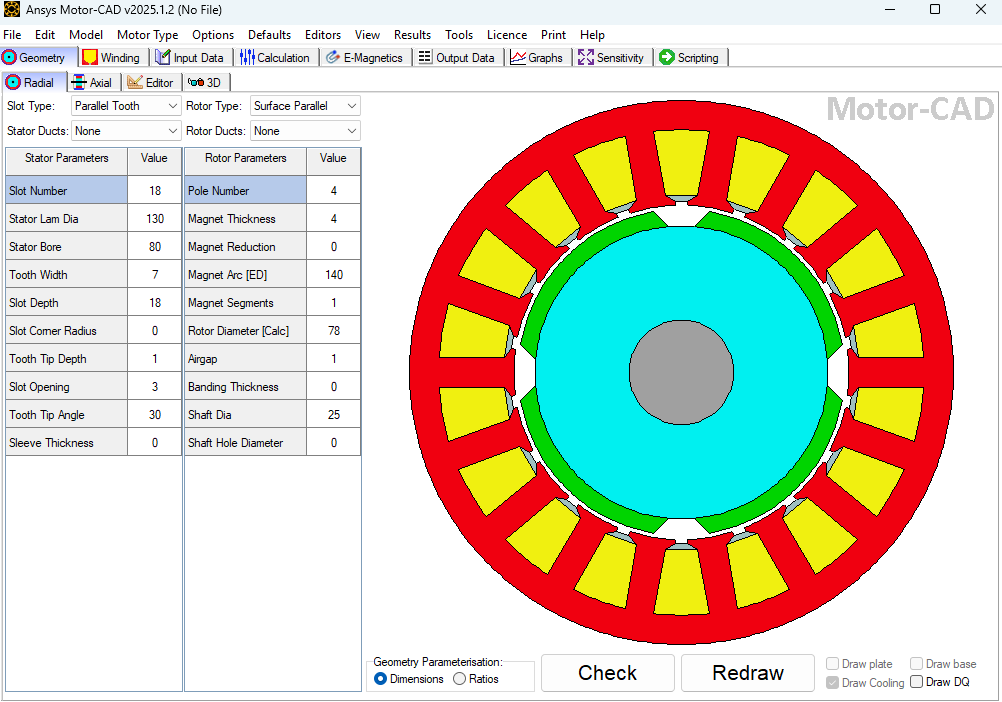
The following template will appear in your interface. This motor has 18 stator slots, 4 poles, and 100 turns per slot.
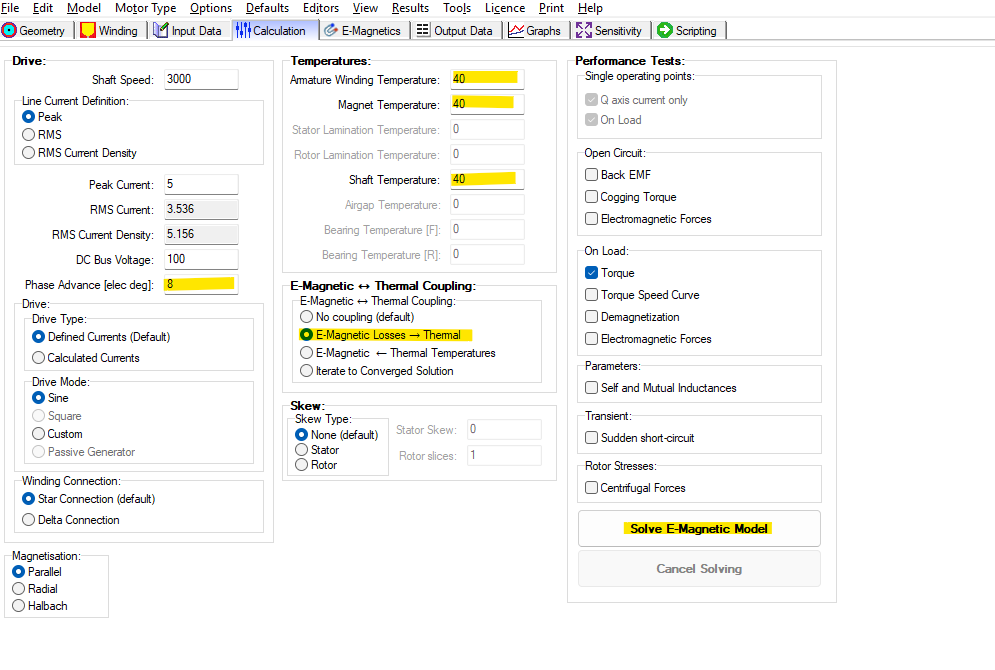
To run the motor, go to the Calculation tab and keep the default settings. Set Phase Advance to 8 electrical degrees. Change the initial temperature to 40°C. This setting does not represent the thermal performance of the electric motor; rather, it adjusts copper conductivity, magnet properties, and remanence to calculate electromagnetic performance.
To couple the electromagnetic losses with the thermal module in Motor-CAD, check the E-Magnetic Losses – Thermal option under the Coupling section. Then click Solve E-Magnetic Model to run the simulation.
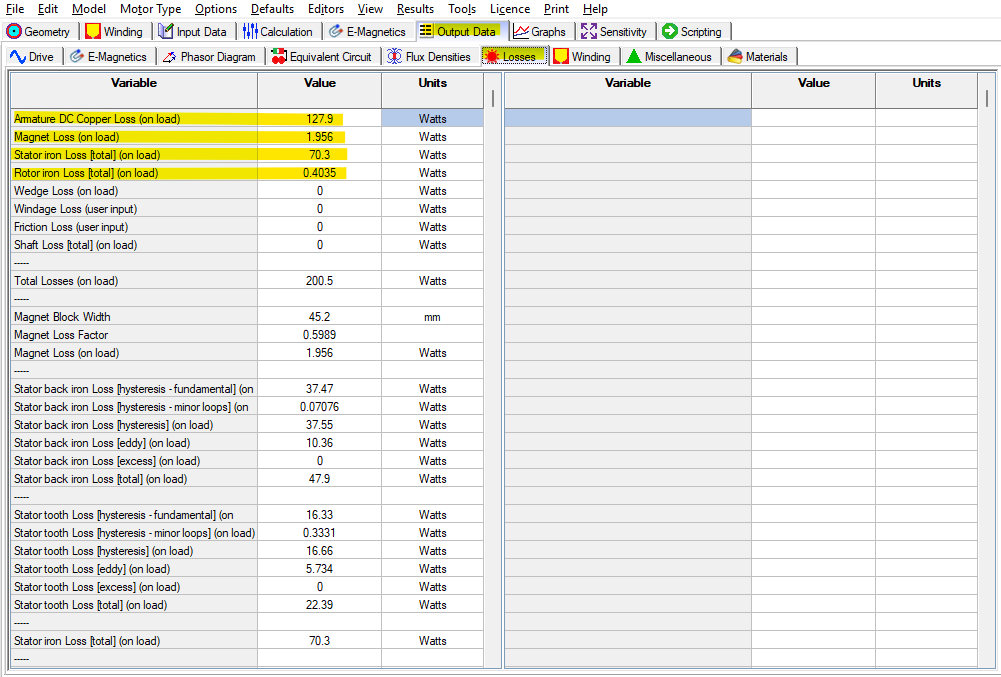
After completing the simulation, go to Output Data → Losses. The calculated losses are:
-
DC copper loss: 127.9 W
-
Magnet loss: 1.95 W
-
Total iron loss: 70.7 W
To simulate the thermal performance, click Model and select Thermal from the top bar.
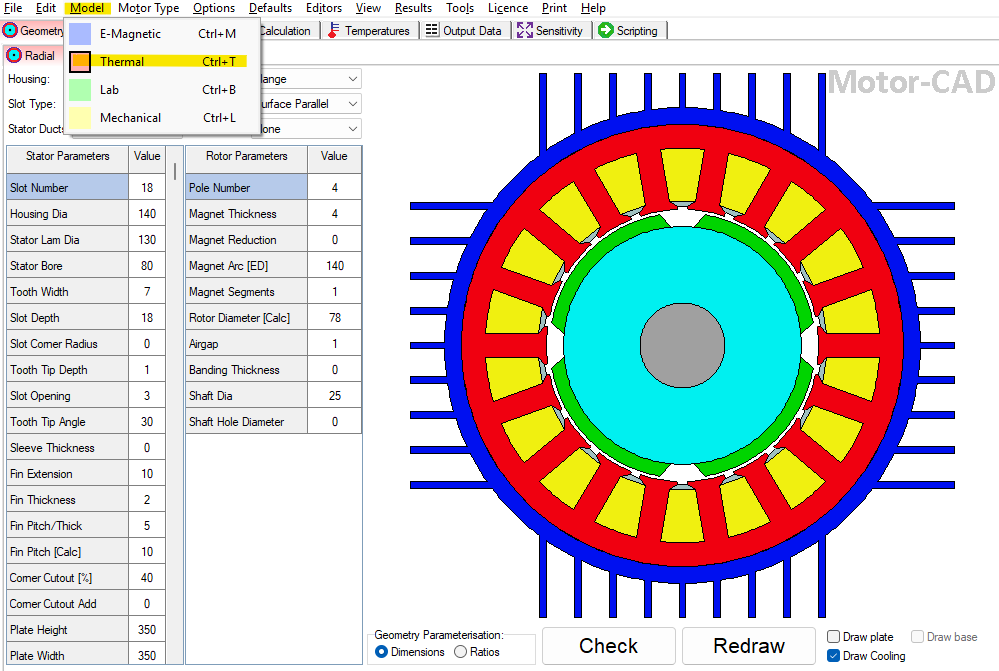
The default PMSM template in Motor-CAD includes a housing with axial fins. Click 3D to view the full electric motor with housing. To configure the cooling settings, go to Input Data → Cooling. Motor-CAD offers several predefined cooling system templates. Select your desired cooling system and adjust the parameters as needed. In this example, we will use natural convection without any active cooling, as the motor has a current density of 5.196 A/mm².
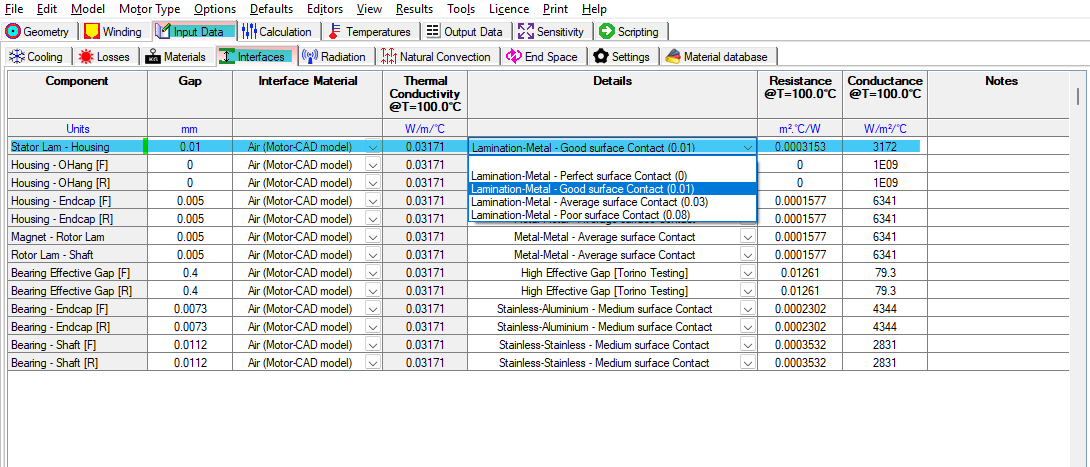
To improve the model’s accuracy, go to the Interfaces tab and set Stator Lam-Housing Contact to Good surface contact (0.01). This setting reduces thermal resistance between the housing and stator lamination, simulating conditions similar to shrink-fit or press-fit assembly methods in real-world applications.
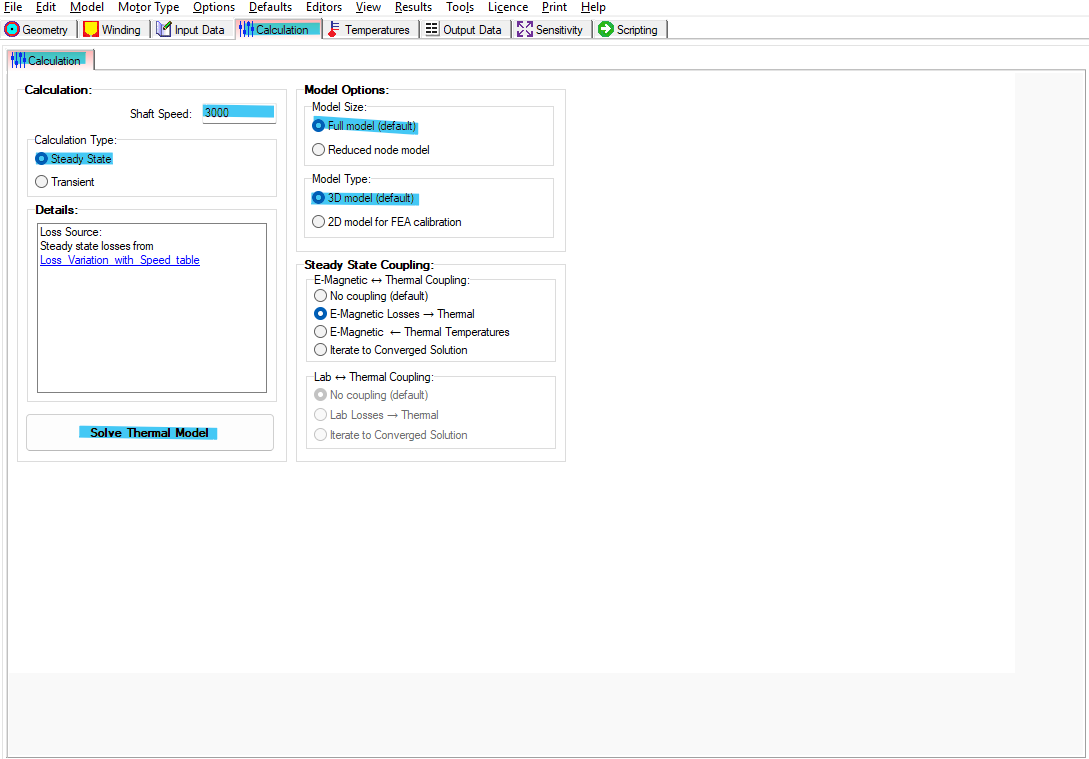
After configuring the cooling settings, it’s time to run the thermal model. Go to the Calculation tab and select the following:
-
Steady-State
-
Full Model
-
3D Model
-
Click Solve Thermal Model
Motor-CAD also provides a Transient option to analyze the motor’s short-term thermal behavior, which is useful for estimating performance during the first 5, 10, or more seconds under peak load conditions.
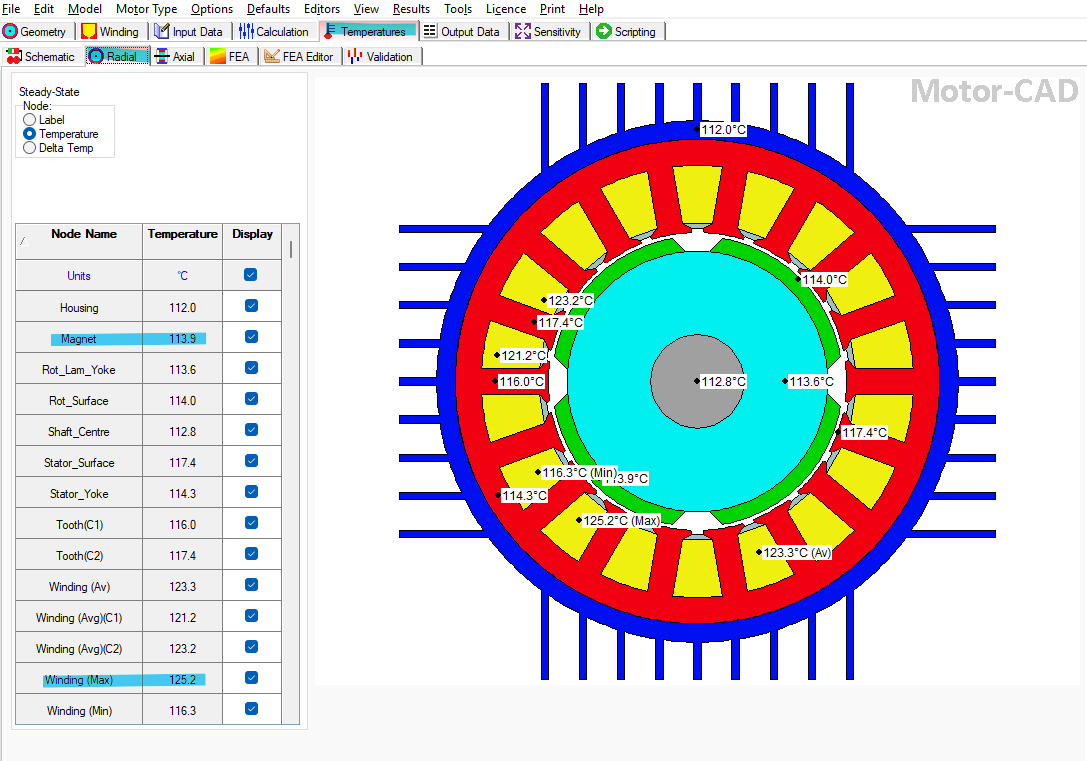
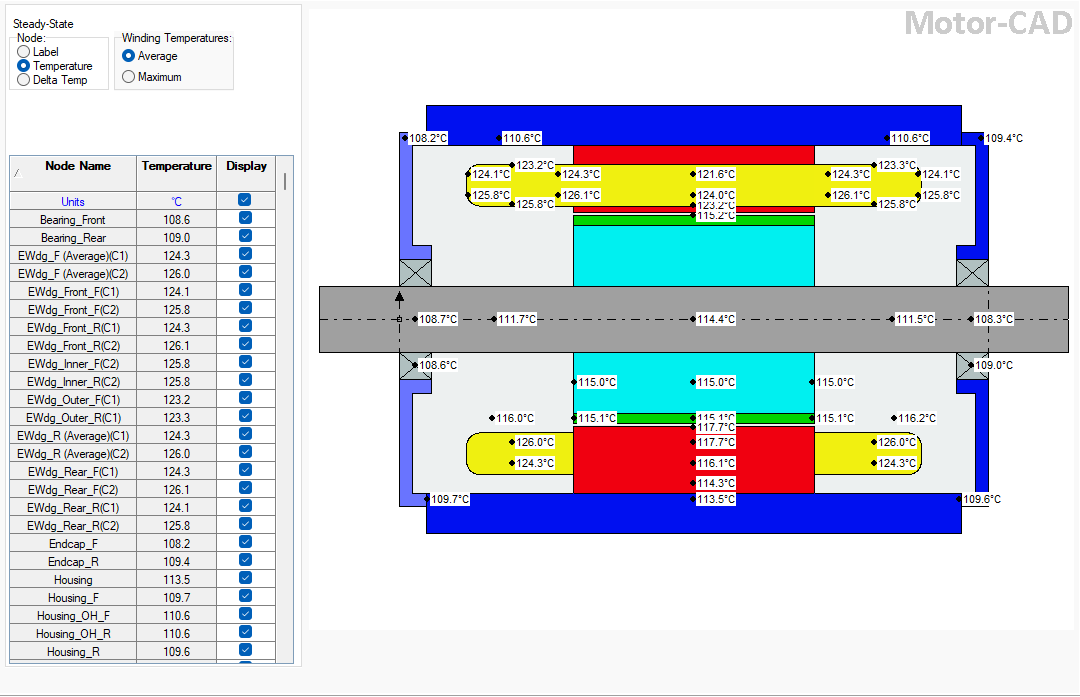
Once the simulation is complete, you will see a schematic overview of the thermal circuit using the Lumped Parameter Thermal Network (LPTN) method. Click Radial from the top bar to view the 2D cross-sectional temperature distribution. Here, Motor-CAD shows the temperature of individual components: surface magnets reach a peak of 113.9°C, and the windings reach 125.2°C. You can inspect other components in the Radial view or switch to the Axial tab to examine longitudinal temperature distribution.
Maxwell-Icepak Coupling
The second method in our electric motor thermal simulation example uses a CFD-based software to simulate the temperature distribution of an electric motor. We will use the same motor model as in Motor-CAD and import it into Ansys Electronics using Discovery.
1. Electromagnetic Simulation in Maxwell
To perform a thermal simulation in Maxwell–Icepak coupling, there are two main steps:
-
Running the electromagnetic design in Maxwell.
-
Exporting and preparing the full 3D geometry—including housing and bearings—for Icepak.
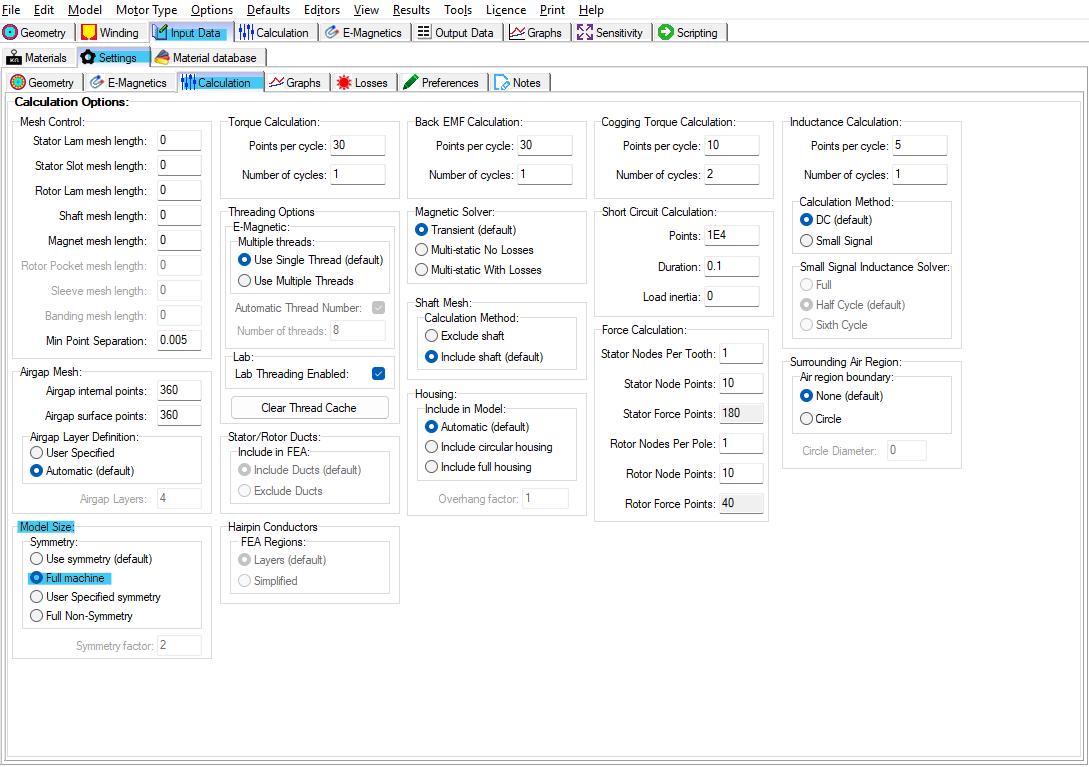
First, switch the model size to Full Machine in Motor-CAD to simulate the entire geometry of the electric motor in Ansys Maxwell. While symmetry models speed up simulations, here we show the full machine for clarity.
To create a Visual Basic script to run in Maxwell:
-
Click Tools and select Ansys Electronics Desktop.
-
Choose the desired export settings and the file you want to convert to a script.
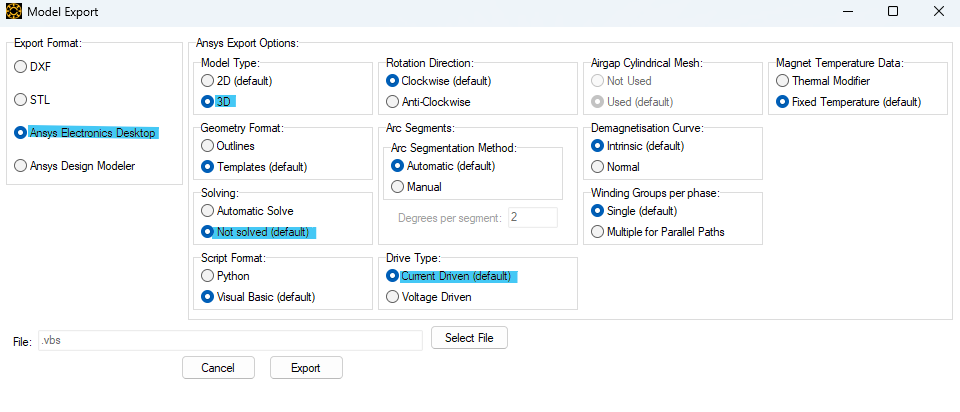
Once exported, double-click the script. It will automatically launch Ansys Electronics, create a Maxwell project, and begin drawing the 3D model. All settings are applied from the script.
The default solution type is Transient, which is suitable for torque simulations. However, since torque values are not needed here, change the solution type to AC Magnetic (Eddy Current) for faster simulations:
-
Right-click the Maxwell project in the tree view.
-
Select Solution Type, and change it to Eddy Current.
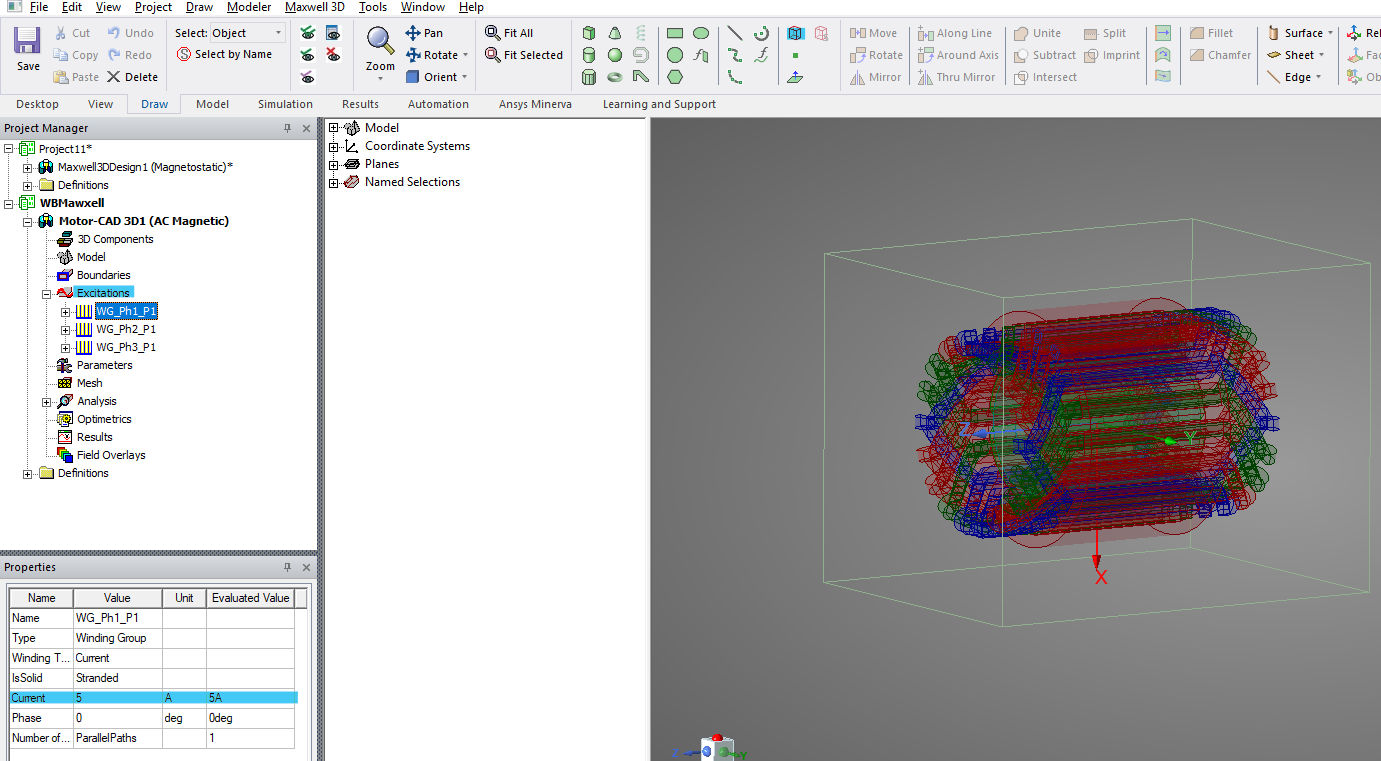
Since eddy current simulations use the peak current value, go to the Excitation section and set all three phase currents to 5 A. Then, click Create Region and apply a 50 mm offset around the model.
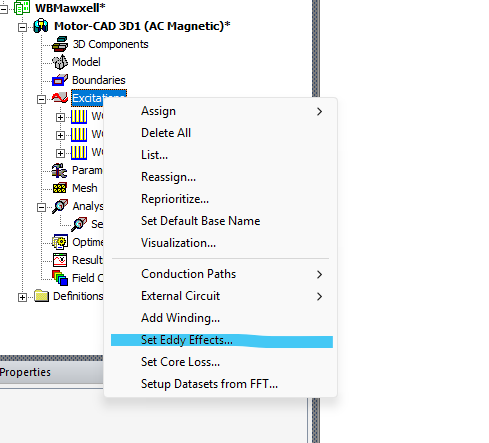
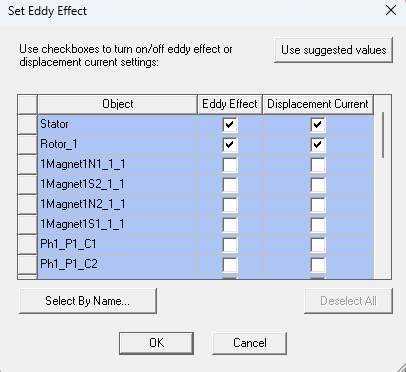
To activate eddy effects:
-
Right-click Excitation, choose Set Eddy Effects….
-
Enable eddy effects for the stator and rotor, and check Displacement Currents only. (Since coils are modeled as blocks, eddy effects in windings can be neglected.)
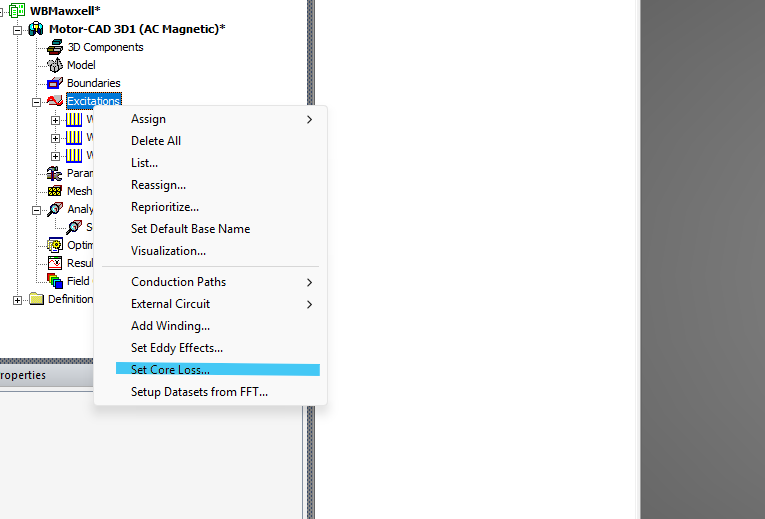
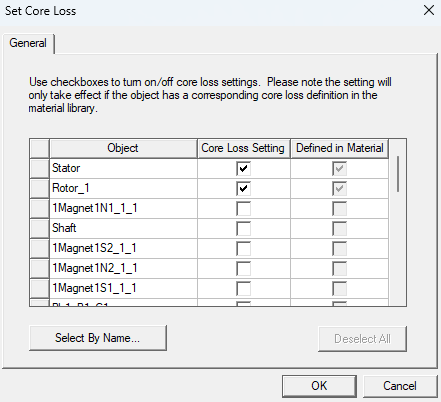
To enable core losses:
-
Right-click Excitation, choose Set Core Loss.
-
Enable core losses for the stator and rotor only.
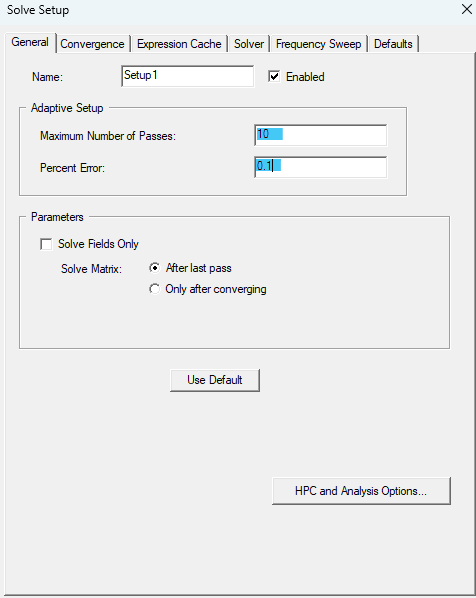
To improve simulation accuracy:
-
Right-click Setup1 under Analysis, select Properties.
-
Set Max Number of Passes to 10, and Percent Error to 0.1.
-
Use 100 Hz as the frequency, corresponding to 3000 RPM with 4 poles (since RPM×P/120=Frequency).
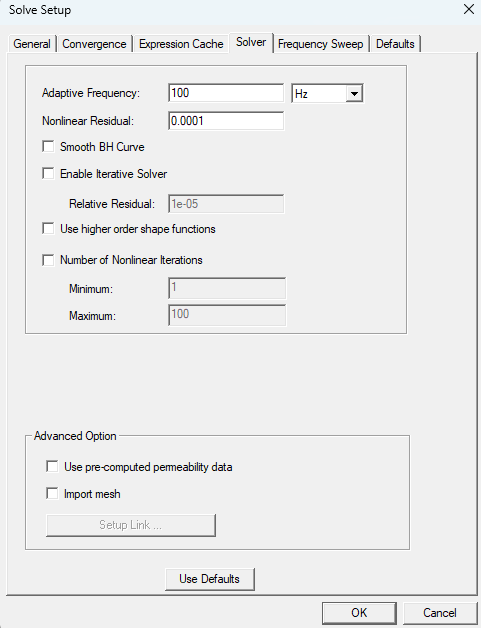
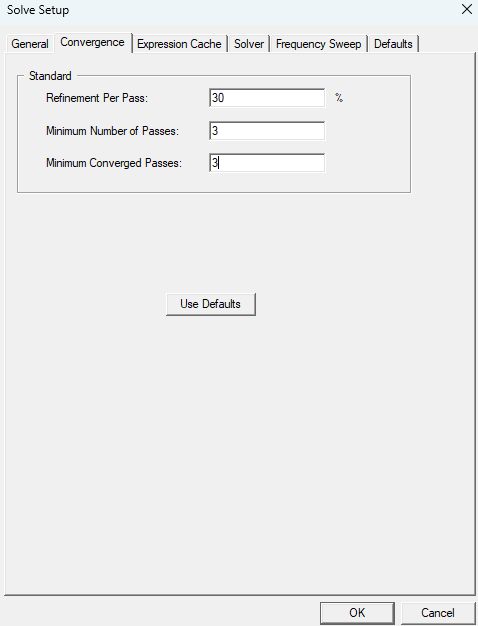
Run the simulation by right-clicking Setup1 and choosing Analyze. Depending on your system, it may take 5–20 minutes.
Once complete:
-
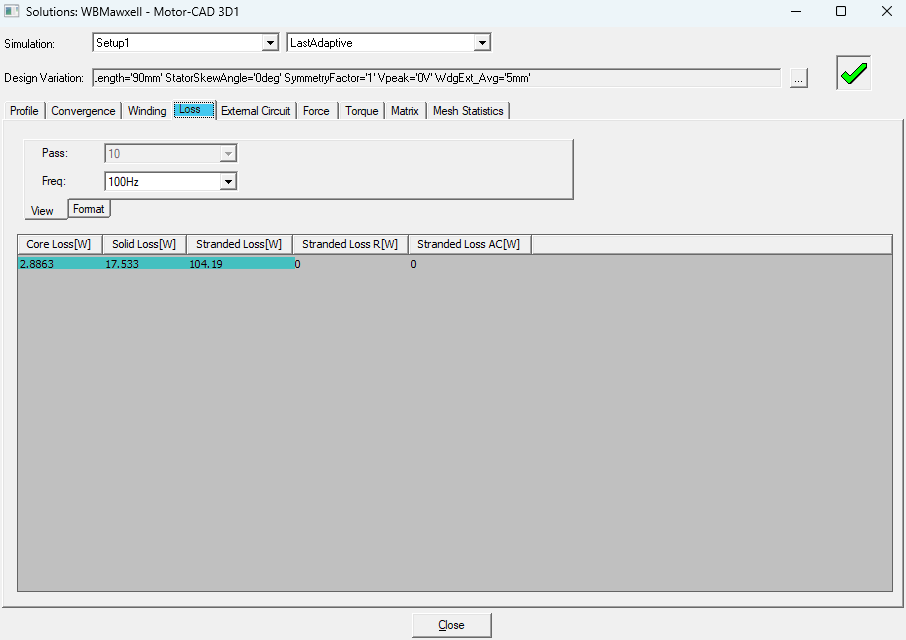
Right-click Setup1, select Profile, then go to the Loss tab.
-
Example results:
-
Core Loss: 2.86 W
-
Solid Loss: 17.53 W
-
Stranded Loss (DC Copper): 104.29 W
-
2. Creating the Geometry for Icepak
To prepare the full model for thermal simulation:
-
Return to Motor-CAD.
-
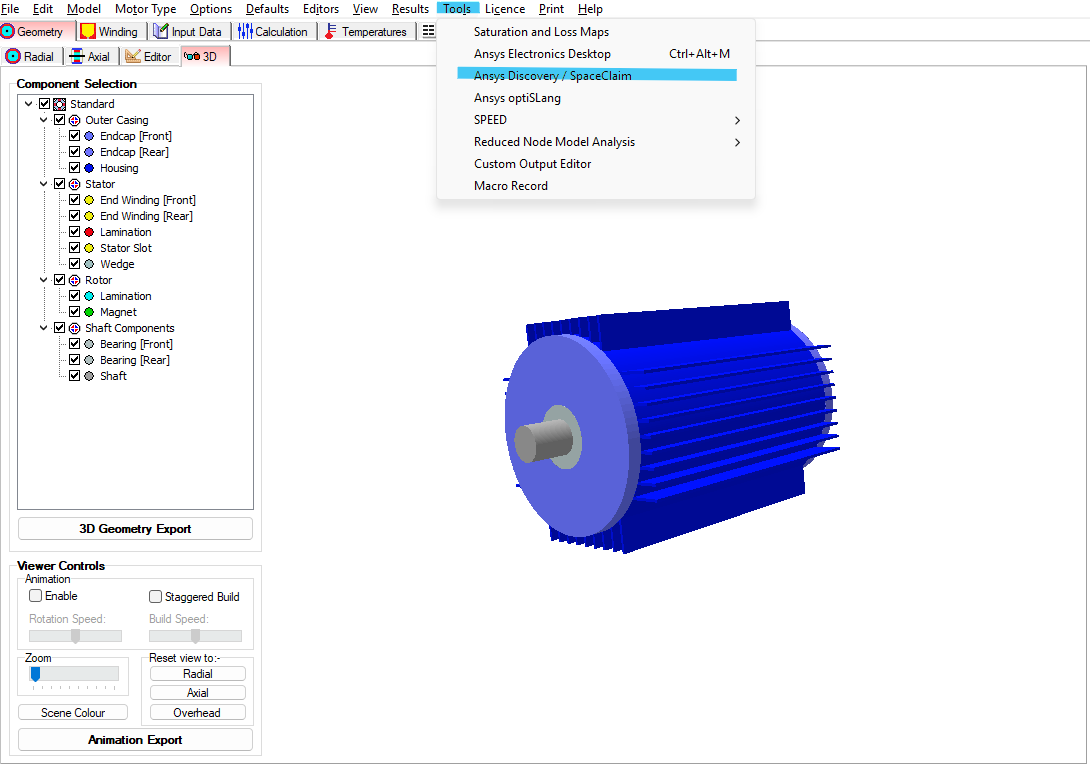
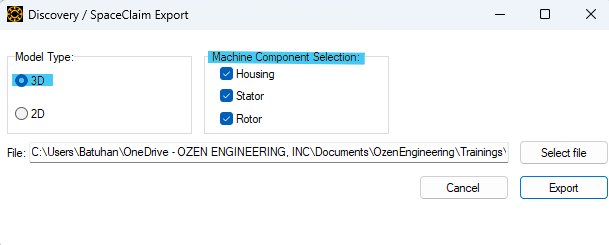
Click Tools → Discovery/SpaceClaim Export and check all components.
-
Export the Python script.
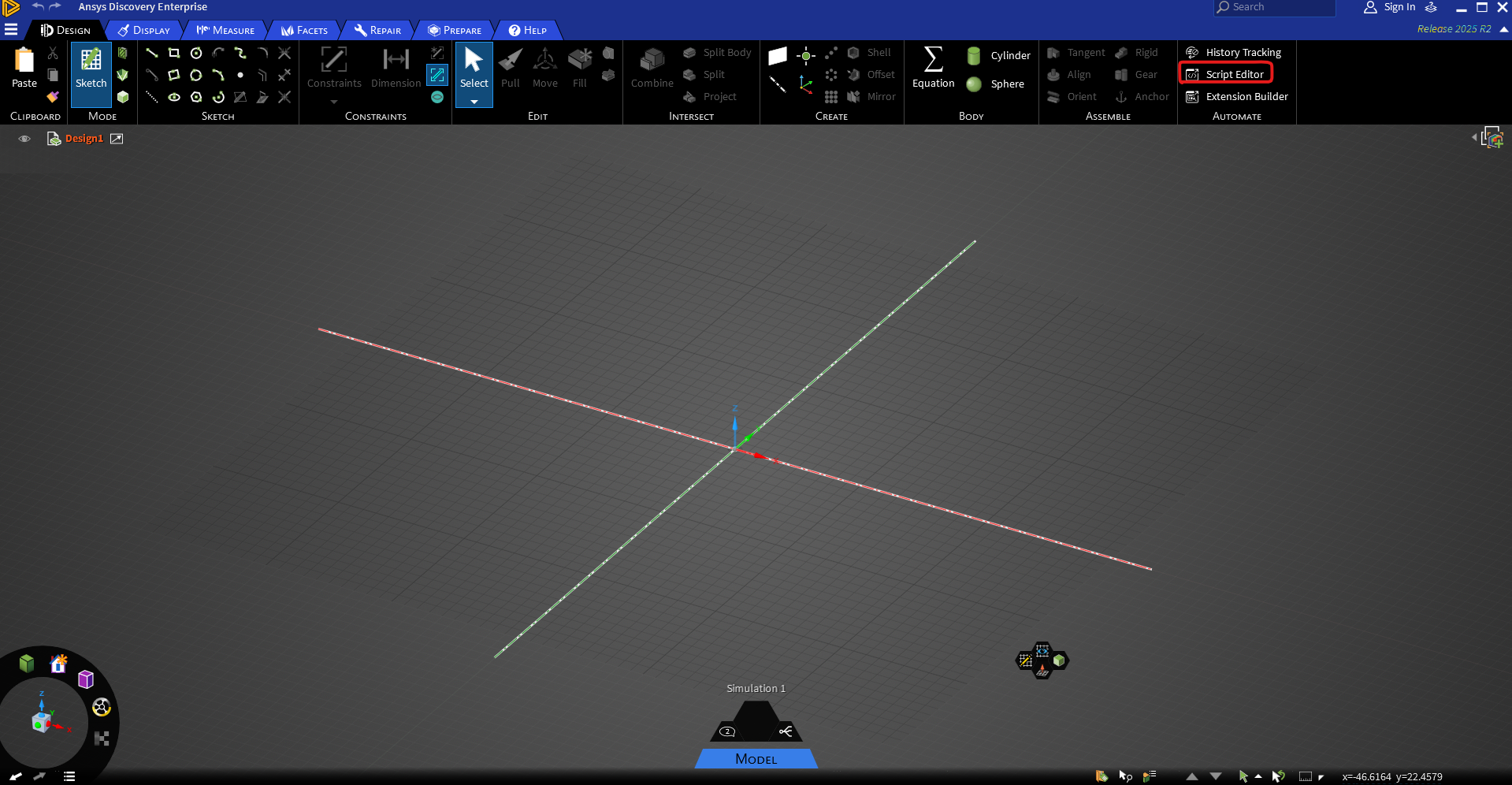
Open Ansys Discovery (or SpaceClaim):
-
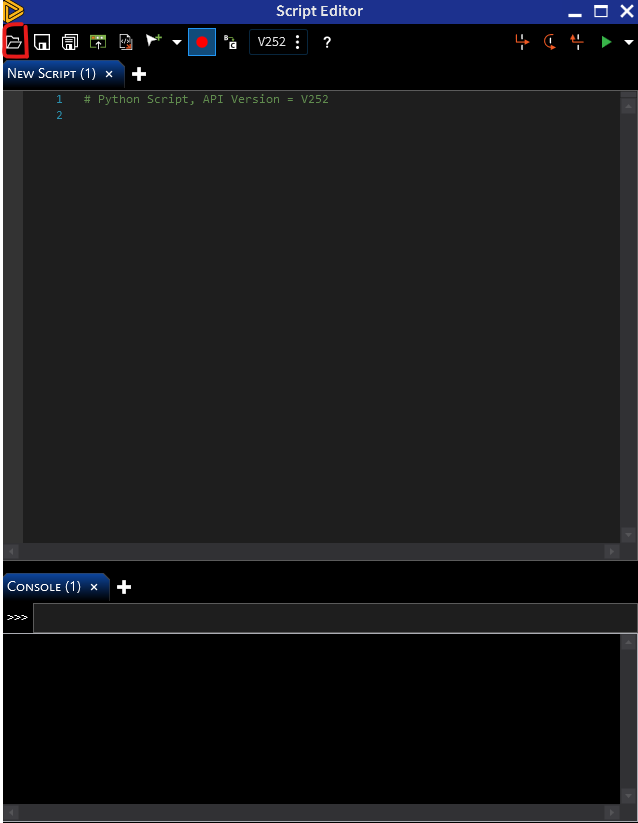
Click Script Editor, load the Python script, and click Run.
-
Discovery will draw the full electric motor model automatically (this may take a few minutes).
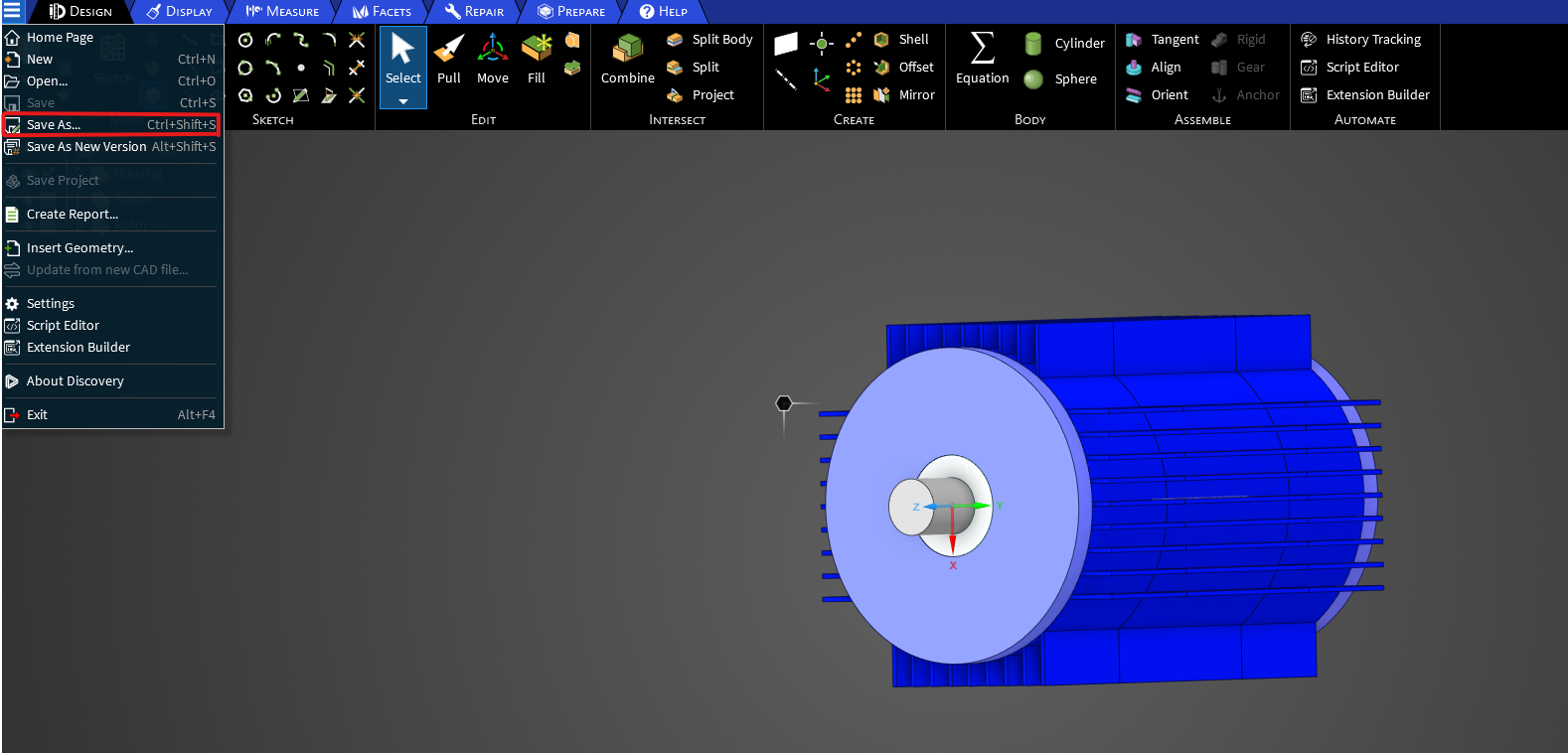
Save the completed geometry as a .STEP file.
3. Thermal Simulation in Icepak
Create a new Icepak Design and import the .STEP file. A fluid region (air) will be assigned automatically.
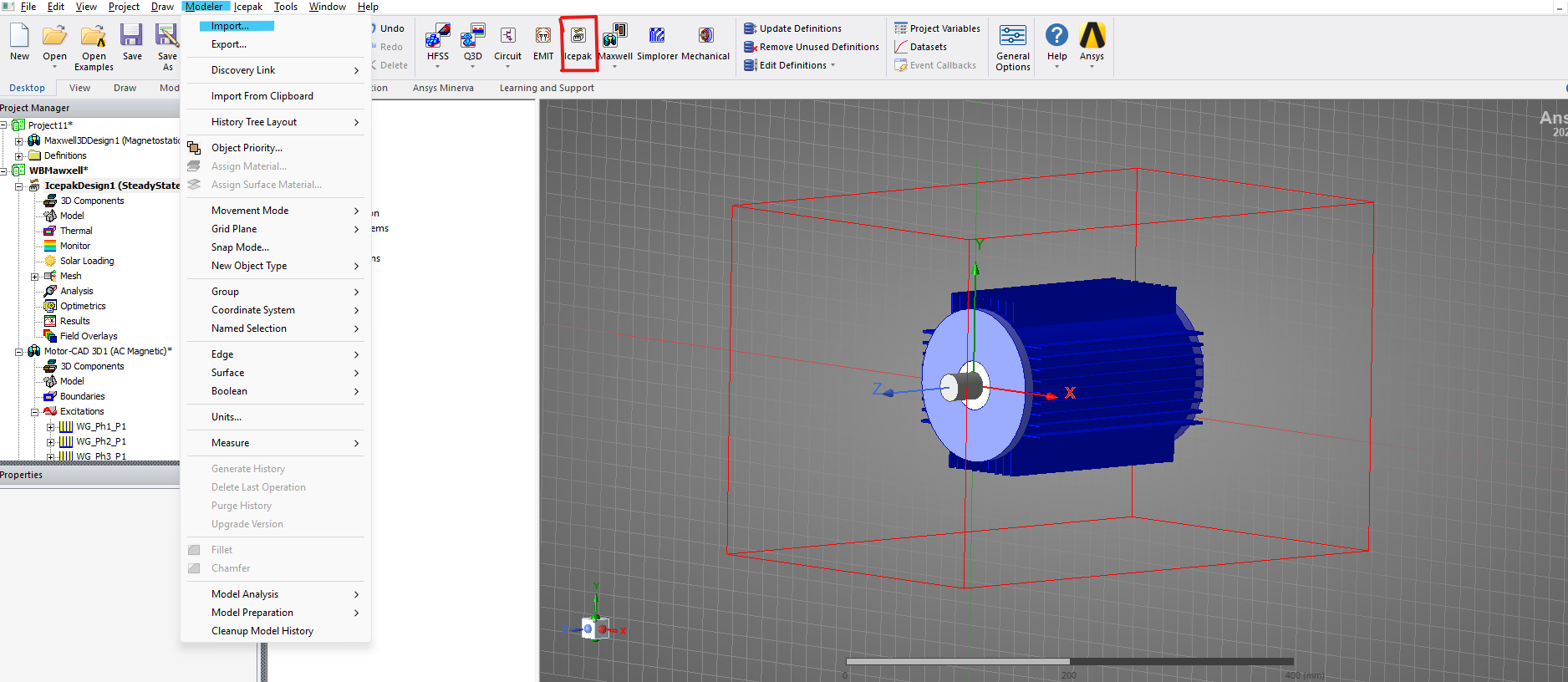
Simplify the Model
-
Unite housing parts into one object.
-
Unite armature windings into a single part.
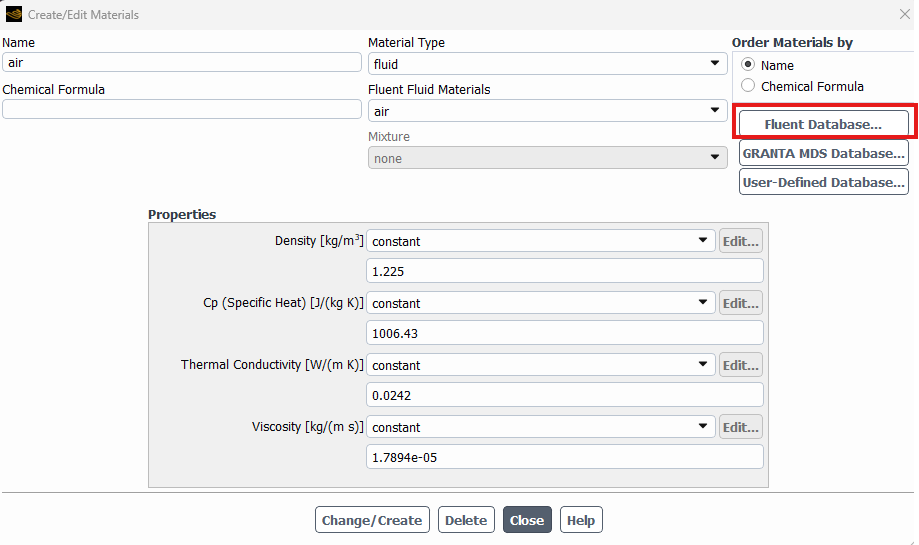
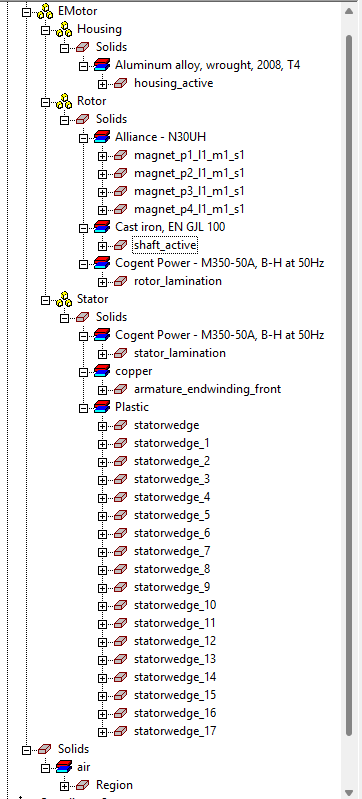
Assign Materials
-
Armature Winding → Copper
-
Stator & Rotor → M350-50A (or similar lamination steel)
-
Housing → Aluminum Alloy Cast
-
Magnets → N30UH
-
Slot Wedges → Plastic
-
Shaft → Cast Iron
Ensure all components are assigned a material, as shown in the project tree.
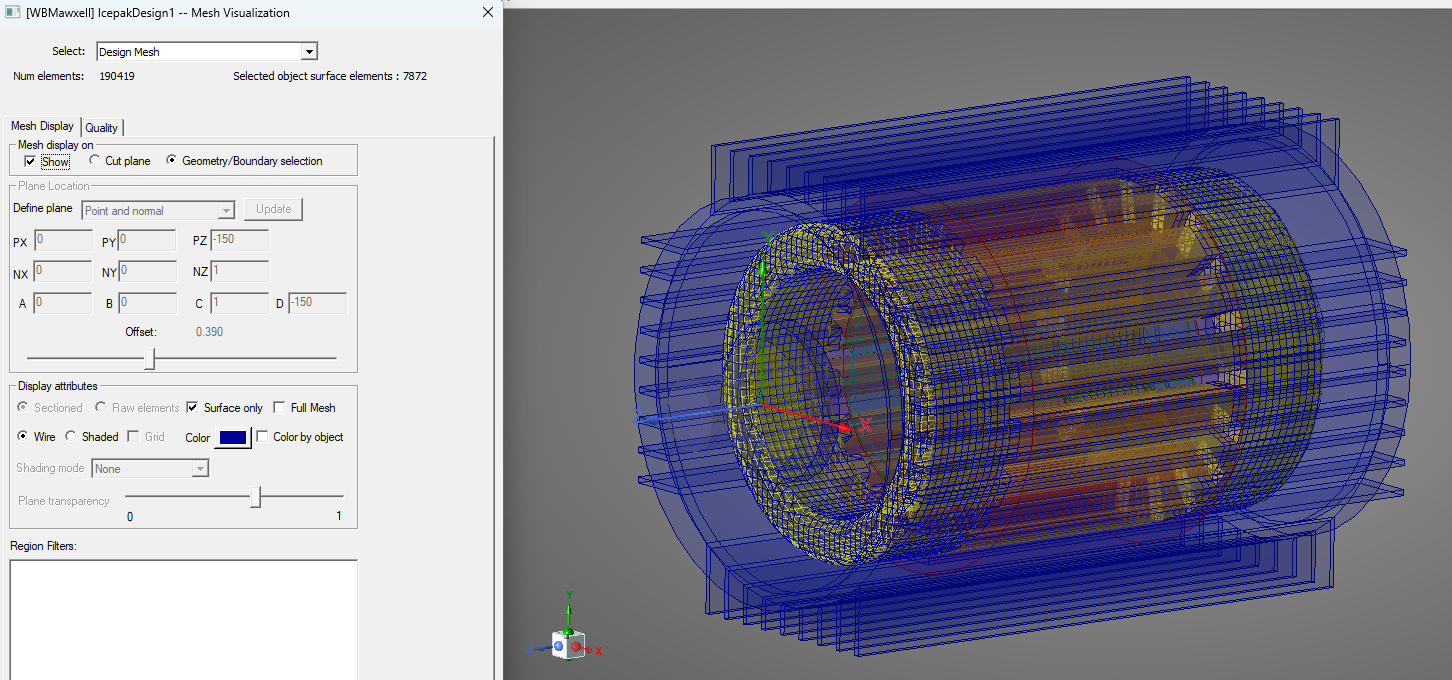
Mesh Settings
-
Go to Simulation → Global Mesh Settings.
-
Enable Mesh Fusion.
-
Keep other settings default or modify for accuracy.
-
Click Generate Mesh. The Mesh Viewer will appear, allowing you to inspect mesh quality and size.
Next step is assigning the boundary conditions.
Assign Boundary Conditions
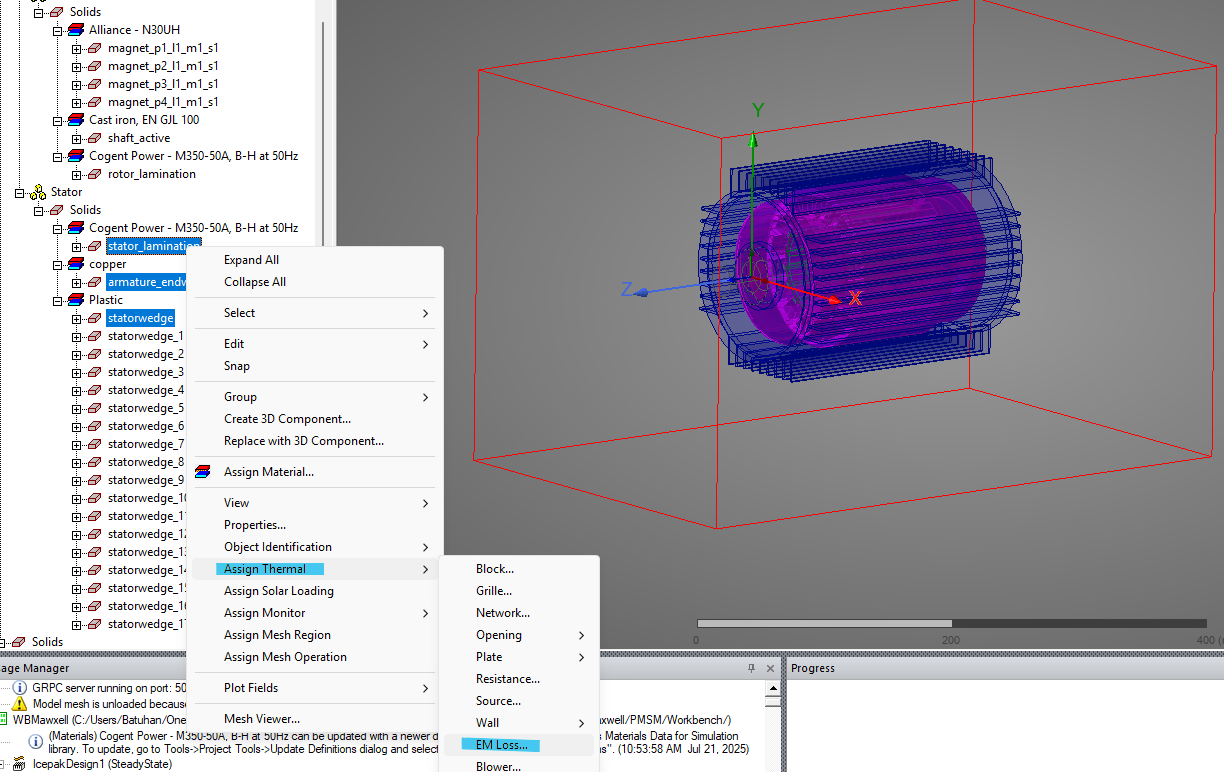
Heat Sources:
-
Select iron cores and windings (magnet losses are negligible).
-
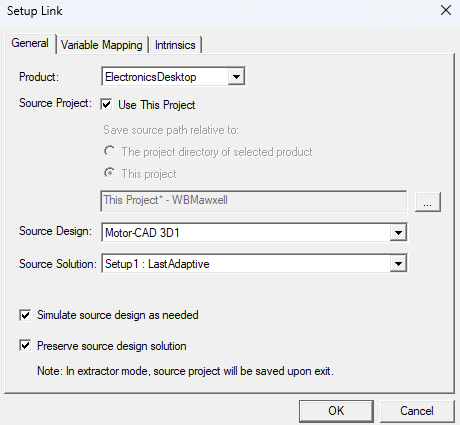
Go to Assign Thermal / EM Loss…
-
In the pop-up, select:
-
Product: Electronics Desktop
-
Use This Project: Checked
-
Enable the last two options to complete the coupling
-
Click OK
-
Outlet:
-
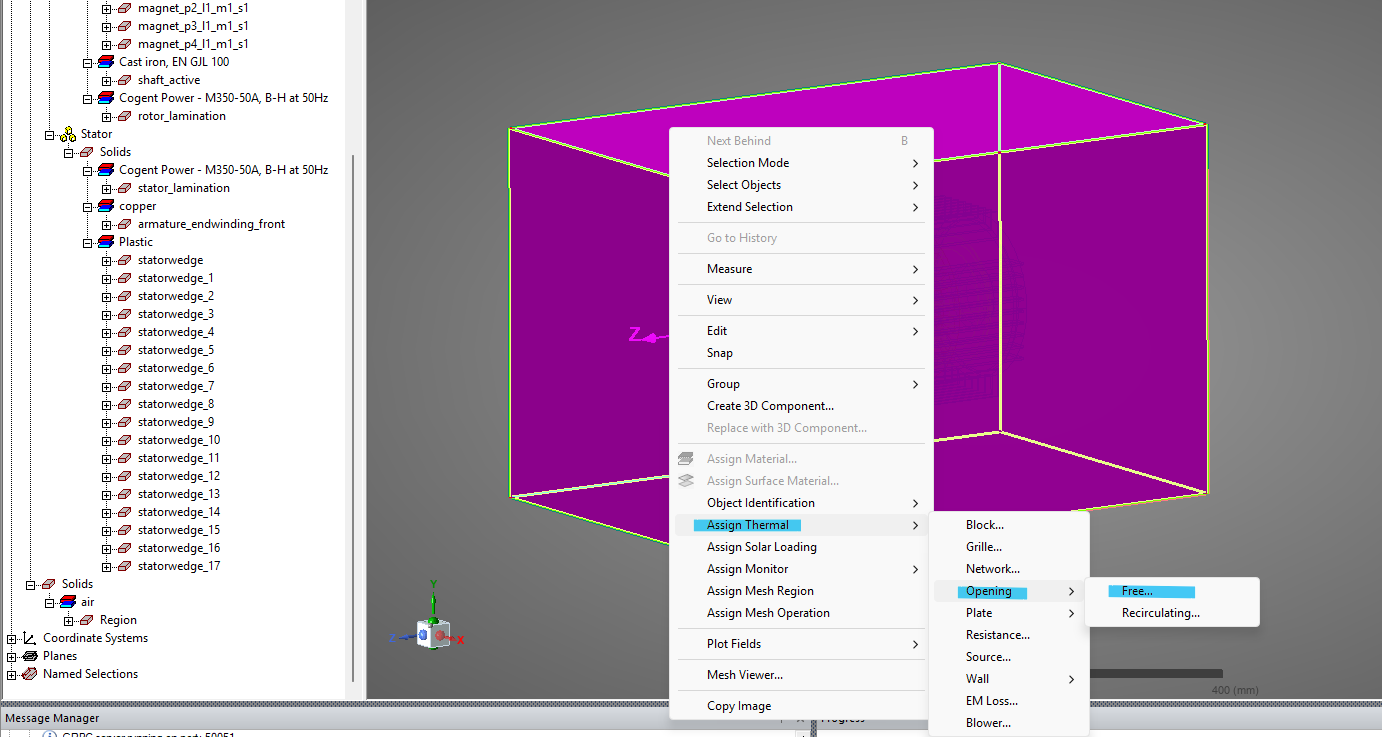
Select all faces of the fluid region.
-
Right-click → Assign Thermal / Opening / Free.
-
Keep default outlet properties.
Solution Setup
-
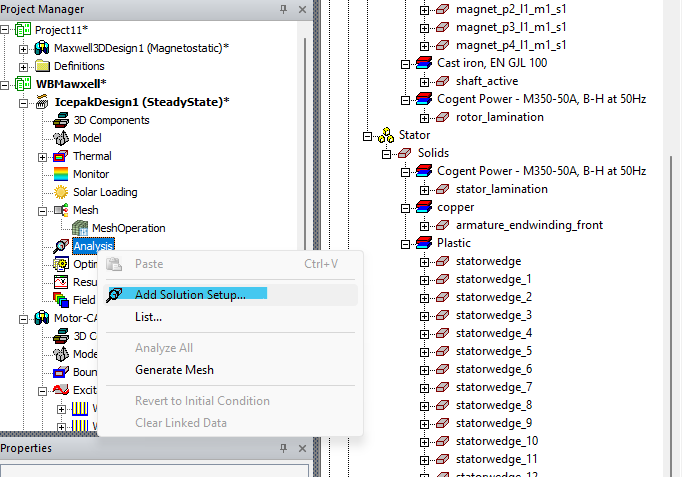
Right-click Analysis → Add Solution Setup.
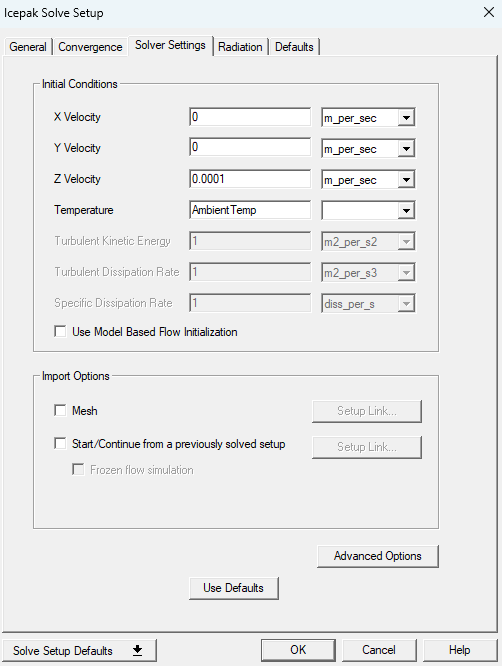
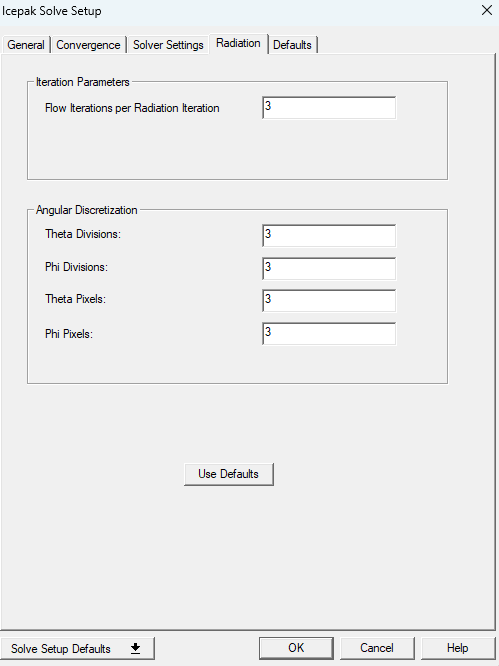
Update settings:
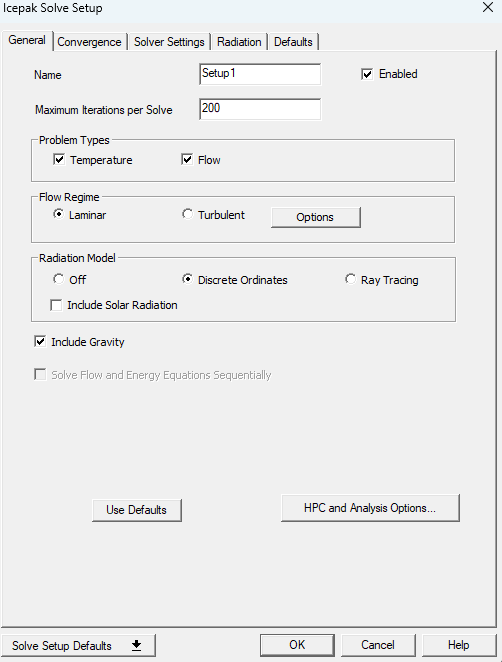
-
Max Iterations: 200
-
Radiation Model: Discrete Ordinates
-
Include Gravity: Checked
-
Under Solver Settings → Initial Conditions → Z Velocity: Set to 0.0001 m/s (to simulate low-speed convection)
Monitors (Optional)
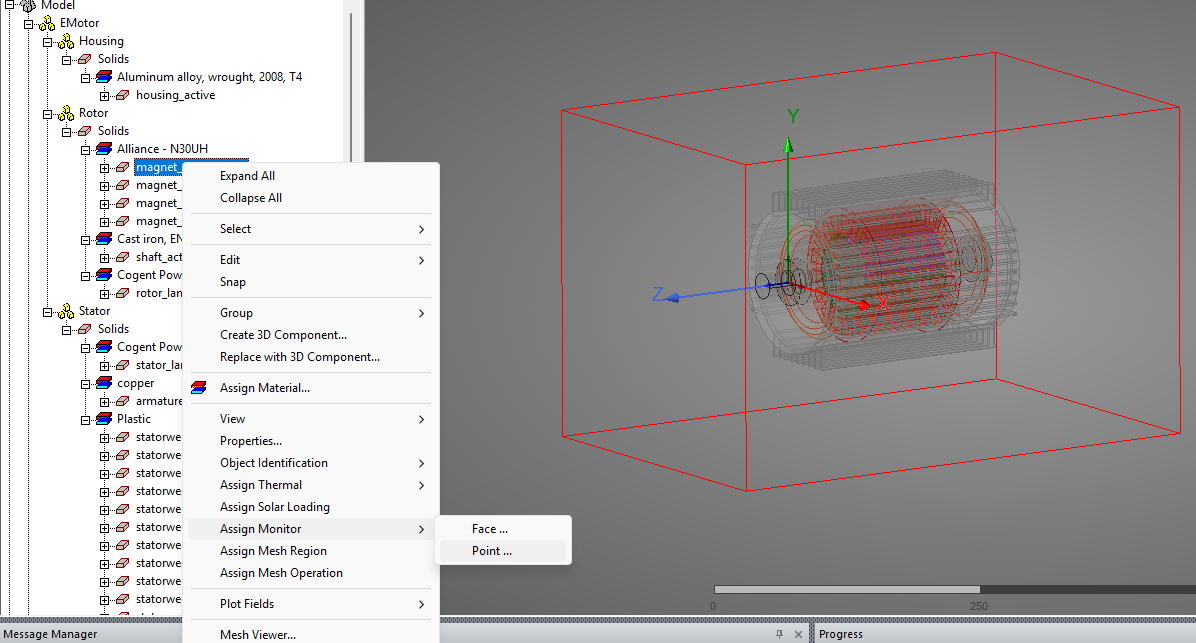
To track the temperature of key components:
-
Select any solid (e.g., a magnet).
-
Right-click → Assign Monitor → Point → Temperature
-
You can also monitor temperature at specific faces.
-
The monitor point will be at the center of the component’s volume.
Run the Simulation
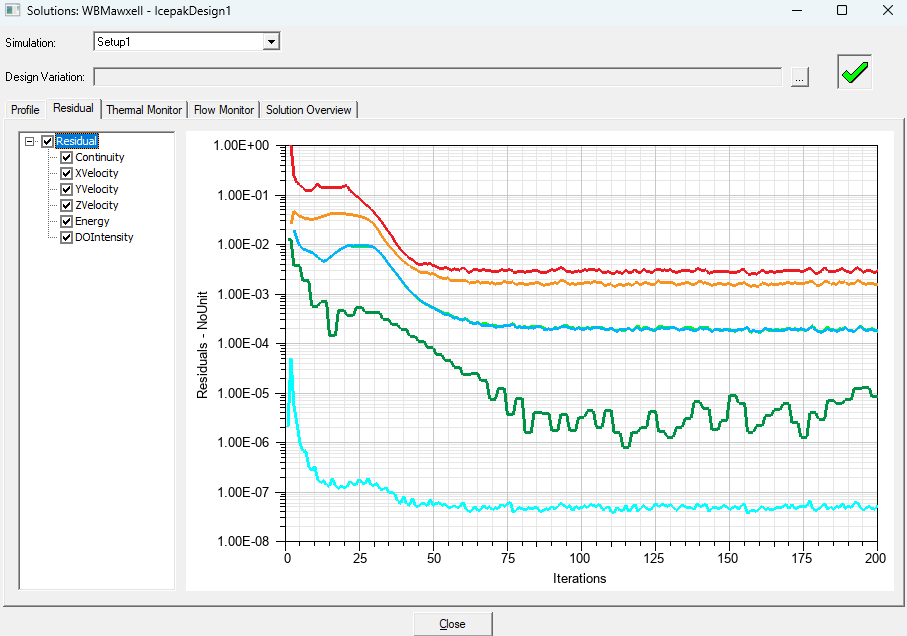
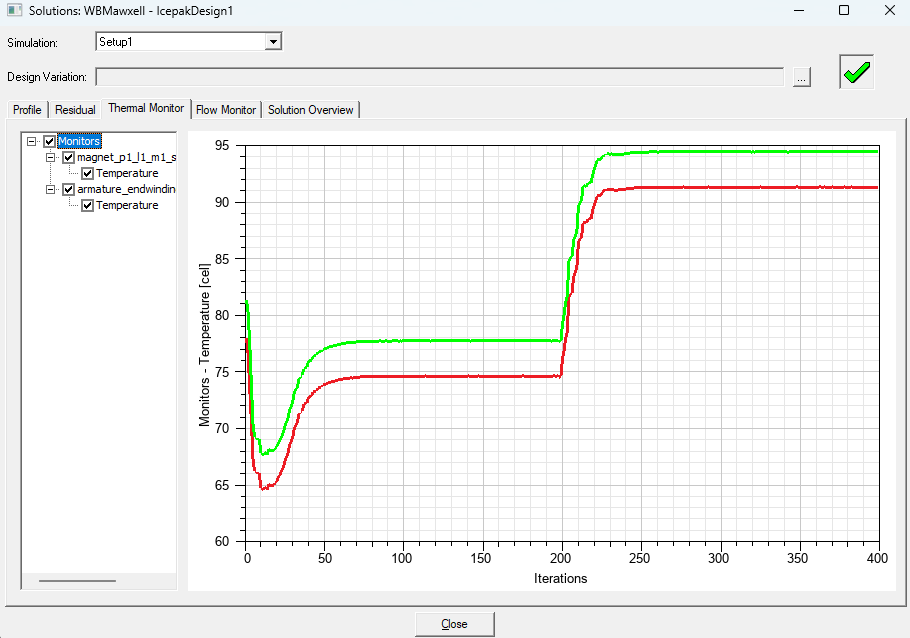
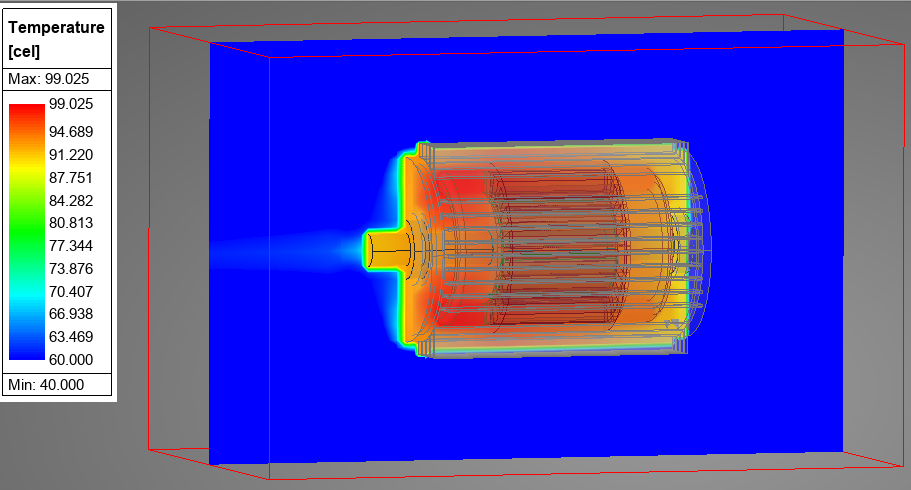
Right-click Setup1 and select Analyze to run the simulation. Depending on the complexity of the model, it may take 5–30 minutes. You can monitor the residuals by right-clicking Setup1 and selecting Residual. The thermal monitors will also be displayed here. In this example, the magnet reaches 93°C and the end-winding front face reaches 94°C.
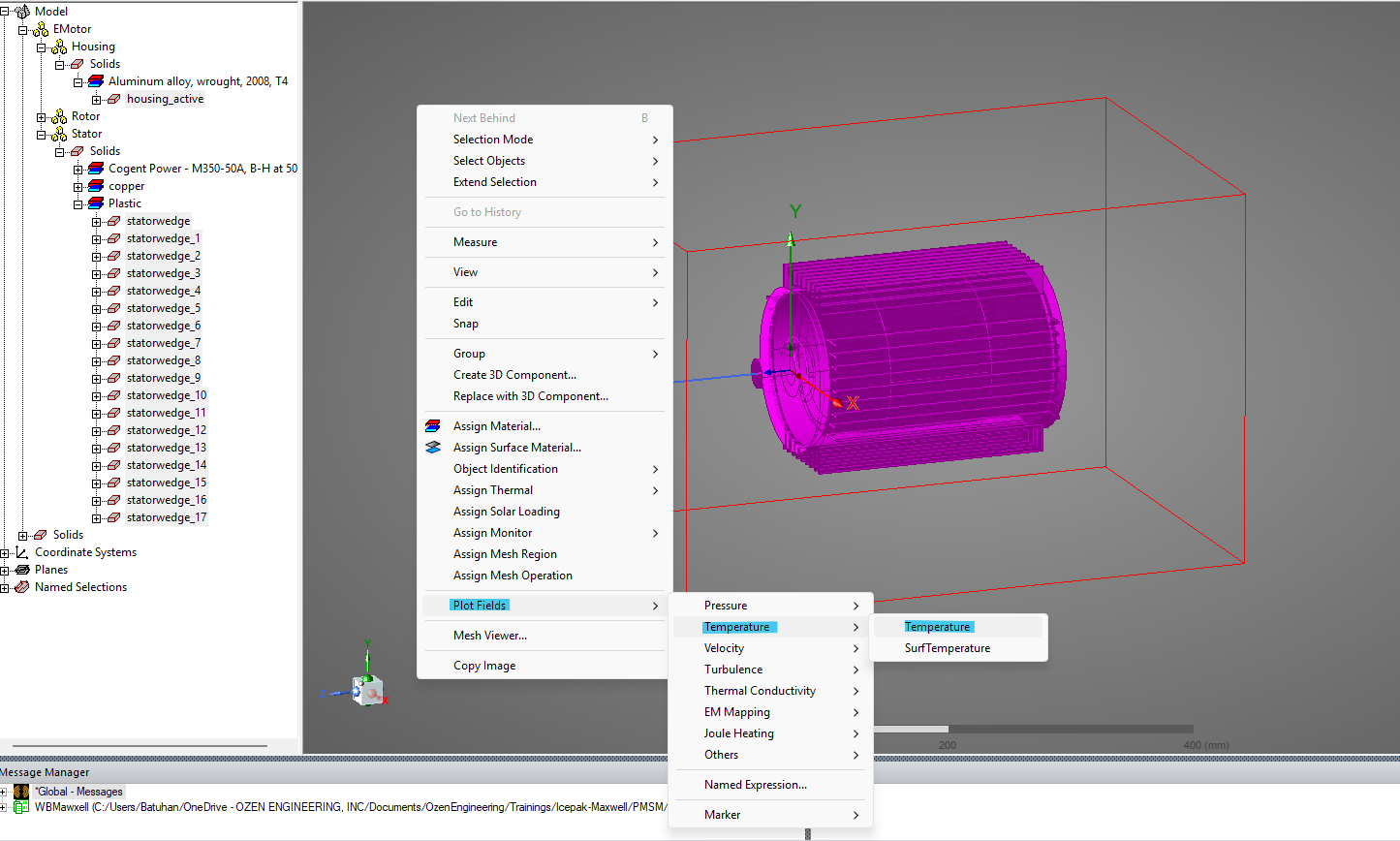
To plot the temperature contour of the electric motor:
-
Select all components except the region.
-
Right-click and choose Plot Fields → Temperature → Temperature.
-
In the pop-up window, check Plot on surface only.
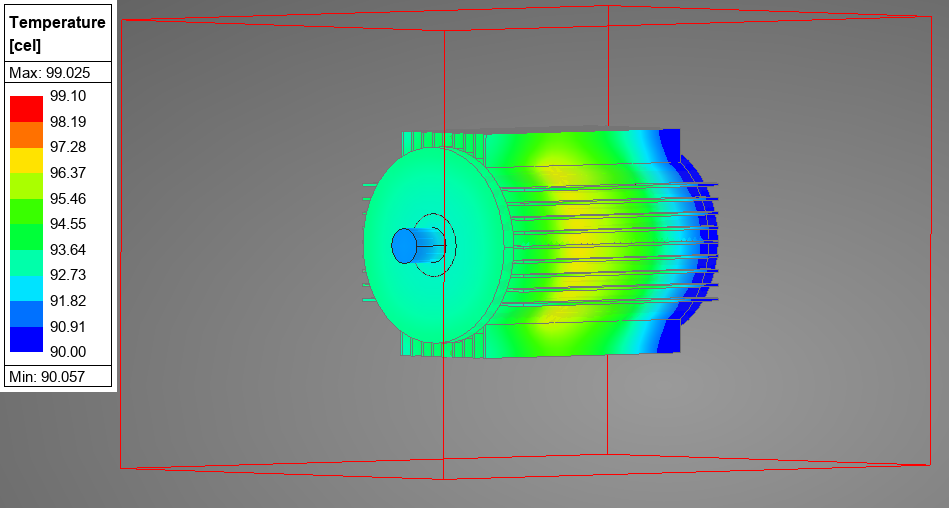
As shown in the following figures, the CFD analysis of the electric motor is successfully completed. The outer surface of the housing reaches approximately 94°C.
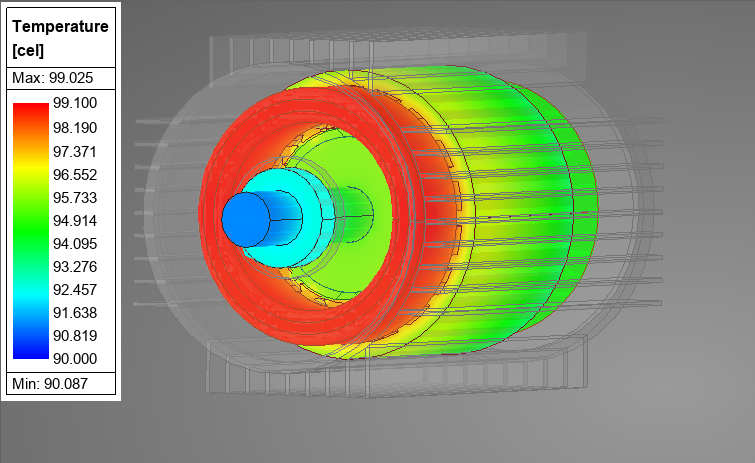
To visualize internal components such as the stator, rotor, and magnets, you can hide the housing and re-plot the temperature contour. Additionally, plane views can be generated to observe the internal temperature distribution in more detail.
Video: Electric Motor Thermal Simulation with Ansys Motor-CAD and Icepak
The following video demonstrates how to simulate electric motor temperatures using Ansys Motor-CAD and Maxwell–Icepak coupling. It walks through electromagnetic loss calculations, thermal model setup, cooling conditions, and temperature distribution results, highlighting two approaches to evaluating electric motor thermal performance.
Conclusion
In this blog, we explored and compared two powerful electro-thermal simulation methods for electric motors using Ansys tools: Motor-CAD and Maxwell–Icepak coupling. Both approaches allow engineers to analyze how temperature affects motor performance, but they differ in complexity, fidelity, and use cases.
Motor-CAD offers a fast and efficient way to evaluate motor thermal behavior using a Lumped Parameter Thermal Network (LPTN). It’s ideal for early-stage design, quick iterations, and integrating electromagnetic and thermal performance in a streamlined environment. With predefined templates and easy coupling between electromagnetic and thermal solvers, Motor-CAD makes multi-physics simulations accessible even to those with limited CFD experience.
On the other hand, Maxwell–Icepak coupling provides a more detailed and customizable analysis by leveraging CFD-based thermal modelling. By importing full 3D geometries and coupling electromagnetic losses from Maxwell, Icepak enables precise simulation of heat transfer via conduction, convection, and radiation.
Ultimately, the choice between Motor-CAD and Maxwell–Icepak depends on your project requirements. If you need speed and simplicity, Motor-CAD is a great choice. If you require granular control and detailed fluid dynamics, Maxwell–Icepak coupling offers superior insight.
In the next blog, we will explore the third method—Maxwell–Fluent coupling—for high-fidelity thermal simulations where advanced CFD capabilities are necessary, such as oil cooling or rotating fluid domains.
Explore Electric Motor Simulation with Ansys
SimuTech Group helps engineering teams evaluate electromagnetic performance, thermal behavior, and cooling strategies using Ansys simulation software. Explore our electromagnetic simulation consulting services to learn how we can support your electric motor development projects.
Explore Electromagnetic Consulting
Simulations used in this blog: Icepak-MotorCAD.zip