
 Contact Us
Why System Coupling Restart Is Not Supported in Ansys Workbench
Most of us have faced an engineering problem requiring a thermal-structural transient analysis coupled with a fluid-flow transient analysis. We set up our case in Ansys Workbench, run it, but when we try to restart the simulation, a warning message appears saying “Not all participants support restarted runs.” At this point, the only option is to restart the simulation.
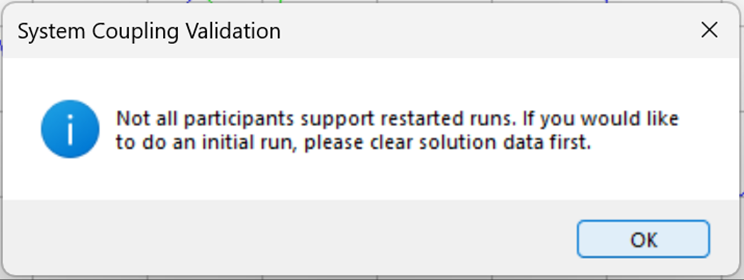
In Ansys Workbench, System Coupling does not support restarting a coupled analysis when a steady-state or transient thermal analysis is included (see Ansys Help). As a result, restarting the simulation directly within Workbench is not possible. However, you can enable restart functionality by exporting your setup and running the simulation through Ansys System Coupling in Standalone mode.
This blog details the process for adapting a System Coupling setup created in ANSYS Workbench so it can be exported and executed using the standalone System Coupling interface. By doing so, you benefit from Workbench’s streamlined environment for building coupled thermal-mechanical analyses while enabling restart capabilities not available within Workbench itself. The primary objective is to adjust configurations for ongoing simulations, enabling efficient restarts without recreating the setup from scratch.
Step-by-Step Workflow: Exporting and Running in System Coupling Standalone
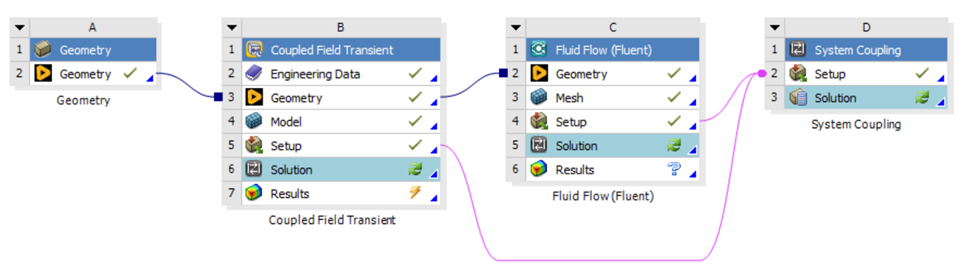
The step-by-step workflow presented here is applicable to any System Coupling configuration involving thermal-mechanical analysis. For illustration, the procedure will reference the setup depicted in the following image throughout this guide.
Step 1. First, make a copy of your Workbench case, so you do not lose information.
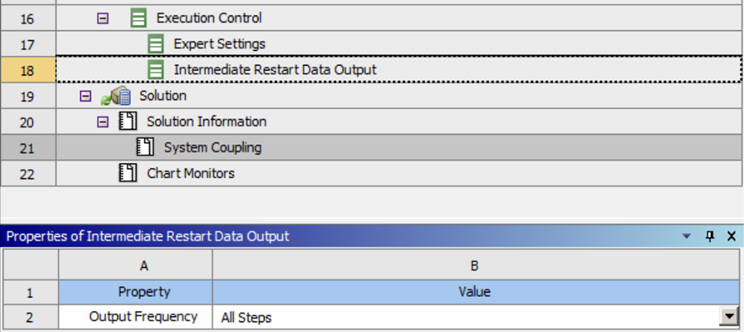
Step 2. In the system coupling cell configuration, navigate to Execution Control and set the Intermediate Restart Data Output to either a defined step interval or to output all steps. This can also be modified later when working in the System Coupling standalone environment.
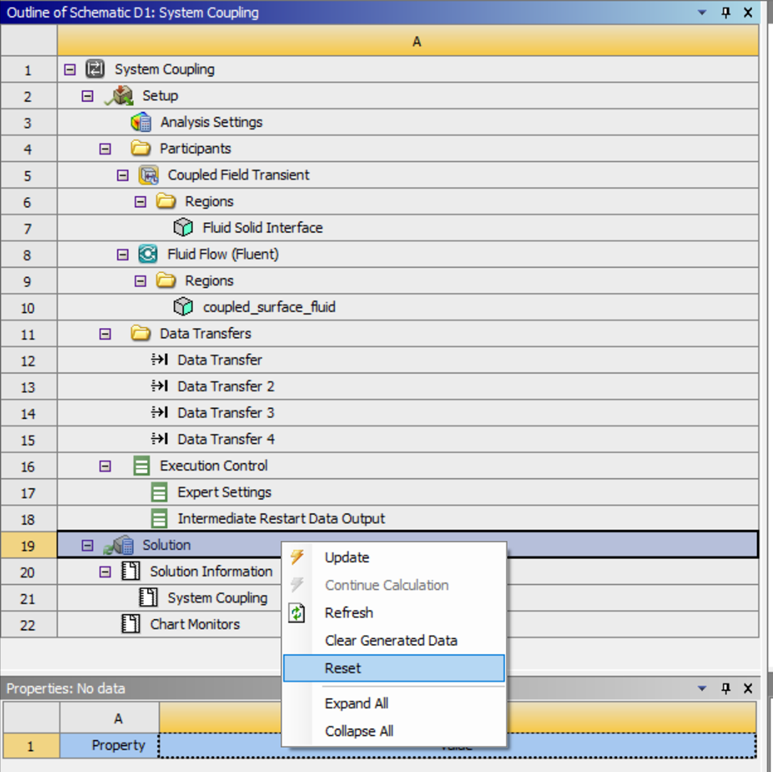
Step 3. Now go to Solution, right-click, and reset it.
Step 4. Close your system coupling window and open your Ansys Mechanical case setup.
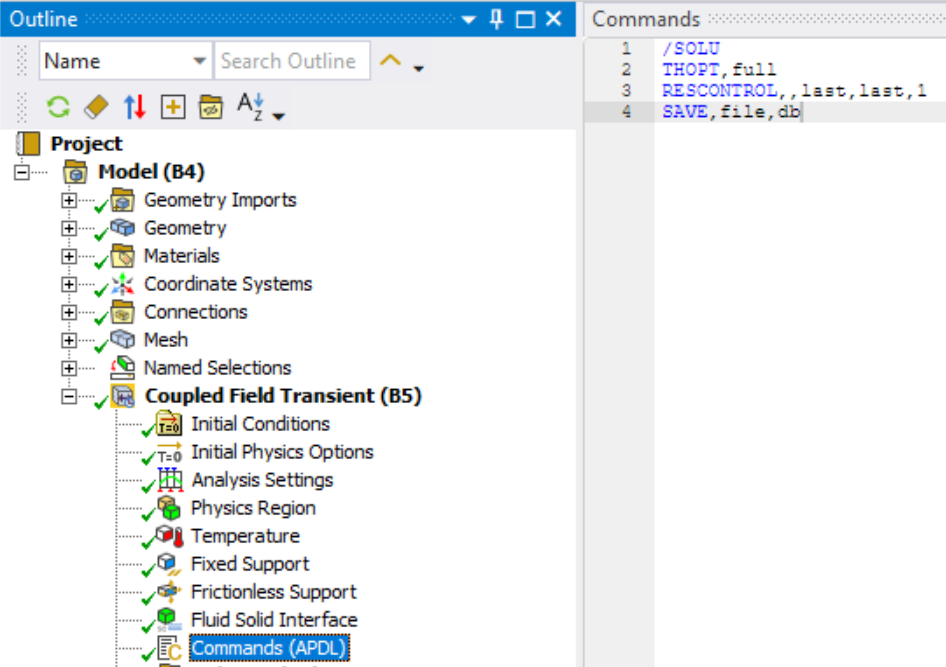
Step 5. In Mechanical, add a Commands task and then add the code as shown in the image.
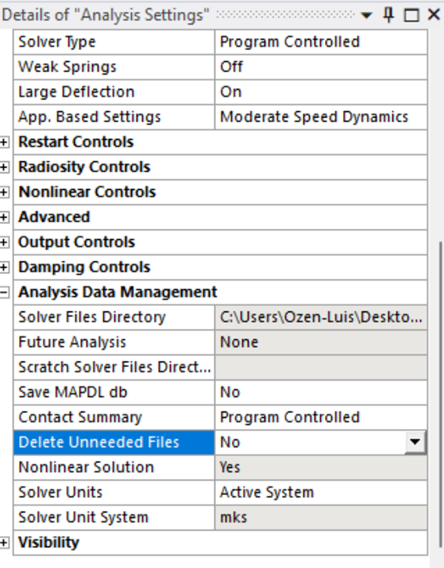
Step 6. After that, click on the Coupled Field Transient analysis and go to the configuration windows. There, look for Analysis data management, and in the Delete Unneeded Files set it as No.
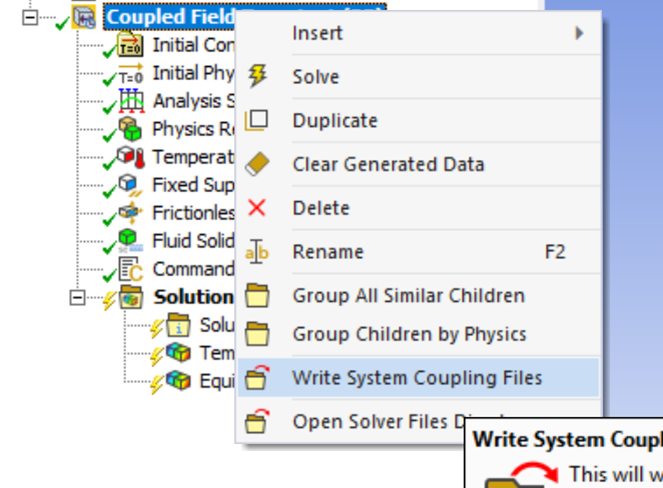
Step 7. Next, right-click on the coupled field transient analysis and select Write System Coupling Files. Store these files in a newly created folder that will contain all simulation results and coupling data, using clear and descriptive filenames for easy reference.
Step 8. Save the project (You can close the mechanical window).
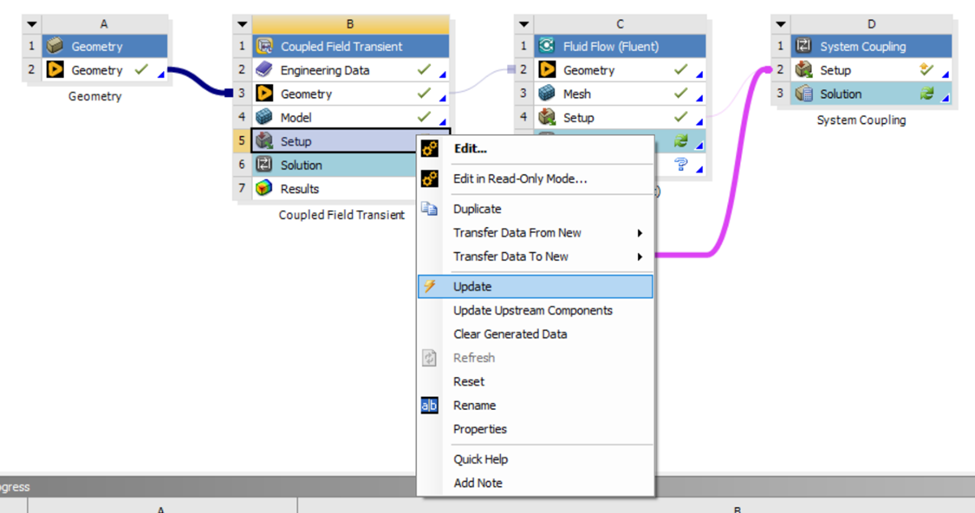
Step 9. In the Ansys Workbench desktop, right-click the setup cell for the mechanical analysis and update it.
Step 10. Now, open the system coupling setup again and click on yes to reread upstream data.
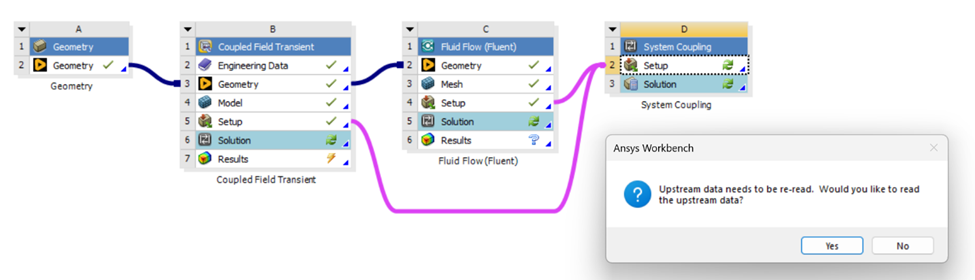
Step 11. Close the system coupling window.
Step 12. Export the system coupling setup by right-clicking on the setup cell and selecting Export System Coupling Setup. Save the files in the same folder as the mechanical files from step 7.
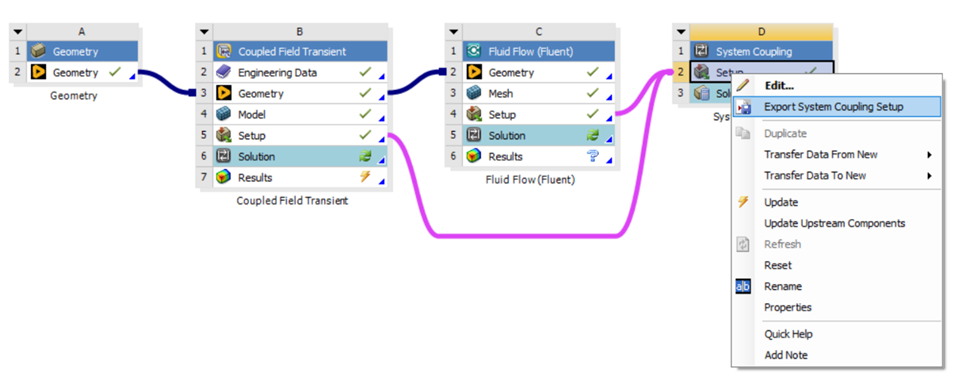
Step 13. Open the system coupling standalone version, and as a working path, select the folder created in step 7.
Step 14. Ansys System Coupling will open all the system coupling configurations. After it finishes uploading all the files, go to solution control and set the new End time.
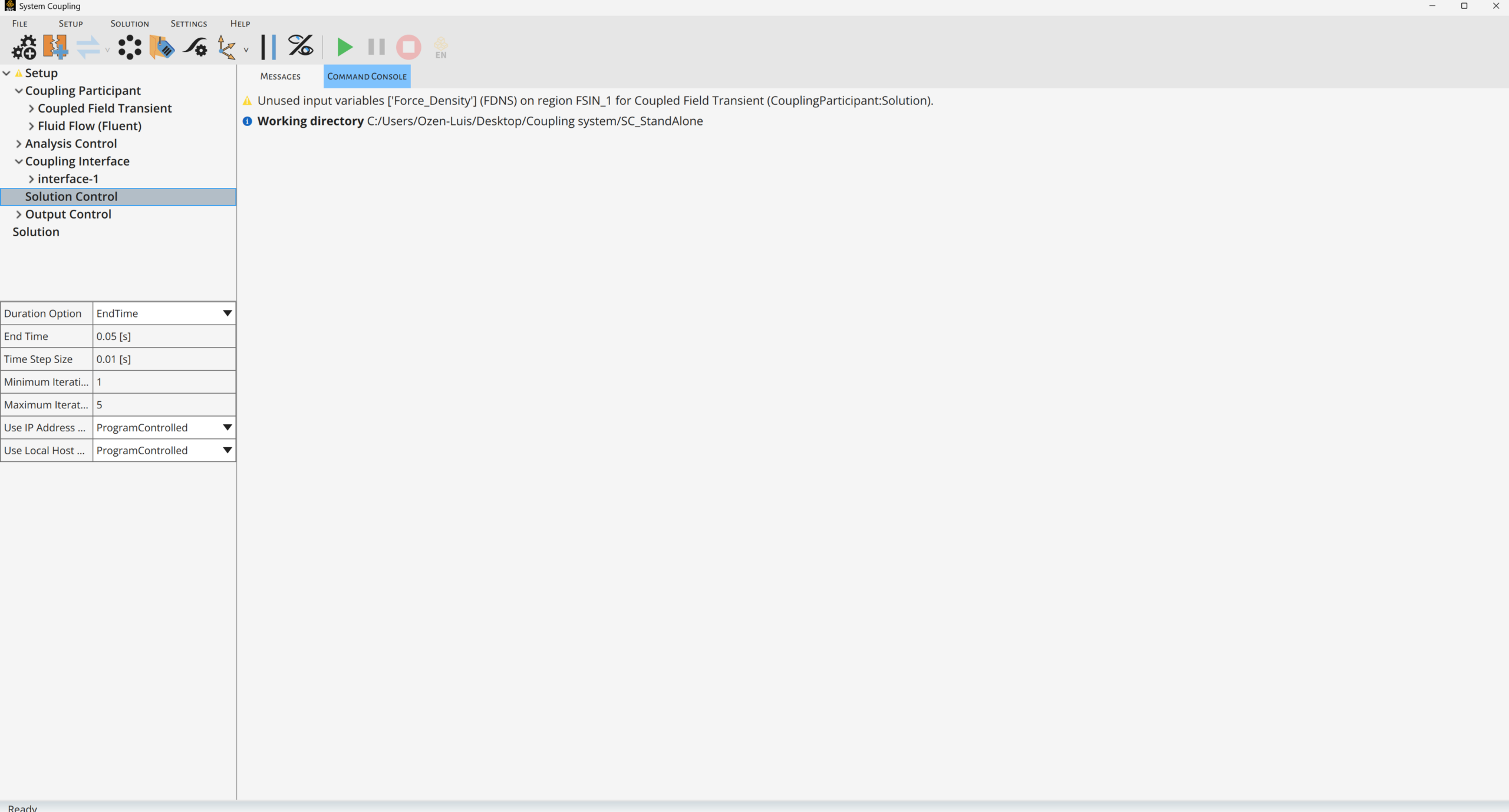
Step 15. Start the coupled simulation.
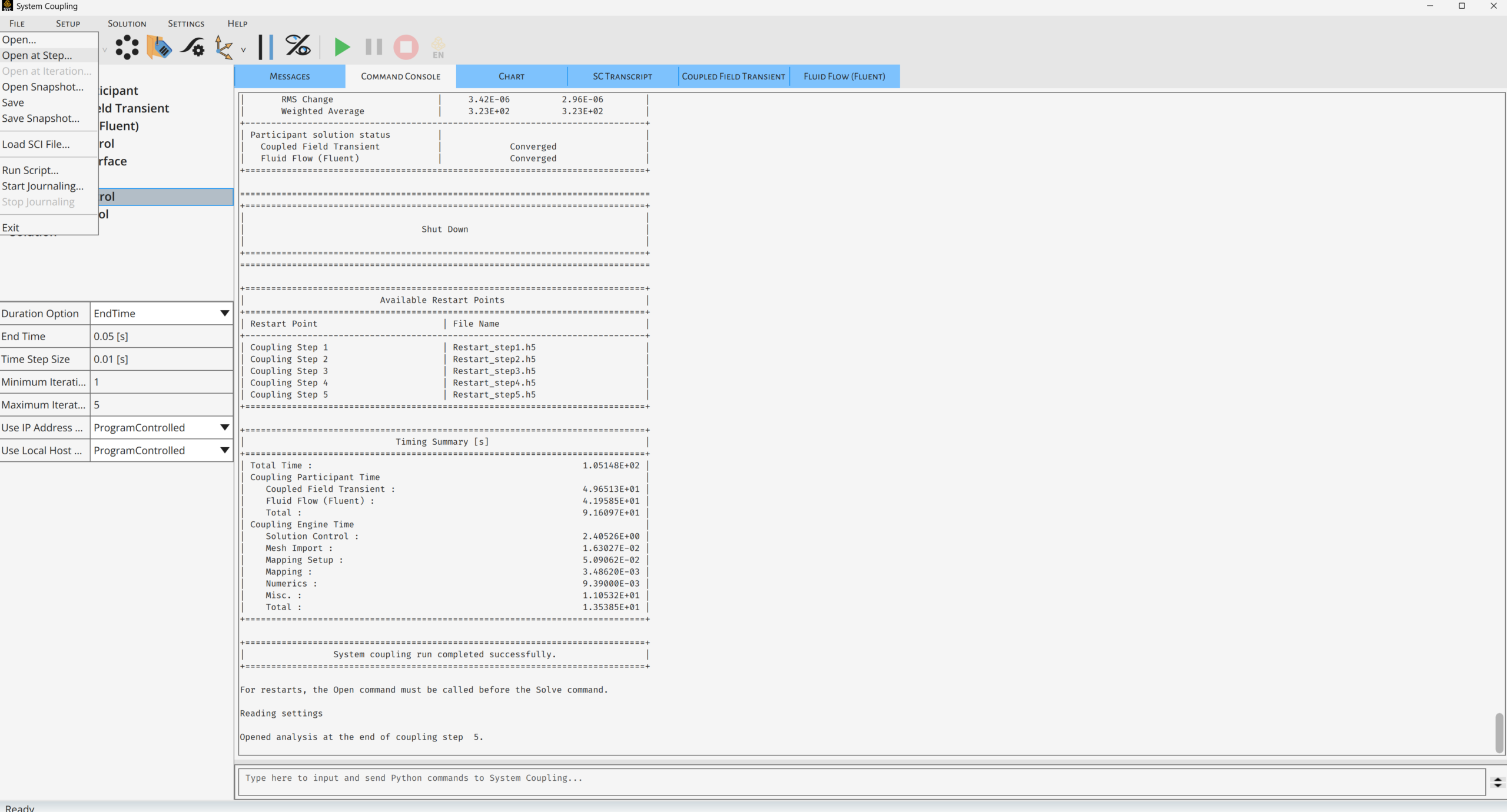
How to Restart the Simulation from a Specific Time Step
If you need to restart your simulation later, go to File, then click Open at Step. Select the latest simulation time or the time step you want to restart. Then, you can start the simulation.
Ansys Multiphysics Simulation Capabilities
Ansys is a powerful platform for multi-physics simulations, making it especially effective for system-coupling analyses involving thermal, structural, and fluid interactions. Its industry-leading solvers, Ansys Fluent for fluid flow and heat transfer, and Mechanical for structural and thermal analysis, can be seamlessly integrated through System Coupling, allowing engineers to simulate complex, interdependent physical phenomena with high accuracy.
To further enhance simulation workflows, Ansys provides advanced tools such as DesignXplorer and OptiSLang that support parametric studies, sensitivity analysis, and design optimization. These tools enable engineers to explore design variations efficiently and make data-driven decisions early in the development process.
Altogether, Ansys delivers a robust and scalable environment for multi-physics modeling, helping teams reduce development time, improve product performance, and increase confidence in simulation results.
Need help with coupled multiphysics simulations or System Coupling workflows? SimuTech Group’s consulting engineers work with Ansys Fluent, Mechanical, and System Coupling across thermal-structural-fluid applications. For a related example of coupled simulation, see our post on two-way coupling with Ansys Fluent and Rocky DEM for water treatment. Contact us to discuss your simulation needs.