
 Contact Us
Mechanical shock presents a unique challenge for printed circuit board assemblies (PCBAs). During a drop or impact event, transient loads are transferred through the enclosure, mounting features, PCB, and electronic components. Accurately predicting the board’s response requires a model that captures these structural interactions and connects the resulting stresses and strains to component-level reliability.
Combining Ansys Sherlock with LS-DYNA provides a workflow for evaluating PCB mechanical shock under realistic impact conditions. LS-DYNA simulates the transient structural response, while Sherlock uses the imported results to assess potential reliability risks at the component level.
In this tutorial, we’ll demonstrate how to set up a sample PCB and enclosure assembly in Ansys Workbench, perform a drop-test simulation using LS-DYNA, and import the results into Sherlock for mechanical shock analysis. We’ll also highlight common setup issues and troubleshooting techniques. Familiarity with Sherlock and Ansys Workbench LS-DYNA is assumed.
Overview of PCB Mechanical Shock Analysis
The different components of this workflow can be represented and linked through Ansys Workbench as shown in Figure 1.
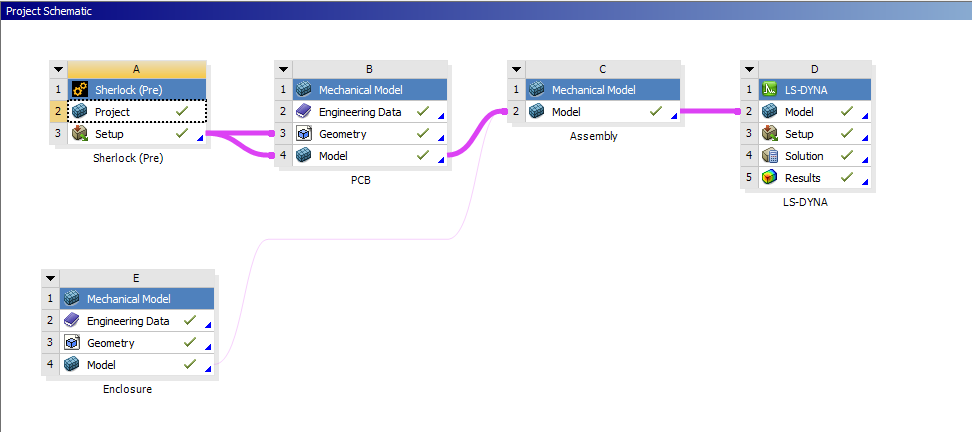
The Sherlock portion is represented by a Sherlock (Pre) component in Workbench. This is where the PCB model will be defined at a component level in Sherlock. System B is a Mechanical Model component that imports PCB data from Sherlock. The enclosure is brought in as a separate mechanical model (system E) and then the PCB and enclosure are brought together as an assembly in system C. Finally, the LS-DYNA drop test is defined in system D. Note that there is a Sherlock (Post) component available in Workbench that can automate the import of FEA results into Sherlock, but at the time of writing that component is not compatible with LS-DYNA.
ECAD Import and Setup in Sherlock
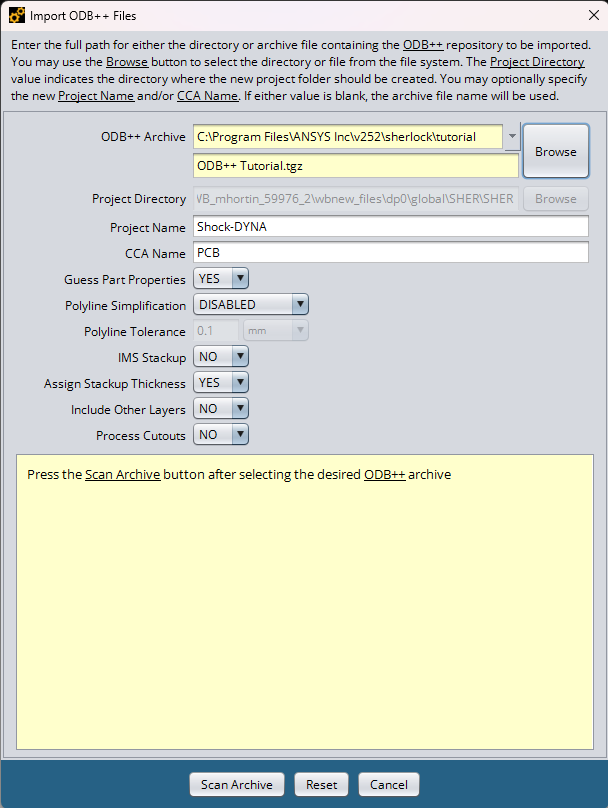
The first step is to create or drag a Sherlock (Pre) component into the Workbench project schematic. Double-clicking on this component will open a new instance of Sherlock. From there the user can proceed to set up their Sherlock analysis as normal. For this example, we import the tutorial board ODB++ file which comes with every installation of Sherlock. See Figure 2 for the path, though the version number will depend on the version of Sherlock you have installed. Once the CAD is imported, the parts and board can be updated as needed.
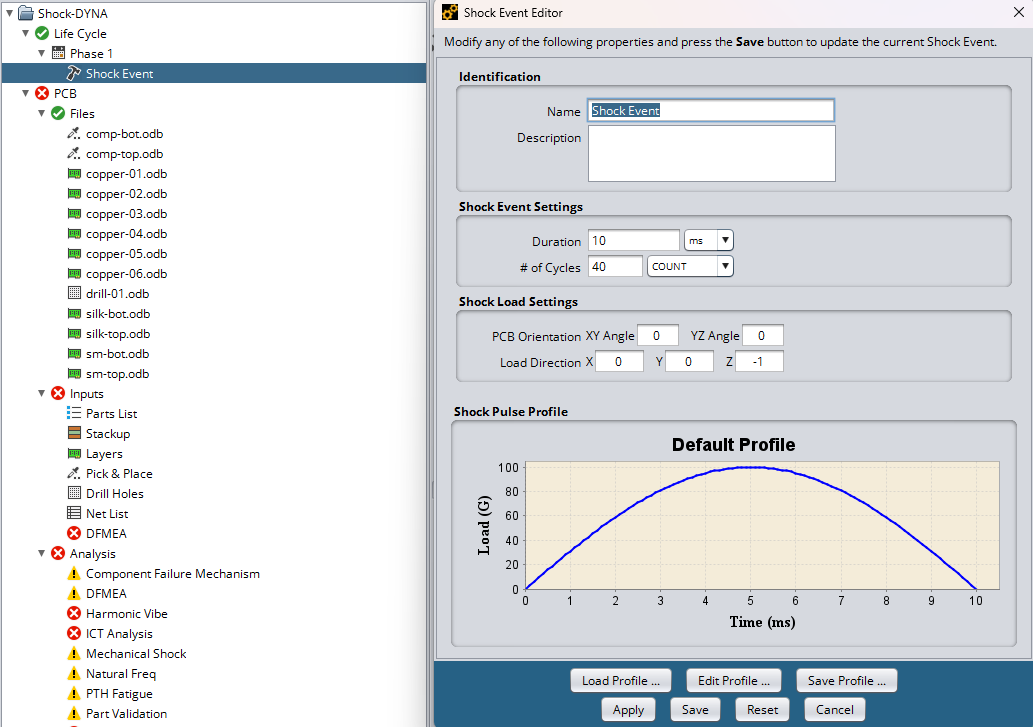
There must be a shock event present under the Life Cycle heading in the Sherlock project. Editing the properties of the shock event will allow the user to adjust the number of cycles that will be used in the life prediction calculations. The other settings will be superseded by the LS-DYNA results.
Once the Sherlock project is set up the user can sync the project in Workbench by right-clicking on the Sherlock (Pre) component and selecting Sync.
PCB Mechanical Shock Analysis Model
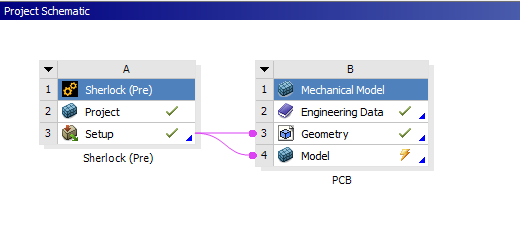
The user can then use Workbench to export an FEA model from Sherlock and bring it into Mechanical. This can be done by dragging a Mechanical Model component onto the setup of the Sherlock (Pre) component. This will automatically create a transfer connection between the Sherlock (Pre) setup cell and the Mechanical Model geometry cell. You will also need to create a connection between the Sherlock (Pre) setup cell and the Mechanical Model model cell. See Figure 4 for what the setup should look like.
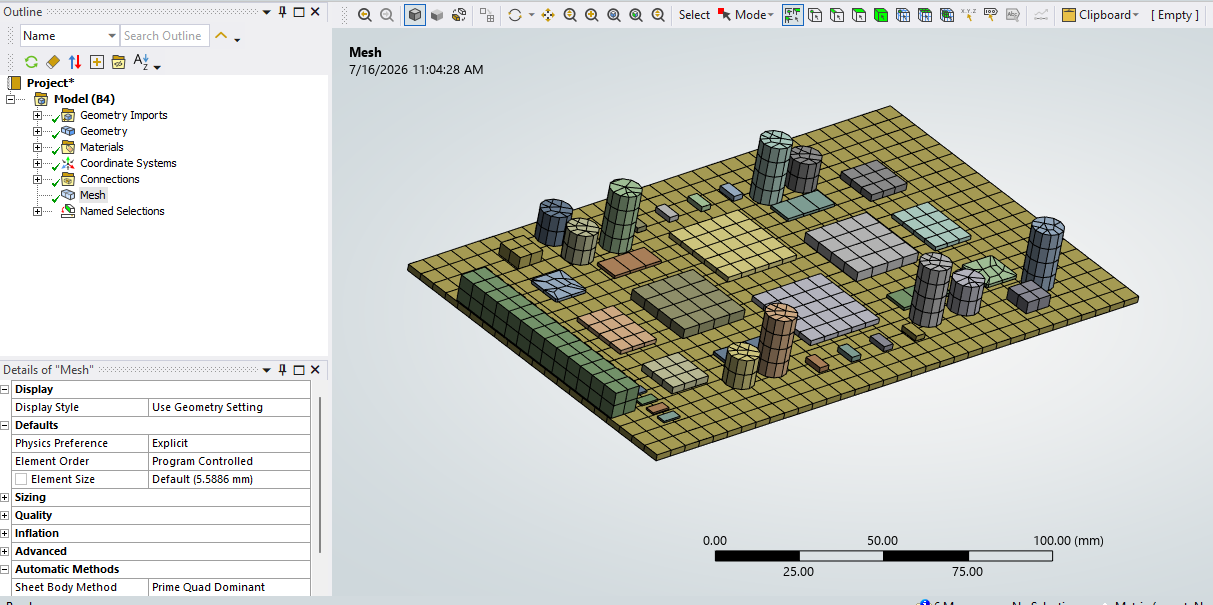
Opening the model in Mechanical will show the PCB and component geometry that was exported from Sherlock. The material properties were also exported and the material assignments automatically created. In addition, bonded contacts between the components and the PCB were created automatically. At this stage the user will need to generate the mesh for the PCB. An important note is to change the physics preference in the Details of the Mesh. This will create a mesh more suitable for LS-DYNA.
Enclosure Definition
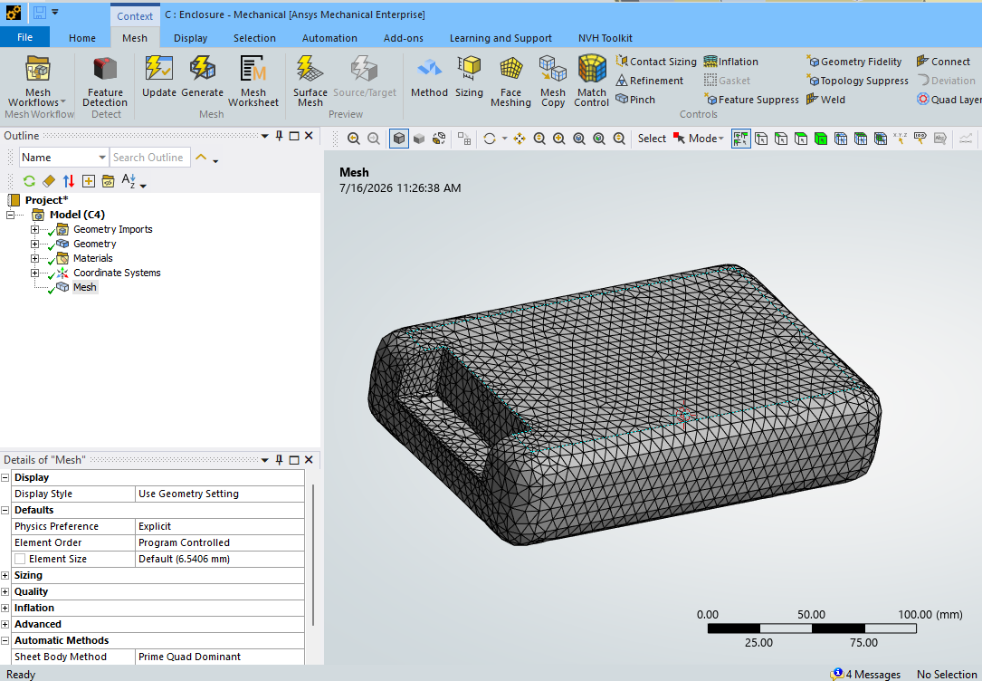
To set up the enclosure, drag a new Mechanical Model component onto the project schematic. Right-click on the geometry cell and choose Import Geometry. In your file system, navigate to the same folder where the example PCB ODB++ file was located, in the install files for Ansys. There should be a chassis.step file in the same folder, choose that as the geometry to import. Once it is imported, open Mechanical to examine the part. Make the appropriate material assignments; no connections are needed because the enclosure is a single part. Mesh the part, again specifying an explicit physics preference for the mesh.
Assembly Definition
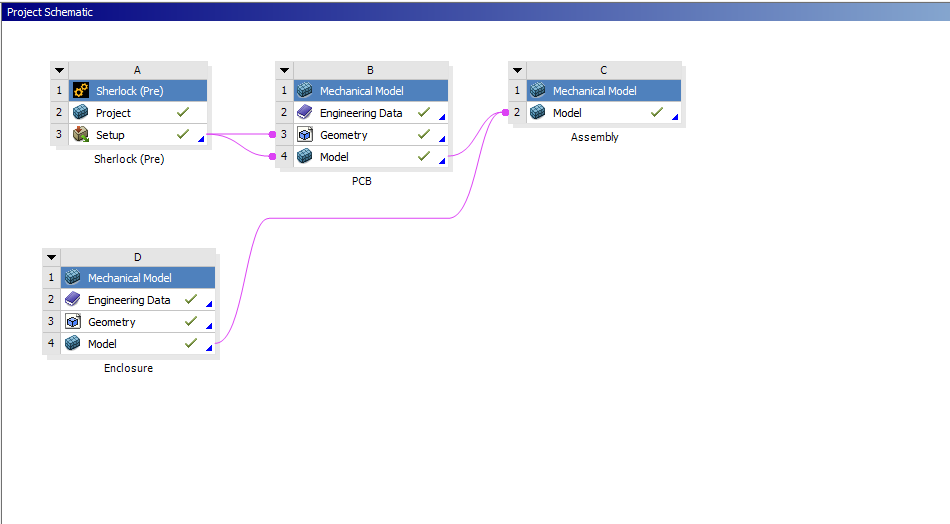
To assemble the PCB and enclosure, drag another Mechanical Model component onto the project schematic and wire the model cells from both the PCB Mechanical Model and the enclosure Mechanical Model to the model cell for your assembly Mechanical Model. See Figure 7 for a reference.
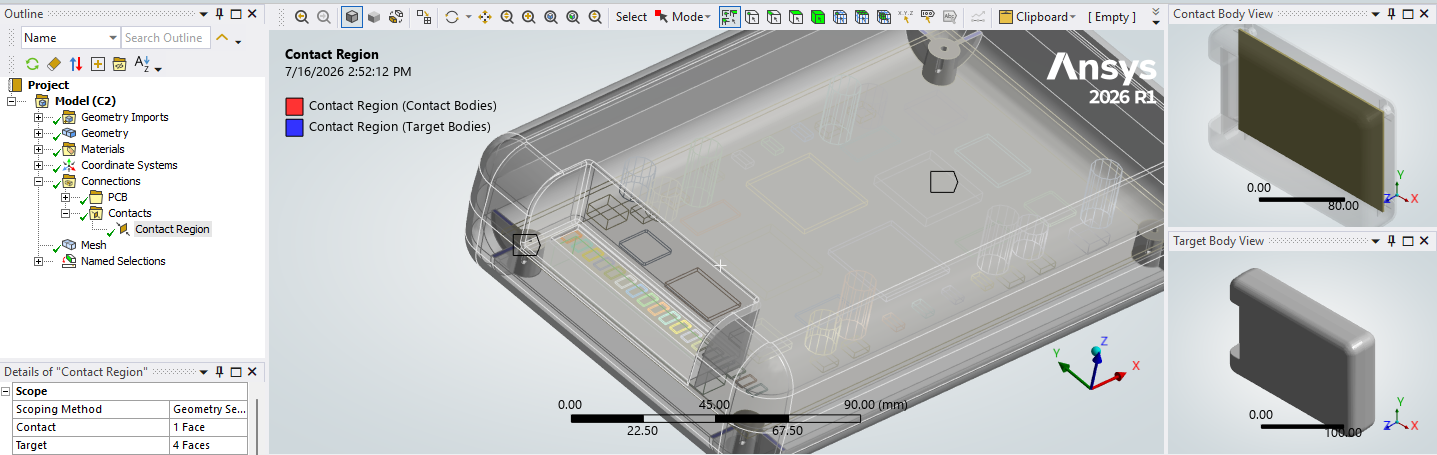
By opening the assembly model in Ansys Workbench, the user can see both the PCB and the enclosure model together. A bonded contact has also been automatically created between the PCB and the enclosure where they coincide.
Drop Test Setup in LS-DYNA
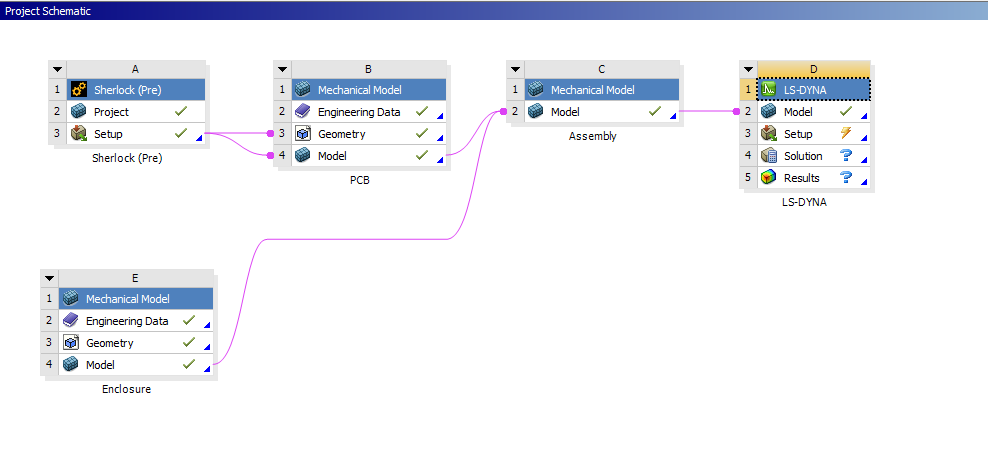
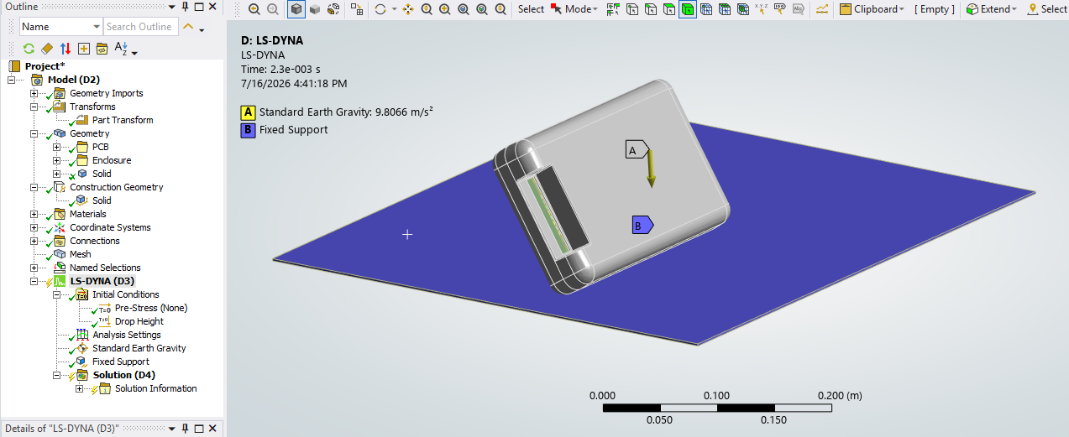
To set up the drop test portion of our PCB mechanical shock analysis in LS-DYNA, drag an LS-DYNA component onto the project schematic and connect the assembly model to the model cell of the LS-DYNA component. See Figure 9 for reference.
This article won’t go into the details of how to set up a drop test in Workbench LS-DYNA but the general steps are:
- Create a part transform to orient the assembly
- Create a ground impact plane using construction geometry
- Add a drop height initial condition to the enclosure assembly
- Add a Standard Earth Gravity body load
- Add a fixed support to the ground plane
- Adjust the automatically created body interaction to have desired properties (frictional vs frictionless)
Import Results into Sherlock
To import drop test results into Sherlock, return to the Sherlock interface, right-click on Mechanical Shock under the Analysis heading and select Edit Properties. In the Edit Properties dialog box, change the Data Source field to LS-DYNA. Then in the Results Directory, navigate to the folder that contains the LS-DYNA results. This folder can be found in Ansys Mechanical by right-clicking on the solution in the model tree and selecting “Open solver files directory.”
A note about transformations: if the LS-DYNA drop test includes a part transform on the assembly, then that transformation must be taken into account in Sherlock. In the Mechanical Shock Analysis Properties dialog box, there is a drop-down menu called Detect Transformation. There is an option for Sherlock to automatically detect any transformation, but in the author’s experience this option is not reliable. The most robust method is to choose Manual and input the translation and rotation values from LS-DYNA directly into Sherlock.
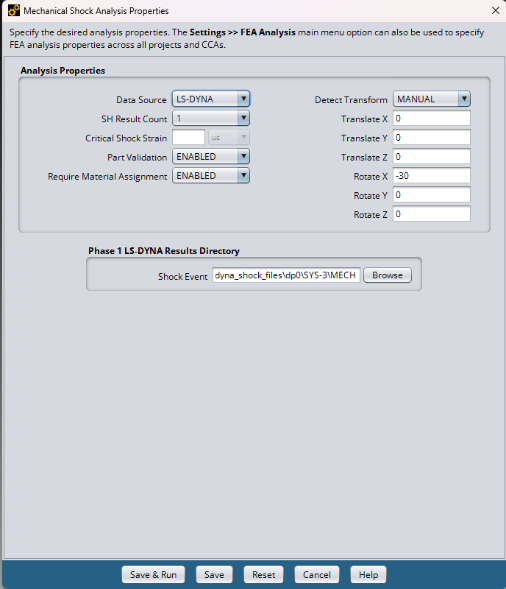
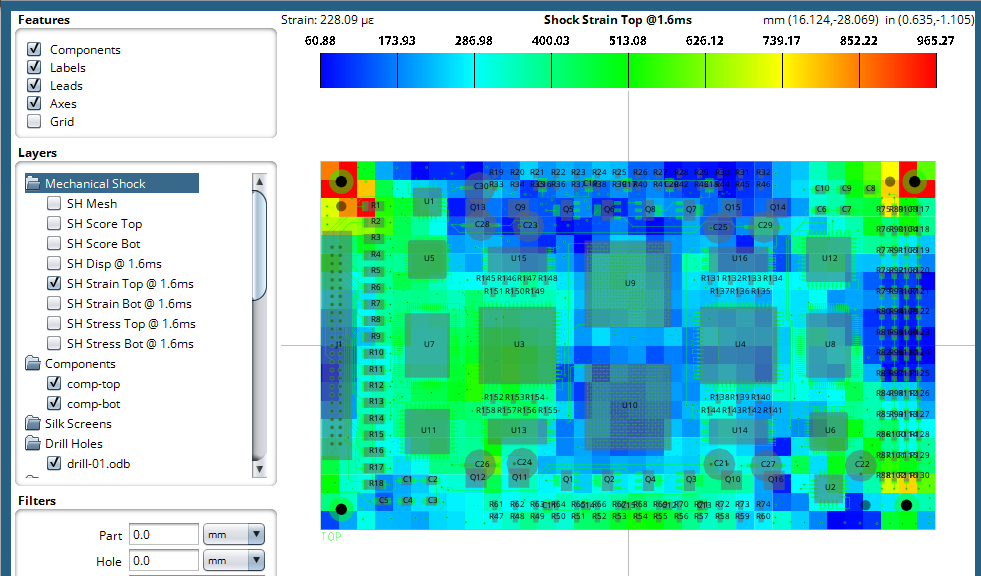
Once the Mechanical Shock analysis is defined, the user can click Save & Run. After the analysis is complete, the user can validate that the LS-DYNA results were imported properly by viewing the layer results or the 3D results in Sherlock.
Common Pitfalls to Avoid
- Mesh physics preference settings: if the LS-DYNA drop test is failing due to negative element Jacobian errors, it may be due to the mesh on the enclosure or PCB. The default meshing physics preference is “Mechanical” which is tailored for implicit simulations, with smaller element sizes around small features. This is not ideal for an explicit simulation which is better served by more uniform element sizing. Changing the physics preference, in the Details of the Mesh in the model tree, to “Explicit” may help resolve these types of failures.
- Misaligned results in Sherlock: If the imported stress or strain results in Sherlock show as NaNs (Not a Number), but you have valid LS-DYNA results, this is indicative of a misalignment between the LS-DYNA results and Sherlock. Make sure the part transform options in the Mechanical Shock Analysis Properties window in Sherlock are set to Manual and the values match the part transform defined in Mechanical. An easy sanity check is to run the LS-DYNA drop test without the transformation and see if that is able to be imported correctly into Sherlock.
PCB Mechanical Shock Analysis in Conclusion
Combining Ansys Sherlock and LS-DYNA provides a practical approach to evaluating PCB reliability under mechanical shock conditions. By incorporating enclosure-level interactions and transient structural response into Sherlock’s component-level reliability analysis, engineers can better understand how drop and impact events may affect their designs.
Successful implementation depends on several important modeling considerations, including appropriate meshing for explicit dynamics, proper assembly connections, and accurate alignment of imported LS-DYNA results with the original Sherlock model.
Following this workflow allows engineers to investigate potential areas of concern earlier in the design process, evaluate design improvements, and reduce uncertainty before physical testing.
Download the Sherlock and LS-DYNA Example Project
Explore the completed Ansys Workbench project used in this tutorial. Download the example files to review the model setup, follow the analysis workflow, and compare the results with your own simulation: shock_dyna_sherlock.wbpz

Mitchell Hortin, M.S. Mechanical Engineering
Senior Staff Engineer, SimuTech Group
Mitchell Hortin is a CAE engineer with 10 years of experience in structural analysis and engineering software development. He brings a strong foundation in computational mechanics, linear algebra, and system modeling, with extensive hands-on experience using, validating, and providing technical support for engineering analysis tools. His career spans both startups and large organizations, where he has built a track record of delivering high-quality work on schedule. Mitchell holds an M.S. in Mechanical Engineering from Brigham Young University with a focus on biomechanics and materials science, and is currently pursuing a Ph.D. emphasizing computational mechanics.