 Contact Us
PyFluent FreeFlow Coupling for Automated CFD-to-SPH Workflows
PyFluent FreeFlow coupling provides a practical way to automate the transfer of CFD velocity-field data from Ansys Fluent into FreeFlow. By using PyFluent to run the Fluent simulation, generate the required results, and convert them into a FreeFlow-ready point cloud, engineers can create efficient 1-way CFD-to-SPH workflows for air-liquid and other multiphase applications.
Challenge
Connecting high-fidelity CFD results with element-based simulation tools enables engineers to transfer detailed flow-field data more efficiently across workflows, reducing manual processing and format-conversion effort. This type of integration is essential for studying real‑world problems—like how air streams influence water jets, how droplets behave under aerodynamic forces, or how multiphase flows interact in complex environments. By streamlining this data transfer and automating the creation of FreeFlow‑ready point clouds, we open the door to faster iteration, more reliable coupling, and a much smoother path from CFD analysis to SPH‑based simulation.
Engineering Solution
You can design a model in Ansys Fluent web UI to generate the PyFluent commands, and prepare your own script for automation, including model setup and postprocessing. Here, we will show how to leverage PyFluent to create a point cloud file to be used by FreeFlow. We will consider the flow of air from a nozzle as it encounters a liquid bath. The surface of the liquid is disturbed by the impinging air flow, inducing mixing. Note that while air flow impacts water flow, the reverse effect is not accounted for.
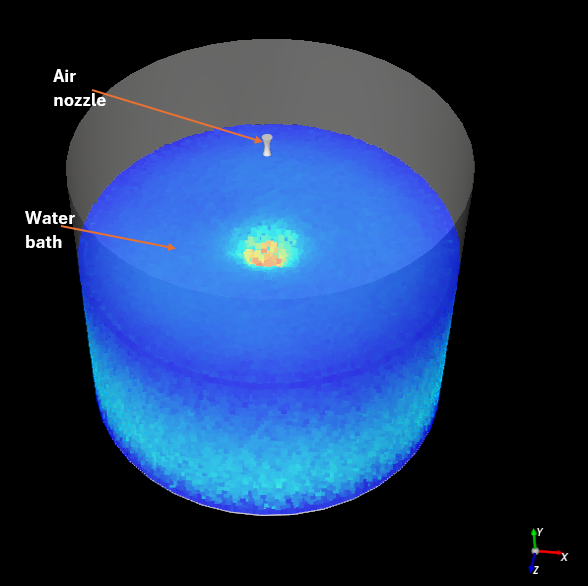
The air flow is solved in Fluent. The resulting velocity profile of air in the geometry is then sent to FreeFlow. The data sent from Fluent to FreeFlow needs to be properly converted to the correct format. To control these steps, we employ PyFluent to run the simulations in Fluent, generate the required data, and then process it in a format that is compliant to FreeFlow’s Point Cloud (ie PyFluent FreeFlow coupling).
A simple way to generate PyFluent code is though the Fluent Web interface, which is browser-based platform for Ansys Fluent that enables users to remotely access, design, set up, and automation of computational fluid dynamics (CFD) simulations directly from a web browser. It provides a streamlined workflow covering all major simulation steps, including geometry preparation, meshing, physics setup, solver controls, and post-processing.
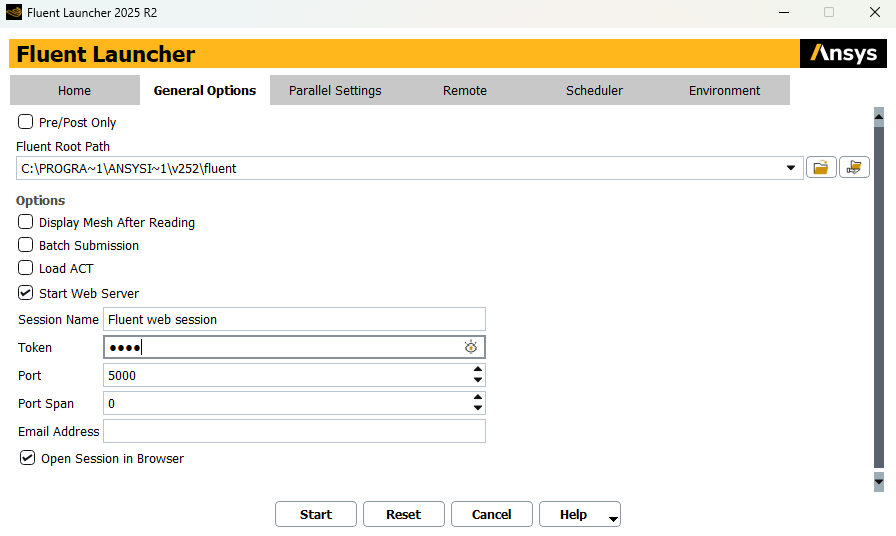
To open the Fluent Web interface, click on the Fluent Launcher, and on General Options, select Start Web Server with any token of your choice. Click on start. This will open both Fluent GUI and your default web browser.
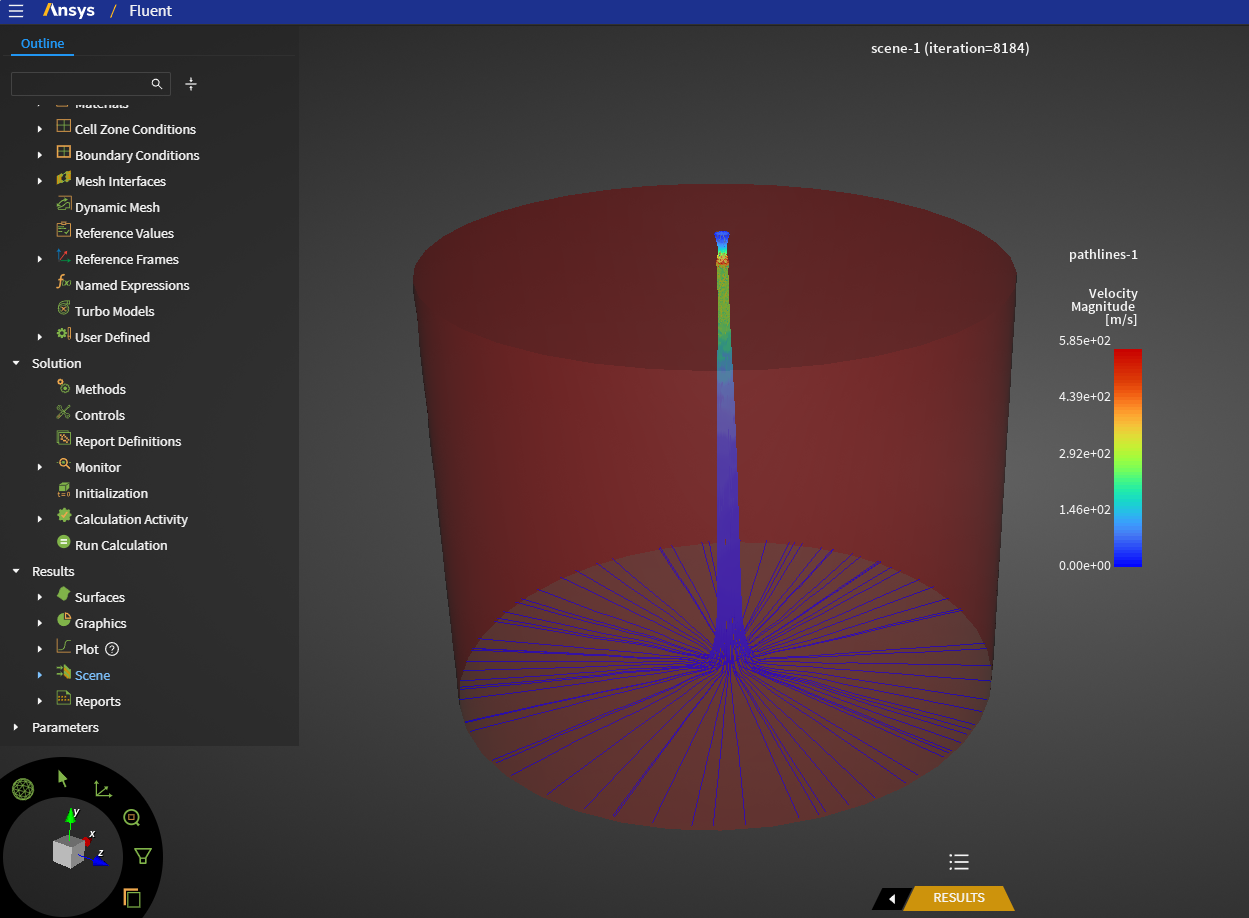
By clicking the “Show console” button at the bottom of the Fluent web interface and then selecting the Python tab, any action you take in the GUI—such as enabling a physics model, creating a contour or saving a file—will display the equivalent Python command in the console. You can copy these commands and use them to build your own PyFluent automation script for model setup and postprocessing.
The PyFluent FreeFlow Coupling Process
PyFluent is part of the PyAnsys ecosystem and allows you to automate Fluent workflows using Python scripting. Once you have collected the Python commands from the web interface, you can use them in your own scripts to automate tasks such as geometry import, meshing, physics setup, solver execution, and postprocessing. This approach streamlines repetitive tasks and enables integration with other Python libraries for advanced postprocessing or workflow customization.
The code can be used to easily set up, run and generate the file needed for FreeFlow. Here, we can leverage the SPH Point Cloud Air Drag (beta) module in FreeFlow, which requires a Point Cloud file with a specific format. To obtain the file with the correct format, we can directly generate a results file from Fluent and convert it to the required format by FreeFlow using python scripting.
import fnmatch
import os
import platform

import ansys.fluent.core as pyfluent


solver = pyfluent.launch_fluent(
    dimension=3,
    precision="double",
    processor_count=2,
    product_version=pyfluent.FluentVersion.v252
)
print(solver.get_fluent_version())

#### PyFluent commands copied from Fluent web-based GUI:

solver.file.read_case(file_name=” nozzle2.cas.h5");
solver.settings.setup.boundary_conditions.pressure_inlet['inlet'].momentum.gauge_total_pressure.value = 250000
solver.settings.solution.run_calculation.calculate()

# ---- File names ----
input_file = “fluent_output_file.txt"     # original file
output_file = “freeflow_input_file.txt"     # formatted file

# --- pyfluent code to generate input file
solver.settings.file.export.ascii(location = 'cell-center', cell_func_domain = ['x-velocity', 'z-velocity', 'y-velocity'], delimiter = 'space', surface_name_list = [], file_name = input_file)

# ---- Read file (space-delimited, variable spacing) ----
df = pd.read_csv(input_file, delim_whitespace=True)

# ---- Select and reorder columns ----
df_new = df[[
    "x-coordinate",
    "y-coordinate",
    "z-coordinate",
    "x-velocity",
    "y-velocity",
    "z-velocity"
]].copy()

# ---- Rename columns ----
df_new.columns = ["X", "Y", "Z", "x-velocity", "y-velocity", "z-velocity"]

# ---- Write space-delimited file ----
df_new.to_csv(
    output_file,
    sep=" ",
    index=False,
    float_format="%.9E"
)

print("New file written successfully.")
Once the python code is run, the point cloud particle will be generated. The point cloud file must then be imported into FreeFlow:
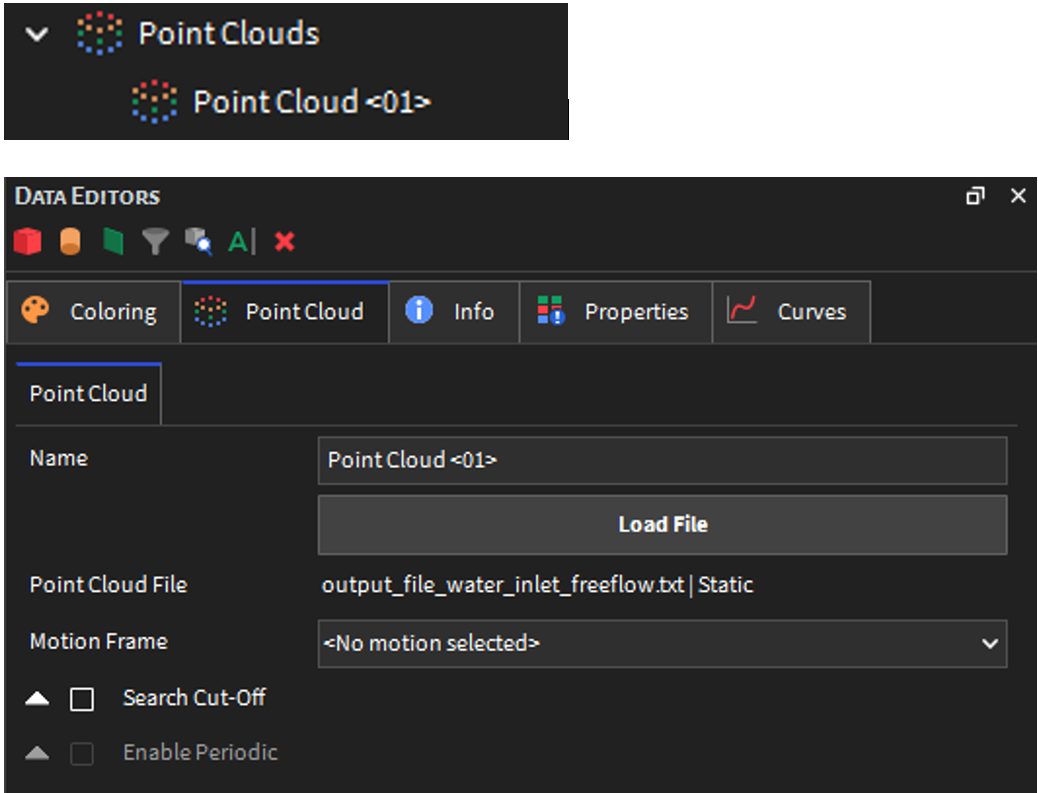
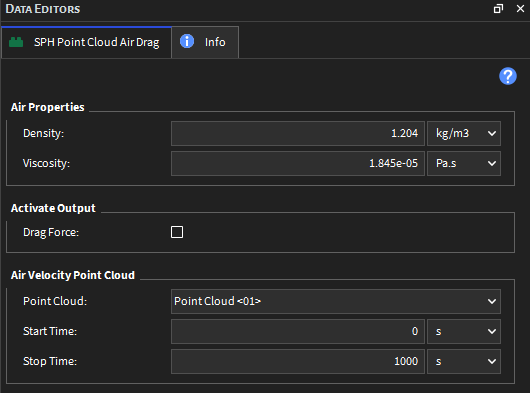
The new point cloud (here using the default name “Point Cloud <01>”) can then be linked to the module definitions:
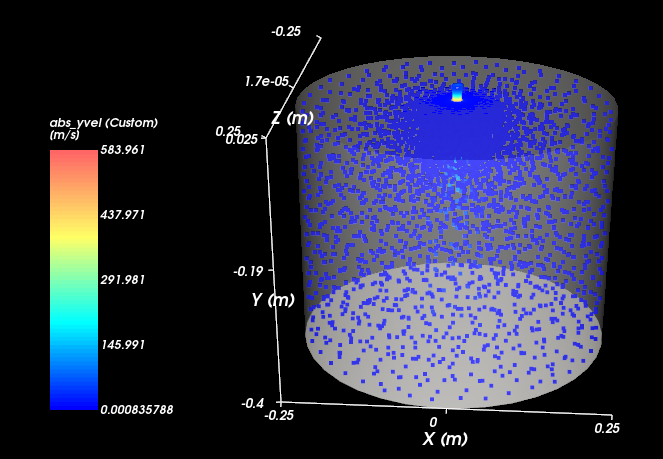
We can visualize that the point cloud velocity profile has been correctly loaded by turning on point cloud visibility:
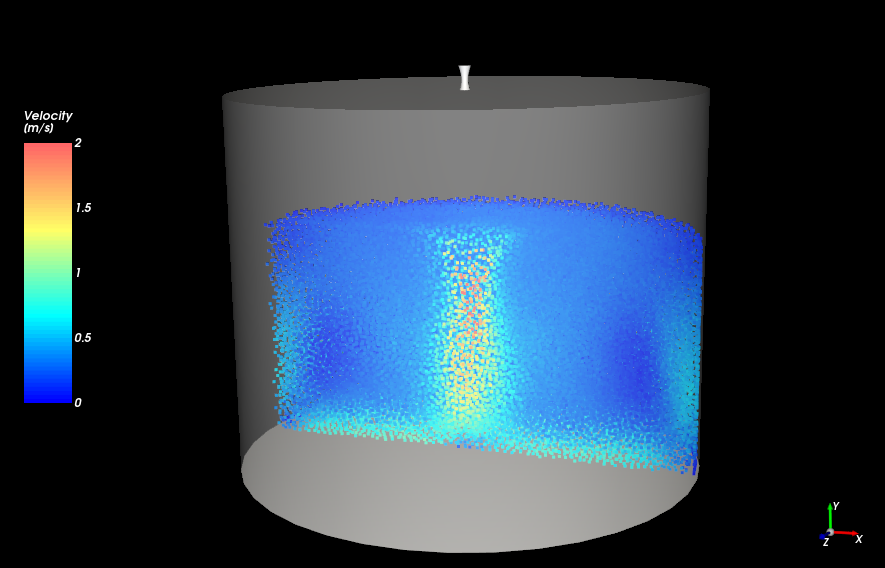
We can visualize the velocity profile of elements, which is especially high in the region where air interacts with the liquid phase. A cavity forms, which increases in depth as the air pressure increases.
The depth of the cavity can be qualitatively compared for different pressures side by side by visualizing the SPH elements colored by neighbor count.
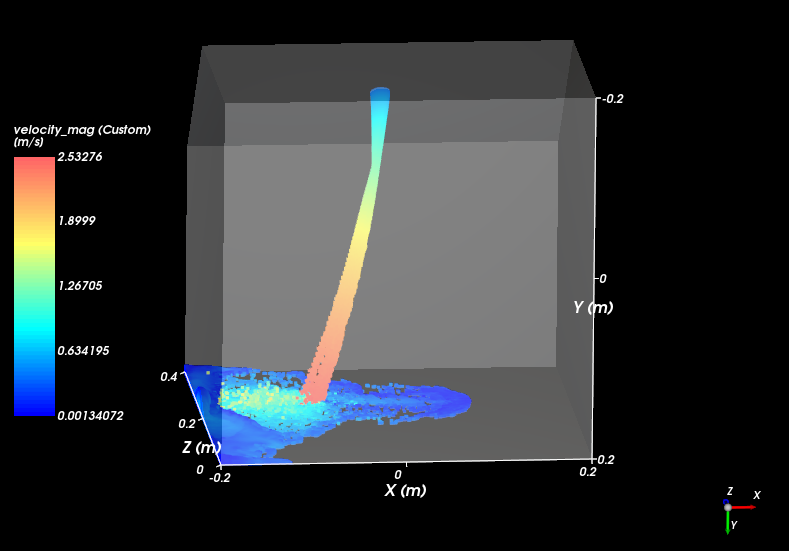
Note that this approach is easily translated to other geometries and flow profiles. Here is an example of jet of liquid that encounters an air flow that bends it sideways:
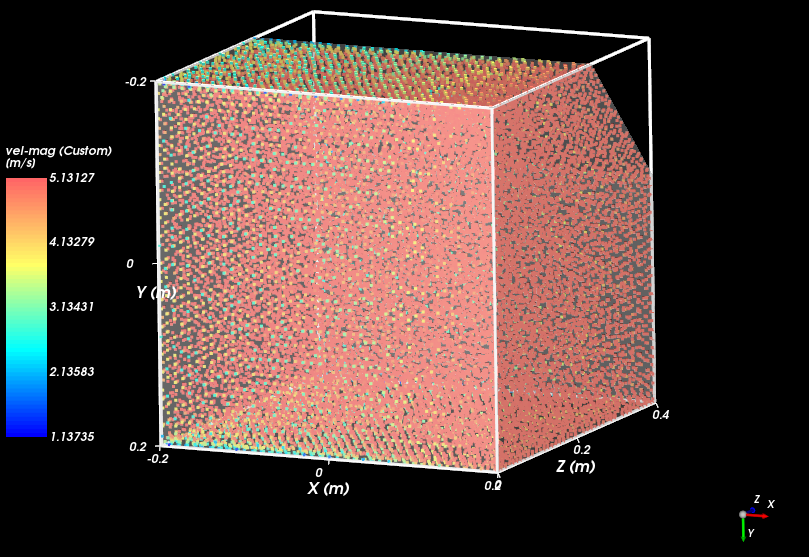
After running the model, we can see how the water stream is affected by the perpendicular flow of air:
PyFluent FreeFlow Coupling in Conclusion
This workflow demonstrates how PyFluent can be used to automate the transfer of CFD velocity-field data from Fluent into FreeFlow through a properly formatted point cloud file. By using Fluent to resolve the air flow and FreeFlow to apply the resulting velocity field to the liquid phase, the approach provides a practical 1-way coupling method for studying air–liquid interactions such as surface cavity formation and mixing. Because the process is scriptable and format-driven, it can be readily adapted to other geometries, flow conditions, and multiphase applications where efficient data exchange between CFD and SPH-based tools is required.
Need help connecting Ansys tools into a more automated simulation workflow? SimuTech Group can help with PyFluent, CFD workflow development, technical support, and custom simulation automation.

Tiago Lins
Staff Engineer Analyst – Fluids, SimuTech Group
Tiago Lins is a Staff Engineer Analyst at SimuTech Group, where he supports customers with advanced fluid dynamics simulation workflows and practical Ansys software expertise. His work helps engineering teams apply simulation more effectively across complex modeling, analysis, and validation challenges, including CFD, multiphysics workflows, and simulation-driven product development.