
 Contact Us
Why Export Tabular Data with Python in Ansys Mechanical?
Ansys Mechanical provides a Python scripting environment that allows one to automate feature control and result collection within the ANSYS Mechanical environment. ANSYS provides extensive documentation for all of its products, but some features remain undocumented.
One such feature relates to the extraction of tabular results data.
This post explores how to extract tabular results data using Python and export it to a CSV file.
Script Setup and Approach
For many result types, there is a Python method to export results to a file; however, not all result types support this feature, and even when they do, one might want more control over what data is collected and how it is used.
The Python scripting feature illustrated below accesses the Tabular Data Pane using an “Unknown Control”.
Even the simplest example must include additional features to make it meaningful. I will explain all these features with just enough detail so that we can focus on the unknown control used for the tabular data.
My example examines a stress linearization result applied to a simple cantilever beam subjected to a bending load, solved using static structural analysis. This result appears as follows:
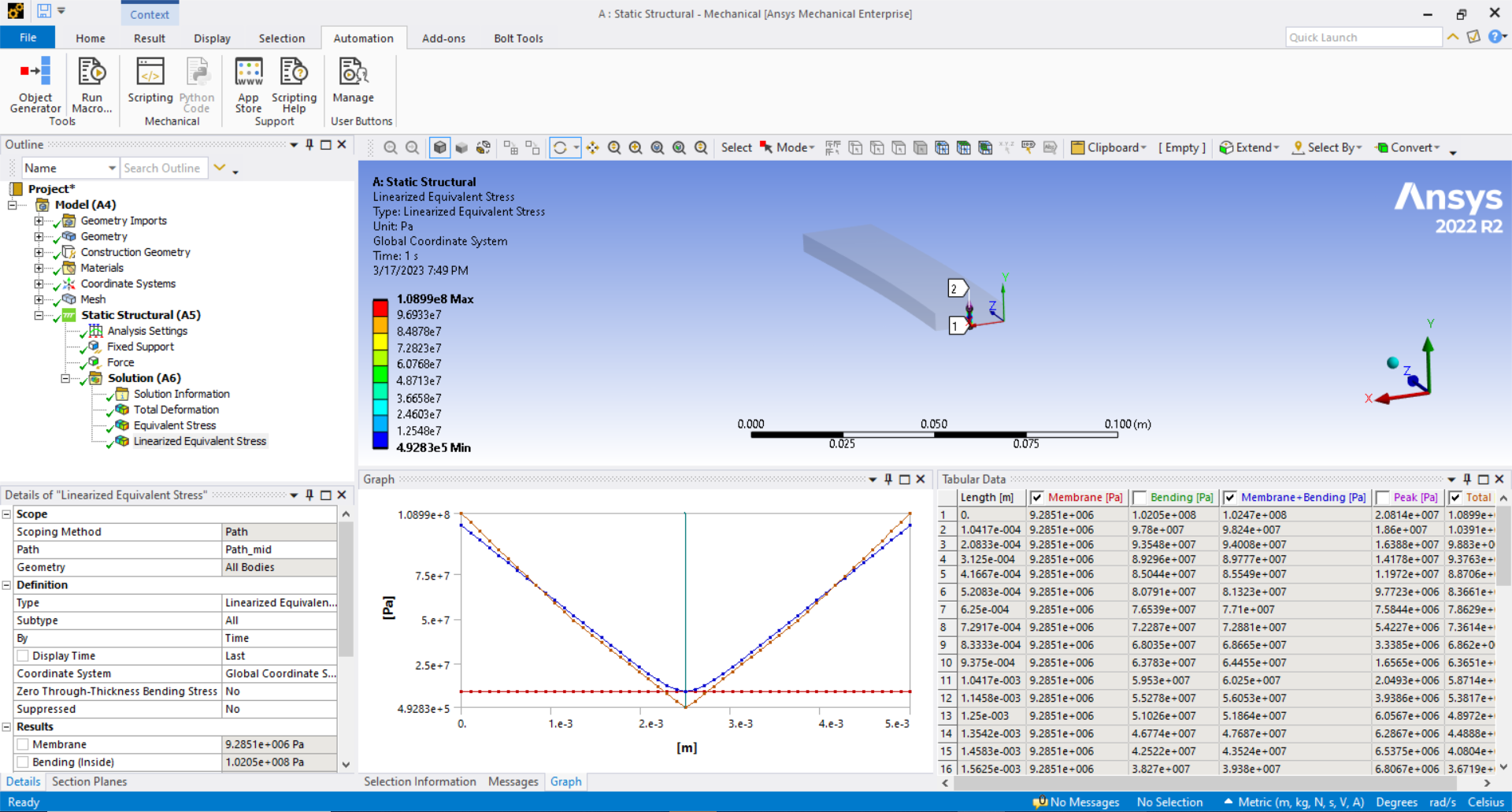
The Model tree shows the “Linearized Equivalent Stress” result. The Canvas displays the 3D model, the legend, and the stress classification line. The Graph displays the linearized stress results, which are tabulated within the “Tabular Data” pane.
For clarity, I could right-click on “Linearized Equivalent Stress” and choose to “Export Text File”.
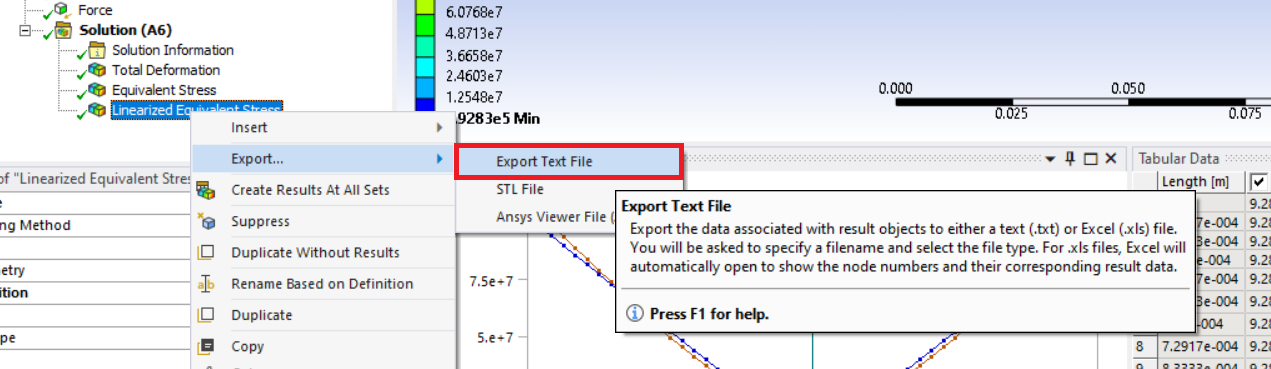
This method, however, doesn’t teach us anything about Python scripting in ANSYS Mechanical, and it doesn’t lend itself to automation.
Exporting Results with Basic Python Commands
We could also request that this result be exported to a text file using Python in ANSYS Mechanical. We do this by accessing the “Automation” ribbon and left-clicking on “Scripting”. Two new panes will appear on the right side of the ANSYS Mechanical interface: “Editor” at the top, and “Shell” at the bottom. I can type the following three commands for the model shown above and export the same text file:
sol=Model.Analyses[0].Solution
linres=sol.Children[3]
linres.ExportToTextFile(“D:LinearizedStress.txt”)
Okay, this is a step in the right direction. Three lines seem really simple. The reality is that I can’t just write these three lines for any model and expect to successfully export this text file. Usually, I search by executing commands in the “Shell” until I find what I want, then I can transpose that into a script in the “Editor” for repeated automation. Since these details aren’t the focus of this discussion, I will move on.
Accessing Undocumented Tabular Data via Python
Let’s assume I have been scripting for a while and have used various Ansys resources to export Tabular Data. If you knew what to search for, it is unlikely to be found in the online help. There are two resources I did find, and here they are:
https://forum.ansys.com/forums/topic/tabular-data-extraction/
https://www.linkedin.com/pulse/script-tip-friday-connecting-mechanical-excel-structural-analysis/
Each of these examples offers a different perspective on the same thing. Below, I will present a third perspective, which I hope is more direct, based on my original premise of generating a CSV file from this tabular data.
Full Python Script for CSV Export
Here is my basic script, which can be entered directly into the ANSYS Mechanical Scripting Editor:
import csv
def writeCSV(filename, data):
# Function to write python list to a csv file
with open(filename, ‘wb’) as csvfile:
spamwriter = csv.writer(csvfile, delimiter=’,’,
quotechar=’|’, quoting=csv.QUOTE_MINIMAL)
for row in data:
spamwriter.writerow(row)
ResultsOfInterest = []
ResultsOfInterest.append(‘Linearized Equivalent Stress’)
import wbjn
cmd = ‘returnValue(GetUserFilesDirectory())’
user_dir = wbjn.ExecuteCommand(ExtAPI, cmd)
AnalysisNumber=0
solution=Model.Analyses[AnalysisNumber].Solution
for j, item in enumerate(solution.Children):
if item.GetType() == Ansys.ACT.Automation.Mechanical.Results.LinearizedStressResults.LinearizedEquivalentStress:
if item.Name in ResultsOfInterest:
item.Activate()
data=[]
del data[:]
Pane=ExtAPI.UserInterface.GetPane(MechanicalPanelEnum.TabularData)
Con = Pane.ControlUnknown
for R in range(1,Con.RowsCount+1):
data.append([])
for C in range(2,Con.ColumnsCount+1):
data[-1].append(Con.cell(R,C).Text)
writeCSV(user_dir + “/” + Model.Analyses[AnalysisNumber].Name + ” – ” + item.Name + “.csv”, data)
print(“Script has completed!”)
print(“”)
print(“Open File: ” + chr(34) + user_dir + chr(92) + Model.Analyses[AnalysisNumber].Name + ” – ” + item.Name + “.csv” + chr(34))
Breaking Down the Script: Four Key Elements
Now, let’s break this down for clarification purposes. This Python Script contains the following four elements:
- Can filter for a specific Ansys Result Name
- Requires that one set the Ansys Analysis number for this particular model
- Can filter for a specific “Result Type” before the script collects the correct results
- Will read the “Tabular Data” of results from Ansys and print that to a CSV file
Using Pictures (with some coloring for clarity), let’s examine what each element comprises.
Filter for a Specific ANSYS Result Name
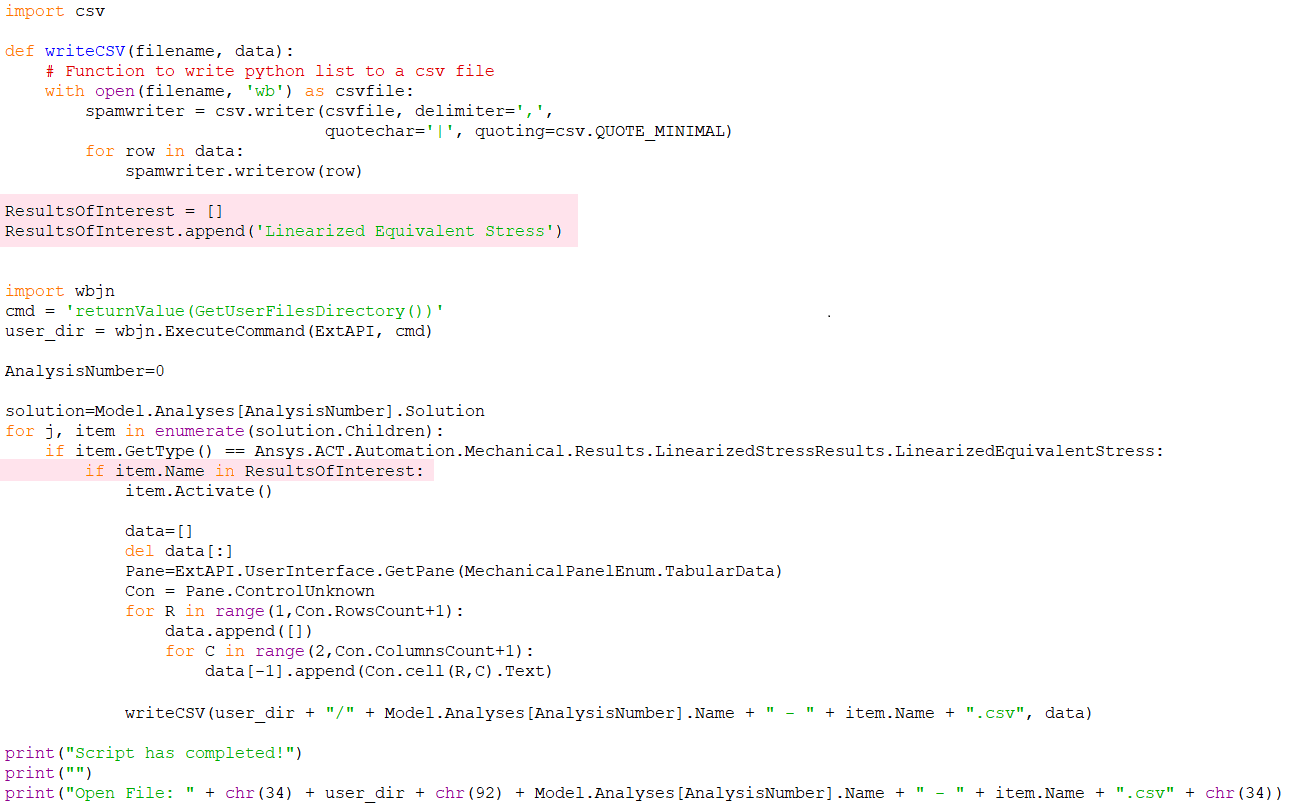
Highlighted above in pink is where a list is defined, but this list only contains one item named “Linearized Equivalent Stress”. I can list as many specific results as I choose. If I had multiple similar results but was only interested in one with this specific name, this method would allow me to filter by the result object name.
Set the ANSYS Analysis Number
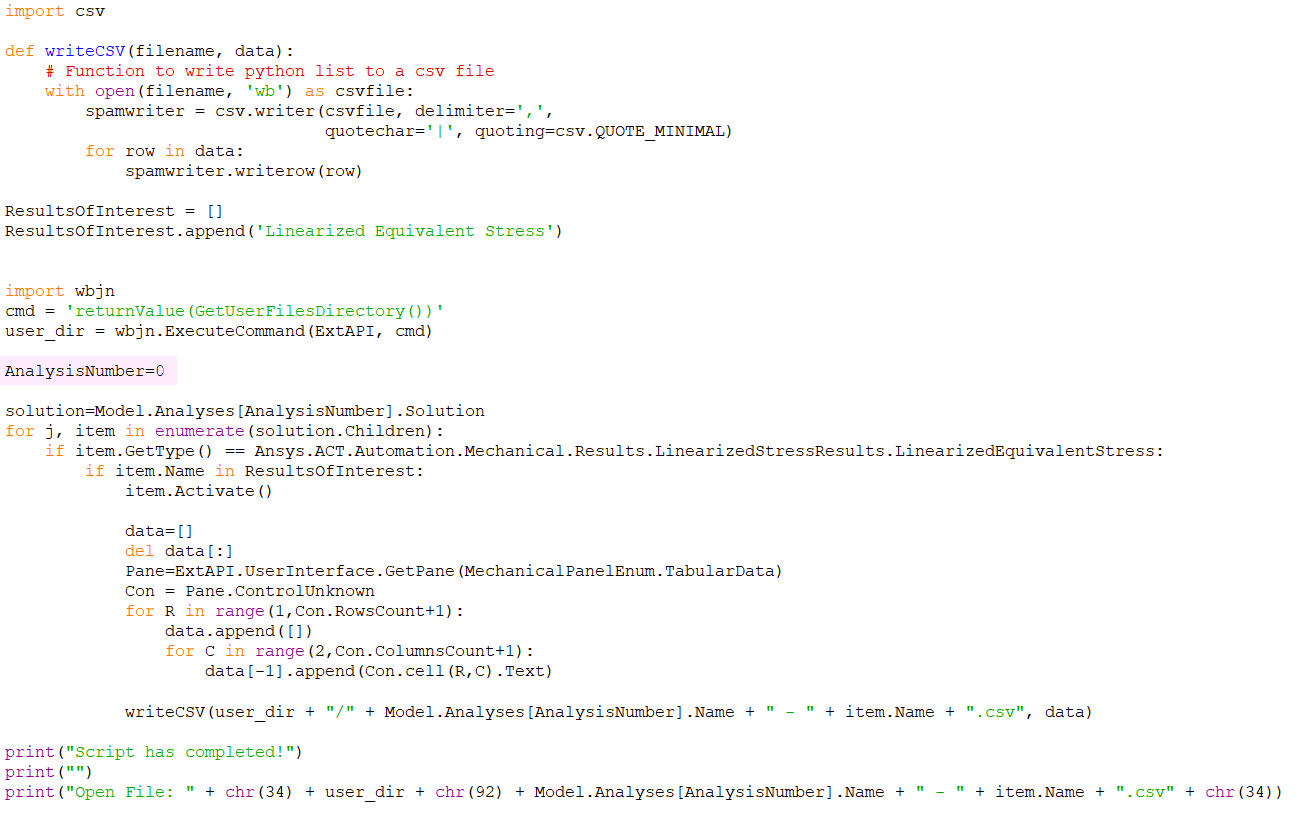
The same code, just a different line highlighted in pink. Ansys begins indexing of items at number “zero”. Therefore, in my model, the first and only analysis I have is the Static Structural analysis. Since this is the “first” analysis, I enter “0” to represent that analysis number… Done!
Set the Result Type
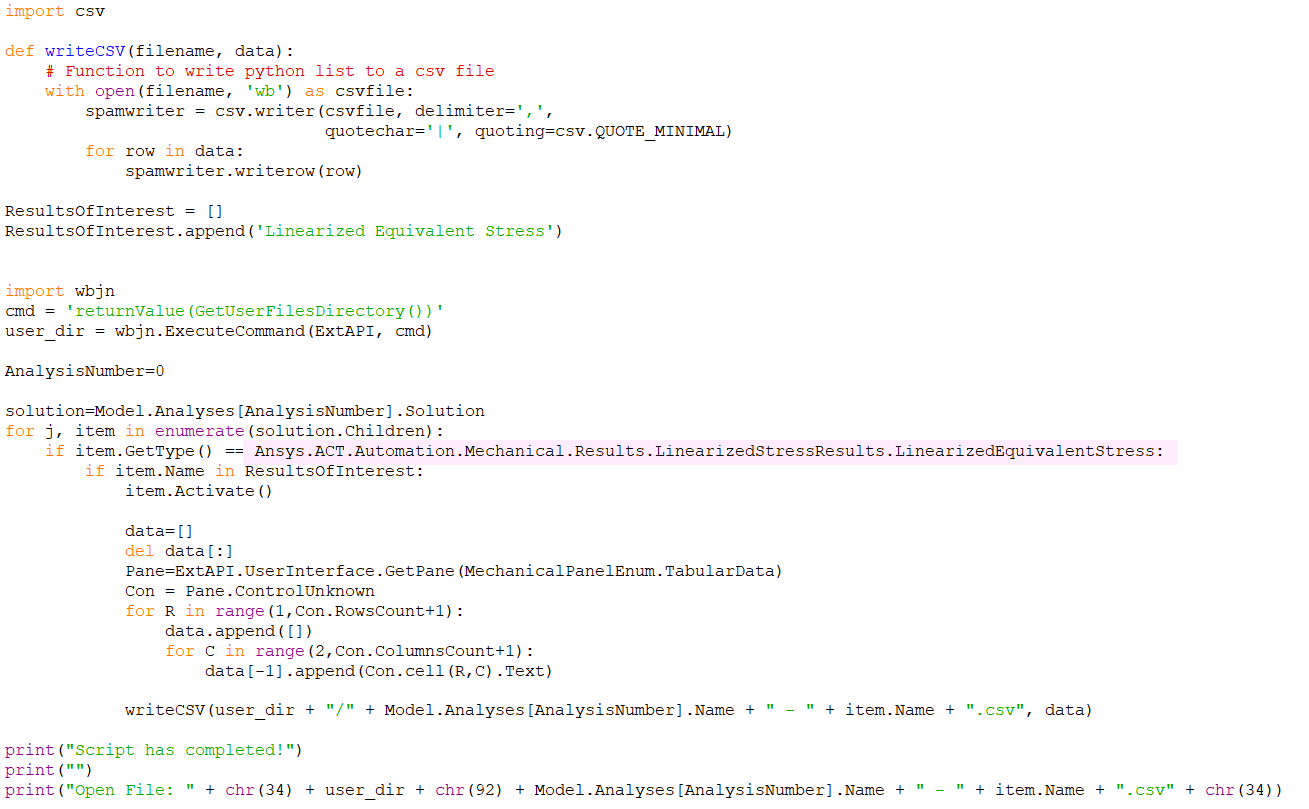
The short answer here is that this is not going to be a value that you will know. You will need to use the scripting “Shell” to interrogate result items in the Model Tree and query on “Name” and “GetType()” for the result item of interest. I will explore how to do this in a different presentation, but will suggest for a linearized equivalent stress result, the type is:
“Ansys.ACT.Automation.Mechanical.Results.LinearizedStressResults.LinearizedEquivalentStress”
Without filtering by result type, I may try to extract a specific type of result data that doesn’t exist. This is one more level of control in selectivity.
Read the Tabular Data and Export to CSV
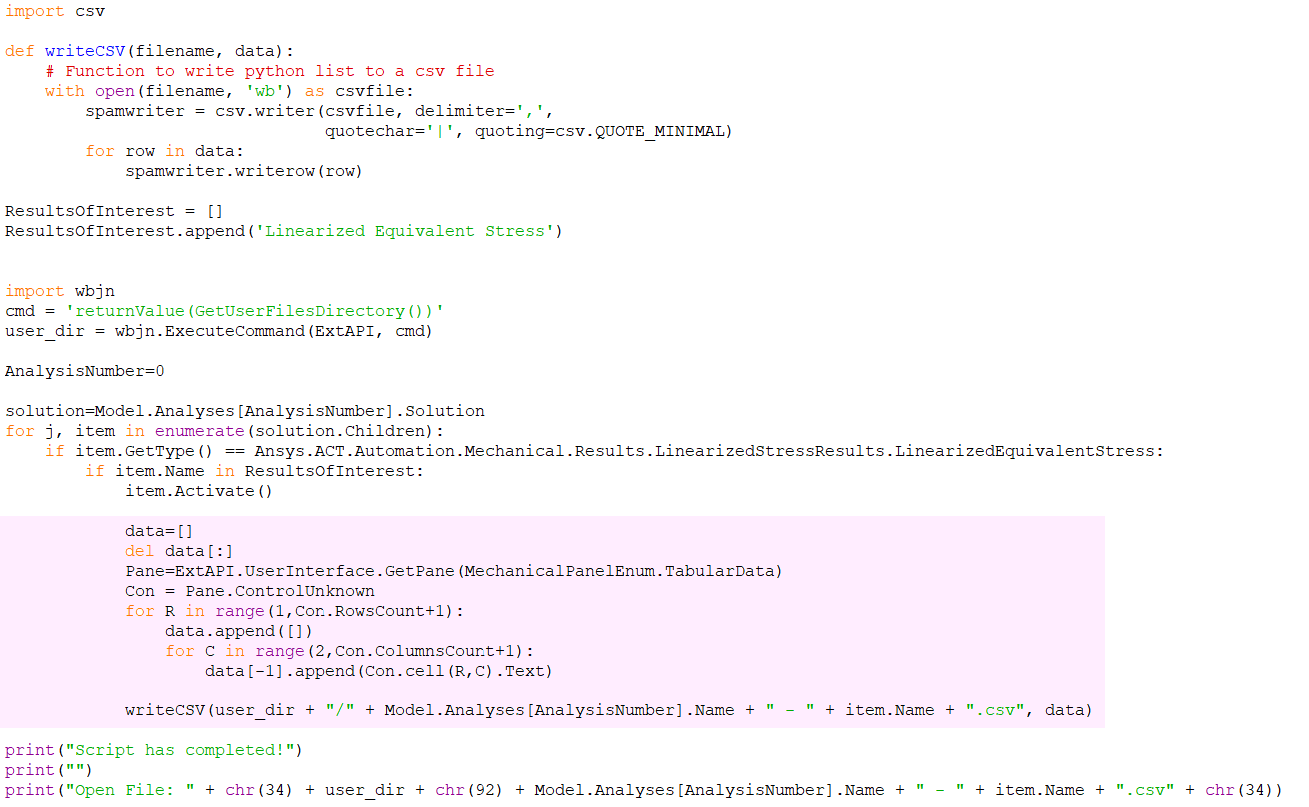
Finally, this is why we are here!
In this highlighted section, “data” collects and holds everything we will extract from the Tabular Data, and then it is used to generate the CSV file.
We define “Pane” (“Pane” is what I choose to call this object; you could name it based on your own preference) as a programming object that is equivalent to:
ExtAPI.UserInterface.GetPane(MechanicalPanelEnum.TabularData)
This part is fine. It is the next line that would remain mysterious. We define a control named “Con” equivalent to:
Pane.ControlUnknown
Now I can perform actions using my new object, “Con”, to extract data from the Tabular Data, but keep in mind that typing a dot “.” after “Con” will not give you an accurate or complete list of the available functions. Here are some of the functions I have used (there may be more):
Viewing the Exported CSV Output
This is what our exported CSV looks like if opened in Excel:
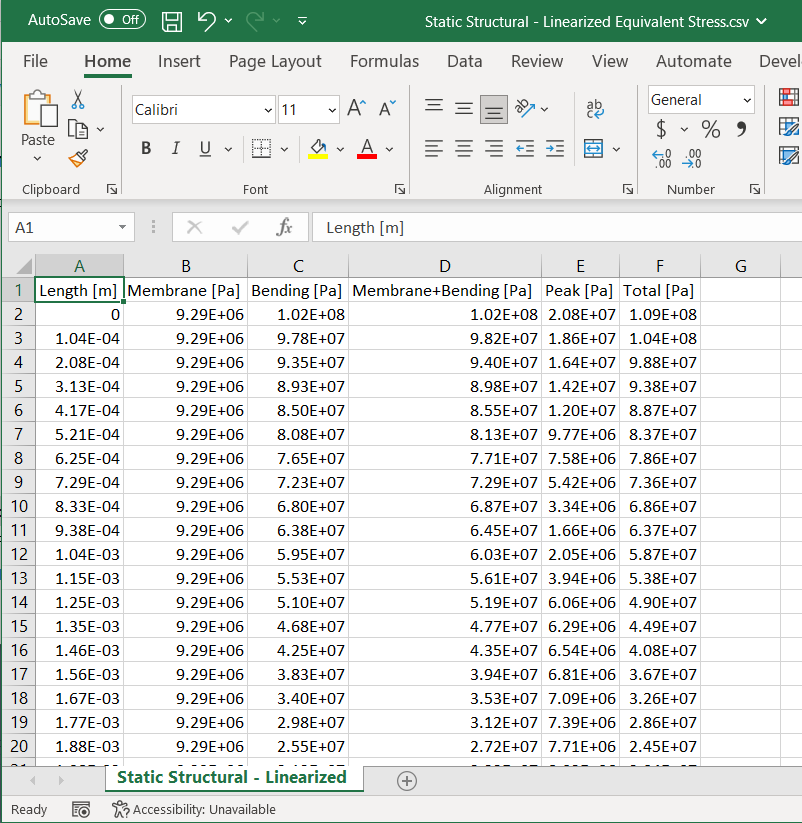
This process can be repeated for any tabular result type within Ansys Mechanical.
Looking to automate more of your Ansys workflows? SimuTech Group’s consulting engineers can help you build custom scripting and macro solutions tailored to your simulation processes. Contact us to get started.