 Contact Us
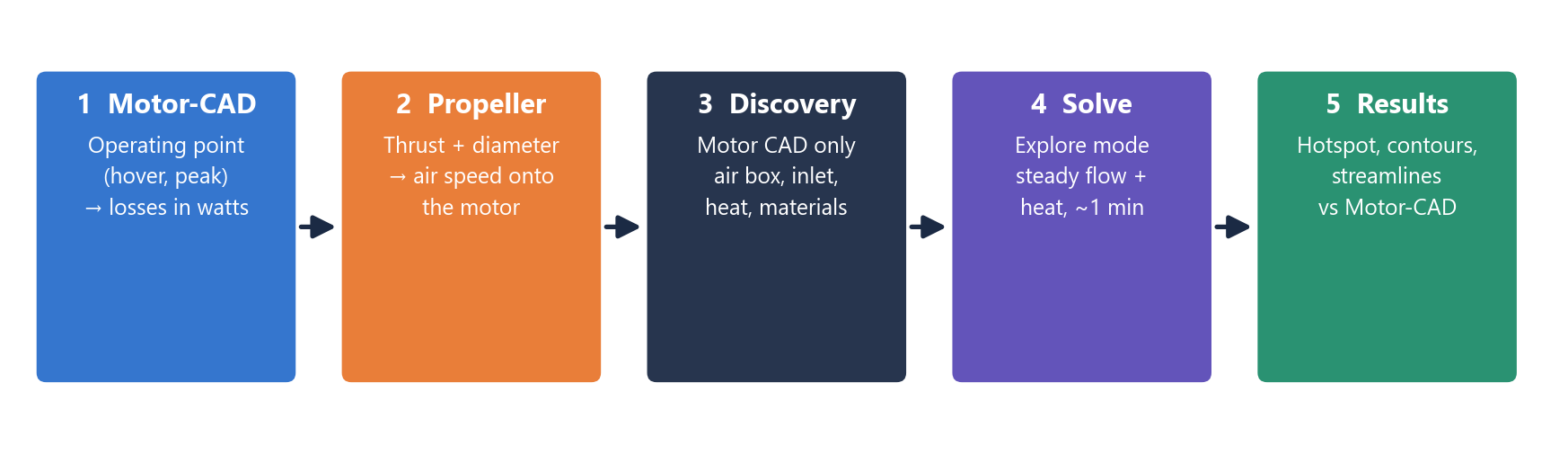
From Motor-CAD losses to a full drone motor CFD in minutes: hover and peak thrust, with every click and every line of script.
Drone Motor CFD: Why this matters
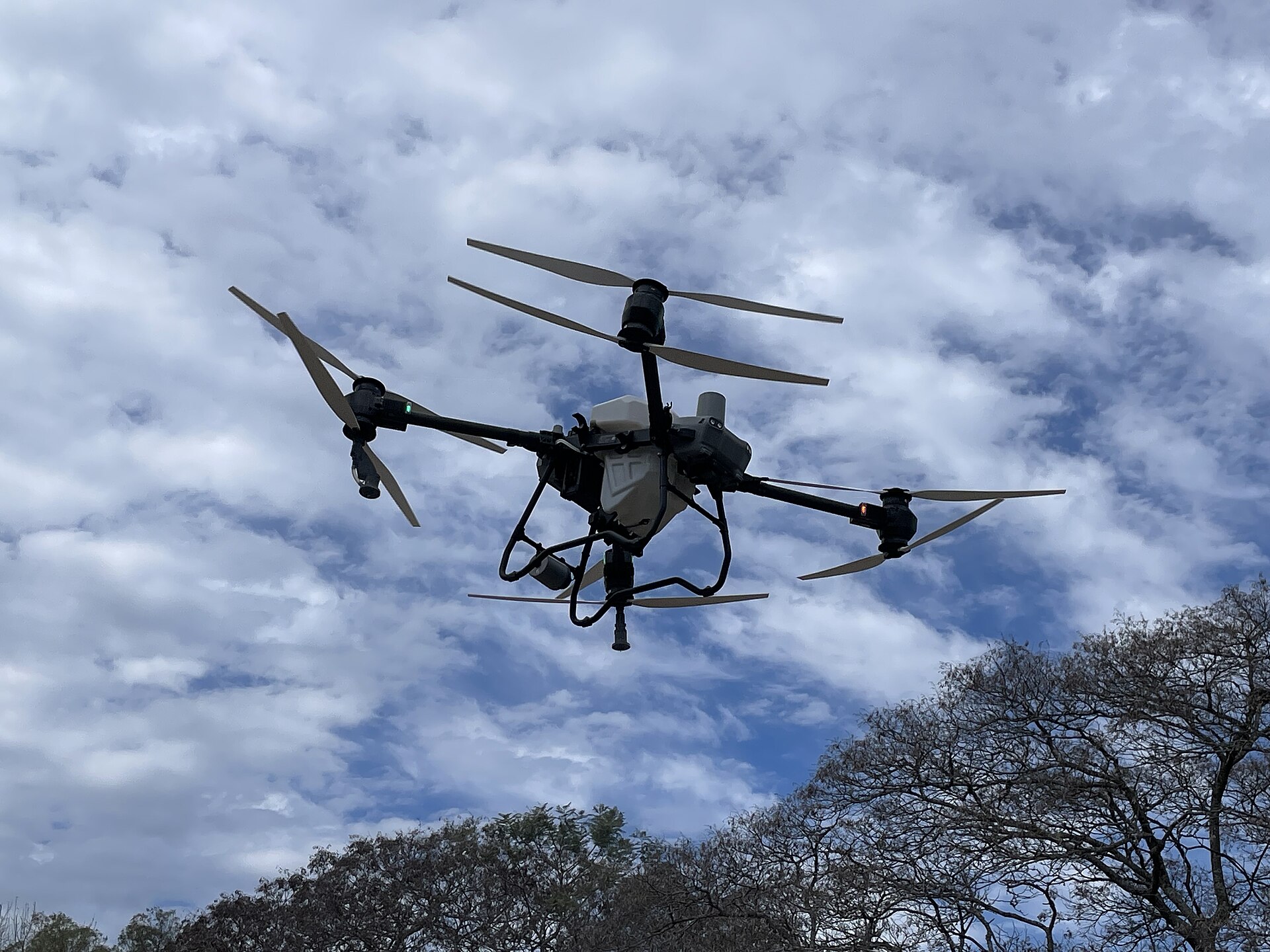
A drone motor is small, light and pushed hard. It sits under a propeller that blows air onto it, and that air is its main cooling. If the winding gets too hot, the insulation ages quickly; if the magnets get too hot, the motor loses torque for good.
Motor-CAD tells you how much heat the motor makes and gives a fast thermal answer. A drone motor CFD model adds the real shape of the air flow around the bell, the spokes and the coils. In this guide we do both, and we compare them.
What you will learn:
- how to get the losses (the heat) from Motor-CAD at hover and at peak thrust
- why we remove the propeller and how to replace it with a simple air speed
- how to set up the CFD in Discovery: air box, materials, inlet, outlet, heat, mesh
- how to read the results and compare them with Motor-CAD
- the same steps as a short script, so you can repeat them for any motor
1. The example motor and propeller
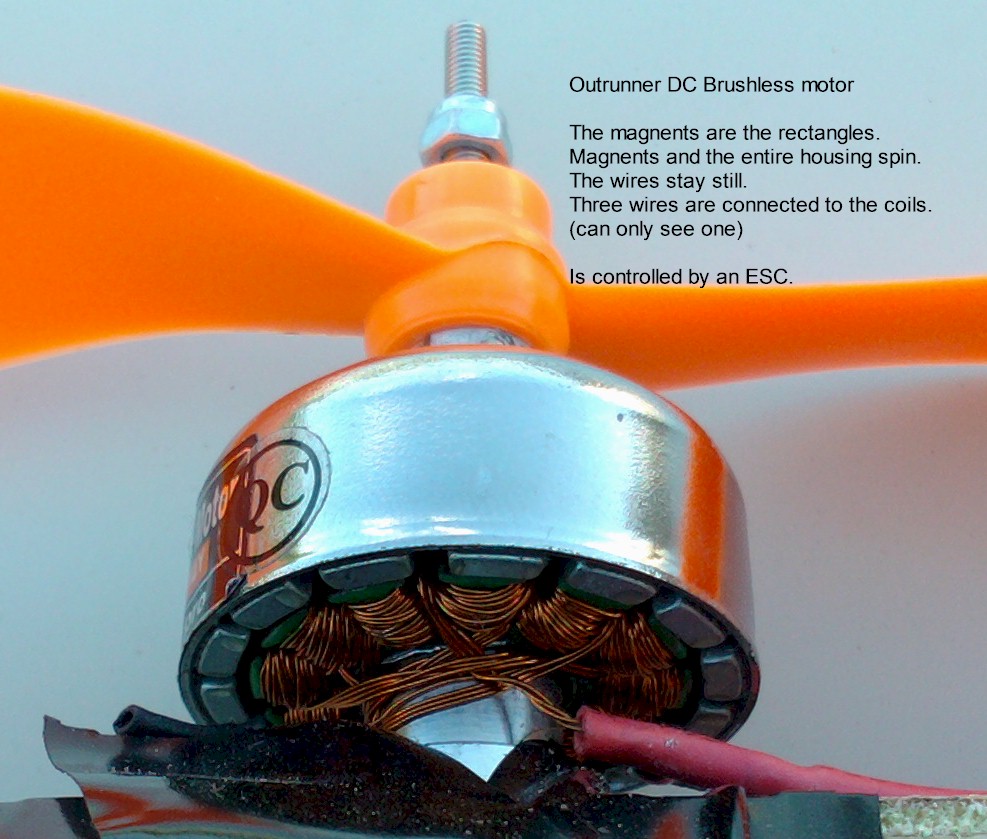
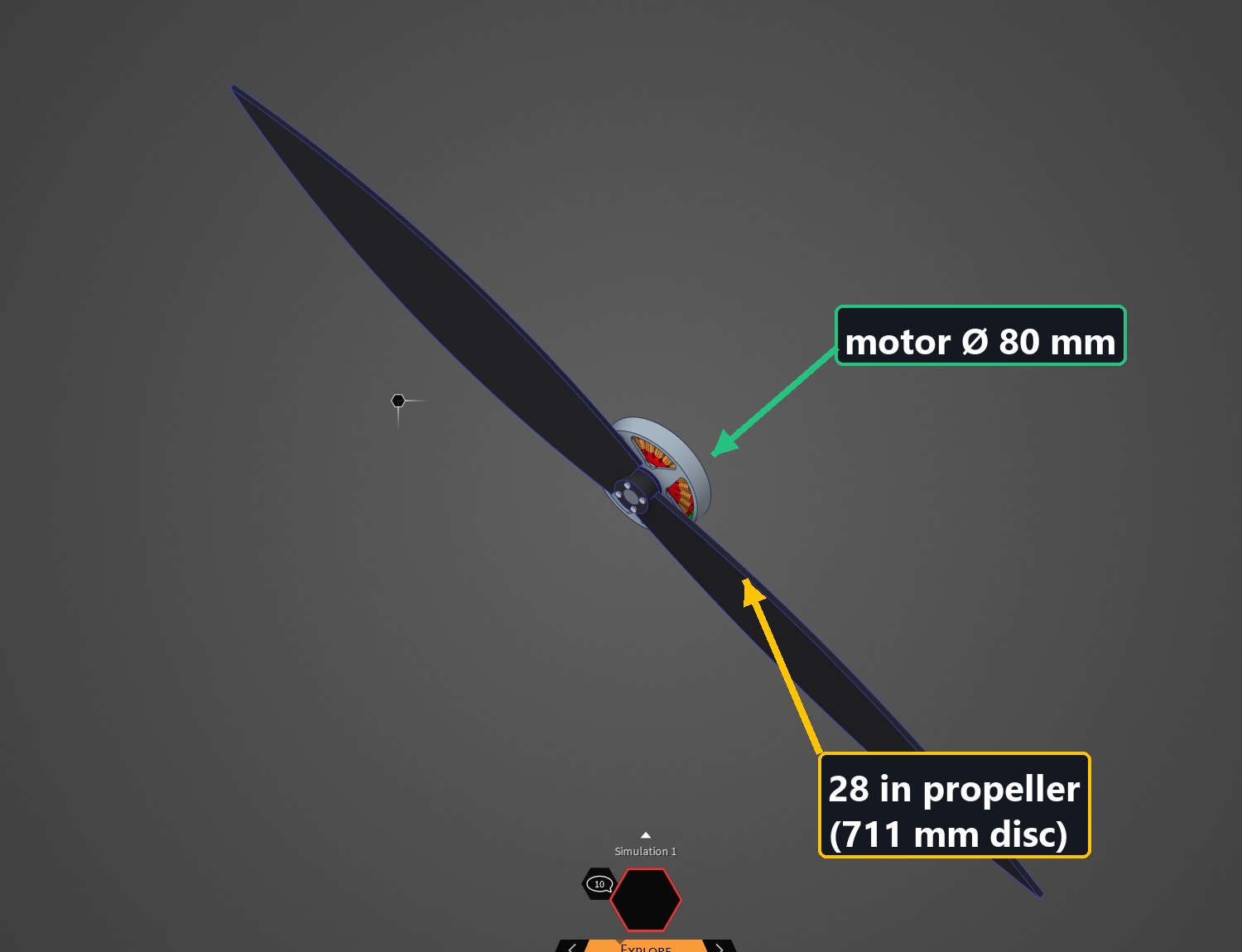
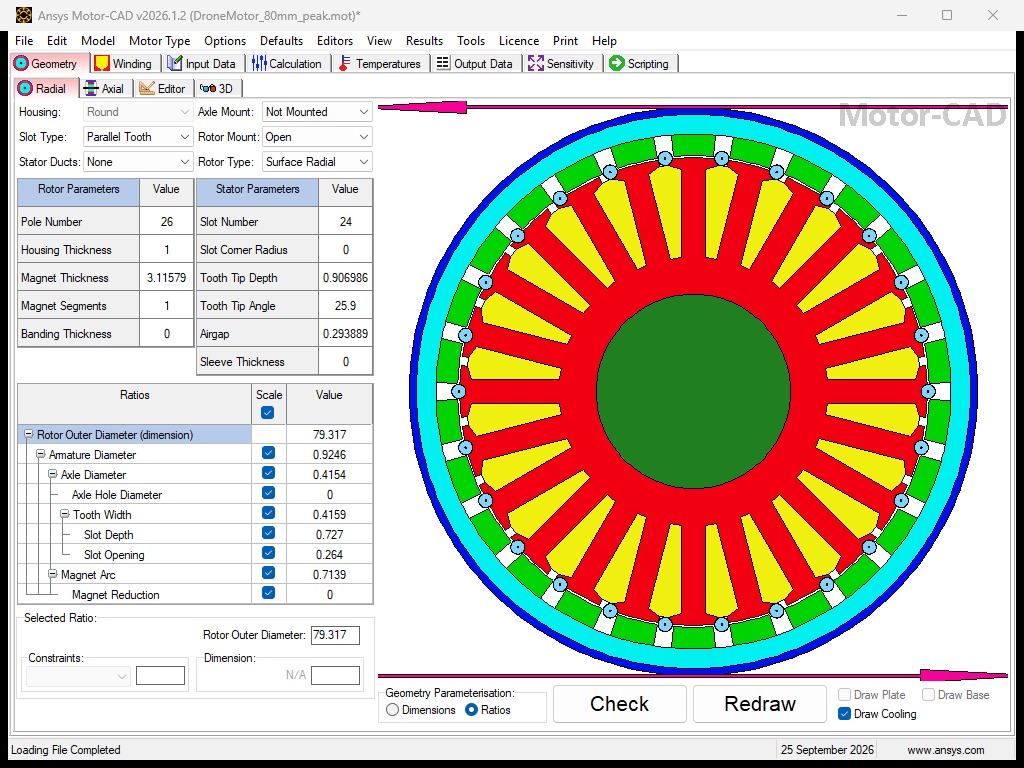
We use a heavy-lift outrunner. In an outrunner the stator (with the coils) stays still in the middle, and the outer bell with the magnets spins around it. The propeller bolts onto the bell.
| Item | Value |
| Motor type | Outrunner, 24 slots / 26 poles |
| Outer diameter / stack length | 80 mm / 6.6 mm |
| Airgap | 0.29 mm |
| Materials | Hiperco 50 stator, N48H magnets, steel bell, copper coils, nylon base |
| Propeller | 28 × 9.5 in, 2 blades (711 mm disc) |
| Hover (per motor) | 29.7 N thrust at 2252 rpm, 0.95 N·m |
| Peak (per motor) | 86.7 N thrust at 3770 rpm, 2.73 N·m |
| Ambient air | 40 °C (a hot day) |
2. The heat: losses from Motor-CAD
Drone motor CFD needs to know how many watts each part makes. We take them from Motor-CAD at two operating points:
- Hover: the normal flight point. The motor runs here most of the time.
- Peak: full thrust, for a climb or a gust. We hold it steady as a worst case.
Manual way in Motor-CAD
- Open the model and go to the Lab module. Build the model (Model Build).
- In Lab ▸ Operating Point, choose Torque demand and type the speed and torque (hover: 2252 rpm, 0.95 N·m). Tick thermal coupling so the losses go to the thermal model.
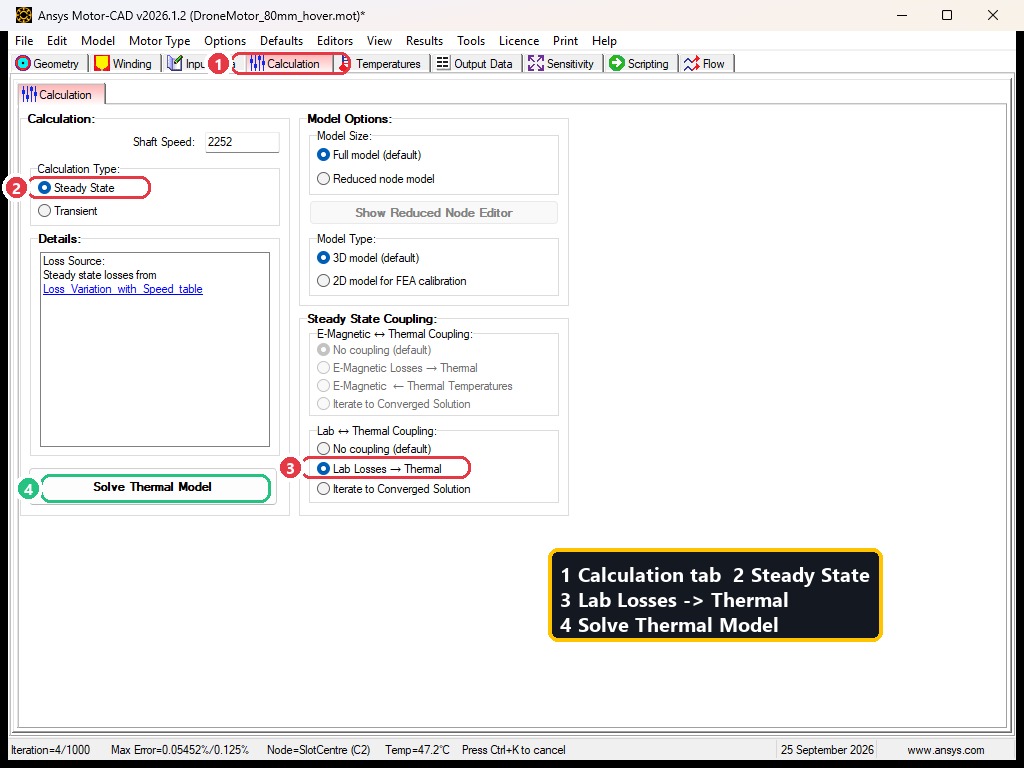
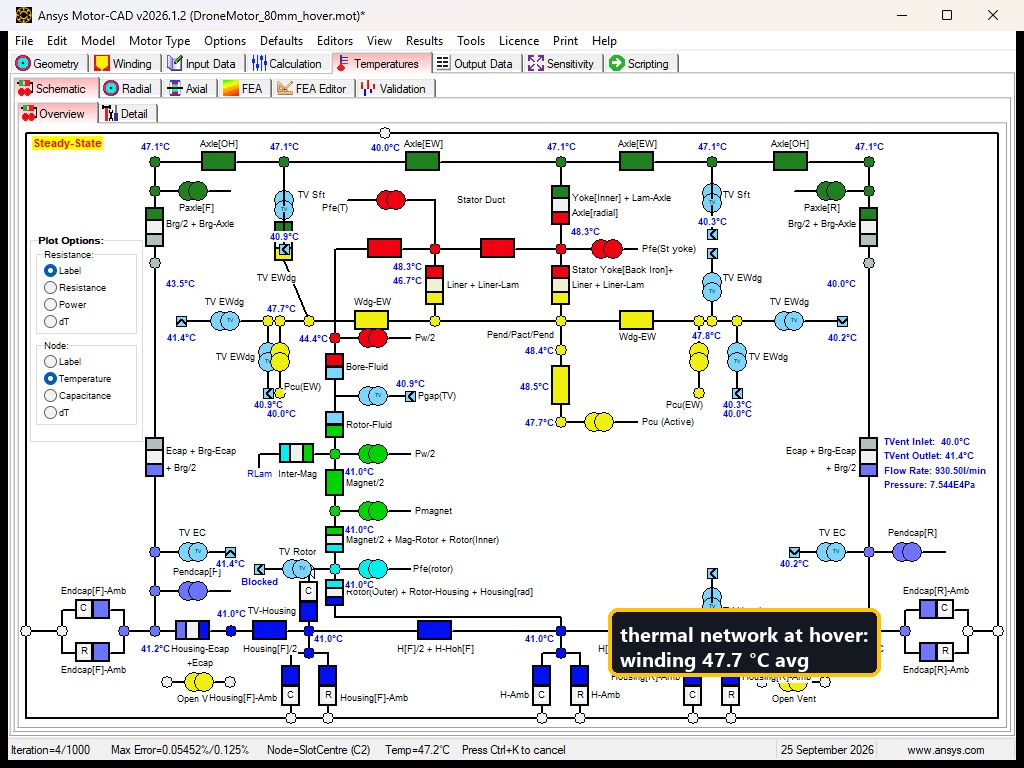
- Go to Temperatures ▸ Calculation. Select Steady State and Lab Losses → Thermal, then click Solve Thermal Model.
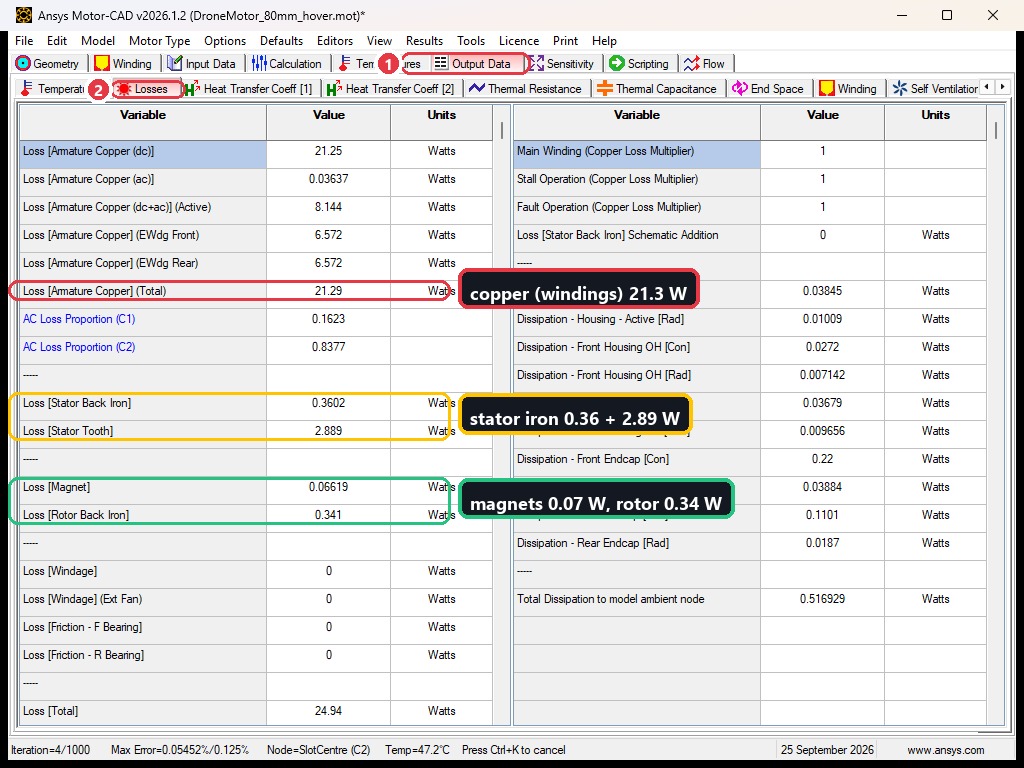
- Read the losses in Output Data ▸ Losses, and the temperatures in Temperatures.
With code (Python, ansys-motorcad-core)
Get the hover losses
import ansys.motorcad.core as pymotorcad
mc = pymotorcad.MotorCAD()                    # start Motor-CAD
mc.load_from_file(r"C:\work\drone_motor.mot")

# 1. hover operating point in Lab (torque demand), losses go to thermal
mc.set_motorlab_context()
mc.set_variable("OpPointSpec_MotorLAB", 0)     # 0 = torque demand
mc.set_variable("ThermCalcType_MotorLAB", 0)   # steady state
mc.set_variable("SpeedDemand_MotorLAB", 2252)
mc.set_variable("TorqueDemand_MotorLAB", 0.95)
mc.calculate_operating_point_lab()

# 2. steady-state thermal with those losses
mc.show_thermal_context()
mc.set_variable("ThermalCalcType", 0)
mc.do_steady_state_analysis()

# 3. read the watts per part
copper = mc.get_variable("Armature_Copper_Loss_@Ref_Speed")
tooth  = mc.get_variable("Stator_Iron_Loss_@Ref_Speed_[Tooth]")
print(copper, tooth, mc.get_variable("Temp_Winding_Average"))
mc.save_to_file(r"C:\work\drone_motor_hover.mot")   # keeps these losses
Repeat with the peak speed and torque. The electromagnetic results at both points:
| Motor-CAD EMAG result | Hover | Peak |
| Speed | 2252 rpm | 3770 rpm |
| Shaft torque | 0.95 N·m | 2.73 N·m |
| Shaft (output) power | 224.2 W | 1078.1 W |
| Electrical input power | 248.6 W | 1288.5 W |
| Efficiency | 90.2 % | 83.7 % |
| DC bus voltage | 48 V | 48 V |
| DC current | 5.18 A | 26.84 A |
| Phase current (RMS) | 14.16 A | 43.53 A |
| Phase voltage (RMS) | 5.99 V | 11.63 V |
| Power factor | 0.977 | 0.848 |
| Phase advance | 2.9° | 7.0° |
| Copper loss (DC + AC) | 20.70 W | 196.27 W |
| Iron loss (stator + rotor) | 3.59 W | 13.29 W |
| Magnet loss | 0.07 W | 0.84 W |
| Total loss | 24.36 W | 210.40 W |
Those losses, split by part, are the heat for the CFD:
| Heat source | Hover [W] | Peak [W] | Where it goes in the CFD |
| Copper (windings) | 20.70 | 196.27 | all coil bodies |
| Stator iron (back iron + teeth) | 3.25 | 8.09 | stator lamination |
| Rotor back iron | 0.34 | 5.20 | bell |
| Magnets | 0.07 | 0.84 | all magnets |
| Total | 24.36 | 210.40 |
Tip For a comparison with CFD, turn off “copper losses vary with temperature” in Motor-CAD, so both tools use exactly the same watts.
Tip Only use the loss groups your motor really has. The Motor-CAD loss list also holds default values for other machine types (rotor bars, brushes); leave those out.
3. Why we remove the propeller in drone motor CFD models
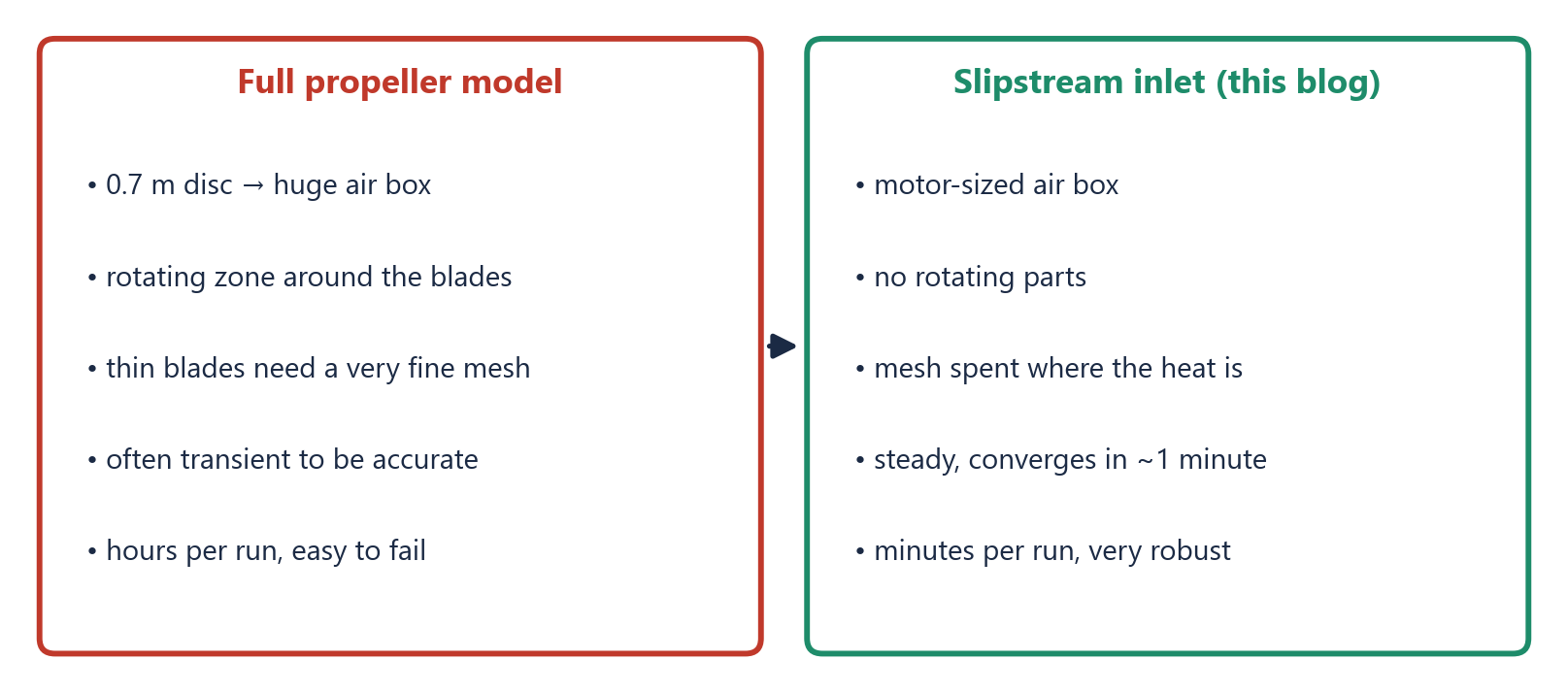
You could put the full propeller in the CFD and spin it. It works, but it is slow and fragile: the blade is 711 mm wide and very thin, so the air box and the mesh get huge, and a spinning zone often needs a time-dependent solve.
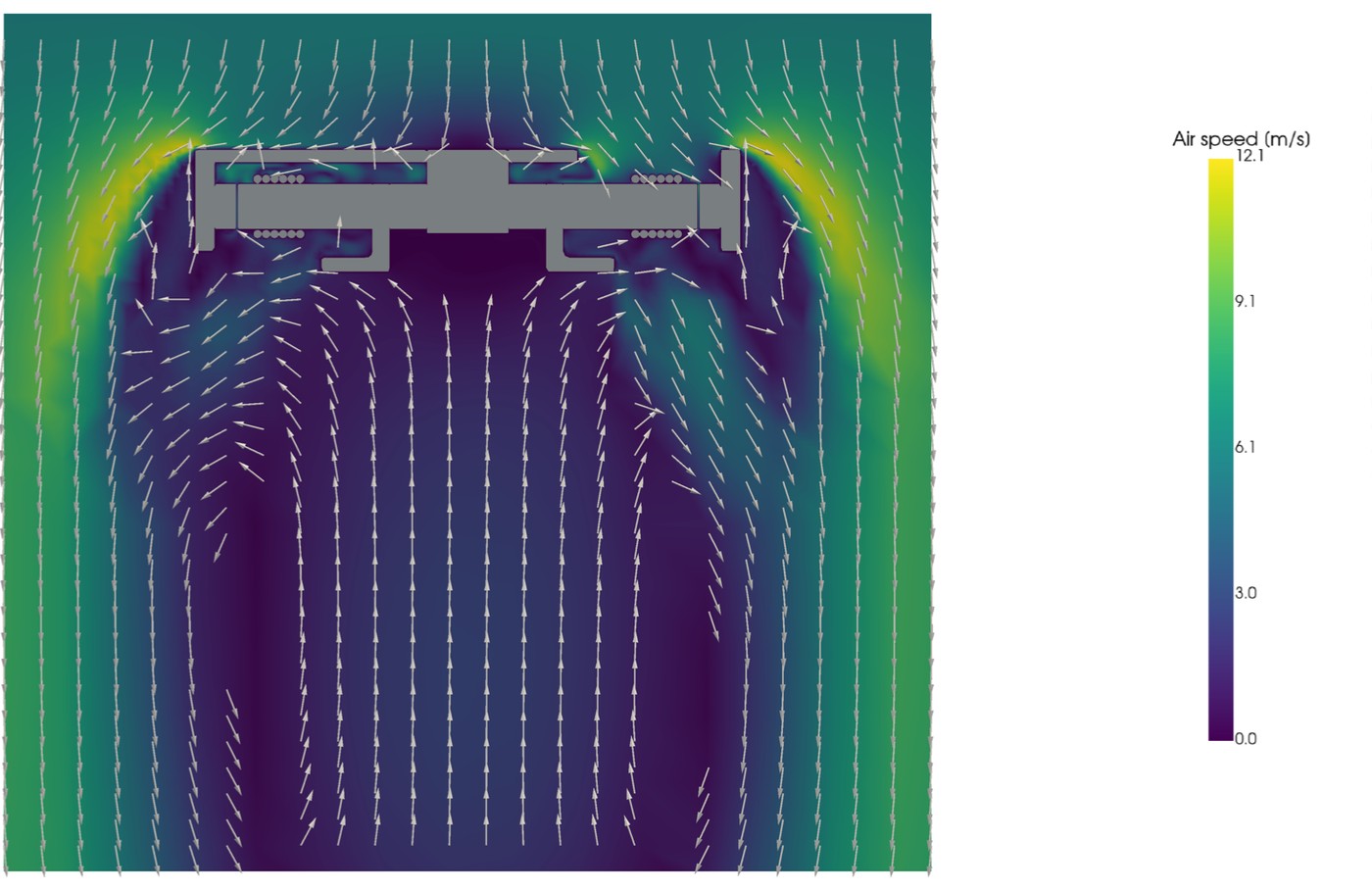
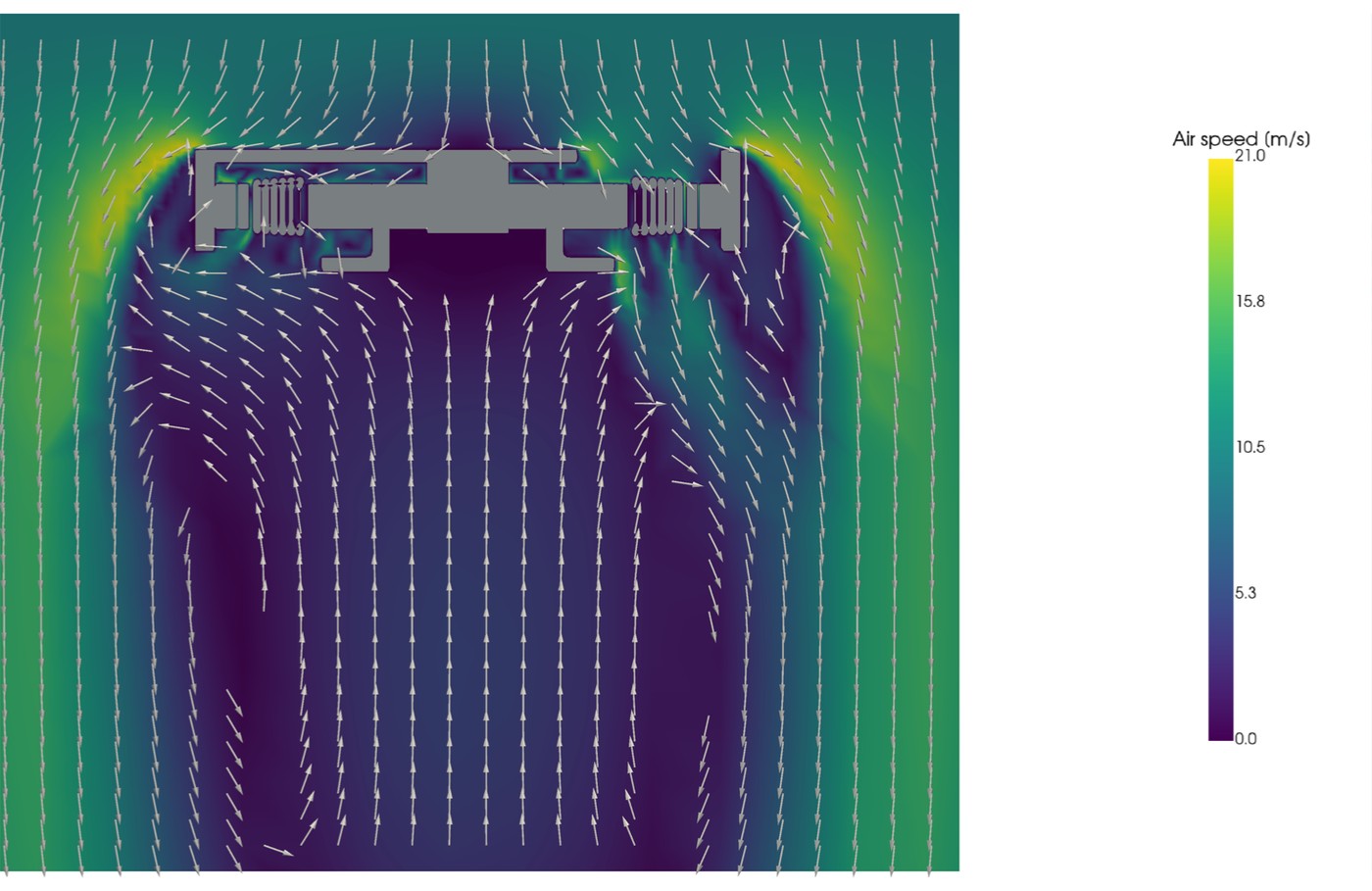
For cooling, the motor does not care about the blade shape. It only cares about the air the propeller pushes down onto it. So we replace the propeller with that air: a simple velocity at the top of the air box.
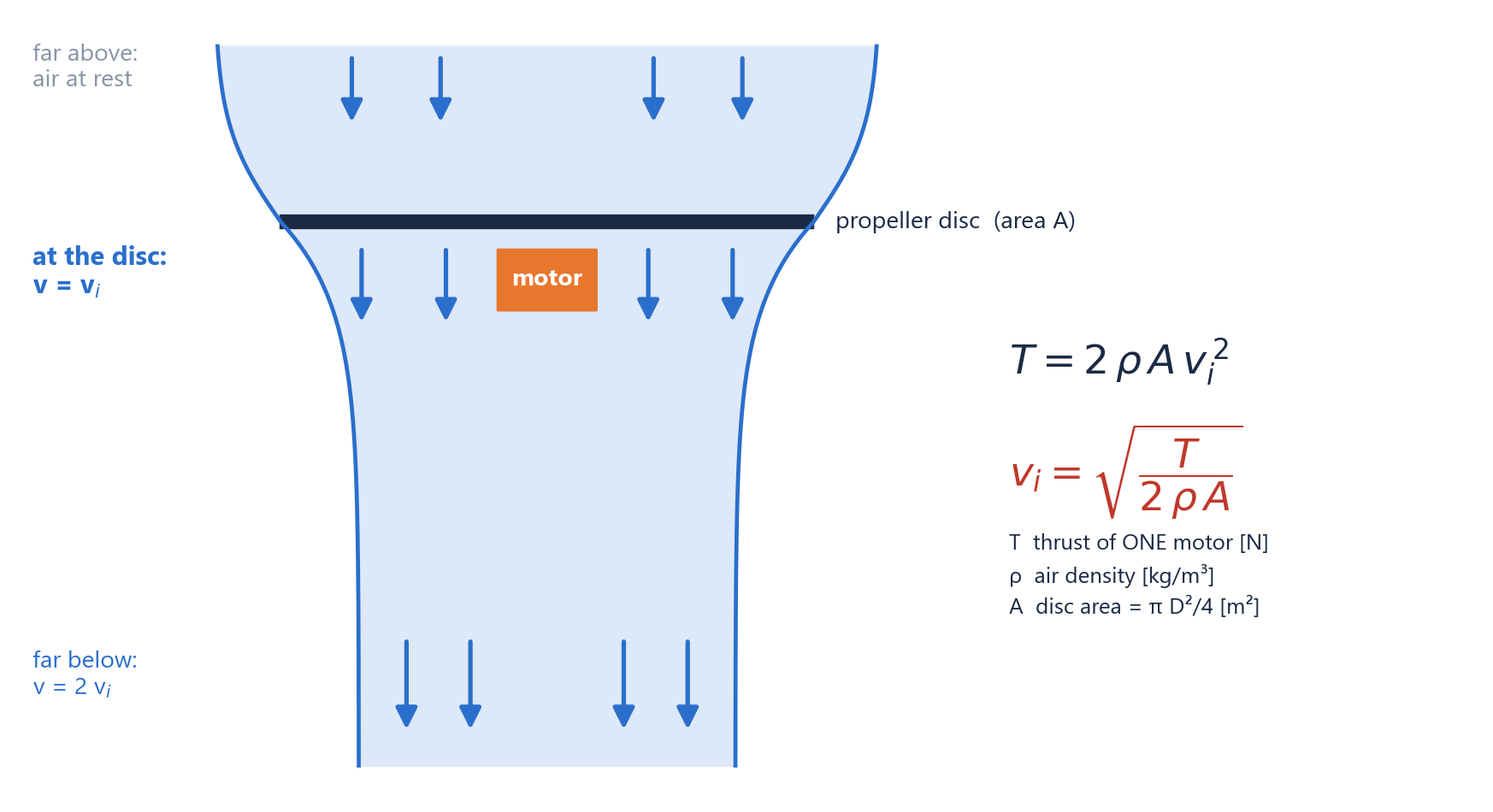
How fast is the air? (momentum theory)
Think of the propeller as a thin disc that pushes air down. The thrust equals the air mass it moves times the speed it adds. From that, the air speed right at the disc is:
| Hover | Peak | |
| Thrust T (one motor) | 29.7 N | 86.7 N |
| Disc area A = π·0.711²/4 | 0.397 m² | 0.397 m² |
| Air density ρ at 40 °C | 1.127 kg/m³ | 1.127 kg/m³ |
| Air speed v_i = √(T / 2ρA) | 5.76 m/s | 9.84 m/s |
Air speed onto the motor
import math
def slipstream(thrust_N, prop_dia_in, ambient_C=40):
    rho = 101325 / (287.05 * (ambient_C + 273.15))   # air density
    area = math.pi * (prop_dia_in * 0.0254) ** 2 / 4
    return math.sqrt(thrust_N / (2 * rho * area))

print(slipstream(29.7, 28))   # hover -> 5.76 m/s
print(slipstream(86.7, 28))   # peak  -> 9.84 m/s
4. Discovery: remove the propeller
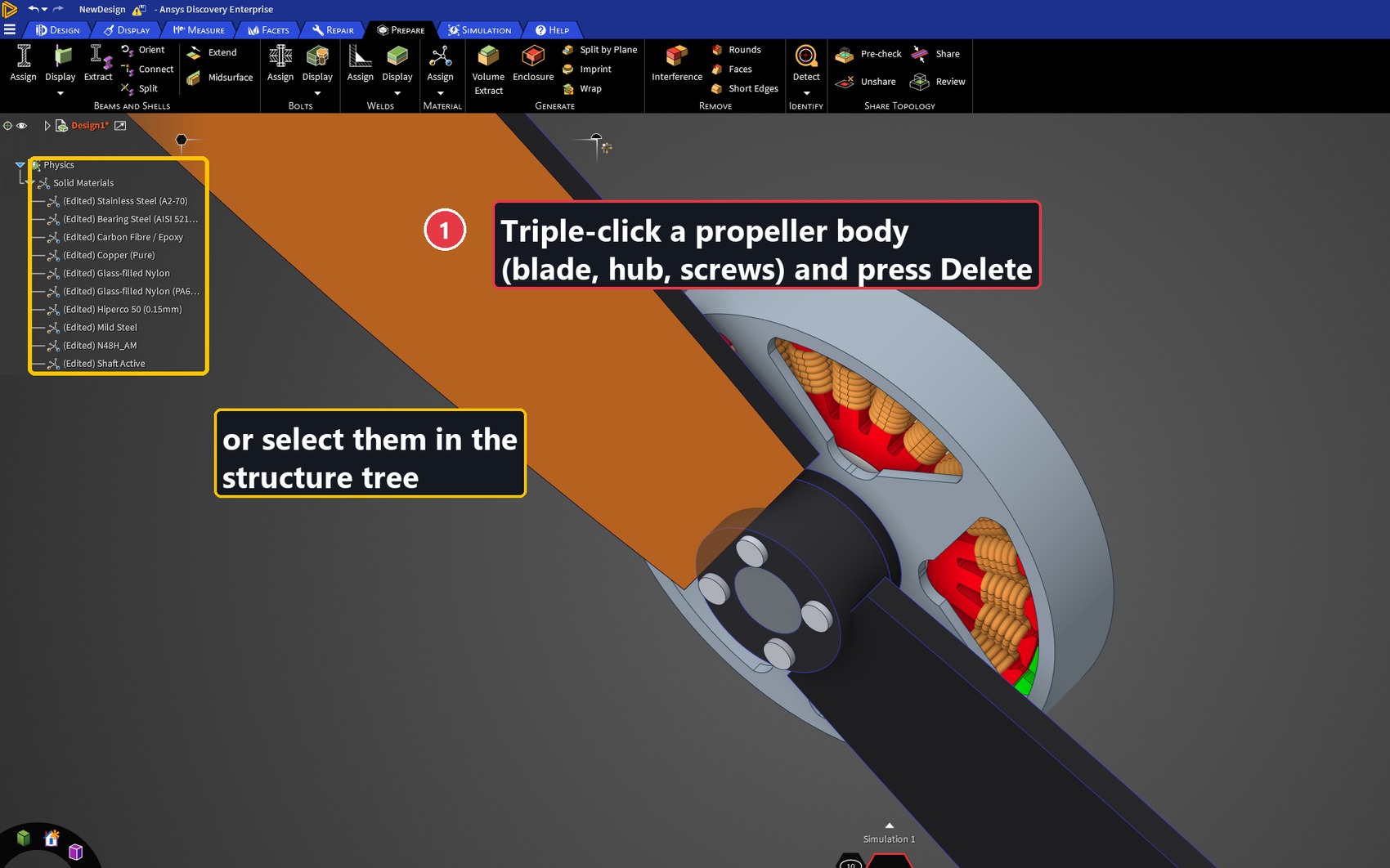
Open the motor + propeller CAD in Discovery. Select every propeller body (blades, hub, screws) and delete them. Only the motor stays.
Same with code
# Python script (Discovery ▸ Script Editor, API V252)
prop = [b for b in GetRootPart().GetAllBodies()
        if b.GetName().startswith("prop_")]
Delete.Execute(BodySelection.Create(prop))
5. The air box (enclosure)
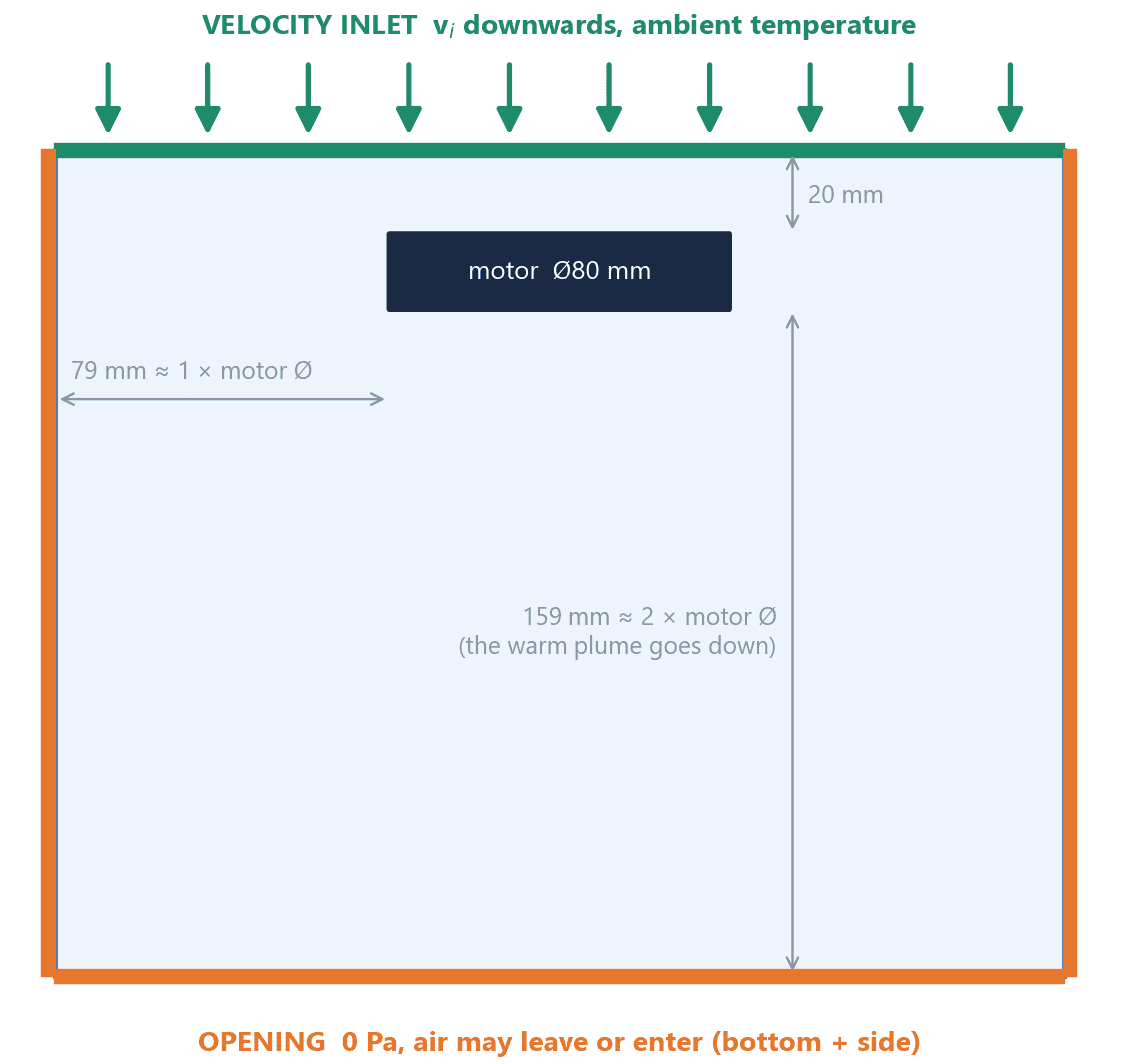
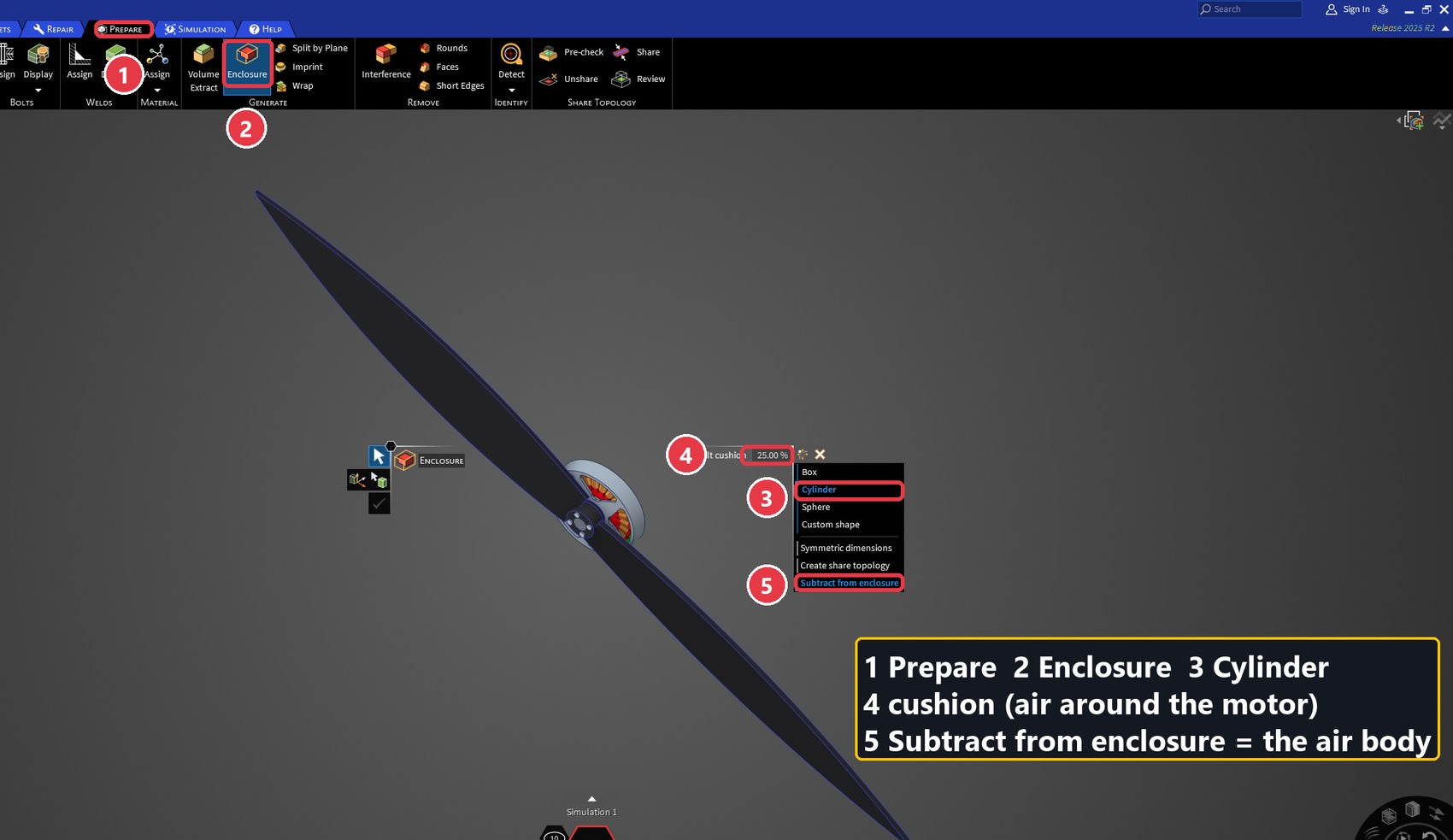
CFD needs a body of air around the motor. Discovery makes it with the Enclosure tool.
- Shape: a cylinder around the motor axis.
- Above: short (20 mm). The propeller sits just above the bell, and the top face is where our air comes in.
- Below: long (about 2 × motor diameter). The warm air leaves downwards and needs room.
- Side: about 1 × motor diameter.
Same with code
o = EnclosureOptions()
o.EnclosureType = EnclosureType.Cylinder
o.EnclosureCushion = CylinderEnclosureCushion(MM(159), MM(20), MM(79))  # below, above, side
o.Frame = Frame.Create(Point.Create(MM(0), MM(0), MM(0)), Direction.DirX, Direction.DirY)
o.Subtract = True               # air = box minus the motor
o.CreateShareTopology = False
Enclosure.Create(BodySelection.Create(motor_bodies), o)
6. Materials
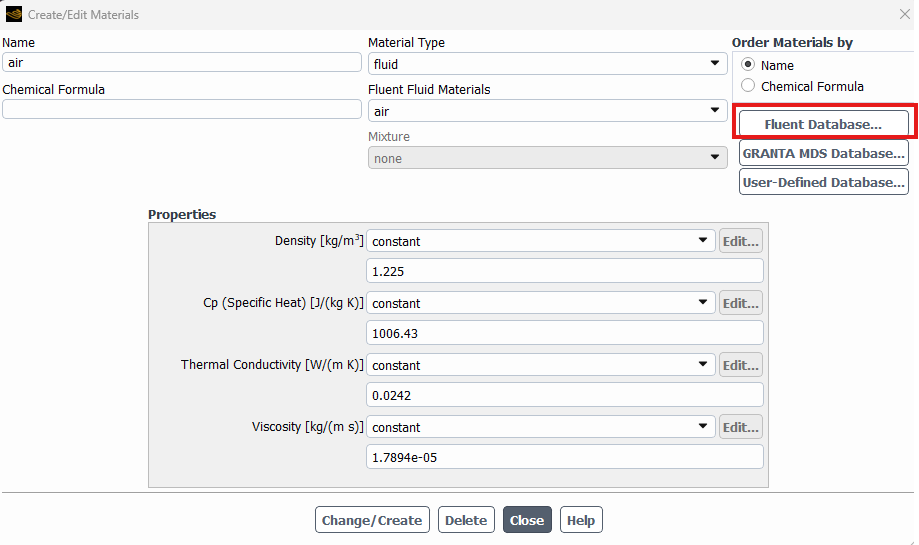
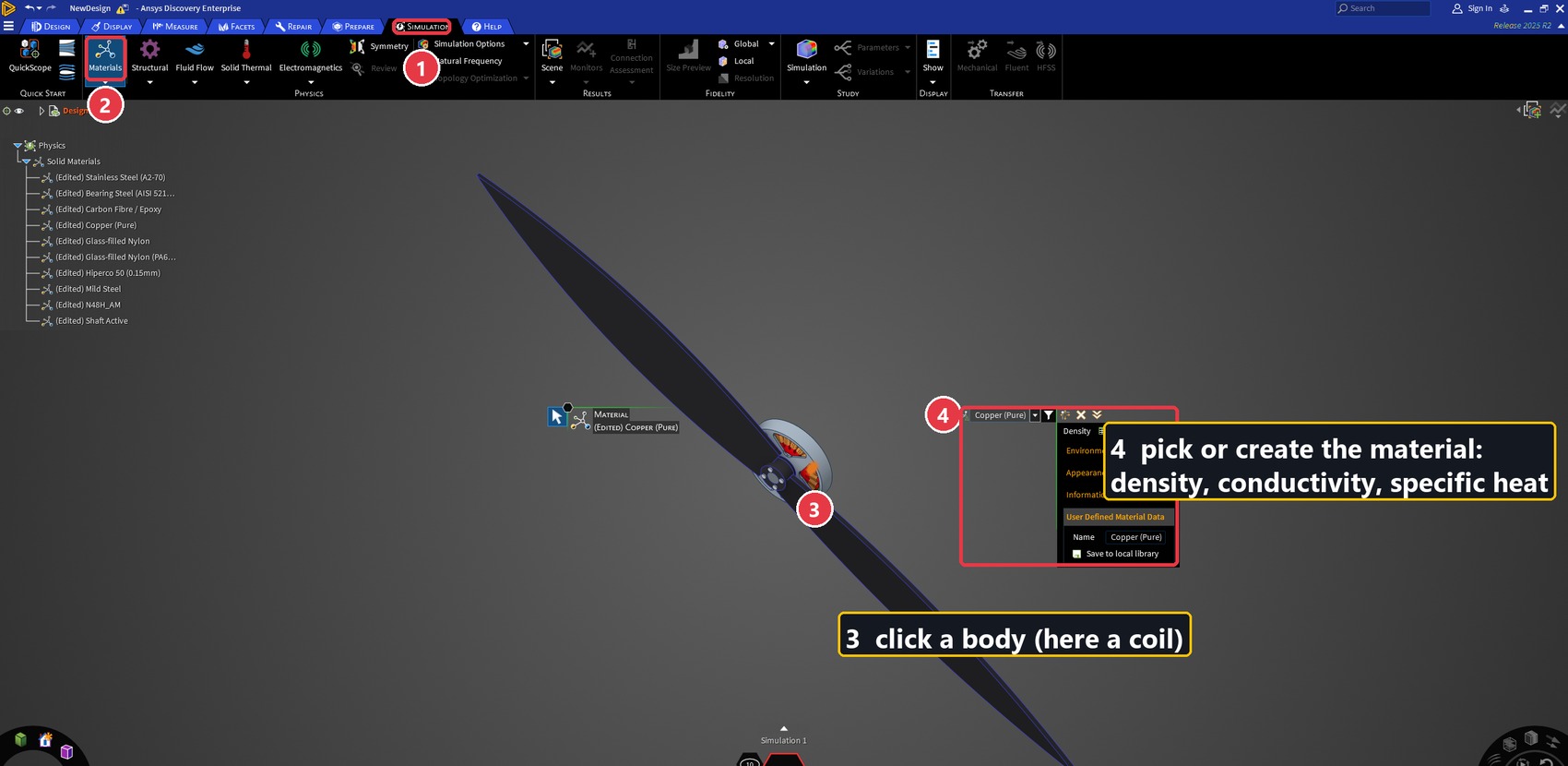
Give every solid its real material, with the same values Motor-CAD uses (density, thermal conductivity, specific heat). If a material is not in the library, create it. The air box gets Air from the library.
| Part | Material | k [W/m·K] |
| Coils | Copper (pure) | 401 |
| Stator | Hiperco 50 (0.15 mm) | 29.8 |
| Magnets | N48H | 6.4 |
| Bell | Mild steel | 25 |
| Shaft / bearing | Shaft steel / bearing steel | 52 / 46.6 |
| Base | Glass-filled nylon (PA6-GF30) | 0.35 |
| Air box | Air (library) | — |
Create a material and assign it
import Ansys.Discovery.Api.V252.Units as U
sim = Solution.Simulation.GetCurrentSimulation() or Solution.Simulation.Create()

m = Materials.Material.Create(Materials.MaterialState.Solid, "N48H")
m.Density = U.DensityQuantity.Create(7650, U.DensityUnit.KilogramPerCubicMeter)
m.IsotropicThermalConductivity = U.ThermalConductivityQuantity.Create(
    6.4, U.ThermalConductivityUnit.WattPerMeterKelvin)
m.SpecificHeat = U.SpecificEntropyQuantity.Create(
    460, U.SpecificEntropyUnit.JoulePerKilogramKelvin)
Materials.MaterialAssignment.Create(BodySelection.Create(magnets), m, sim)

air = Materials.Material.GetLibraryMaterial("Air")
Materials.MaterialAssignment.Create(BodySelection.Create([air_box]), air, sim)
7. Boundary conditions
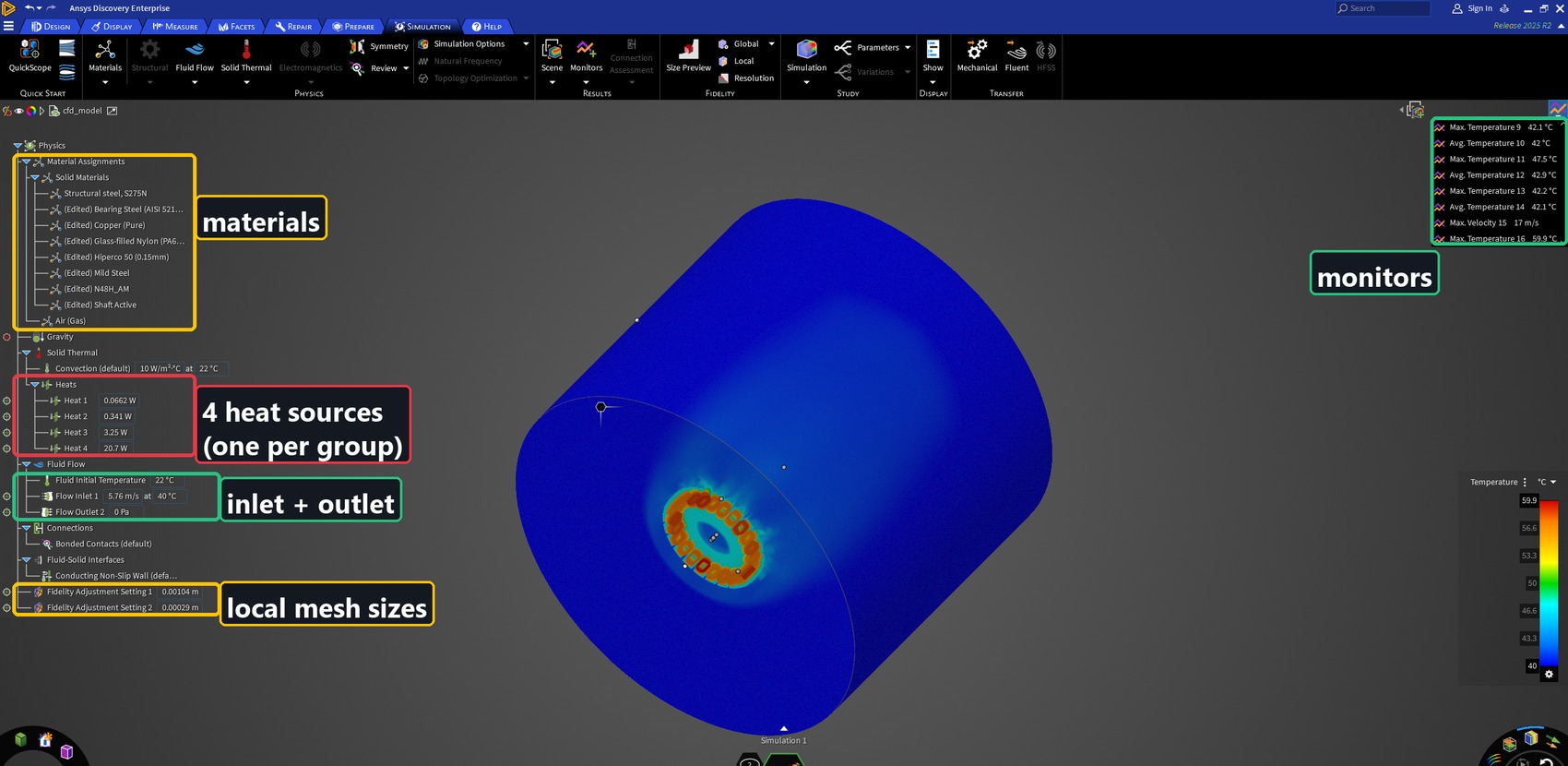
Only two flow conditions are needed. Keep it simple.
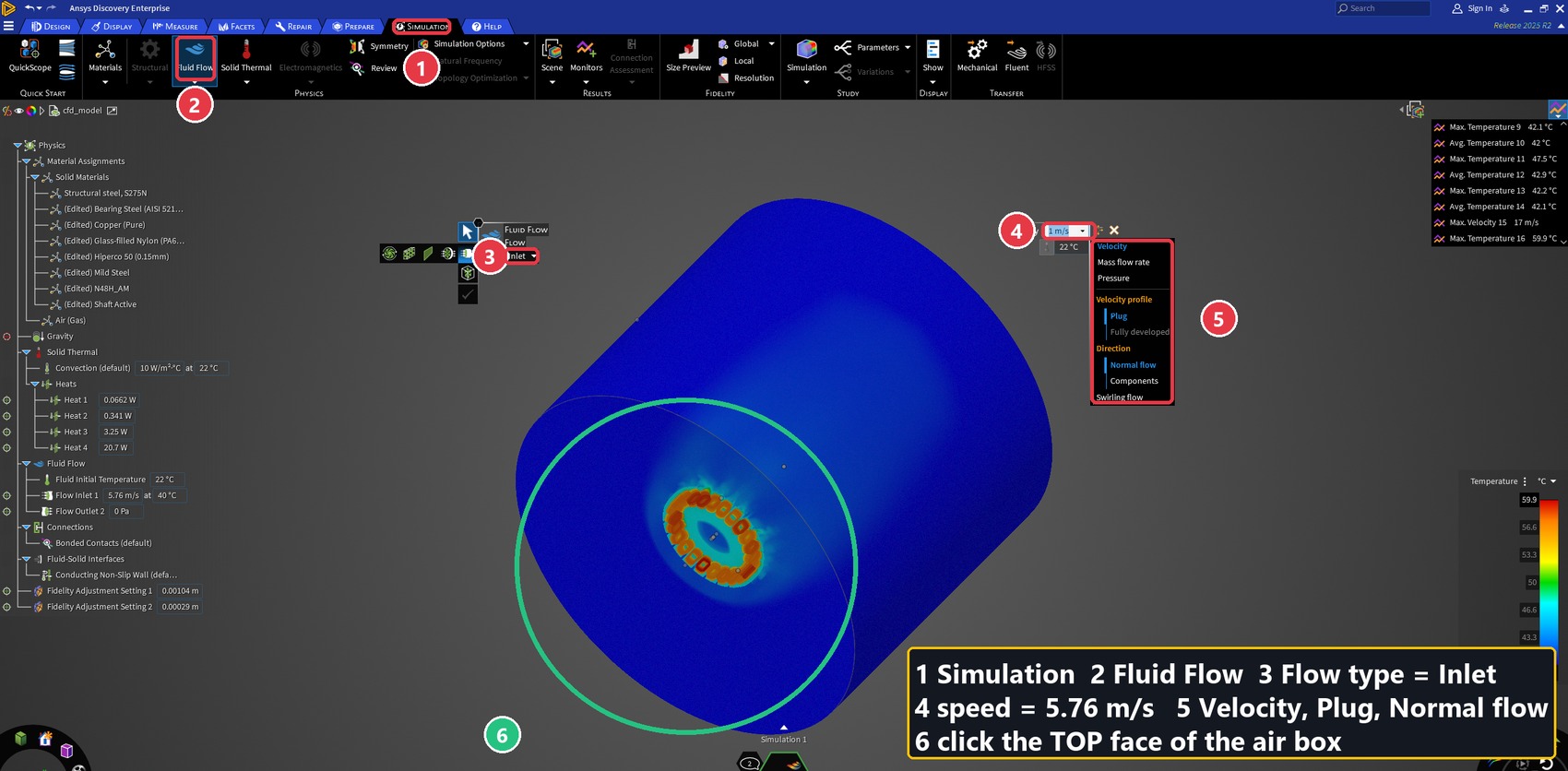
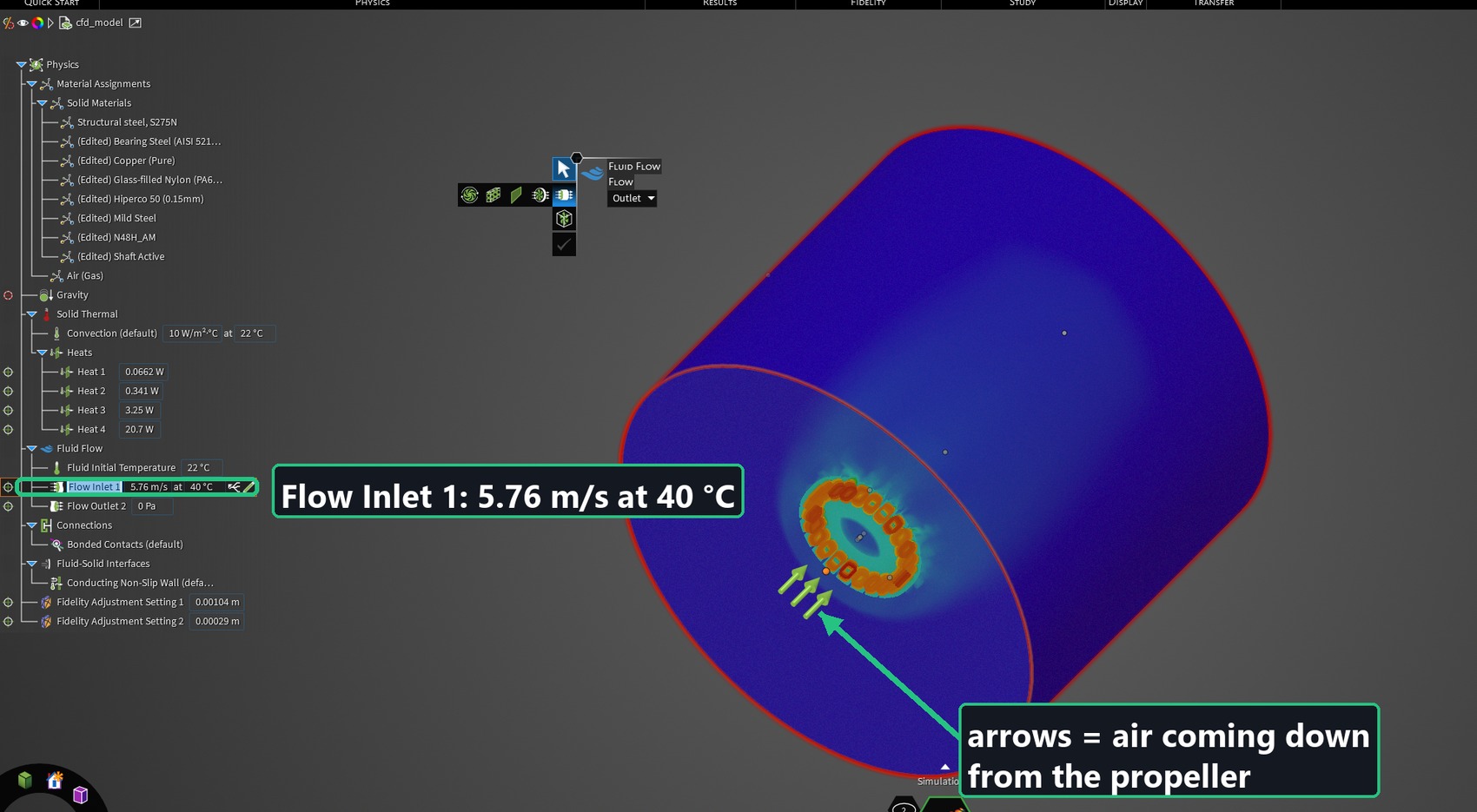
Inlet: the propeller’s air
Inlet with code
top = [top face of the air box]            # the face at the highest Z
v = U.SpeedQuantity.Create("5.76 m/s")
inlet = Conditions.Flow.Create(sim, top, v, Conditions.FlowDirection.In)
inlet.Temperature = TemperatureQuantity.Create(40, TemperatureUnit.DegreeCelsius)
Outlet: let the air leave
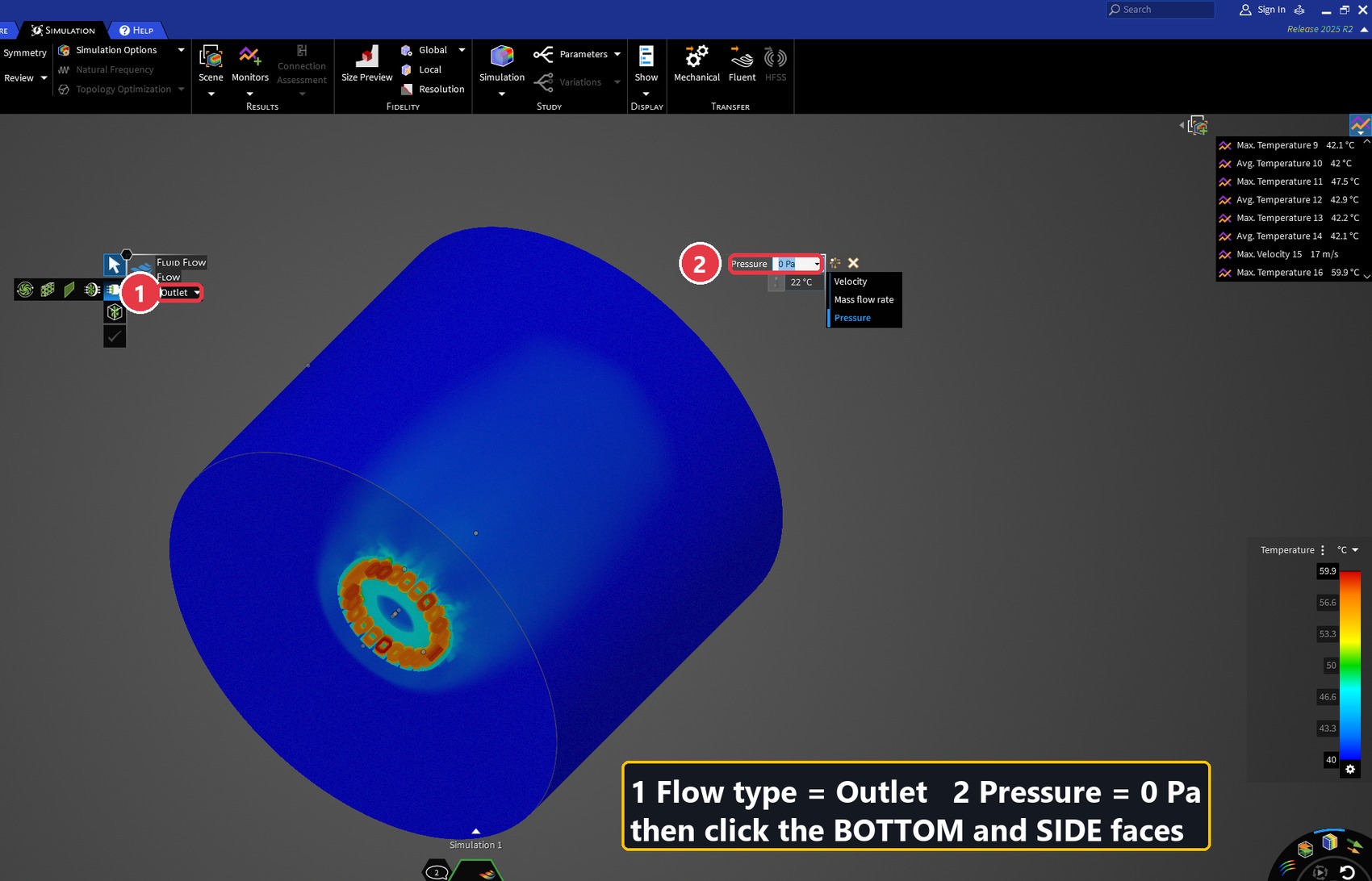
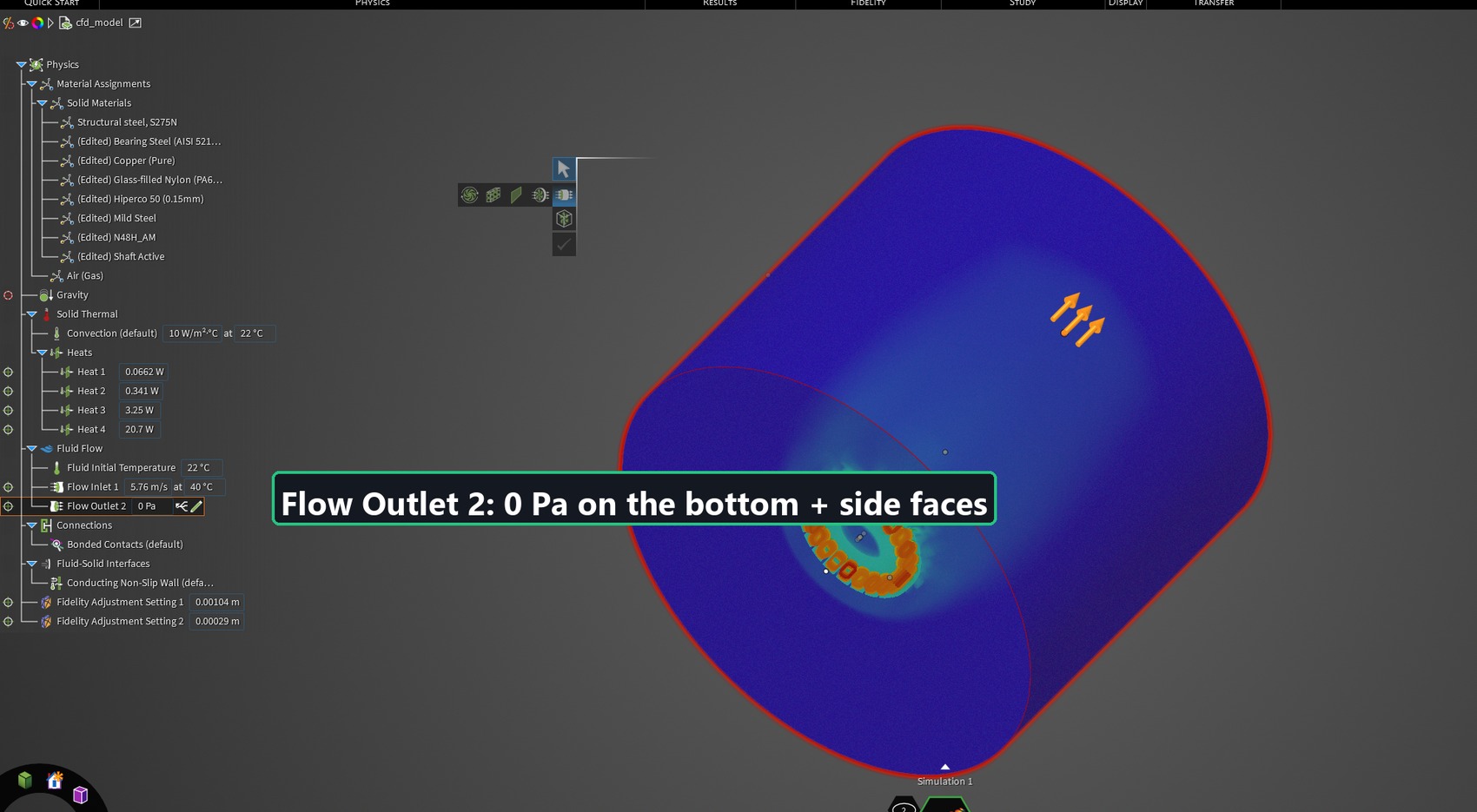
The bottom and the side of the air box are open to the room: pressure 0 Pa, and air may go out or come in.
Outlet with code
p0 = PressureQuantity.Create(0.0, PressureUnit.Pascal)
both = Conditions.FlowDirection.In | Conditions.FlowDirection.Out
opening = Conditions.Flow.Create(sim, bottom + side, p0, both)
opening.Temperature = TemperatureQuantity.Create(40, TemperatureUnit.DegreeCelsius)
Heat sources
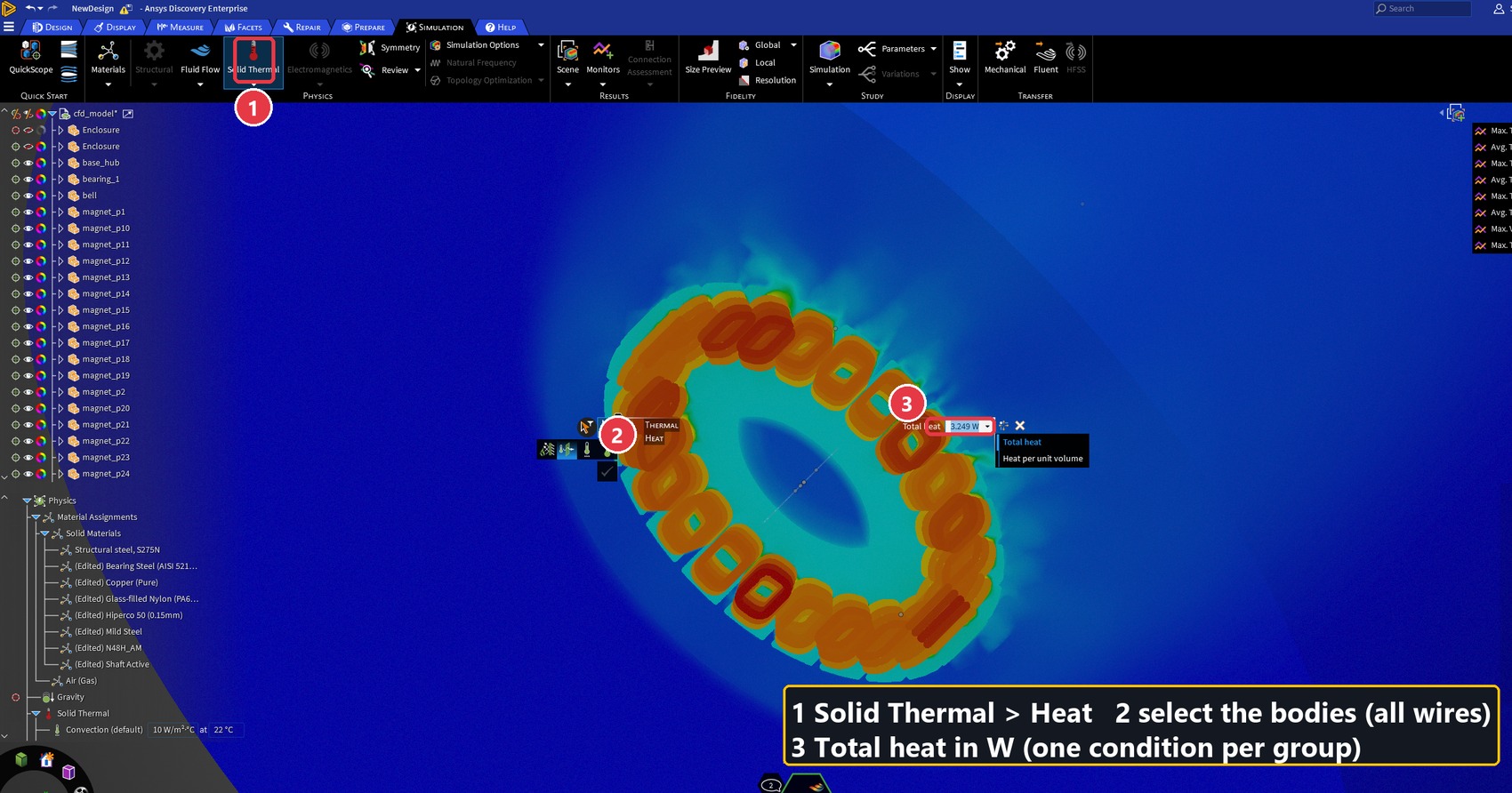
Add one heat condition per group, with the watts from Motor-CAD. One condition over all 144 wires is right; 144 separate conditions would be wrong (and slow).
Heat with code
heat = {"coils": 20.70, "stator": 3.25, "bell": 0.34, "magnets": 0.07}  # hover
for group, watts in heat.items():
    bodies = bodies_of(group)                   # e.g. all 144 wire bodies
    Conditions.Heat.Create(BodySelection.Create(bodies),
                           PowerQuantity.Create(watts, PowerUnit.Watt))
8. Drone motor CFD mesh: where to spend the cells
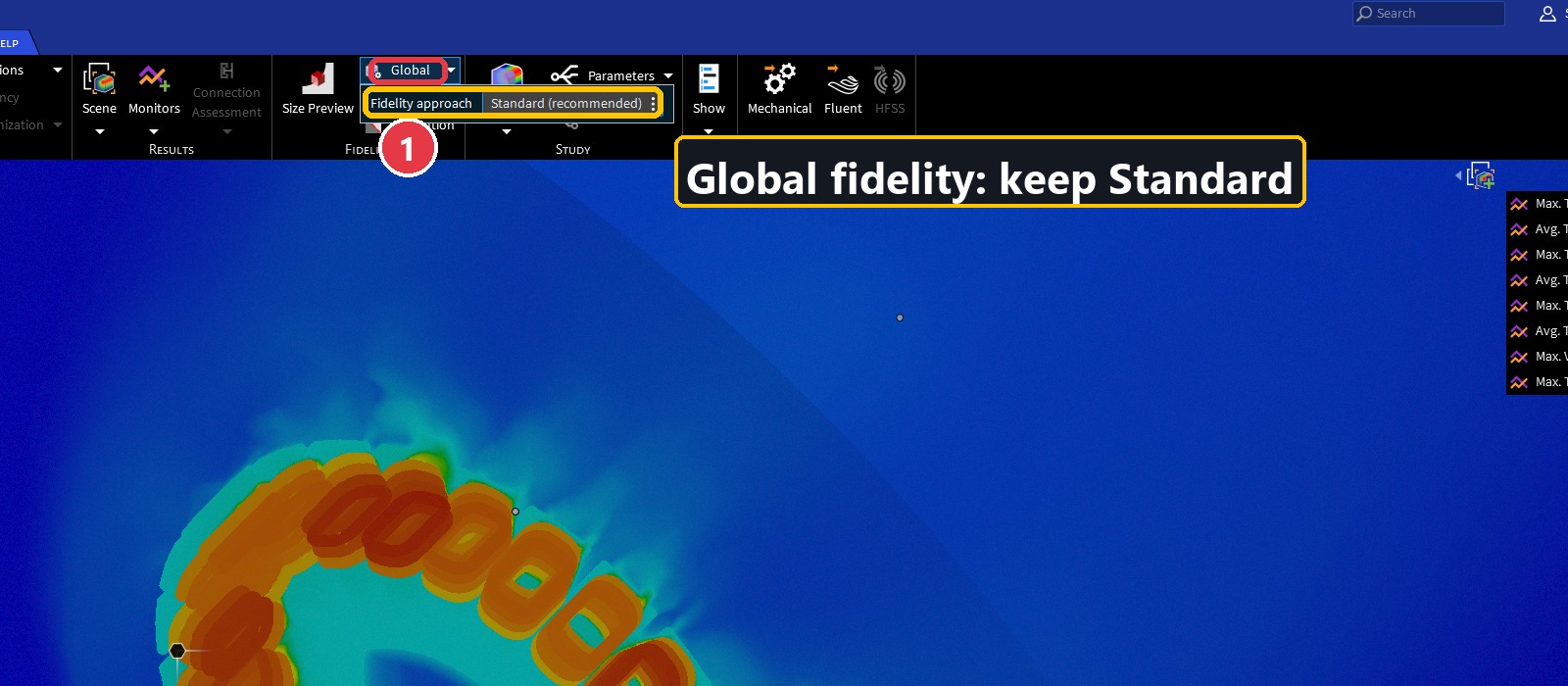
Discovery Explore builds the mesh by itself. Small parts (0.3 mm airgap, 1.2 mm wires) disappear unless you ask for a finer size there. Keep the global fidelity at Standard and add local sizes:
- All motor solids: about the size of the smallest feature (here 1.04 mm = a third of the magnet thickness).
- Airgap: about the airgap itself (here 0.29 mm).
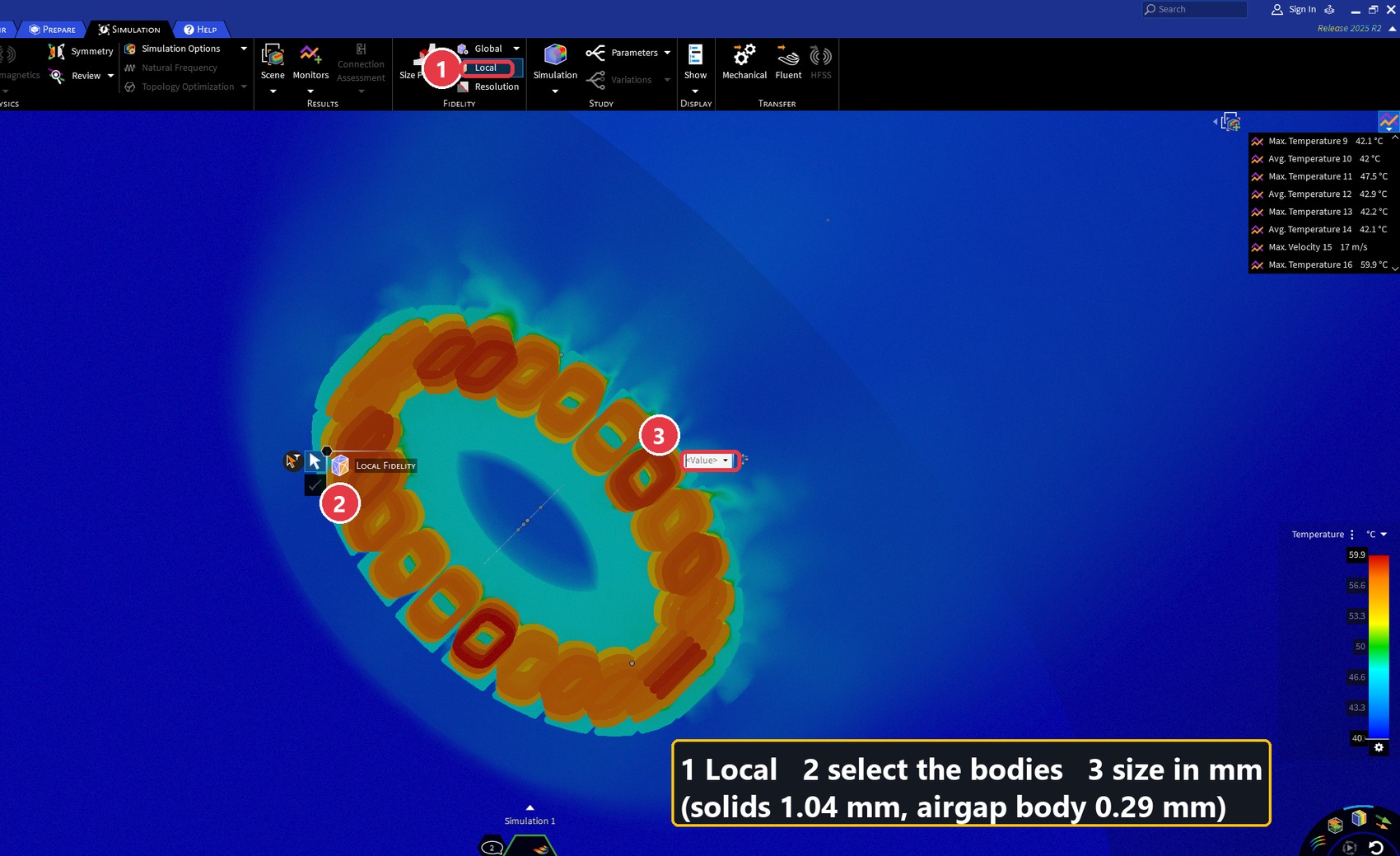
A useful trick for the airgap: make a thin extra body around the stator (Enclosure of the stator, 1 mm cushion), give it the fine local size, then suppress it (exclude it from the simulation). Its size still refines the mesh, but it does not become a wall inside the air.
Local mesh with code
size = lambda mm: LengthQuantity.Create(mm, LengthUnit.Millimeter)
Mesh.LocalFidelity.Create(BodySelection.Create(motor_solids), size(1.04))
Mesh.LocalFidelity.Create(BodySelection.Create([gap_body]), size(0.29))
sim.SuppressBodies(BodySelection.Create([gap_body]), True)   # refine only
9. Monitors and solving
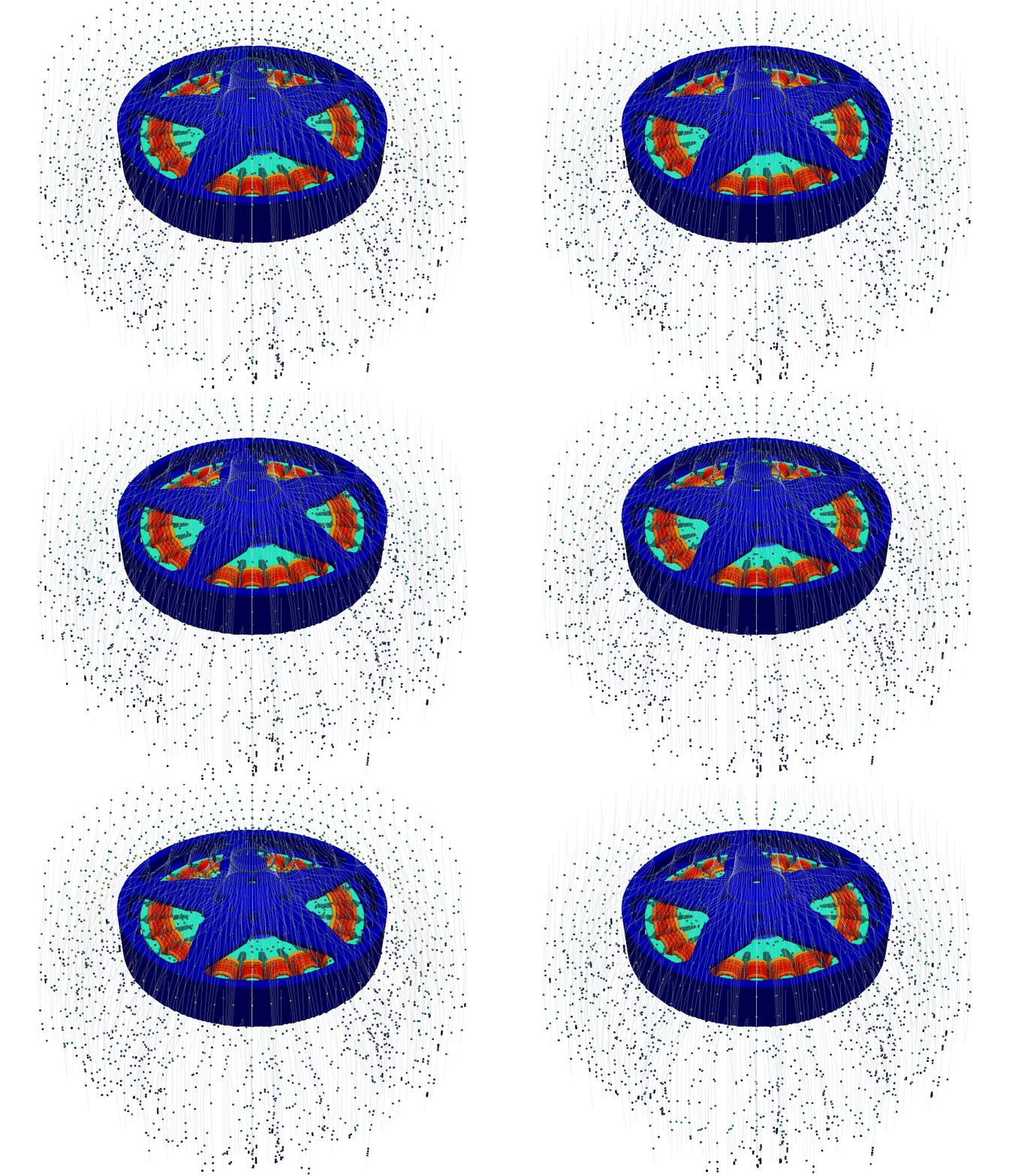
Add monitors for the numbers you want: maximum and average temperature of the coils, stator and magnets, and the maximum air speed. They update live while Explore solves.
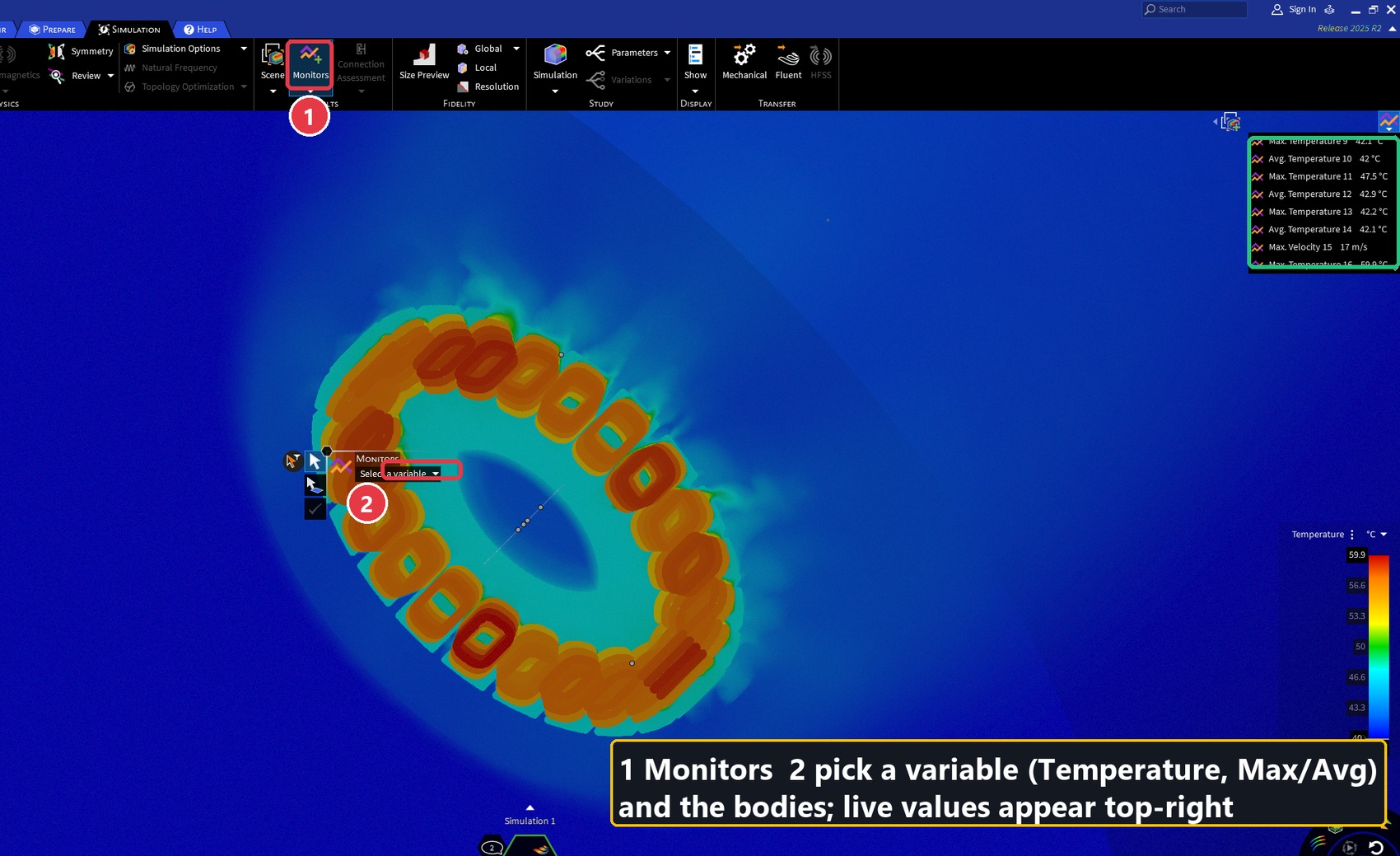
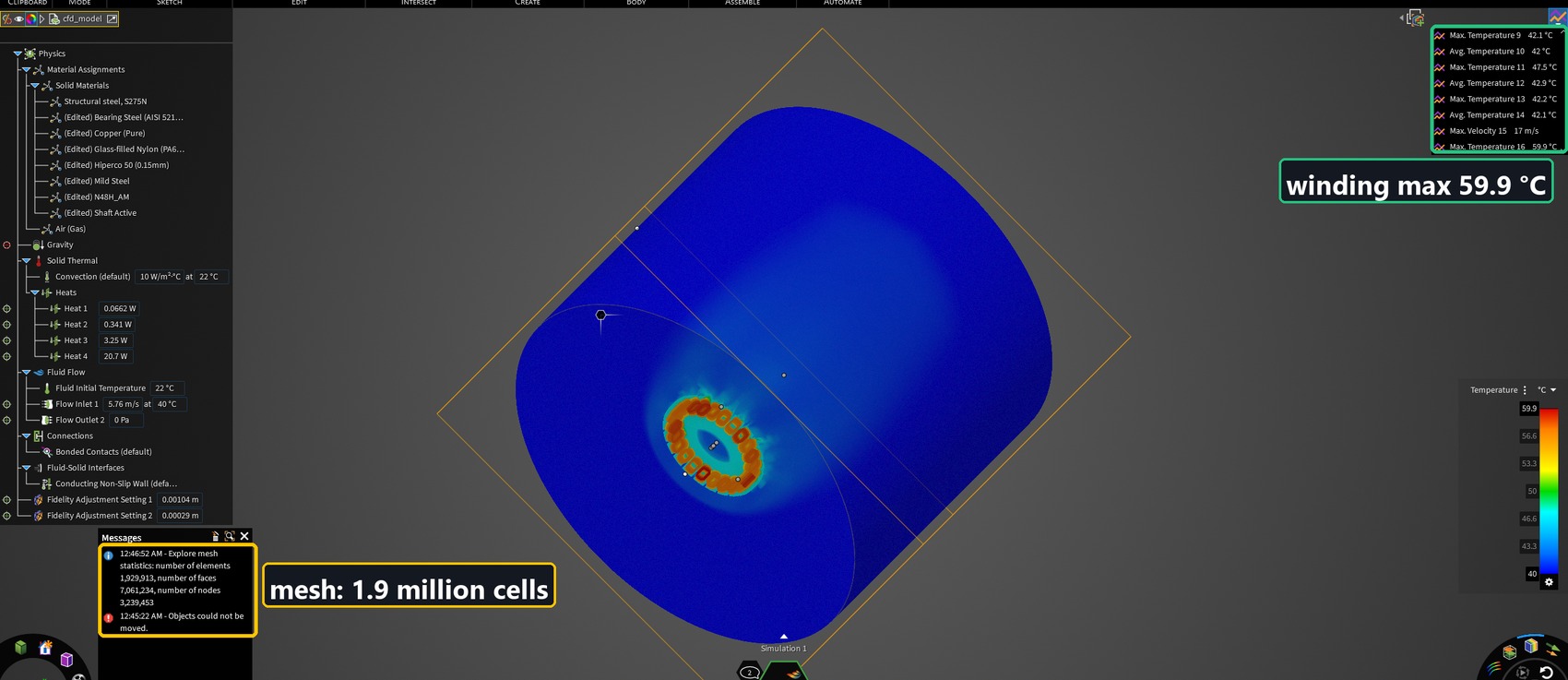
Choose Steady, and turbulent flow (k-ω SST), then start Explore. On this model Explore meshes about 1.9 million cells and settles in about a minute. It is converged when the monitors stop changing.
Solve with code
sim.SimulationOptions.CalculationType = Solution.CalculationType.Static
sim.SimulationOptions.FlowModelOption = Solution.FlowModelOption.Turbulent_KO_SST
Tw = Results.Monitor.Create(BodySelection.Create(coils),
        Results.ResultVariable.Temperature, Results.ResultFunction.Maximum, sim)
Solution.Solver.StartExplore()
# read it again every ~15 s; stop when two readings are the same
print(Tw.GetValue(Results.ResultSource.Explore).Value)10. Results at hover
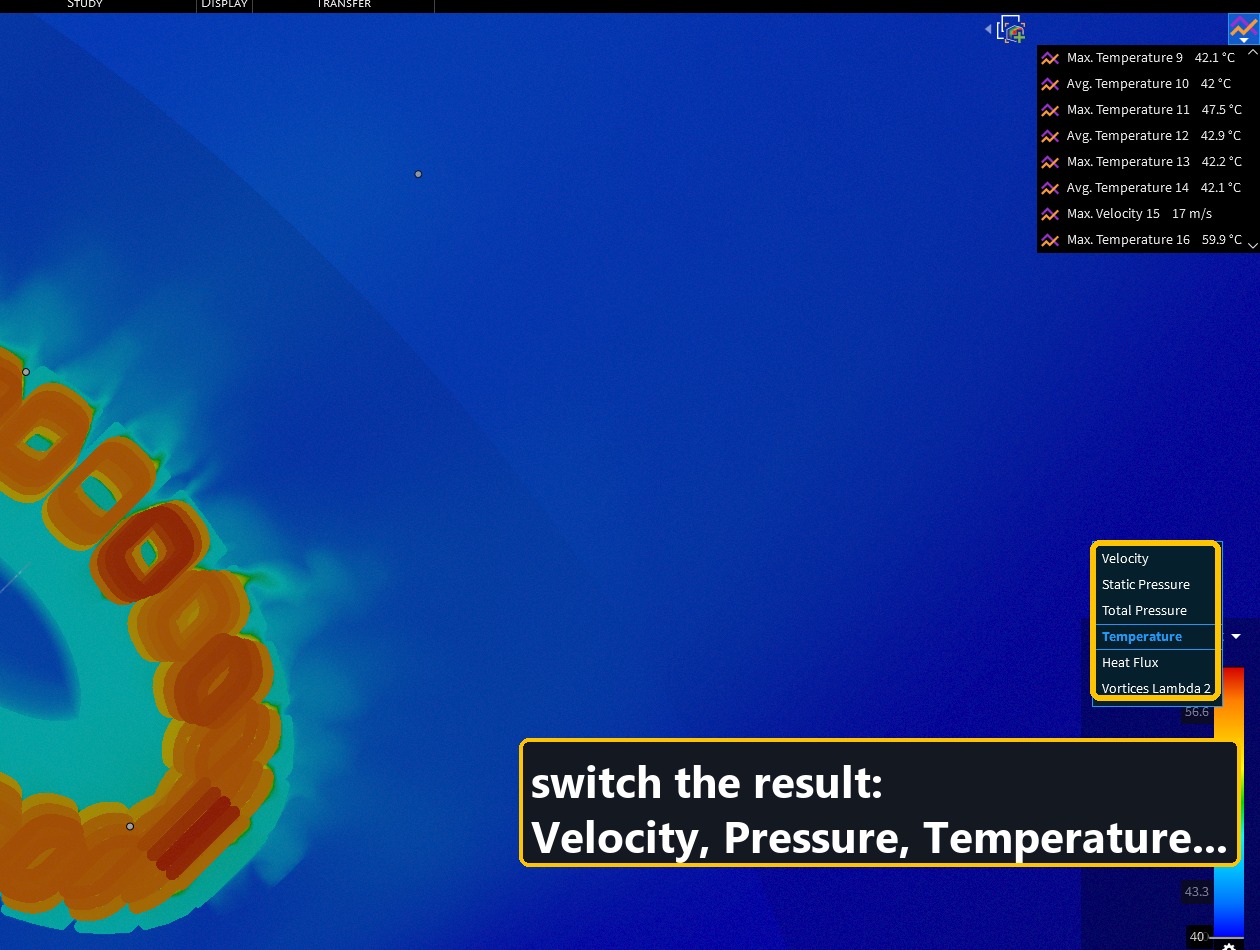
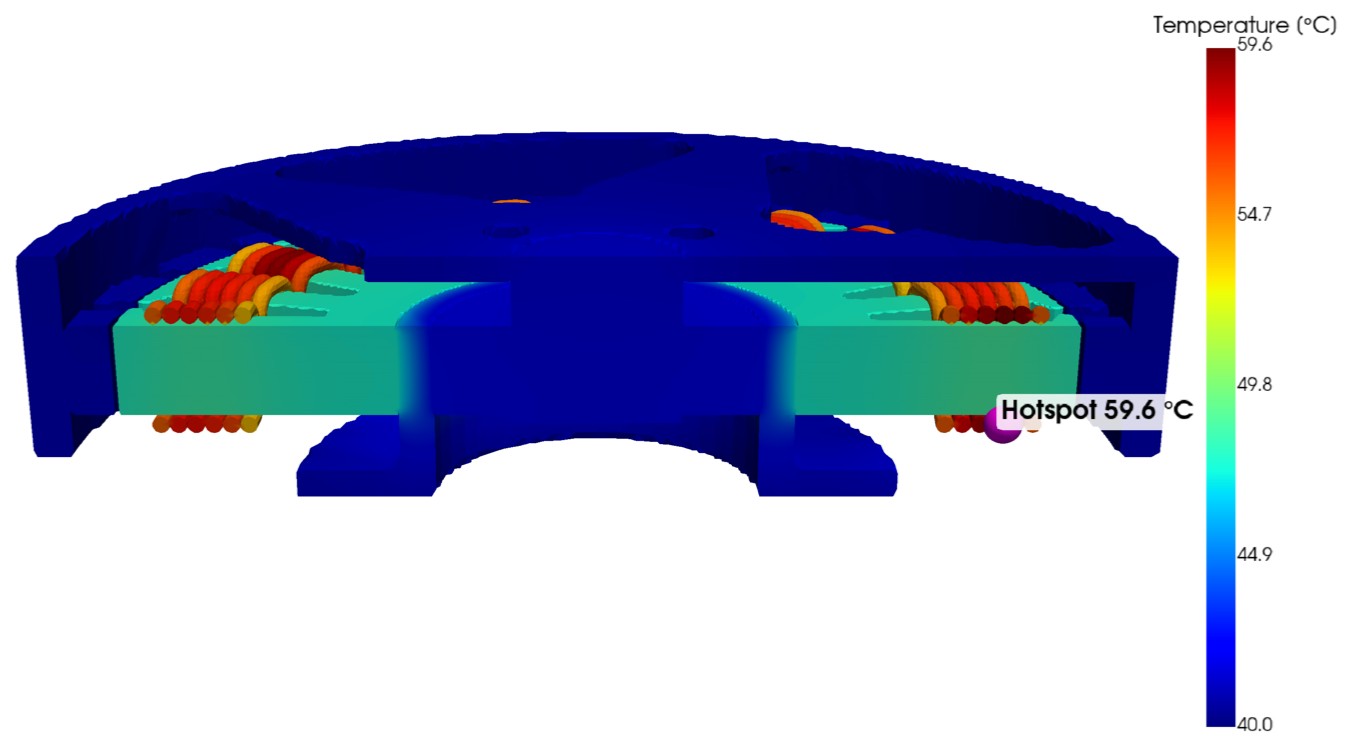
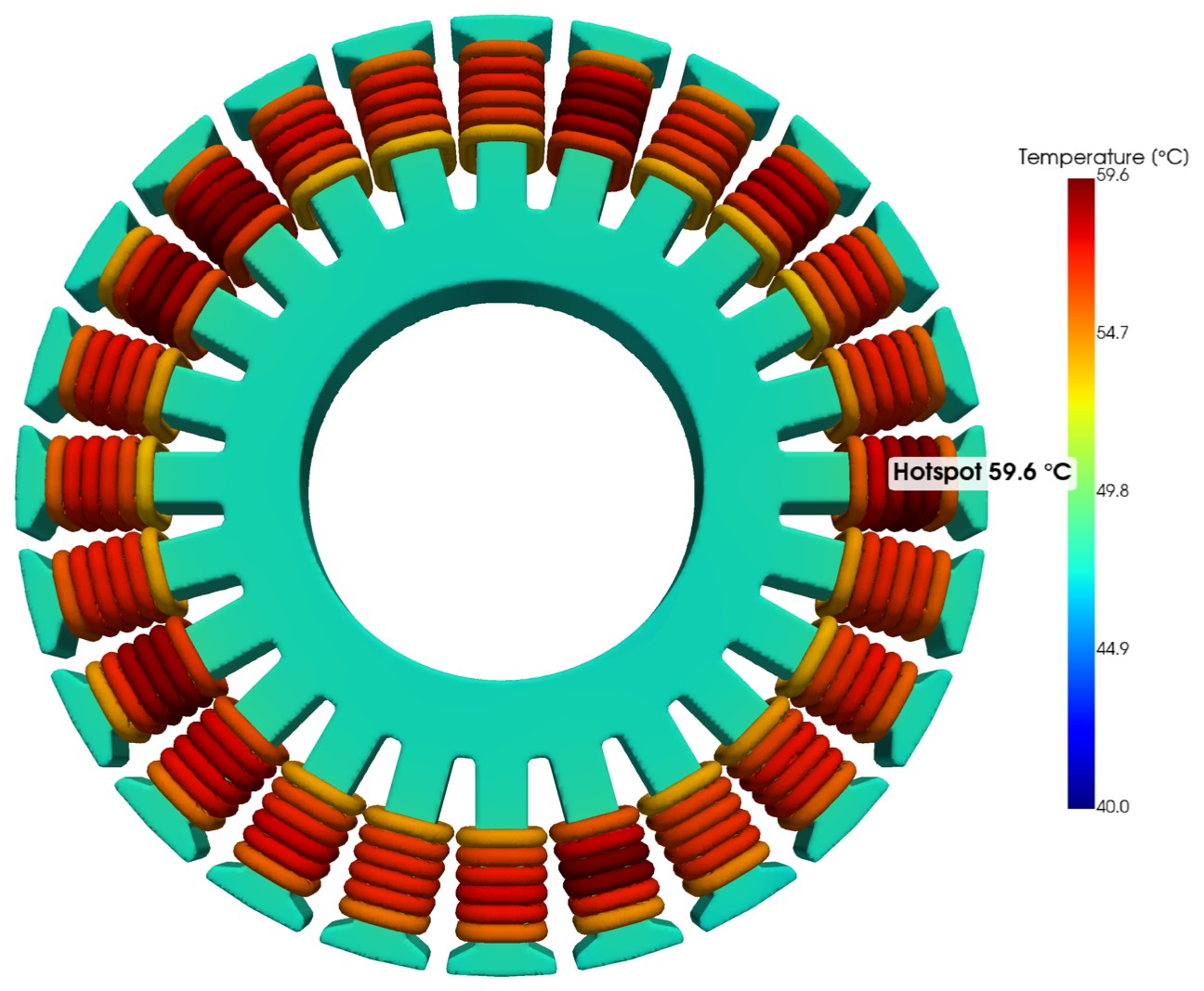
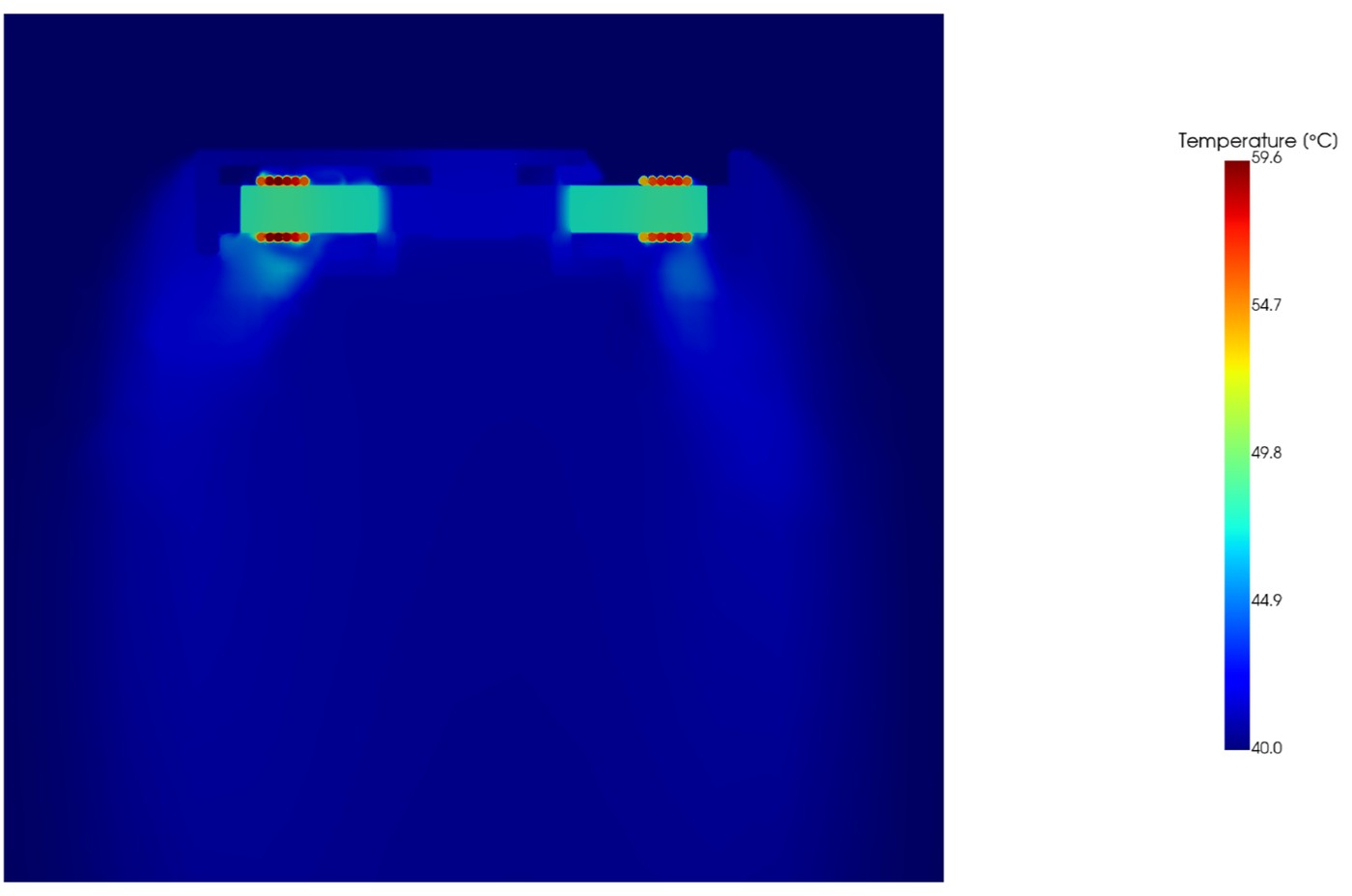
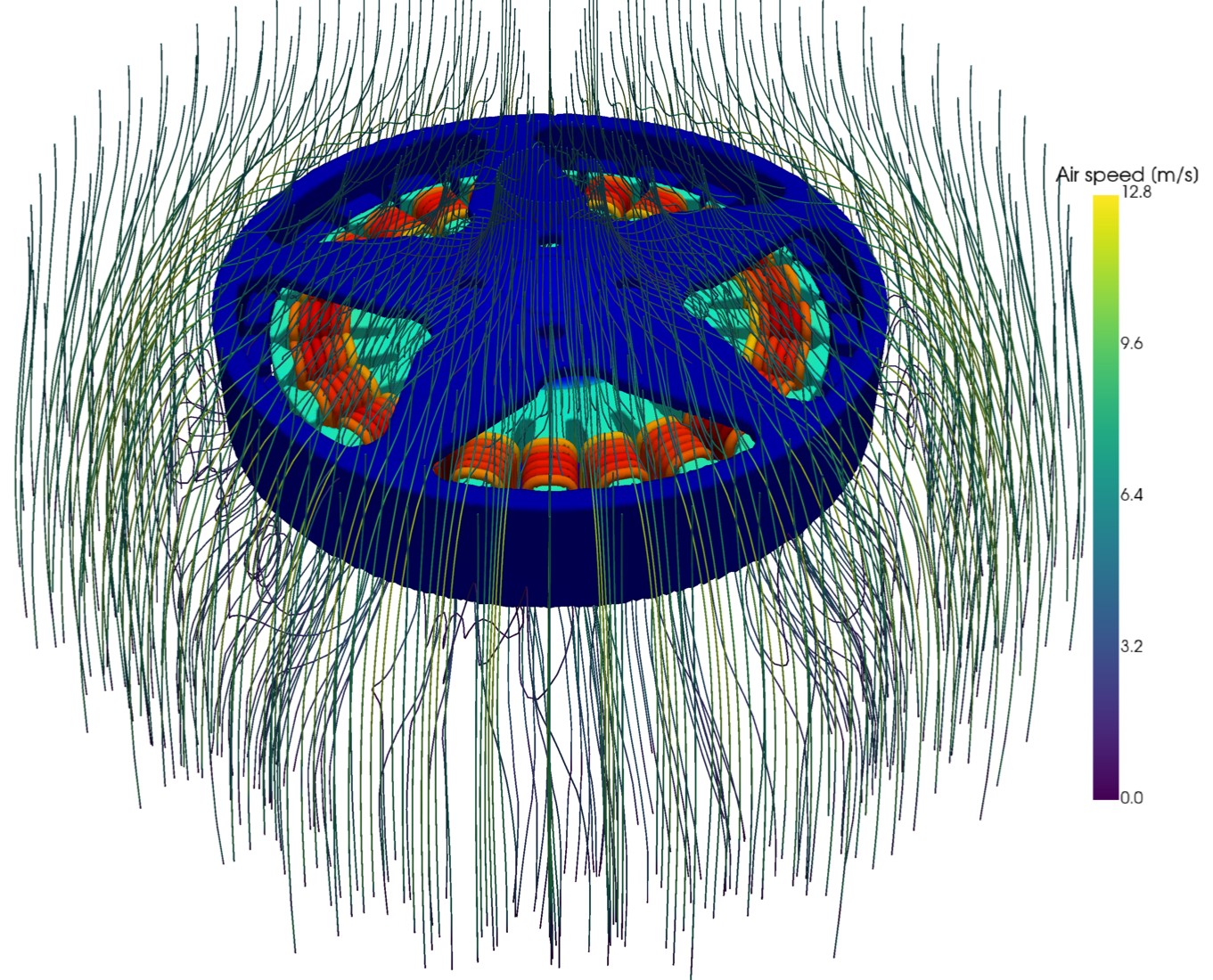
Switch the colour result with the legend menu (Temperature, Velocity, Pressure…). For clean pictures and sections, export the results and plot them.
Export results with code
from Ansys.Discovery.Api.V252.Application import ResultsExport
from SpaceClaim.Api.V252 import IDesignBody
from System.Collections.Generic import List
lst = List[IDesignBody](); [lst.Add(b) for b in coils]
ResultsExport.ExportVTU(r"C:\work\coils_T.vtu", lst, Results.ResultVariable.Temperature)
# open the .vtu in ParaView or PyVista for sections, vectors and streamlines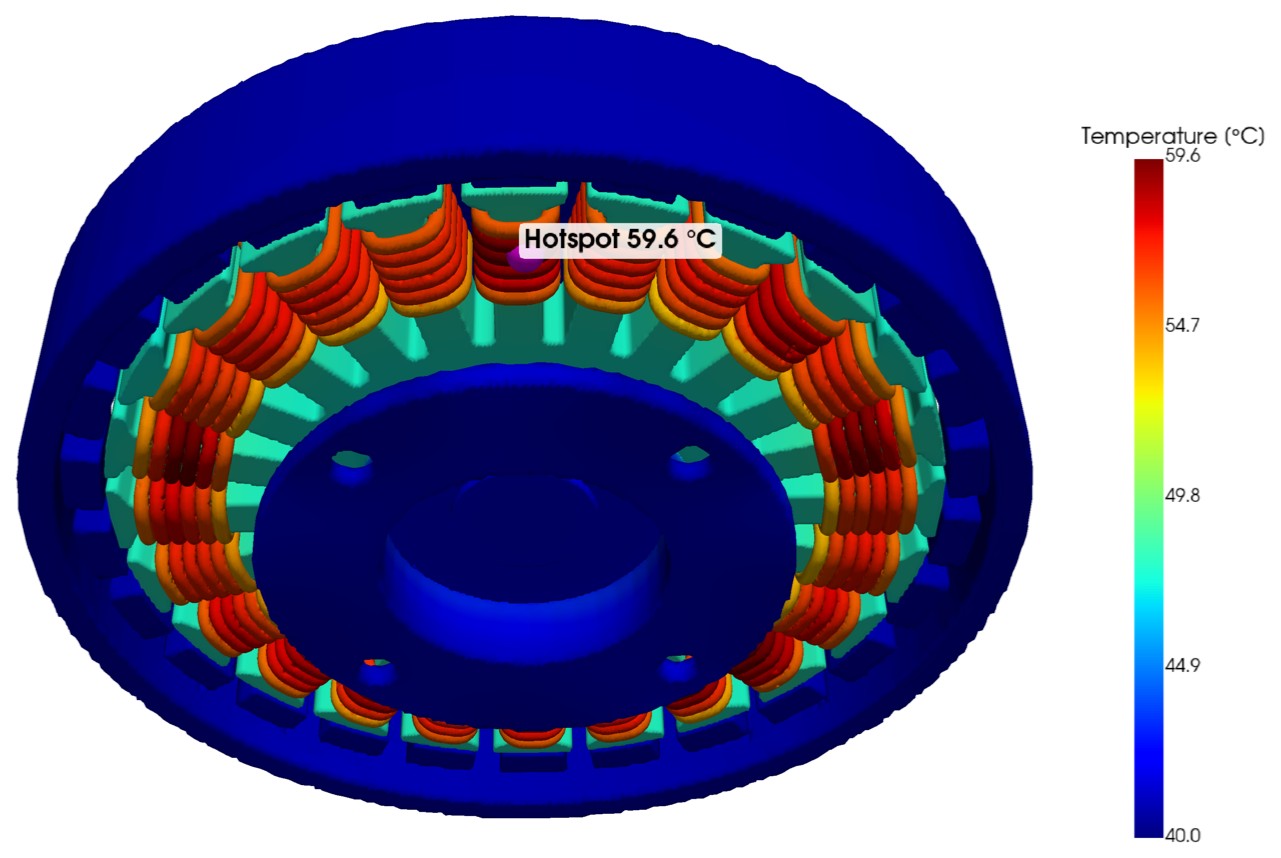
11. Peak thrust
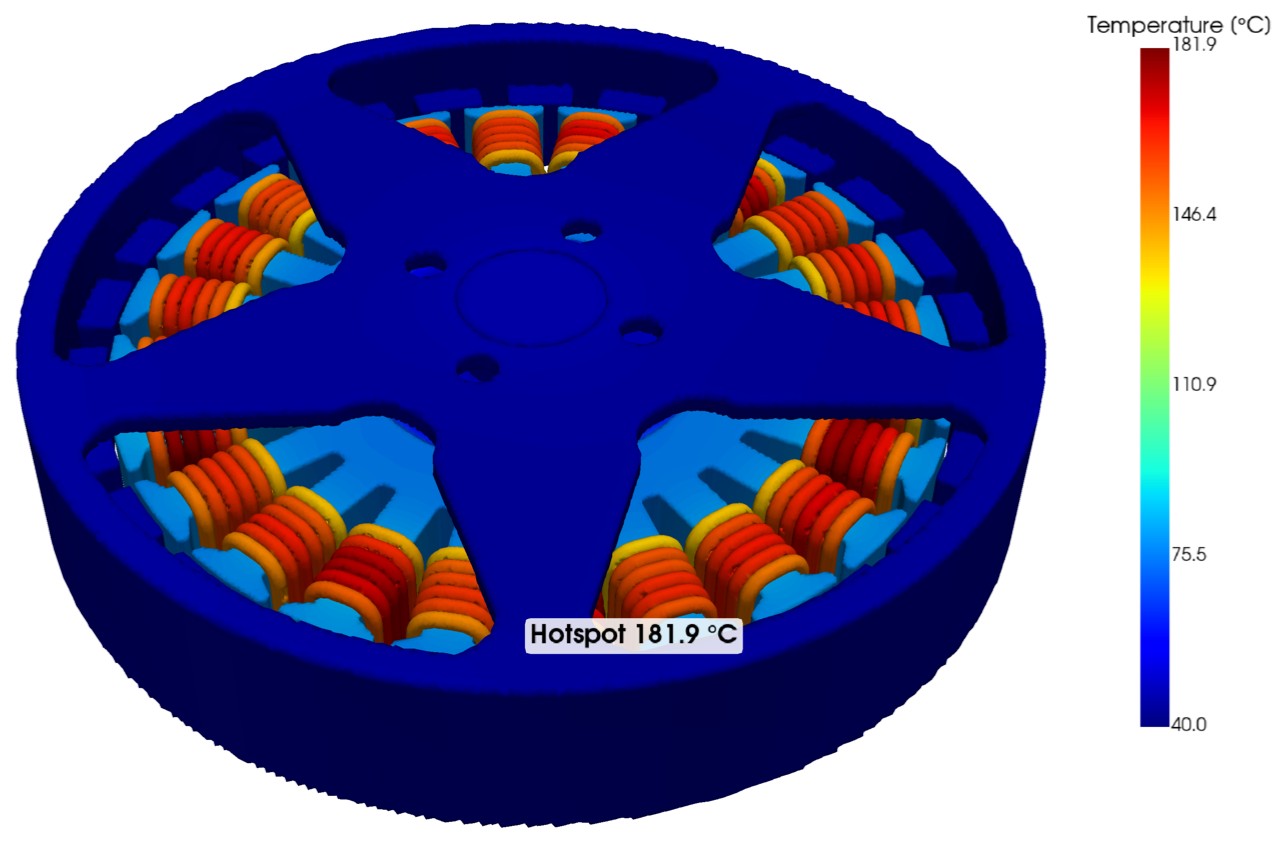
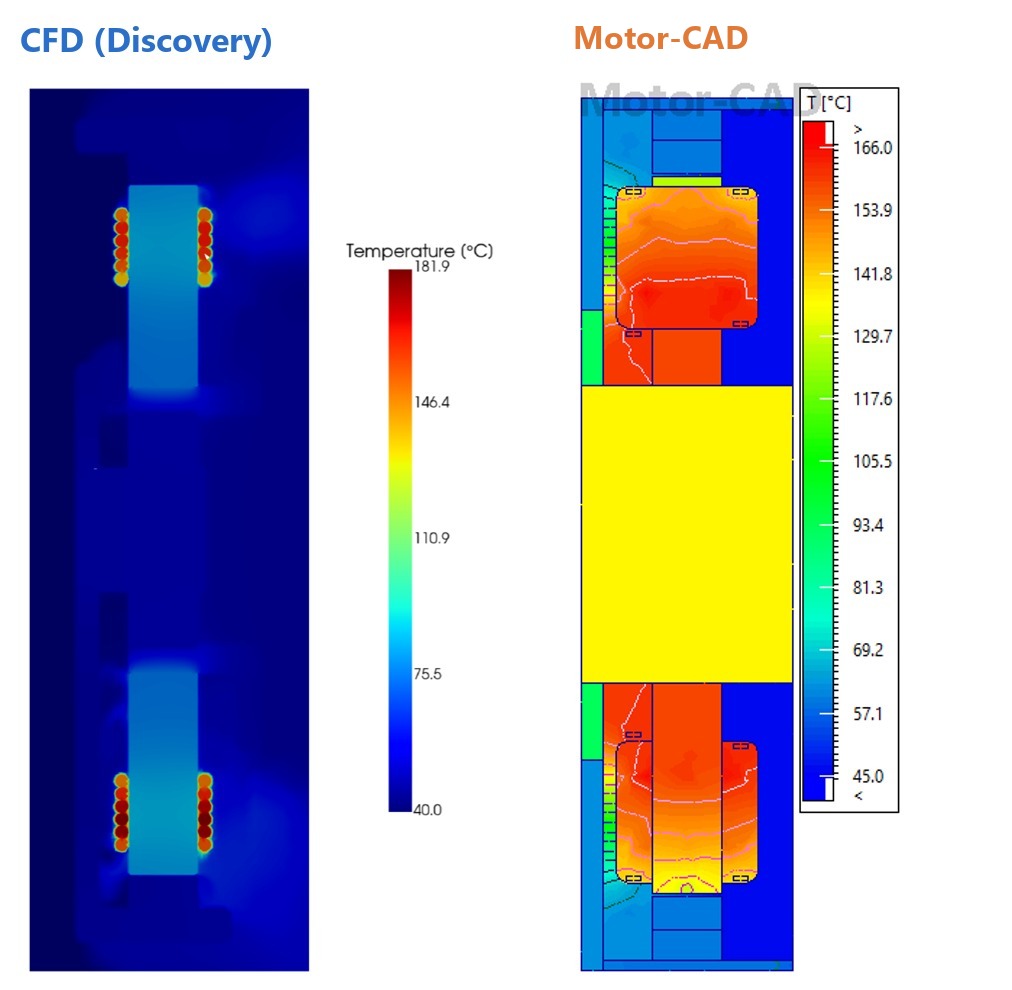
Nothing new to set up: change the inlet speed to 9.84 m/s and the four heat values to the peak losses, and solve again. Copper loss grows about 10 times, so the coils get much hotter.
12. Drone Motor CFD vs. Motor-CAD
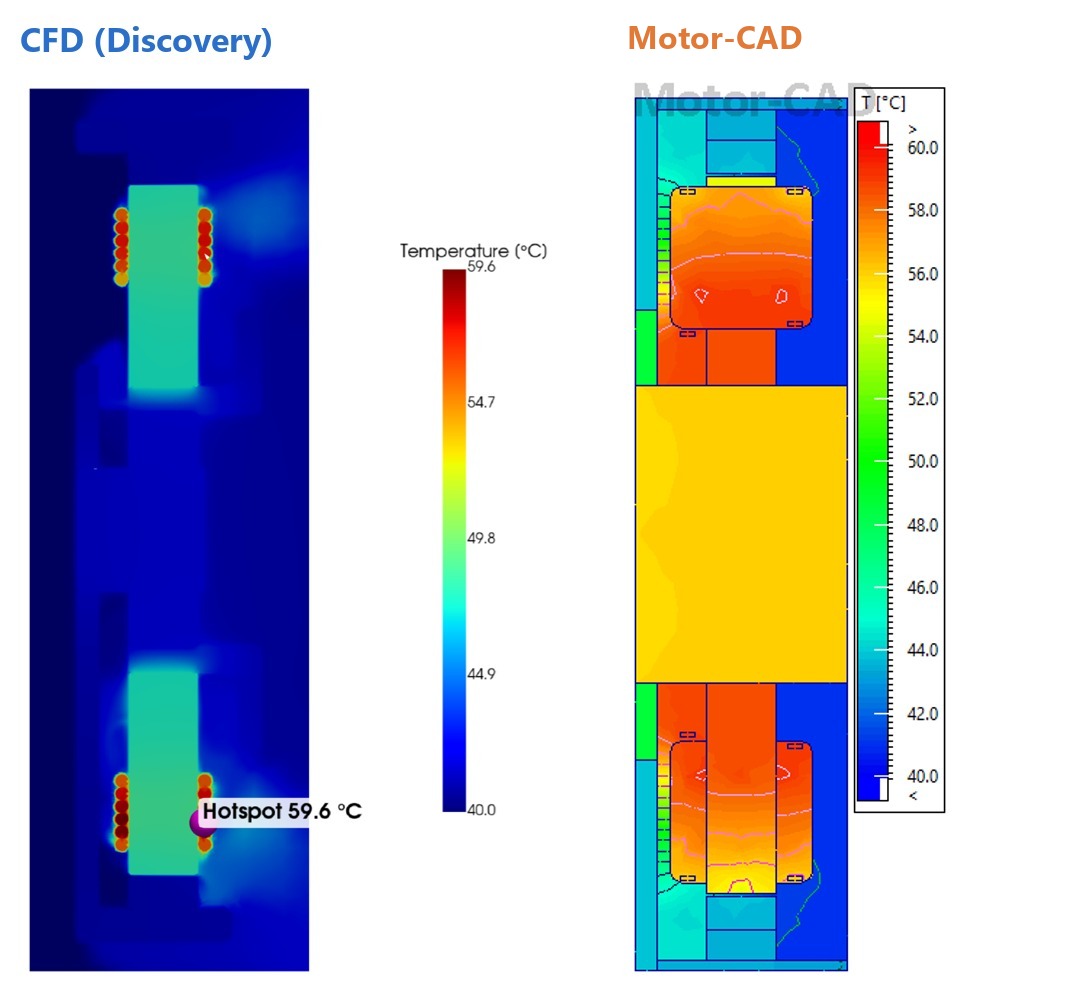
Motor-CAD was solved with the same losses as the CFD (copper-loss temperature scaling off) and a through-ventilation flow of 220 l/min. The final results side by side:
Motor-CAD thermal settings for the comparison
mc.set_variable("Copper_Losses_Vary_With_Temperature", False)  # same watts as the CFD
mc.set_variable("TVent_Flow_Rate", 220 / 60000)                # through-ventilation, m³/s
mc.do_steady_state_analysis()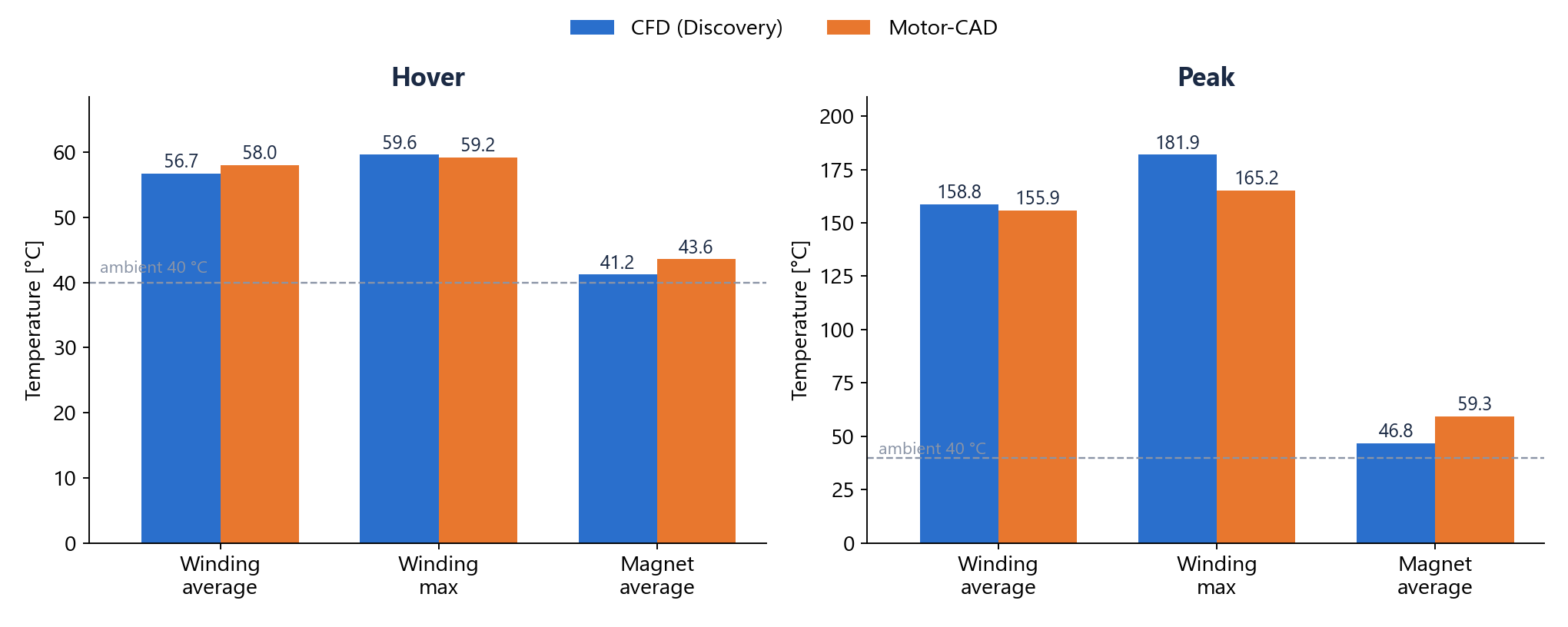
| Hover CFD | Hover Motor-CAD | Peak CFD | Peak Motor-CAD | |
| Winding average [°C] | 56.7 | 58.0 | 158.8 | 155.9 |
| Winding max [°C] | 59.6 | 59.2 | 181.9 | 165.2 |
| Magnet average [°C] | 41.2 | 43.6 | 46.8 | 59.3 |
Drone Motor CFD Checklist
- Losses from Motor-CAD at the right operating point, one number per part.
- Propeller removed; its air replaced by v_i = √(T / 2ρA) at the top face.
- Air box: short above, long below, about one motor diameter to the side.
- Real materials on every solid; Air on the air box.
- One inlet (velocity, ambient temperature), one outlet (0 Pa, in and out).
- One heat condition per group, never per body.
- Local mesh on the solids and a finer one on the airgap (suppressed helper body).
- Monitors on the coils, stator and magnets; stop when they stop changing.
- Compare with Motor-CAD using the same watts (no temperature scaling).
Bringing Motor-CAD and Discovery Together
Motor-CAD and Ansys Discovery answer different parts of the same thermal question. Motor-CAD provides a fast way to calculate motor losses and temperatures, while Discovery adds the surrounding airflow and detailed geometry needed to see how those losses translate into real cooling performance.
For this drone motor, that means moving from hover and peak-thrust operating points to a CFD model that captures the propeller-driven slipstream, heat sources, materials and local flow behavior around the motor. The same workflow can be adapted to other electric motors by updating the operating conditions, losses, geometry and cooling assumptions.
Need help evaluating electric motor thermal performance or building a coupled Motor-CAD and CFD workflow? Contact SimuTech Group to talk with one of our simulation engineers.

Batuhan Sirri Yilmaz
Engineering Analyst, SimuTech Group
Batuhan Sirri Yilmaz is an Engineering Analyst – Electromagnetics at SimuTech Group. He specializes in electric motor design and optimization, as well as low-frequency system design and analysis. His notable project experience includes 160 kW magnet-free traction motor design, UAV propulsion system optimization, and 10 kW L2e category production motor development.
- DJI Agras T50 in flight.jpg: Blervis, CC0. https://commons.wikimedia.org/wiki/File:DJI_Agras_T50_in_flight.jpg
- DJI Agras T50 on ground.jpg: Blervis, CC0. https://commons.wikimedia.org/wiki/File:DJI_Agras_T50_on_ground.jpg
- Outrunner.jpg: 1sfoerster, CC BY-SA 3.0. https://commons.wikimedia.org/wiki/File:Outrunner.jpg